Monitor BitLocker compliance and encryption status in Microsoft Intune
A lost or stolen Windows device creates risk when its operating system drive is not encrypted. After you deploy BitLocker policies, you need a reliable way to confirm that devices are encrypted. Identify devices that are not ready and understand why a device reports as noncompliant.
Microsoft Intune gives you two related views of this state. The device encryption report shows encryption readiness, encryption status, TPM version, profile information, and status messages. Device compliance views show whether encryption requirements contribute to a compliant or noncompliant device state. In this unit, you learn how these views work together and how to interpret the results.
| Monitoring view | What it helps you explain |
|---|---|
| Device encryption status report | Shows whether the operating system drive is encrypted and whether the device is ready for policy-driven encryption. |
| Device details pane | Shows profile state, status details, and possible reasons for encryption problems. |
Use the encryption report to confirm protection state
The encryption report gives you a centralized view of encryption across supported managed devices. For Windows devices, the report focuses on BitLocker status for the operating system drive and includes device information that helps you interpret the result.
Start in the Microsoft Intune admin center. Go to Devices > Monitor and then select Device encryption status. The report lists devices and the encryption details that Intune receives from the device.
| Report field | What it means | How you use it |
|---|---|---|
| Device name | The managed device that reports encryption data. | Select the device to open deeper encryption details. |
| OS and OS version | The platform and operating system version. | Verify that the device runs a supported Windows version. |
| TPM version | The Trusted Platform Module version detected on a Windows device. | Check whether hardware supports policy-driven BitLocker protection. |
| Encryption readiness | The device readiness state for encryption through management policy. | Identify devices that are ready, not ready, or not applicable. |
| Encryption status | Whether the operating system drive is encrypted. | Confirm whether BitLocker protects the primary Windows volume. |
| User principal name | The primary user associated with the device. | Route remediation work to the correct user or support group. |
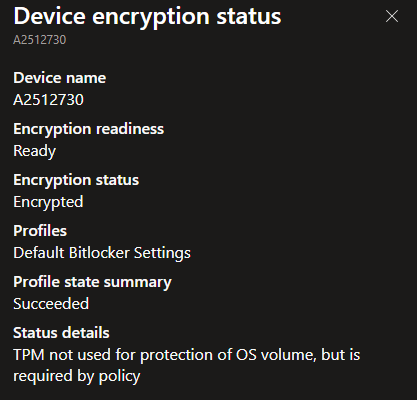
Encryption readiness and encryption status answer different questions. Encryption readiness explains whether the device can support managed encryption based on information such as TPM availability. Encryption status explains whether the operating system drive is encrypted. A device can be ready but not yet encrypted and a device can be encrypted but still show a policy error when its encryption method or protector configuration does not match policy. Information in detail about the profile and the status you can review by selecting the encryption status of a device.
Interpret readiness and status values before you remediate
A monitoring result is useful only when you understand what it means. Intune uses readiness and status details to separate device capability, policy application, and current encryption state.
A Ready device meets the requirements Intune uses to determine that managed encryption can apply. A Not ready device lacks full encryption capabilities for managed encryption or has a condition that prevents silent encryption. A Not applicable result means Intune does not have enough information to classify the device.
| Result | Meaning | Potential Task |
|---|---|---|
| Ready and encrypted | The device supports managed encryption and the OS drive reports as encrypted. | Treat the device as protected, then review compliance state if access depends on compliance. |
| Ready but not encrypted | The device appears capable of encryption, but BitLocker does not protect the OS drive. | Check whether the policy requires user action, whether the device recently checked in, and whether encryption is still in progress. |
| Not ready and not encrypted | The device does not meet one or more requirements for policy-driven encryption. | Review TPM state, Windows Recovery Environment state, operating system support and policy settings. |
| Encrypted with profile error | The OS drive reports as encrypted, but policy state contains an error. | Compare policy settings with the device encryption method and protector configuration. |
| Unknown or not applicable | Intune does not have enough current data to classify the device. | Trigger a device sync, wait for device check-in, or collect client-side troubleshooting data. |
Some status changes take time to appear in Intune because the device completes encryption and then reports the result during check-in. For Windows devices, compliance evaluation can also require a reboot when a compliance policy checks BitLocker through health attestation. This distinction helps you avoid unnecessary policy changes when the device simply needs to report its updated state.
Use compliance views to validate access readiness
Compliance policies evaluate whether a device meets rules that your organization defines. For Windows devices, Intune can evaluate encryption through settings such as Require BitLocker or Encryption of data storage on a device.
The encryption report tells you whether BitLocker protects the device. Compliance views tell you whether that state satisfies your organization rules. This difference matters when Microsoft Entra Conditional Access depends on device compliance. A device that fails encryption compliance can lose access to protected resources even if other security settings pass.
| Compliance setting | What it checks | Monitoring note |
|---|---|---|
| Require BitLocker | Validates BitLocker status by using Windows health attestation and TPM-based device health data. | A reboot can be required before the device reports the updated compliant state. |
| Encryption of data storage on a device | Checks for encryption at the operating system drive level. | This setting currently supports the BitLocker encryption check for Windows devices. |
| Compliance policy status | Shows whether the device meets all assigned compliance rules. | Use this view to understand whether encryption affects the overall compliant or noncompliant state. |
| Actions for noncompliance | Defines actions such as marking the device noncompliant or notifying users. | Use actions to guide users toward remediation without manually tracking every device. |
Use compliance monitoring after you validate encryption status. This order keeps troubleshooting focused. First confirm whether the device is encrypted and ready. Then confirm whether the device satisfies the assigned compliance policy.
Export and review report data to find patterns
The encryption report supports export to a CSV file. Exported data helps you move from one-device troubleshooting to fleet-level analysis. You can filter or group devices by readiness, status, profile state, operating system version, TPM version, or user.
This pattern-based review helps you identify whether a problem is isolated or systemic. For example, many devices with the same TPM readiness issue can point to firmware settings. Many encrypted devices with the same profile error can point to a mismatch between existing encryption settings and the assigned BitLocker policy.
| Pattern in exported data | What it can indicate | Practical next step |
|---|---|---|
| Many devices show Not ready | Hardware, TPM, firmware, or prerequisite issues affect multiple devices. | Group devices by model, TPM version, or OS version before remediation. |
| Many devices are Ready but not encrypted | Policy assignment, user interaction, or device check-in timing affects deployment. | Review policy targeting and the user experience required by the policy. |
| Devices are encrypted but profile state shows Error | Existing encryption settings do not match policy requirements. | Compare encryption method and protectors with policy settings. |
| Status details mention recovery key backup failure | Recovery key escrow does not complete successfully. | Review event logs and recovery key escrow configuration. |
| Compliance shows noncompliant after encryption completes | Compliance state has not refreshed or the device has not rebooted. | Sync and restart the device, then recheck compliance status. |
When you review exported data, focus on the next useful action rather than the raw count alone. A small group of noncompliant executive devices can require a faster response than a larger group of lab devices. Prioritization keeps monitoring aligned with business risk.
Tip
Use the encryption report and compliance report together. The encryption report explains the technical encryption state. The compliance report explains whether that state satisfies organizational access requirements.