Create job setup and configuration
When you need to automate data processing or orchestrate multiple operations in Azure Databricks, you create a Lakeflow Job. A job coordinates tasks, manages their execution order, and allocates compute resources to run your workloads reliably.
In this unit, you learn how to create and configure a Lakeflow Job, including setting up tasks, selecting compute resources, and organizing task dependencies.
Understand job structure
A Lakeflow Job consists of one or more tasks organized as a Directed Acyclic Graph (DAG). The DAG defines execution order and dependencies between tasks, allowing you to build workflows that range from a single notebook execution to complex multi-step data pipelines.
Every job requires at minimum:
- A task containing the logic to run
- A compute resource to execute the task
- A unique name to identify the job
Tasks within a job can execute notebooks, Python scripts, SQL queries, or Lakeflow Spark Declarative Pipelines. You configure each task type differently, but all tasks follow the same pattern: define what to run, specify where to run it, and configure any required parameters.
Create a job and add tasks
To create a new job in Azure Databricks:
- In your workspace sidebar, select Jobs & Pipelines.
- Select Create, then Job.
- Enter a descriptive name for your job.
- Configure your first task by specifying the Task name and selecting the Type (such as Notebook, Python script, or SQL).
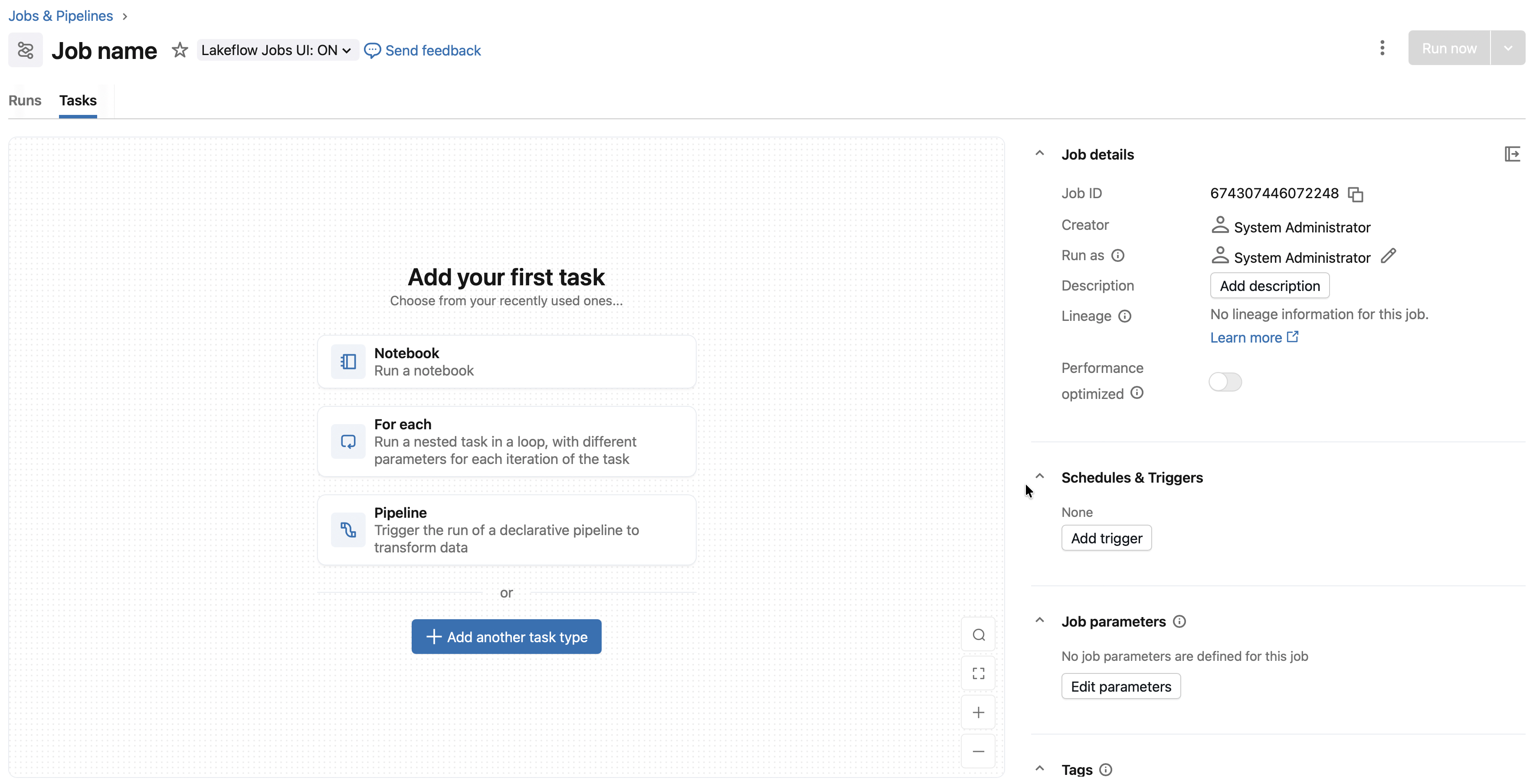
The task type determines which configuration options appear. For a notebook task, you specify the notebook path and any parameters. For a SQL task, you select a query and SQL warehouse. The following table summarizes common task types and their configuration requirements:
| Task type | Key configuration | Compute options |
|---|---|---|
| Notebook | Notebook path, parameters | Serverless, classic jobs, all-purpose |
| Python script | Script path, CLI arguments | Serverless, classic jobs, all-purpose |
| Python wheel | Wheel package path, entry point | Serverless, classic jobs, all-purpose |
| SQL | Query or file, SQL warehouse | Serverless SQL warehouse, pro SQL warehouse |
| Pipeline | Existing pipeline selection | Serverless or classic pipeline compute |
| dbt / dbt platform | dbt project, profiles | Serverless or classic jobs compute |
| JAR | Main class, JAR path | Classic jobs compute |
| Spark Submit | Spark parameters | Classic jobs compute |
| Run Job | Existing job selection | Determined by the referenced job |
Additional task types support control flow within a job. If/else tasks evaluate a condition and route execution to different downstream paths. For each tasks apply the same logic across every item in an input array. These patterns are covered in the Design and implement data pipelines module.
After configuring a task, select Create task to add it to your job.
Configure task sources
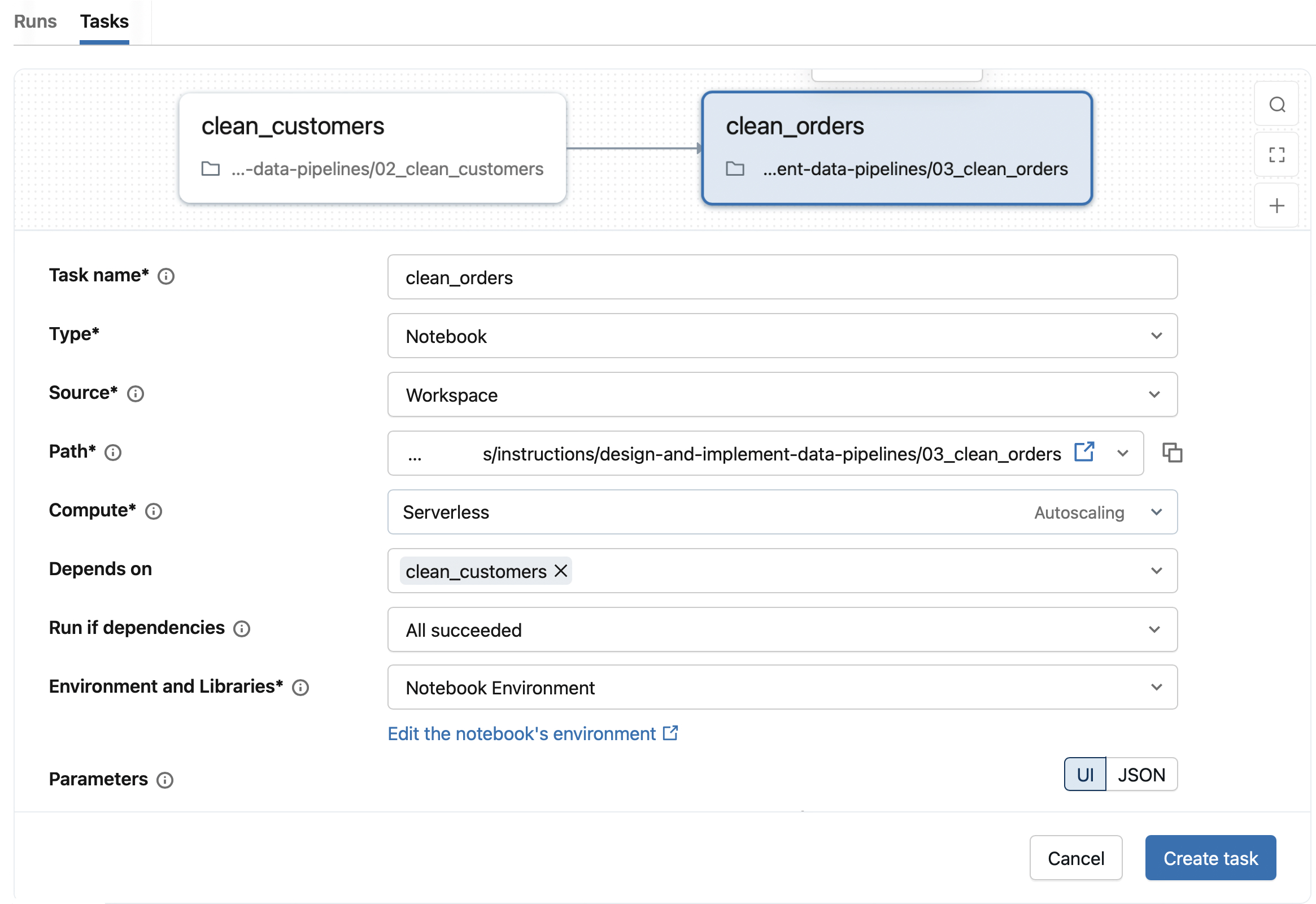
Tasks that run code (notebooks, Python scripts, SQL files) need a source location. You have three options for specifying where your code lives:
Workspace stores code directly in your Azure Databricks workspace. Use the file browser to navigate to your notebook or script, then confirm your selection. This option works well for development and simple workflows.
Git provider connects to a remote repository. You specify the repository URL, branch or tag, and the relative path to your file. All tasks in a job share the same Git reference, ensuring consistent code versions across the workflow. When you use Git, Azure Databricks captures a snapshot of the code at run time, so your job executes against a specific commit.
DBFS/ADLS (for Python scripts) allows you to reference files stored in volumes or cloud storage. Provide the full URI, such as abfss://container@storage.dfs.core.windows.net/path/script.py.
Configure compute resources
Each task needs compute resources to execute. Azure Databricks offers several compute options optimized for different workloads.
Serverless compute is the default for supported task types. Azure Databricks manages the infrastructure, so you don't configure cluster settings. Serverless compute reduces operational overhead and scales automatically.
Classic jobs compute gives you control over cluster configuration. You specify the Spark version, instance types, and autoscaling policies. Use classic compute when you need specific configurations or libraries not supported by serverless.
SQL warehouses run SQL tasks. Select an existing serverless or pro SQL warehouse from your workspace.
When multiple tasks share the same compute resource, the cluster remains active until all tasks complete. Sharing compute reduces startup time between tasks but incurs cost during idle periods. You can balance this by grouping related tasks on shared compute while isolating resource-intensive operations.
To view and modify compute configuration:
- Open your job and select the Job details panel.
- Under Compute, review the resources assigned to each task.
- Use Configure to modify classic jobs compute or Swap to change compute for all tasks using a resource.
Set up task dependencies
Jobs with multiple tasks use dependencies to control execution order. Dependencies create the DAG structure that determines which tasks run in sequence and which can run in parallel.
To add a dependency:
- Select a task in the task graph.
- In the Depends on field, select the upstream tasks that must complete first.
- Choose a Run if condition to specify when the downstream task should execute.
The available run-if conditions let you handle various scenarios:
| Condition | When the task runs |
|---|---|
| All succeeded | All upstream tasks completed successfully |
| At least one succeeded | Any upstream task succeeded |
| None failed | No upstream tasks failed (some may be skipped) |
| All done | All upstream tasks finished, regardless of outcome |
| At least one failed | At least one upstream task failed |
| All failed | All upstream tasks failed |
Use All done for cleanup tasks that should run regardless of earlier results. Use At least one failed to trigger error-handling logic when problems occur.
Add job parameters
Parameters make your jobs reusable by letting you pass different values to each run. You define parameters at the job level, and they're automatically available to all tasks that accept key-value inputs.
To add job parameters:
- In the Job details panel, locate the Parameters section.
- Select Add and enter a key-value pair.

Tasks access parameters differently based on their type. In notebooks, use dbutils.widgets.get("parameter_name") to retrieve parameter values. Python scripts receive parameters as command-line arguments.
You can also reference dynamic values in parameters. For example, {{job.trigger.time.iso_date}} inserts the trigger date, useful for processing data based on when the job runs.
Organize with tags
Tags help you categorize and filter jobs in your workspace. Add tags as labels or key-value pairs to group related jobs by team, project, or environment.
To add tags:
- In the Job details panel, select + Tag.
- Enter a key and optionally a value.
Tags also propagate to job clusters, enabling consistent monitoring and cost attribution across your organization.
Configure job access permissions
Job permissions control who can view, run, and manage your Lakeflow Jobs independently from compute permissions. Azure Databricks provides four permission levels:
| Permission level | Capabilities |
|---|---|
| CAN VIEW | View job configuration, task definitions, and run history |
| CAN RUN | Everything in CAN VIEW plus trigger job runs manually |
| CAN MANAGE RUN | Everything in CAN RUN plus cancel runs, view output, and restart failed runs |
| CAN MANAGE | Everything in CAN MANAGE RUN plus edit configuration, modify tasks, change schedules, and set permissions |
To configure permissions, navigate to Jobs & Pipelines, select your job, open the Permissions tab, and add users or groups with the appropriate level. Job creators and workspace admins automatically receive CAN MANAGE permissions.
When a job runs, it executes with the job owner's permissions or the configured service principal's permissions—not the triggering user's permissions. For production jobs, grant CAN MANAGE to the pipeline team, CAN RUN to users who need manual execution, and CAN VIEW to stakeholders requiring visibility.
Configure run identity and Unity Catalog access
When your job accesses Unity Catalog objects—such as tables, views, or volumes—the job's run identity must have the required Unity Catalog privileges. This is a critical prerequisite before configuring any job that reads from or writes to Unity Catalog-managed data.
The run identity is the principal whose permissions Unity Catalog evaluates during job execution. By default, jobs run as the job owner (the user who created the job). For production workloads, you can configure a service principal as the run identity to avoid dependency on individual user accounts.
Before creating your job, verify that the run identity has the necessary privileges:
| Operation | Required Unity Catalog privilege |
|---|---|
| Read from a table | SELECT on the table |
| Write to a table | MODIFY on the table |
| Create tables in a schema | CREATE TABLE and USE SCHEMA on the schema |
| Access a volume | READ VOLUME or WRITE VOLUME on the volume |
To grant privileges to a service principal or user, use SQL commands like:
GRANT SELECT, MODIFY ON TABLE catalog.schema.table TO `service-principal-id`;
GRANT USE SCHEMA ON SCHEMA catalog.schema TO `service-principal-id`;
If the run identity lacks the required privileges, the job fails at runtime with an authorization error—even if the job configuration itself is valid. Always verify Unity Catalog access before scheduling production jobs.
With your job created, tasks configured, dependencies set, and permissions assigned, you're ready to run your workflow. The next step is understanding how to monitor job execution and handle run outcomes.