Configure automatic restarts
When a production job fails at 3 AM, automatic restarts can mean the difference between a quick recovery and hours of downtime. Network blips, temporary resource constraints, and transient service interruptions happen regularly in distributed systems. Configuring your jobs to handle these failures automatically reduces manual intervention and keeps your data pipelines running reliably.
In this unit, you learn how to configure automatic restarts and retry policies for Lakeflow Jobs in Azure Databricks.
Understand retry behavior in Lakeflow Jobs
Lakeflow Jobs provides multiple retry mechanisms to handle failures at different levels. The behavior depends on your job configuration and trigger type.
For most job configurations, the default setting doesn't retry tasks on failure. You must explicitly configure retry policies to enable automatic restarts. However, two scenarios behave differently:
- Serverless jobs auto-optimize retries by default to ensure critical workloads complete successfully
- Continuous jobs use an exponential backoff retry policy that automatically retries the entire job on failure
Understanding these defaults helps you choose the right configuration for your workload. Jobs that must execute exactly once, such as non-idempotent operations, require disabling auto-optimization. Jobs that can safely retry benefit from automatic restart policies.
Configure task-level retry policies
You configure retry policies at the task level in the Lakeflow Jobs UI. This approach gives you granular control over how individual tasks respond to failures.
To set a retry policy for a task:
- Open your job in the Jobs & Pipelines workspace UI
- Select the Tasks tab and select the task you want to configure
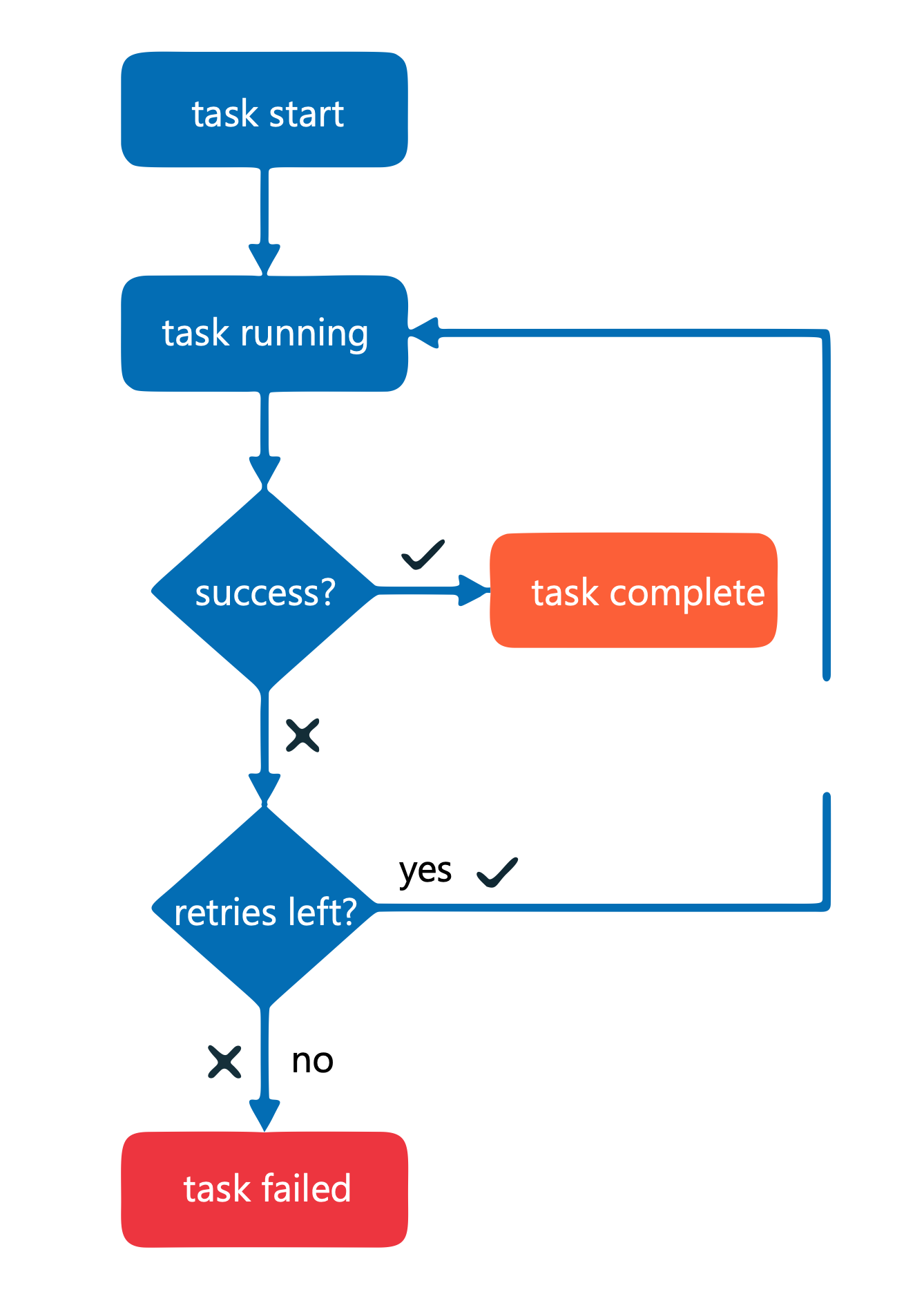
- In the task configuration panel, select + Add next to Retries
- Specify the number of retry attempts and the interval between retries
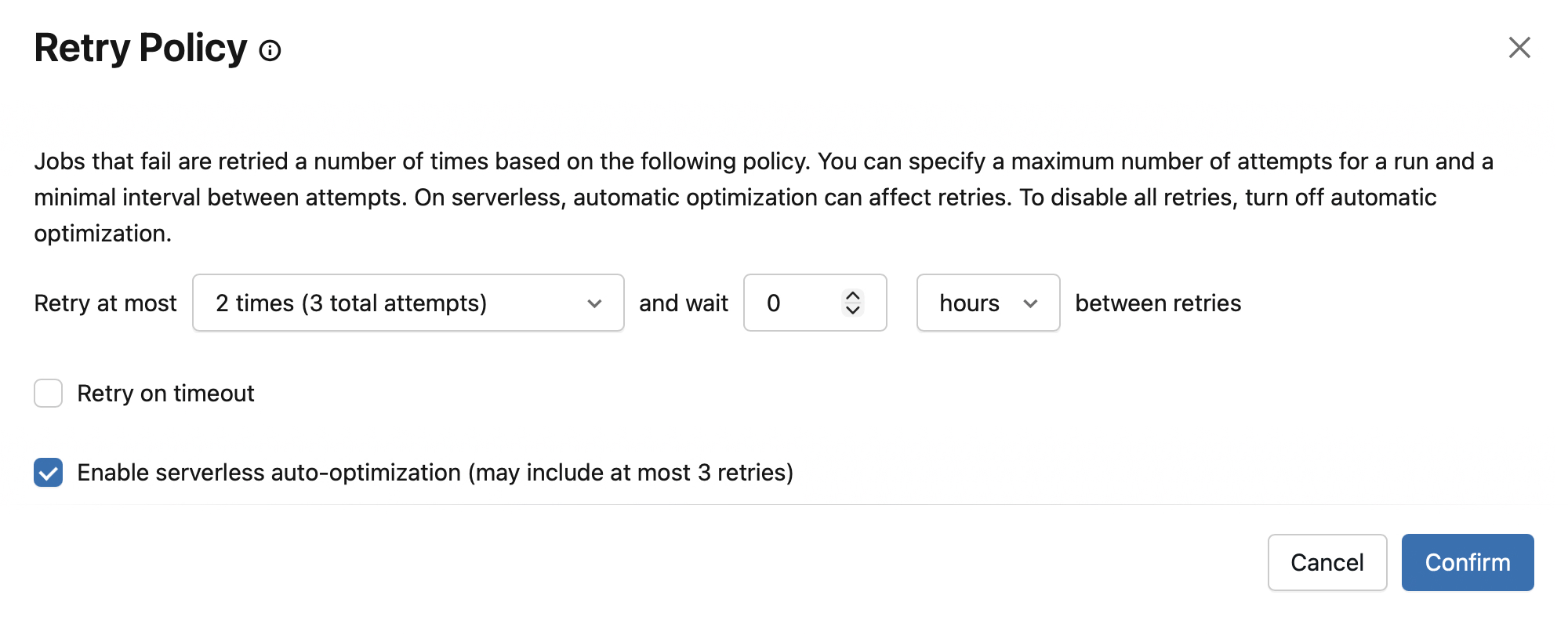
The retry interval is calculated in milliseconds between the start of the failed run and the subsequent retry run. For example, if you set an interval of 60,000 milliseconds (1 minute) and your task took 30 seconds before failing, the next retry starts 30 seconds after the failure.
Tip
Set reasonable retry limits—typically 1 to 3 retries for most workloads. Avoid configuring unlimited retries, as a persistent failure will waste resources without resolving the underlying issue.
When you configure both timeout and retry settings, the timeout applies to each retry attempt. If a task times out, it counts as a failed attempt and triggers a retry if attempts remain.
Configure continuous jobs for always-on workloads
Continuous mode keeps jobs running constantly, making it ideal for streaming workloads that process data as it arrives. When a continuous job fails, the platform automatically handles restarts using exponential backoff.
To configure a job to run in continuous mode:
- In the Jobs & Pipelines sidebar, open your job
- In the Job details panel, select Add trigger
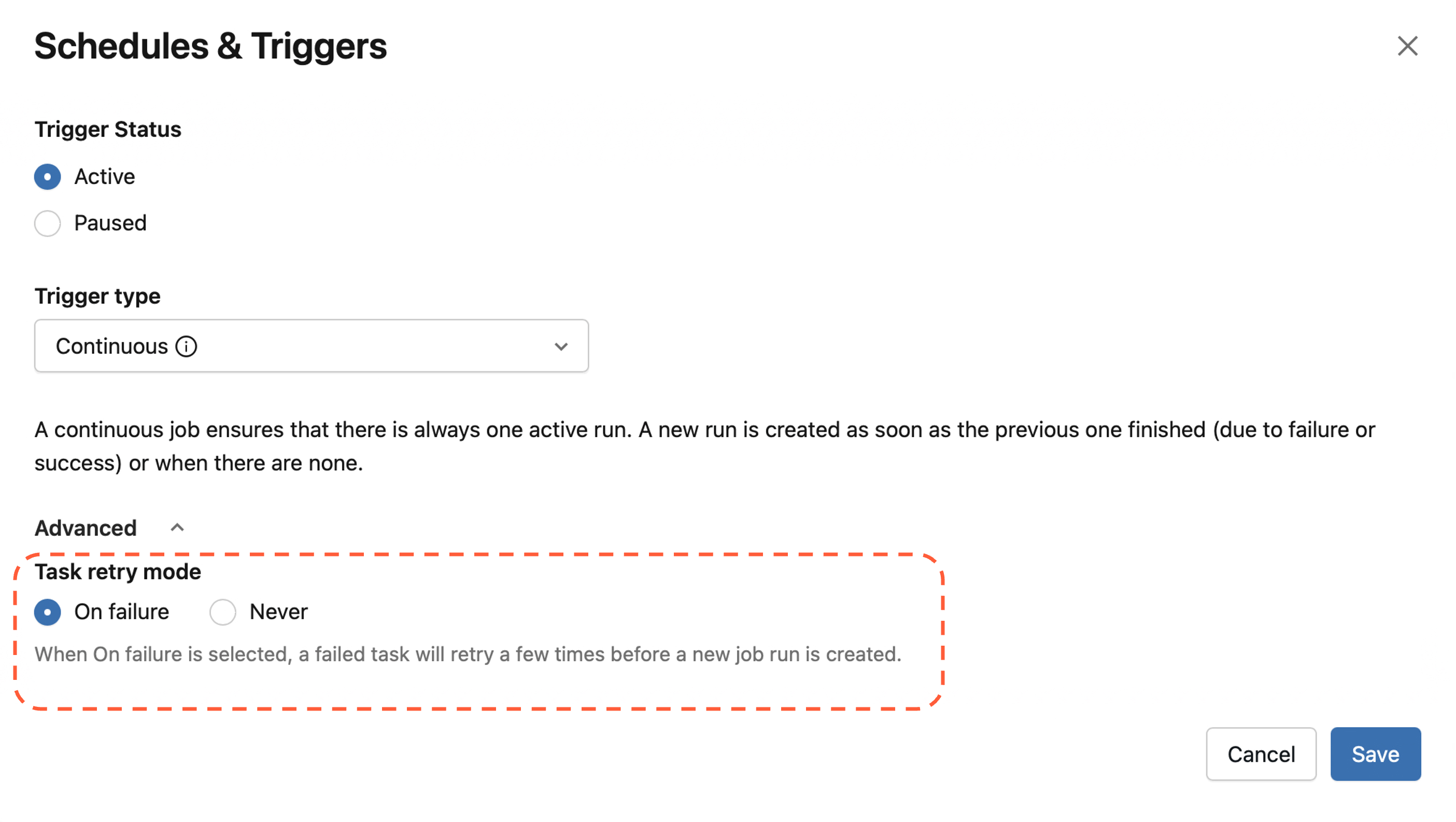
- Select Continuous in the Trigger type dropdown
- Optionally, select a Task retry mode—choose On failure to retry failed tasks within a job, or Never to only retry at the job level. On failure is the default for new continuous jobs. For an existing job being converted to continuous mode, you may need to select Configure retry mode first before the task retry mode option appears.
- Select Save
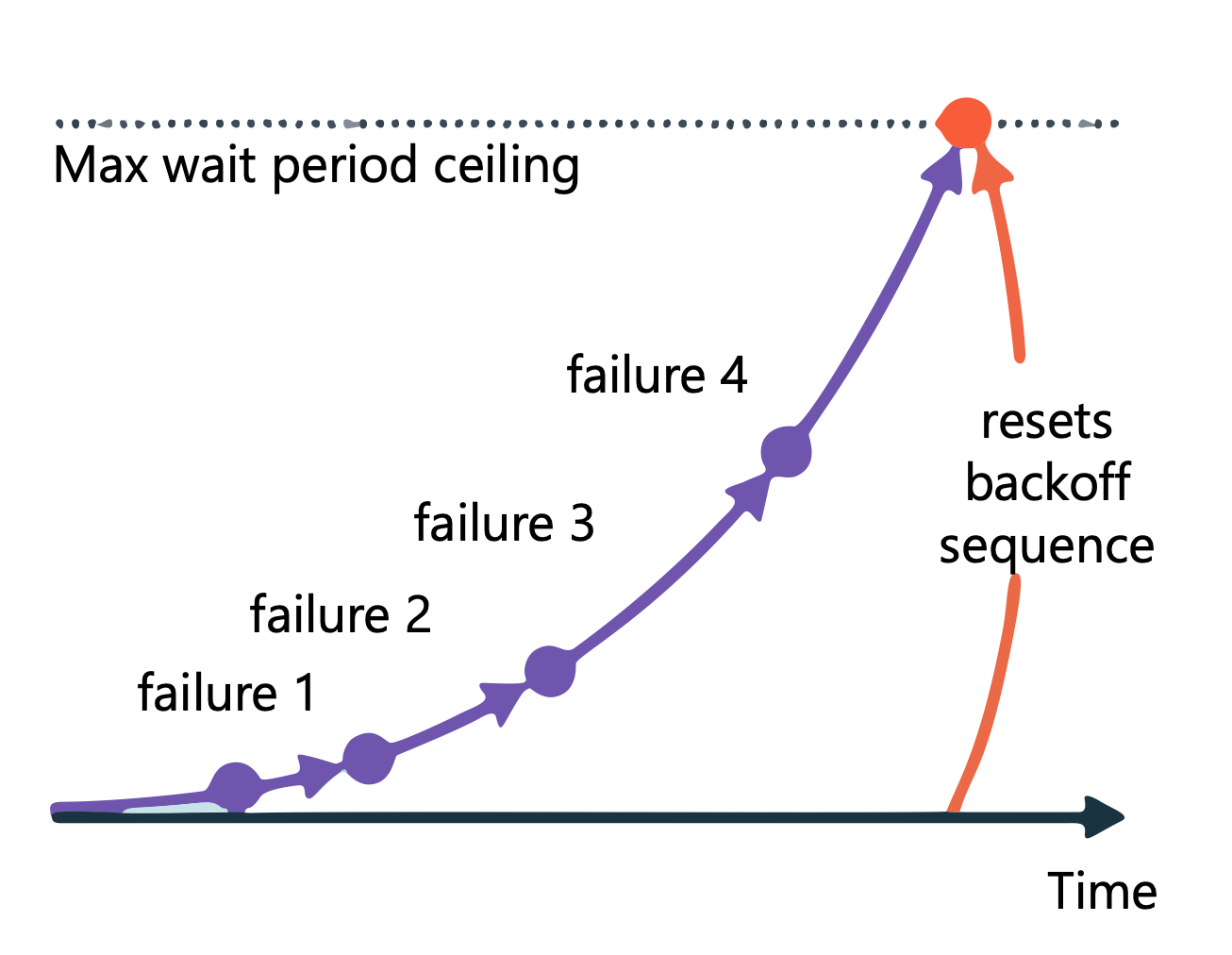
The exponential backoff algorithm works as follows:
- When consecutive failures exceed a threshold, the job waits before the next retry
- Each subsequent failure increases the wait period up to a maximum set by the system
- If a run completes successfully or runs without failure for a threshold period, the backoff sequence resets
Note
Continuous jobs don't support task dependencies or task-level retry policies in the traditional sense. Instead, set the Task retry mode to control whether failed tasks retry before triggering a new job run.
You can monitor continuous jobs in the exponential backoff state through the Job details panel, which displays the number of consecutive failures, the success threshold period, and the time before the next retry.
Set timeout thresholds to prevent hung tasks
A task that hangs indefinitely blocks downstream processing and wastes compute resources. Timeout thresholds terminate unresponsive tasks so your job can either retry or fail cleanly.

To configure timeout thresholds:
- In the task configuration panel, select Metric thresholds
- Select Run duration in the Metric dropdown
- Enter a duration in the Warning field to trigger a notification when the task exceeds expected completion time
- Enter a duration in the Timeout field to terminate the task if it exceeds maximum completion time
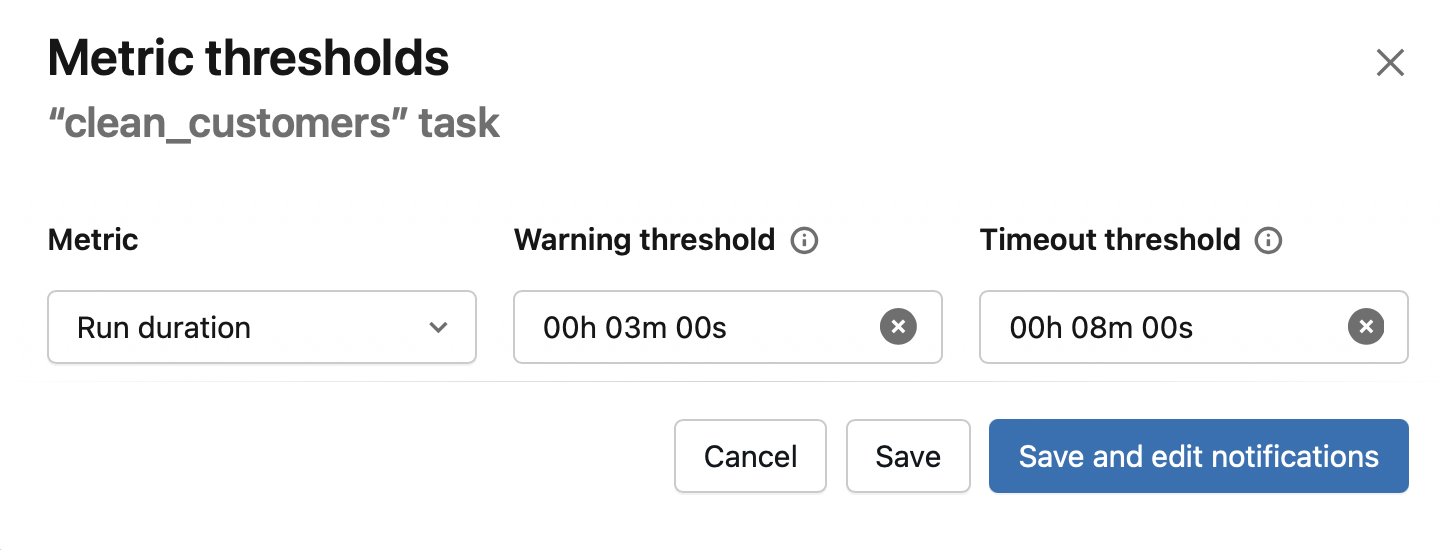
When a task times out, Azure Databricks sets its status to "Timed Out" and handles it according to your retry policy. If retries remain, the task restarts. If all retries are exhausted, the task fails and any dependent tasks are affected based on your job's dependency configuration.
Combine automatic restarts with notifications
Automatic restarts work best when combined with alerting. While restarts handle transient failures, persistent issues require human investigation.
Configure notifications to alert your team when:
- A task exceeds its expected duration (warning threshold)
- A task fails after exhausting all retry attempts
- A continuous job enters exponential backoff state
When configuring task-level notifications with retries enabled, select Mute notifications until the last retry to prevent alert fatigue. This setting ensures you're only notified after all retry attempts fail.
Apply best practices for production workloads
Effective automatic restart configuration balances resilience with efficiency. Consider these guidelines when configuring your jobs:
Match retry strategy to failure type: Transient failures like network timeouts benefit from quick retries with short intervals. Resource-related failures might need longer intervals to allow systems to recover.
Set reasonable limits: A maximum of 3 retries with intervals of 30 seconds to 5 minutes works well for most transient failures. Avoid unlimited retries—if a job fails repeatedly for the same reason, automatic restarts won't help.
Monitor retry patterns: Track how often jobs use retries. A gradual increase in retry usage might indicate underlying infrastructure issues or data quality problems that need attention.
Design for idempotency: Jobs that can safely re-execute produce the same results regardless of how many times they run. Idempotent operations make automatic restarts safe and predictable.
Document your configuration: Record why specific retry limits and intervals were chosen. This context helps future maintainers understand the tradeoffs and adjust settings as requirements change.