Application tab templates
It's important that representatives can access the appropriate related and contextual information as needed while working with a customer. For example, while the representative is looking at a customer’s account record, if they select the primary contact link, the contact record should open in a separate tab in the session. The account record should still be accessible by switching to the tab as needed. When you work with session-based applications, such as Customer Service workspace and Omnichannel for Customer Service, you'd refer to tabs that open within a session to display different information as application tabs.
Application tab templates in Customer Service let you specify the type of applications that you want to open when a session is started. With application tab templates, you can define the applications that are available for a session and then associate the applications with a session. For example, you can create the Customer summary application type and then associate it with a chat and text session. Now, when the representative accepts the notification from the chat or text channels, a session will start and the Customer summary page will load. You might also create an application tab template to load a relevant external or partner website into a session to ensure that the representative can access the site as needed without needing to open another browser session.
Out-of-the-box application templates are available by default, depending on which customer service applications you've deployed.
Customer Summary
Entity Record
Knowledge Search
Omnichannel Conversations Dashboard
Power BI
Search
The preceding templates provide a great starting point. However, you can't customize these application tab templates. If you need different options, you can create your own custom templates.
You can access application tab templates by going to the Customer Service admin center application. Under Agent experience, select Workspaces and then select Manage next to Application tab templates. To create new templates, select the New button on the command bar.
When you initially create an application template, you'll need to specify the following information:
Name - Defines the name of the session.
Unique Name - A unique identifier in the
<prefix>_<name>format. The following elements are required for the unique name:The prefix can only be alphanumeric and its length must be between three to eight characters.
An underscore must be between the prefix and name, for example
Contoso_application_tab.
Title - Defines the title of the session that's displayed to representatives in the user interface (UI) at runtime, such as Knowledge article search.
Page Type - Defines the type of application that will be loaded.
Description - Used to provide a description for your reference.
Can close - Defines whether a representative can close the tab or not.
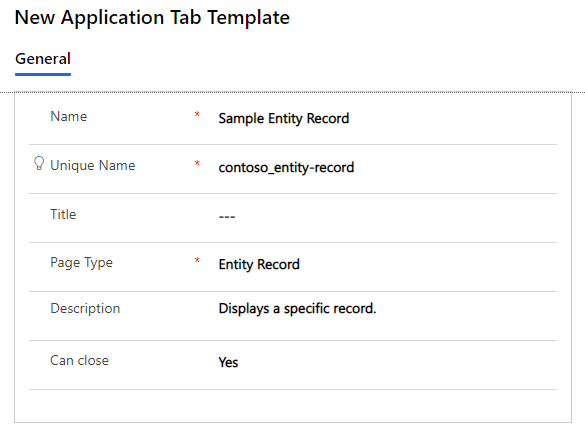
Application types
Eight types of applications are available for you to choose from:
Entity list - Displays a view that defines how a list of records for a specific table is displayed in the Omnichannel application, such as displaying a list of open cases.
Entity record - Displays a single record for a table, such as a case record for the customer that you're working with.
Web resource - Displays web resources that represent files that are used to extend the web application. These web resources could be items such as images, HTML files, or JavaScript.
Control - This application is for internal use only.
Dashboard - Displays a dashboard.
Search - Displays search results based on text that's passed to the search control.
Third Party Website - Displays Microsoft and external or partner websites as an application.
After you've saved an application tab template for the first time, a Parameters subgrid will appear that includes predefined parameters. These configurable parameters ensure that when the tab is opened, it will load with the correct information.
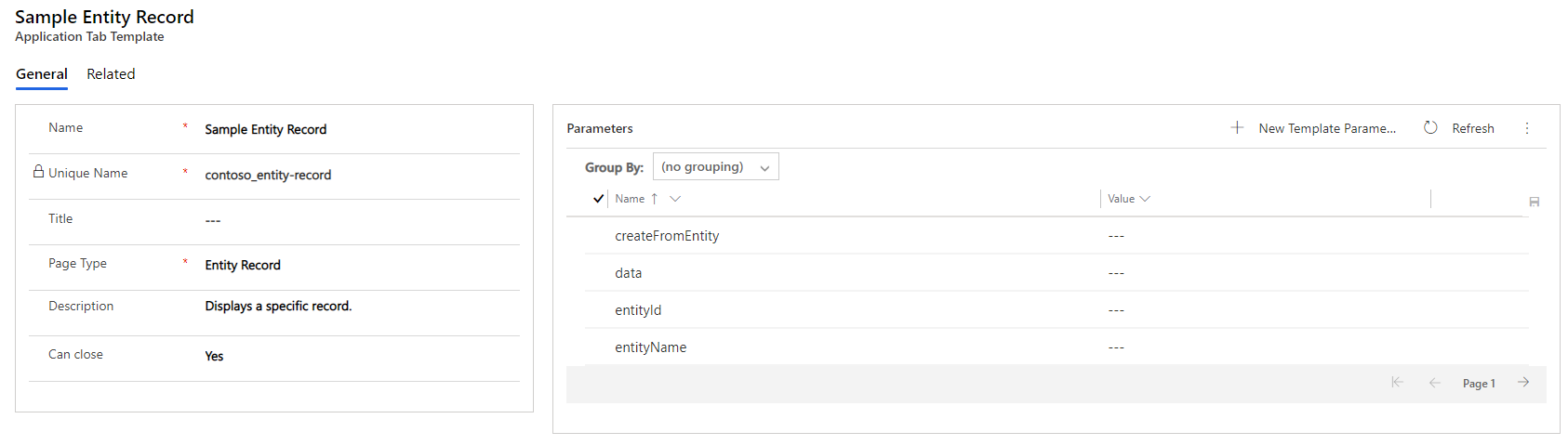
The parameters that are displayed in the subgrid are based on the page type that was selected for the template. An example of this scenario would be if you selected a page type of Entity record because the tab should load account records. To ensure that this action occurs correctly, you'll need to know details, such as the table that the data is coming from, what form to use, and what record data should be populated into the application tab.
To ensure that the correct info is loaded, an entity record application type will include the following parameters.
| Parameter | Example value | Description |
|---|---|---|
| createFromEntity | account | Designates a record that provides default values based on mapped attribute values. The lookup object has the following string properties: entityType, ID, and name (optional). Type = JSON Object |
| data | {"firstname":"Rigsby", "lastname":"cho" , "jobtitle":"Sales Manager"} | Defines the attributes and values for the new entity record. Type = JSON Object |
| entityId | 00aa00aa-bb11-cc22-dd33-44ee44ee44ee | GUID of the entity record. Type = String |
| entityName | account | Logical name of the entity. Type = String |
| formId | 8448B78F-8F42-454E-8E2A-F8196B0419AF | GUID of the form instance. Type = String |
| processId | GUID of the business process. Type = String |
|
| relationship | Relationship object of the record. Type = JSON Object |
|
| selectStageId | GUID of the selected stage in business process instance. Type = String |
For a complete list of the different parameters that are available by application type, go to Manage application tab templates.
After you've defined your application templates, you'll need to associate them with session templates so that they're available when users need them.