Introduction
In many organizations, representatives need to work with multiple customers simultaneously. This approach can be challenging because representatives need the necessary details about the individual whom they're working with at that moment. Additionally, they want the ability to transition to another customer if needed without losing the details about the current customer.
Microsoft Dynamics 365 Customer Service provides organizations with two options for providing multi-session support capabilities to support representatives:
Omnichannel for Customer Service - Allows representatives to communicate with customers in multiple sessions at once across channels, such as live chat, voice, and text.
Customer Service workspace - Allows representatives to work on multiple sessions at once in a single workspace.
When an organization provisions Omnichannel for Customer Service, the channel capabilities that are available in Omnichannel for Customer Service can be made available in the Customer Service workspace application. Essentially, an organization that needs multi-session capabilities and the ability to support across multiple channels can use Customer Service workspace and their primary agent interface.
The Dynamics 365 Customer Service workspace user interface helps ensure that representatives are equipped with everything that they need to support multiple customers at once through the multi-session capabilities that are available.
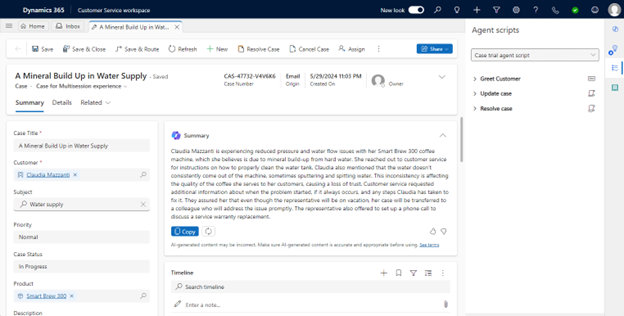
While in a session, representatives can open multiple tabs of related data, such as knowledge articles, account details, and more. Alerts let you know when activity occurs in another session so that you aren't missing communication. As you switch from one session to another, all tabs in that session remain open so that they're still available when you return. After you close the session, all tabs in that session will also be closed.
The following section provides details about the elements that are available in Customer Service workspace.
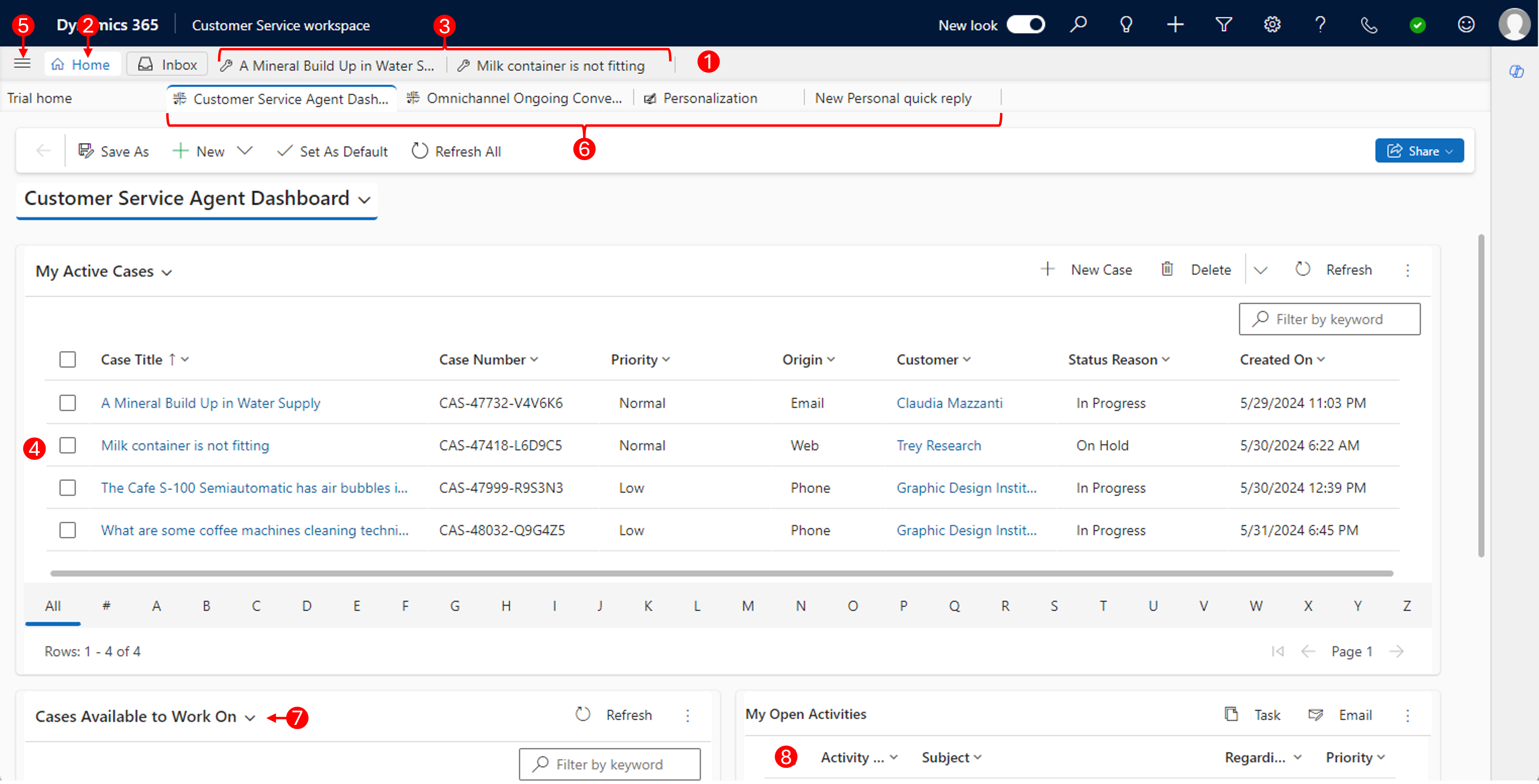
The following table describes some key elements that you experience while working with the Customer Service workspace application.
| Label | Description |
|---|---|
| 1 | The session pane lists all sessions that you're actively working on. Select the tabs to navigate among sessions. |
| 2 | The Home session returns you to the Customer Service Agent Dashboard view. |
| 3 | Each session has a tab in the session panel. Select a tab to navigate to the session that you want to work on. |
| 4 | Select a case to open a new session. A single click on a case replaces your view with the case form. Select the back arrow in the upper-left corner of the form to return to your previous view. |
| 5 | Select the plus (+) icon to expand the menu to view a list of forms, views, and activities. Select the one that you want to open in a new tab. |
| 6 | Select the tabs to navigate to your open activities, cases, forms, and views. |
| 7 | Select the dropdown selector to filter cases in queues that you can choose to work on. |
| 8 | Select Shift + mouse click to open a new session for an activity. A single click replaces your view with the activity form. Select the back arrow in the upper-left corner of the form to return to your previous view. |
Navigate and view records
A session can contain multiple related tabs, which ensures that while the representative is working, other tabs that contain related data remain open while the session is open, and the representative can switch between them as needed. How you interact with the information affects how it displays in the application. For example, if you're working in the Home session, and you select a case from the list of active cases, the case record opens in the current tab and replaces the contents of the Customer Service Agent Dashboard tab. The workspace doesn't open the record in a new tab or a new session, which requires a different keyboard/mouse combination when selecting.
The available mouse/keyboard combinations are:
Select a record - Replaces the contents of the current tab with the form for the item that you selected.
Hold the Shift key while selecting a record - Opens the selected item in a new session that displays in the session panel on the left of the application.
Hold the Ctrl key while selecting a record - Opens the selected item in a new tab within the existing session.
Selecting the back arrow in the upper-left corner of the form returns you to your previous view.
Note
Organizations can create settings that allow for simpler navigation options that don't require representatives to use keyboard selections.
Work with application tabs
Frequently, while working in a session, you might need to access other information. Similar to when you opened records in new tabs in the application, you can open other application tabs to provide supporting functionality. For example, while working on a case, you might want to search the knowledge base and determine if existing knowledge articles are available to help resolve the issue.
When you select the plus (+) icon in a session, you're presented with a predefined item that you can navigate to. When you select an item from the list, the item opens in a new tab in the existing session.
By default, the available items are:
Dashboards - Opens the Customer Service Agent Dashboard.
Cases - Opens the My Active Cases view.
Queues - Opens the Queues view.
Activities - Opens the My Open Activities view.
Contacts - Opens the Active Contacts view.
Accounts - Opens the Active Accounts view.
Knowledge Articles - Opens the My Active Articles view.
Now that you're familiar with the Customer Service workspace, you learn how to implement multi-session experiences for representatives.