Session templates
As representatives work with customers across different channels or in different scenarios, the information that they need at their disposal and how to present it can vary. Sessions control how these items are presented to representatives. When a representative accepts an incoming conversation request from a customer, a session is started. Within a session, different fields and applications are used to present data to representatives. By default, the system opens the Customer summary application as an application tab panel, providing representatives with important details, such as customer details, conversation details, and access to other relevant information. As needed, representatives can open more application tabs within a session to provide more details on relevant information. For example, selecting the case that's associated with the conversation opens the case details in another application tab. Then, representatives can switch between the tabs within the session as needed.
Each session includes an anchor tab. The anchor tab is the tab that is opened when a new session is launched, and it serves as the main tab for the session. For example, in Omnichannel for Customer Service, the anchor tab is the Customer summary application. The anchor tab can't be closed; it remains available while the session is open.
To ensure that representatives get what they need, you can define different session templates that representatives can add to application profiles. A session template is a combination of attributes and application tab information that representatives can reuse as needed.
Session templates help define key items in a session experience, such as:
Anchor tabs - Define which application opens as the anchor tab for that session.
Additional application tabs - Define other tabs to open when a session is started.
Communication panel - Defines the default mode of the communication panel when a session is started.
Out-of-the-box session templates are available by default, as described in the following table. Depending on which customer service applications you deploy, different templates are available.
| Omnichannel for Customer Service | Customer Service workspace |
|---|---|
| Case entity session - default template | Case entity session - default template |
| Chat session – default | |
| Custom messaging session – default | |
| Entity records session – default | |
| Social channels: Facebook session – default, LINE session – default, SMS session – default, Teams session – default, Twitter session – default, WeChat session – default, WhatsApp session - default |
The preceding templates provide an excellent starting point. However, you can't customize these session templates. If you need different options, you can create your own custom templates.
Create a session template
To create session templates, in the site map of Customer Service admin center, select Workspaces in Agent experience. You can create session templates based on the application that they apply to. For example, if you want to create a session template to apply to any Customer Service workspace profile, create a session template for the Customer Service workspace app. In the Customer Service admin center, under Agent experience, select Workspaces and then select Manage next to Session templates. This step takes you to the Active Session templates screen, where you can create new templates by selecting the New button on the command bar.
Important
Regardless of which application you select, you'll be taken to the same screen where all session templates will be displayed. The Unified Interface page will open on a new tab.
When defining a session template, specify the elements as described in the following table.
| Name | Value description | Example |
|---|---|---|
| Name | Defines the name of the session. | Chat session |
| Unique Name | A unique identifier in the <prefix>_<name> format. The following elements are required for the unique name: The prefix can only be alphanumeric, and its length must be between three to eight characters. An underscore must be between the prefix and name. | msdyn_chat_custom |
| Type | Defines the session template type. Two options are available: Entity - Specifies that the item is based on a Microsoft Dataverse table. When you select the entity, the Entity field displays, where you can select the table to associate it with. Generic - Use when the template is assigned to any channel, such as chat or text. | Entity |
| Title | Defines the title of the session that's displayed to representatives in the user interface (UI) at runtime. | {customerName} |
| Communication panel mode | Defines the default mode of the panel when a session is started. You can select one of the following options: Docked - The panel is in expanded mode. Minimized - The panel is in minimized mode. Hidden - The panel is hidden. | Docked |
| Description | Provides a description for your reference. | The session template is used for a conversation request from the Chat channel. |
| Anchor tab | Defines the application that opens by default when the session starts and can't be closed. | Customer summary |
Important
The Anchor tab option is displayed only when Type is set to Generic.
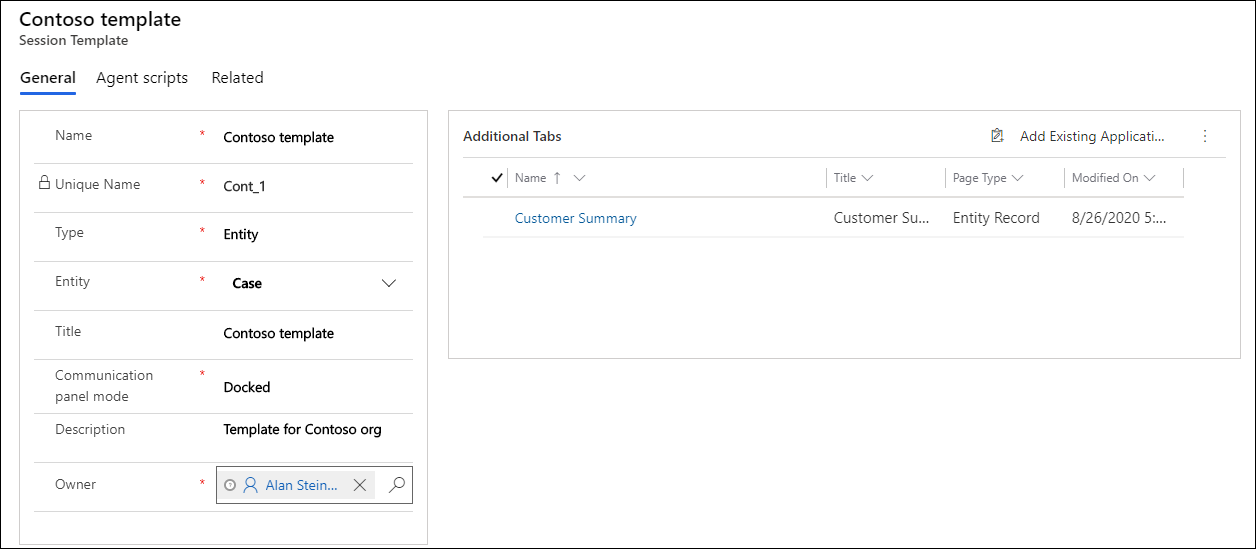
An advantage to session templates is that you can specify other tabs that should be opened when the session is launched. This approach ensures that the representative can locate the items that they need without having to conduct an extensive search. After you save a session template record, the Additional tabs subgrid will be displayed. On this subgrid, you specify which other application tabs to open when a session is started.
The Agent scripts tab is where you can specify which agent scripts should be available to representatives when they're working in a session. The Agent scripts tab also includes a toggle option for setting the default script for a particular session type. If you set the Enable build expression toggle to Yes, you can use the expression builder to define which agent script to load based on the type of session that's being initiated. For example, for entity session types, such as case, you might want to load an agent script that includes case-related information. Because generic session types include the conversation panel, you might want to load a script that includes conversation data and steps for creating related records.
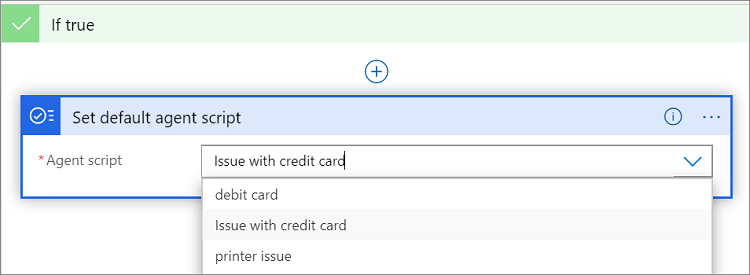
For more information, see Guide agents with scripts.
Now that your session template is set up, you need to associate it with a work stream to ensure that it loads when needed.