Understand Remote Help and its role in end-user support
Remote Help gives support teams a secure way to assist users who need real-time troubleshooting. It is a Microsoft Intune Suite capability, also available as a dedicated Remote Help add-on, that lets an approved helper connect to a user's device, view the screen, and, when permitted, take control or perform elevated actions. Remote Help is designed for support scenarios where written instructions, email, or chat aren't enough. It helps support agents see the user's issue directly, guide the user through a task, and resolve configuration or application problems more efficiently.
What Remote Help does for support teams
Remote Help is built for interactive support when a device user needs more than written guidance. It provides a connection flow that starts with the user giving a one-time session code to an agent. The agent can then see the user's screen and, if permitted, request control. This avoids the delays and confusion of email or chat alone.
The service supports screen sharing, file transfer, and privileged escalation workflows. A support agent can use full control to complete configuration changes or troubleshooting tasks while the user watches. The session remains visible to the user, which helps maintain trust and keeps the support interaction transparent.
When to choose Remote Help over other tools
Remote Help is the right choice when a support agent needs screen-level visibility into an endpoint, the user can participate in the session, and the organization needs a controlled, auditable support workflow. It is especially useful for:
- Solving issues that are hard to explain by message alone, such as application errors or device settings.
- Helping users with app installation, configuration, or error recovery.
- Verifying what the user sees before making a configuration change.
- Supporting nontechnical users who need guided, hands-on help.
- Helping remote or hybrid workers without relying on unmanaged remote-control tools.
- Keeping a record of support activity for monitoring and compliance purposes.
Remote Help isn't a general meeting tool or a broad collaboration platform. Use it instead of chat when the support agent needs to see the user's screen or guide the user through troubleshooting. Use it instead of full remote desktop administration when the goal is interactive end-user support with identity, permissions, and reporting controls. Intune Remote Help reports can show active and past support sessions, including the helper, the sharer, the assisted device, session times, and the type of control used. The session content itself, such as screen images or keystrokes, isn't recorded. Only session metadata is stored.
Key roles in a Remote Help session
Three roles commonly take part in a Remote Help workflow:
- The device user: the person needing help. They start support from their device and approve the session.
- The support agent: the person who receives the session request and connects to the device. They must have the right Intune permissions.
- The administrator: the person who configures Remote Help settings, assigns roles, and reviews audit logs.
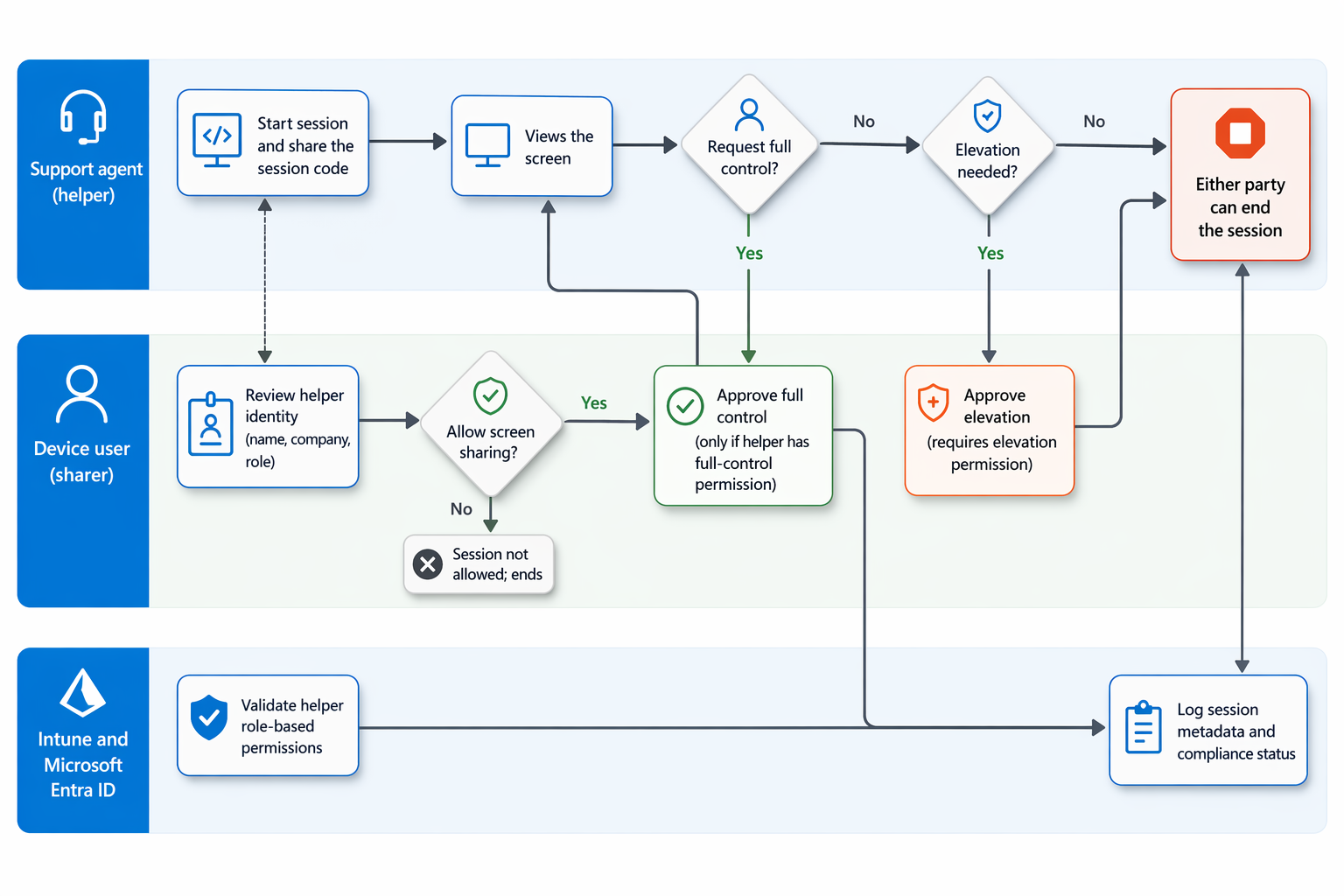
Support agents must have the correct Intune RBAC permissions before they can provide help. The user remains aware of the session. Remote Help shows identity information for the participants, and the user can allow or decline screen sharing or full control requests. Both the helper and the sharer can end the session.
The following diagram shows how these roles interact across a session, including the screen-share, full-control, and elevation approval gates.
Remote Help integration with Intune and security controls
Remote Help integrates with Microsoft Intune so remote support becomes part of the organization's endpoint management strategy. Administrators can enable Remote Help for the tenant, decide whether unenrolled devices are allowed, configure chat behavior, and assign helper permissions through Intune RBAC.
Key support considerations include:
- Licensing: Remote Help requires licensing for the people who provide and receive help.
- Role-based access control: Assign only the permissions support agents need, such as view-only, full control, or elevation.
- Scope: Use Intune RBAC scope to control which users or devices a helper can support.
- Privacy and compliance: Keep the session visible to the user and use Remote Help reporting to monitor support activity.
The following short video walks the swimlane — each level of access opens only when the user consents.