Configure storage account security settings
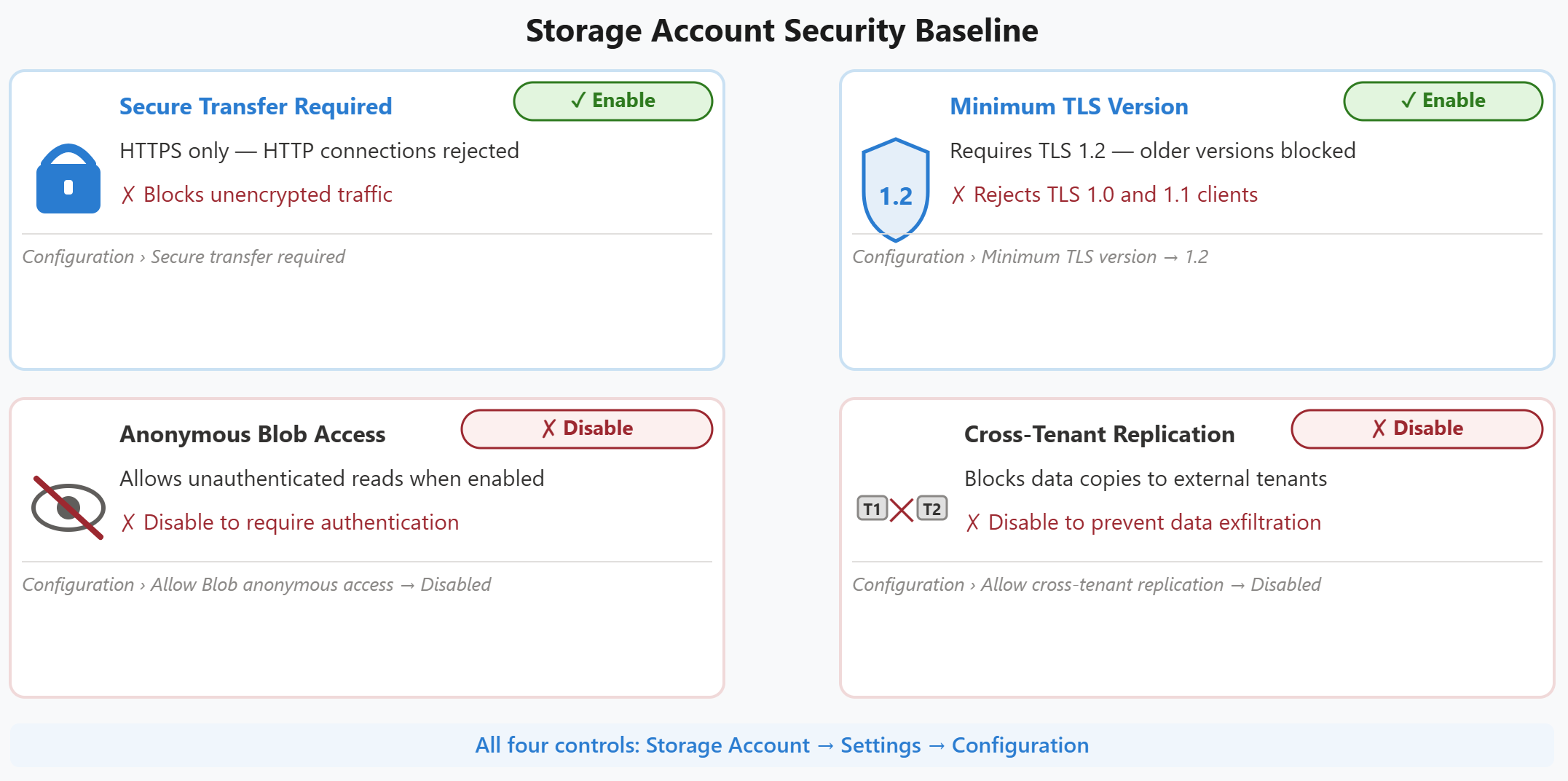
Before addressing access control, you need to establish foundational security settings at the storage account level. These account-wide configurations create a security baseline that protects data in transit, enforces modern encryption protocols, and prevents unintended public exposure.
Require secure transfer
Azure Storage supports both HTTP and HTTPS connections by default. Allowing HTTP creates risk—data transmitted over unencrypted connections is vulnerable to interception and tampering. To protect data in transit, you should require secure transfer, which rejects all HTTP requests and accepts only HTTPS connections.
The Secure transfer required setting is enabled by default on all new storage accounts. However, accounts created before this default still allow HTTP. Verify this setting on existing accounts and enable it if not enabled.
| Setting | Effect | Recommendation |
|---|---|---|
| Secure transfer required | Rejects HTTP requests; accepts only HTTPS | Enable on all storage accounts |
| Allow HTTP connections | Permits unencrypted data transmission | Disable on all storage accounts |
To enable secure transfer in the Azure portal, navigate to your storage account, select Configuration under Settings, and set Secure transfer required to Enabled. Applications that attempt HTTP connections receive an error response after you enable this setting.
Configure minimum TLS version
Transport Layer Security (TLS) is the encryption protocol that secures HTTPS connections. Older TLS versions (1.0 and 1.1) have vulnerabilities and are deprecated. Azure Storage allows you to specify the minimum TLS version that clients must use when connecting.
Setting the minimum TLS version to 1.2 ensures that clients use modern, secure encryption. Any client that attempts to connect with TLS 1.0 or 1.1 is rejected. For Contoso's AI document processing pipeline, all Azure services support TLS 1.2 or higher, so this setting doesn't affect functionality—it only blocks outdated, insecure clients.
Configure the minimum TLS version in the Azure portal under Configuration > Minimum TLS version and select Version 1.2. This setting applies to all services in the storage account (Blob, File, Queue, Table).
Disable anonymous blob access
Azure Blob Storage supports optional anonymous (public) read access to containers and blobs. When enabled, anyone with the container or blob URL reads the data without authentication. This capability is useful for public website assets like images and stylesheets, but it's inappropriate for business documents processed by AI agents.
New Azure Resource Manager storage accounts have anonymous access disabled by default. For accounts created before this default was established, or accounts where the setting was changed, you should verify and enforce it explicitly. Checking this setting as part of your security baseline ensures protection regardless of when the account was created.
Even if no individual containers currently allow public access, the account-level setting controls whether public access can be configured in the future. Disabling it at the account level provides defense in depth—it prevents accidental misconfiguration of containers that would expose sensitive data.
To disable anonymous access, navigate to Configuration > Allow Blob anonymous access and set it to Disabled. This setting overrides any container-level public access configurations. For Contoso's document processing pipeline, disabling anonymous access ensures that uploaded business documents remain private regardless of how containers are configured.
Disable cross-tenant object replication
Object replication automatically copies blobs from a source storage account to a destination account. Cross-tenant replication extends replication by allowing the source and destination accounts to reside in different Microsoft Entra tenants, which is useful for multitenant architectures but introduces risk—a misconfigured replication policy could copy data to an external tenant.
For organizations with no legitimate cross-tenant replication requirements, disable this capability at the account level. Disabling cross-tenant prevents accidental or malicious replication policies that copy data outside your tenant boundary.
Navigate to Configuration > Allow cross-tenant replication and set it to Disabled. This setting prevents any cross-tenant replication policies from being created for this storage account. Within-tenant replication policies continue to work normally.
These four account-level settings create a security foundation for Azure Storage. With secure transfer required, modern TLS enforced, anonymous access blocked, and cross-tenant replication disabled, you're ready to implement identity-based access controls.