Disable Shared Key authorization and enforce with Azure Policy
With all applications migrated to identity-based access, you're ready to eliminate Shared Key authorization entirely. Disabling Shared Key access prevents any use of storage account keys, forcing all requests to authenticate with Microsoft Entra ID or user delegation SAS. This configuration removes the highest-risk credential type from your storage accounts.
Why Shared Key must be eliminated
Storage account keys grant unrestricted access to the entire storage account. Any person or application with an account key can read, write, and delete all data across all services (Blob, Queue, Table, File). These keys appear in connection strings, configuration files, and scripts—creating numerous exposure points. Once compromised, a storage account key gives attackers full control until the key is rotated.
Microsoft recommends disabling Shared Key authorization as the final step in a defense-in-depth strategy. Before you disable it, you need to ensure all clients authenticate using Microsoft Entra ID or user delegation SAS.
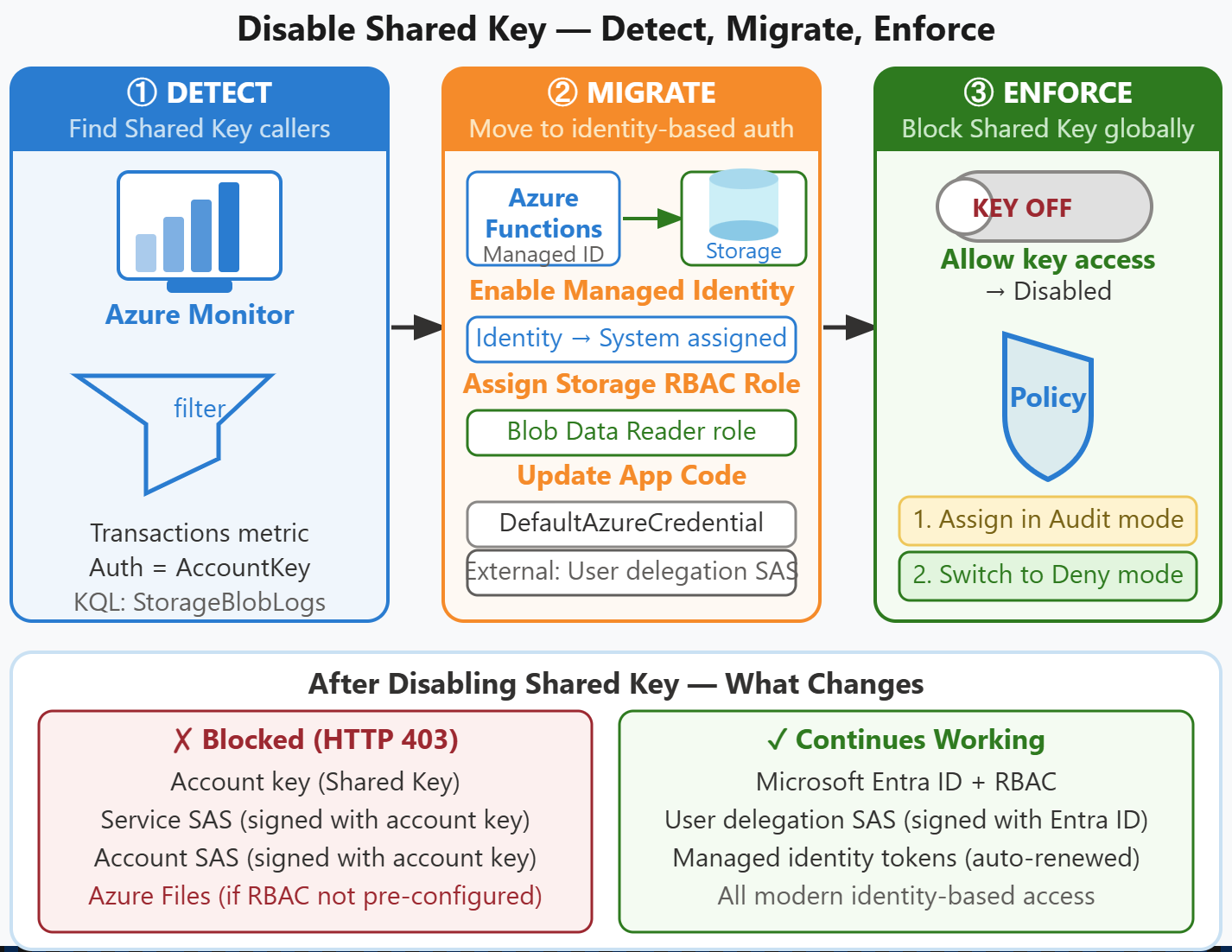
Detect current Shared Key usage
Before disabling Shared Key access, you need to identify which applications or users currently rely on account keys. Azure Monitor provides metrics that show authentication types for storage requests.
In the Azure portal, navigate to your storage account and select Metrics. Add a metric for Transactions and apply a filter where Authentication = AccountKey. This view shows the volume of requests authenticated with storage account keys. A nonzero value indicates applications that still use Shared Key authorization.
For more detailed analysis, you can query storage logs using Azure Monitor Logs. The following Kusto Query Language (KQL) query identifies the top callers using Shared Key or SAS authentication:
StorageBlobLogs
| where AuthenticationType in ("AccountKey", "SAS") and TimeGenerated > ago(7d)
| summarize count() by CallerIpAddress, UserAgentHeader, AccountName
| top 10 by count_ desc
This query shows which IP addresses and user agents are making Shared Key requests. The UserAgentHeader field often reveals the application or SDK making the requests, helping you identify which systems need migration. Run this analysis during a representative time period to ensure you capture all usage patterns.
Migrate to identity-based authorization
Before disabling Shared Key access, ensure all clients authenticate using managed identities, service principals with RBAC roles, or user delegation SAS. For Azure-hosted services like Azure Functions, Azure App Service, and Azure Kubernetes Service, enable managed identity and assign appropriate Storage Blob Data roles. Update connection strings to use DefaultAzureCredential from the Azure Identity library instead of account keys.
For external clients that require SAS access, generate user delegation SAS tokens signed with Microsoft Entra ID credentials. These tokens continue to work after Shared Key authorization is disabled because they don't rely on storage account keys.
Disable Shared Key authorization
Once you verify that no applications rely on storage account keys, you disable Shared Key authorization on the storage account. In the Azure portal, navigate to Configuration under Settings, find the Allow storage account key access setting, and set it to Disabled.
This setting affects all authentication methods that rely on storage account keys:
| Authentication Method | Works After Disabling Shared Key? |
|---|---|
| Account key (Shared Key) | No—requests are denied |
| Service SAS (signed with account key) | No—requests are denied |
| Account SAS (signed with account key) | No—requests are denied |
| User delegation SAS (signed by Microsoft Entra) | Yes—continues working |
| Microsoft Entra ID with RBAC | Yes—continues working |
After you disable Shared Key access, any request that uses a storage account key or a SAS token signed with an account key receives an HTTP 403 (Forbidden) response. Applications that previously authenticated with account keys fail immediately. This design is intentional—it forces clients to migrate to modern, identity-based authentication.
Important
Azure Files workloads require special attention before you disable Shared Key. By default, the Azure portal accesses Azure file shares using Shared Key authorization. If you disable Shared Key on a storage account that supports Azure Files without first configuring identity-based access, Azure Files requests fail—including portal access. Before disabling Shared Key on accounts that serve Azure Files, assess your remediation options. You can configure Azure Files with RBAC-based access, migrate the file share data to a separate storage account, or exclude that account from the policy scope. Contoso's AI document pipeline uses Blob Storage only, so it isn't affected—but organizations with mixed Blob and Files workloads should evaluate each account before applying this setting.
Enforce at scale with Azure Policy
For organizations with many storage accounts, manually disabling Shared Key on each account is error-prone and difficult to maintain. Azure Policy provides a built-in policy definition that enforces this configuration across all storage accounts in a scope (subscription, resource group, or management group).
The policy "Storage accounts should prevent shared key access" audits or denies storage accounts that allow Shared Key authorization. Assign this policy in Audit mode first to identify noncompliant storage accounts without blocking creation of new accounts. The compliance dashboard shows which storage accounts still allow Shared Key access, giving your team a remediation list.
After you migrate all applications, change the policy effect to Deny. This configuration prevents anyone from creating new storage accounts with Shared Key enabled, and it blocks any attempts to re-enable Shared Key on existing accounts. The policy doesn't automatically disable Shared Key on existing noncompliant accounts—you need to remediate those manually or using Azure Policy remediation tasks.
To assign the policy, navigate to Azure Policy in the portal, search for "Storage accounts should prevent shared key access," select the policy definition, and choose Assign. Select the scope (subscription or resource group), set the effect parameter (Audit or Deny), and create the assignment. Compliance results appear within a few hours.
For Contoso, this policy assignment ensures that all storage accounts supporting AI document processing pipelines enforce identity-based access. The security team monitors the compliance dashboard and remediates any accounts that drift from the secure configuration. Once admins combine the account-level security settings, authorization model selection, and stored access policy management covered earlier, this approach implements defense-in-depth security for Azure Storage at scale.