Collect periodic customer feedback
Frequently, organizations that provide customer support will send a survey that asks for customer feedback at case resolution. The survey is a good opportunity to ask customers what they thought of the process, the assistance provided, and the overall sentiment that they had after the interaction. From a proactive account management aspect, asking for regular feedback from a customer throughout the year can be helpful in understanding existing challenges or concerns. Learning about these issues early can help organizations address them quickly.
Dynamics 365 Customer Voice provides a series of templates that you can use as a starting point when creating a new project. Projects can consist of one or more surveys, branching rules, variables, and email templates. Microsoft has provided various templates to give you a quick start when gathering feedback from customers. This unit will focus on using the Periodic customer feedback template to create a new project.
You can add a new project in various ways. Select the Get started or + New project buttons from the home screen in Customer Voice, which prompts you to select a template to continue and then add a new project. When reviewing all projects, you can use the New project button to continue creating a new project.
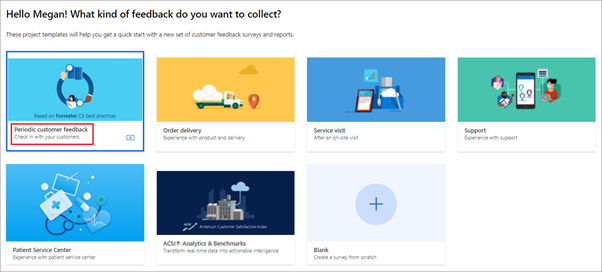
After selecting a template, you will be asked which location that the project and related surveys should be added to. Make sure that you consider workflows or flows from Microsoft Power Automate that might be required as triggers or receptors of data for any survey. This consideration will help you determine the correct location to add the project to. For a typical organization that uses Microsoft Dynamics 365, a production and at least one sandbox environment would exist. The environment that shows (default) next to it is the default Microsoft Dataverse environment, and it will have no link or connection to any Microsoft Dynamics 365 Customer Engagement app.
The Periodic customer feedback template consists of the following elements:
One survey - Periodic customer feedback survey
One report - Periodic customer feedback survey report
One new variable - companyname (other than First Name, Last Name, and locale)
Two satisfaction metrics - Customer satisfaction (CSAT) and Customer sentiment (Sentiment)
One email template - The 5-minute survey: Let's stay in touch template
You can use all assets in the template as provided or appended to, or you can remove them if they don't meet your organization's requirements. The template provides one survey, but you can add other surveys that are related to specific areas of the business. The survey asks the recipient to rate how much they agree with various statements that cover specific topics, such as how support responds to cases or whether they feel appreciated by the organization. The customer would respond to these statements based on the sentiment or experiences that they've had.
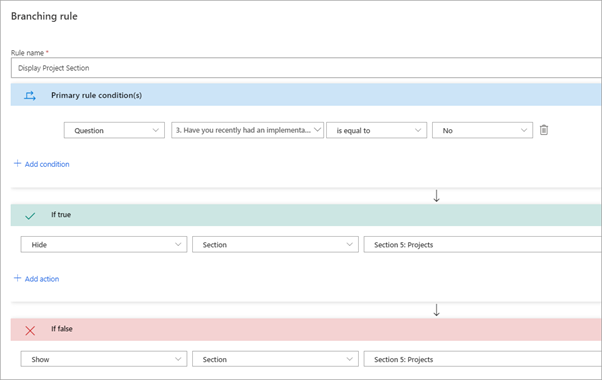
You can adjust the survey to include more questions or sections that break down the feedback by department. You could use a Likert scale question for each area and then add it to different sections. For example, the question could ask how much the client agrees with statements as they pertain to the Support team or the Finance team. If the client has recently had an implementation of some kind, it might be valuable for you to add a section that gathers feedback about the Project team. Consider using advanced logic to create branching rules to determine if a specific section should be displayed. Add a question that asks if the client has had a project, and if the response is No, then the section on Projects can be hidden. If the response is Yes, then the section on Projects can be displayed. Essentially, you're only showing relevant sections of the survey to the respondent.
Make sure that you review several aspects of the project before using it to send to customers. The first item to review is the header of the Periodic customer feedback survey. By using the controls, you can add a header image, and you can change the survey header text placement as needed. Adding a logo helps to brand the survey to be aligned with an organization. A logo also helps provide recognition for customers, which might make them more inclined to complete the survey.
The companyname variable that is included in the template is used throughout the survey in the question text. It displays the company name of the organization that is sending the survey. To adjust the default value, go to the Customization menu and then select the Personalization option. When you add the actual name of the company rather than using the company (the template default), it will update throughout the survey, wherever the survey is used.
After you have added all your organization's requirements to the survey, you can send it. In the next unit, you'll learn how to send surveys directly to a contact by using Dynamics 365.