Mobility and input accessibility features
Windows supports multiple ways to interact with a PC beyond a keyboard, mouse, touchpad, or touch screen. Voice and eye control options help users choose the input method that works best for their abilities, environment, and workflow.
Voice Access
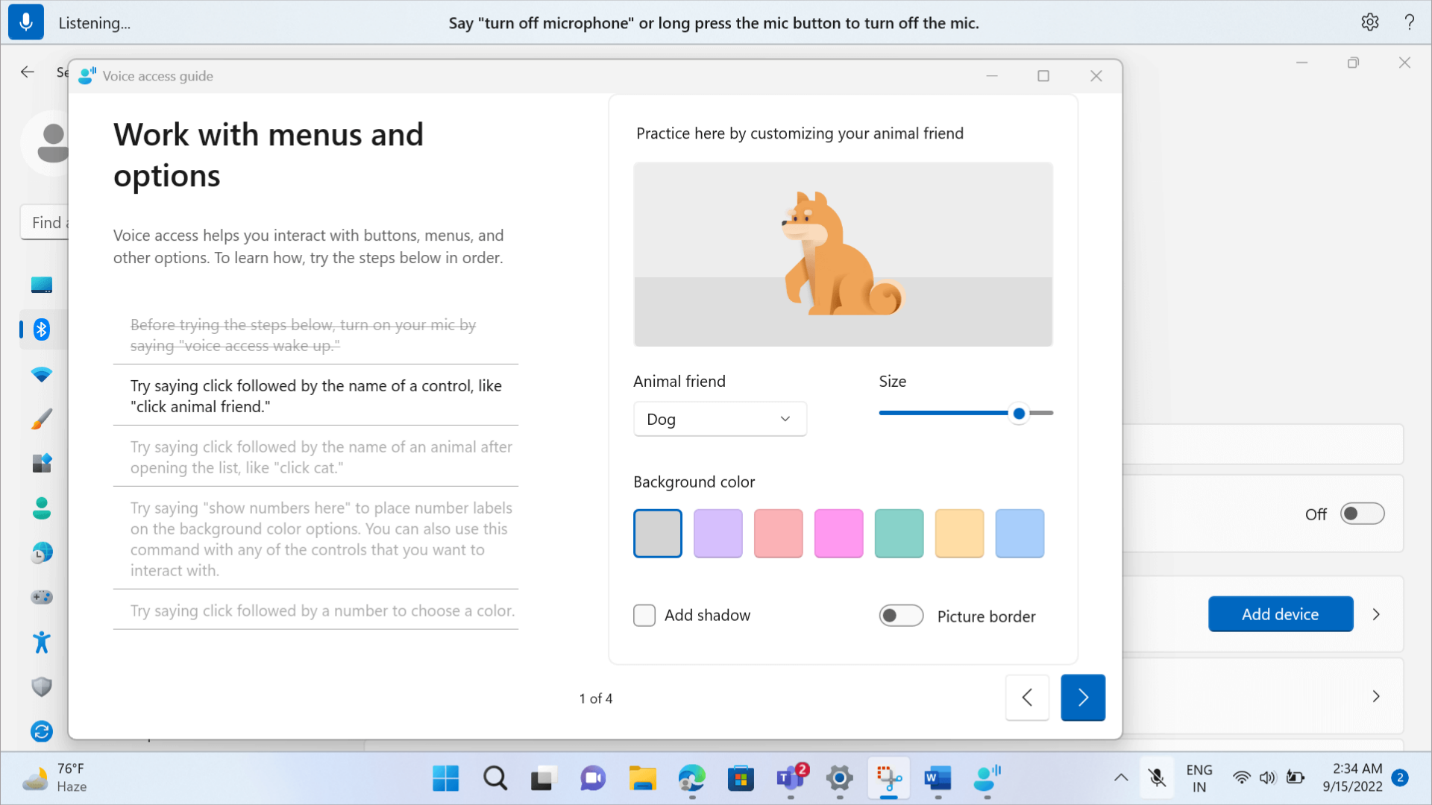
A keyboard, mouse, or touch screen may not be the best input method for every user or every environment. Voice Access helps address this by letting users control their PC and author text using spoken commands. It supports actions such as signing in, navigating apps, using File Explorer and Search, dictating and editing content, and working with screen readers such as Narrator and Magnifier. After setup and language download, speech recognition runs locally on the device and doesn't require an internet connection. The workplace outcome is hands-free control for users with mobility, dexterity, or fatigue-related needs.
Voice Access also supports setup and sign-in, flexible command phrasing, custom vocabulary, and optional command delays. These capabilities help support different speech patterns, improve recognition accuracy for specialized terms, and give users more control over how voice commands are executed.
When to use: Use Voice Access when a user needs to navigate Windows, control apps, dictate text, or complete tasks hands-free. It's especially useful when keyboard, mouse, touchpad, or touch input creates a barrier because of mobility, dexterity, fatigue, or environmental needs.
Why this matters: Voice Access expands input options so users can navigate, dictate, and edit without depending on a keyboard, mouse, touchpad, or touch screen.
Use case scenario: A user with limited hand mobility uses Voice Access to open apps, dictate an email, correct text, and switch between windows during a routine work session.
Note
Voice Access supports multiple languages; some features are available only in English. Voice typing uses online speech recognition powered by Azure Speech services and requires an internet connection. Eye control requires a compatible eye-tracking device, sold separately.
Voice typing
Voice typing helps users dictate text into supported text fields using Windows logo key + H. It's useful when a user wants to quickly draft a message, search term, note, or document text without typing. The barrier is typing effort. The tool is speech-to-text dictation. The workplace outcome is efficient text entry for short or everyday writing tasks, especially when a user wants to reduce keyboard use or switch between input methods.
Voice typing also gives users control over how profanity is handled in dictated text and can add a delay before acting, which helps users manage pacing during dictation. Let's explore some example voice prompts that you can use on your Surface:
| Voice typing command | What you can say |
|---|---|
| Stop or pause voice typing | Pause voice typing Pause dictation Stop voice typing Stop dictation Stop listening Stop dictating Stop voice mode Pause voice mode |
| Delete last spoken word or phrase | Delete that Erase that Scratch that |
| Select last spoken word or phrase | Select that |
| Press Enter | Press Enter |
| Press Backspace | Backspace Press Backspace |
| Press Tab | Tab Press Tab |
| Press Space | Insert Space Press Space |
| Undo previous change | Undo that Revert |
Note
The above prompts are for using voice typing with English (United States). Windows supports more than 40 languages for the voice typing feature.
When to use: Use Voice typing when a user wants a quick way to dictate short messages, notes, search terms, or document text in supported text fields. It's best for users who can speak comfortably and have an internet connection, but who may want to reduce typing effort or switch between keyboard and voice input during everyday tasks.
Why this matters: Voice typing supports quick text entry when users want to reduce typing effort, capture thoughts faster, or switch between input methods during everyday work.
Use case scenario: A field employee uses Voice typing to quickly capture notes after a customer visit, then reviews and edits the text before sharing it with the team.
Fluid Dictation
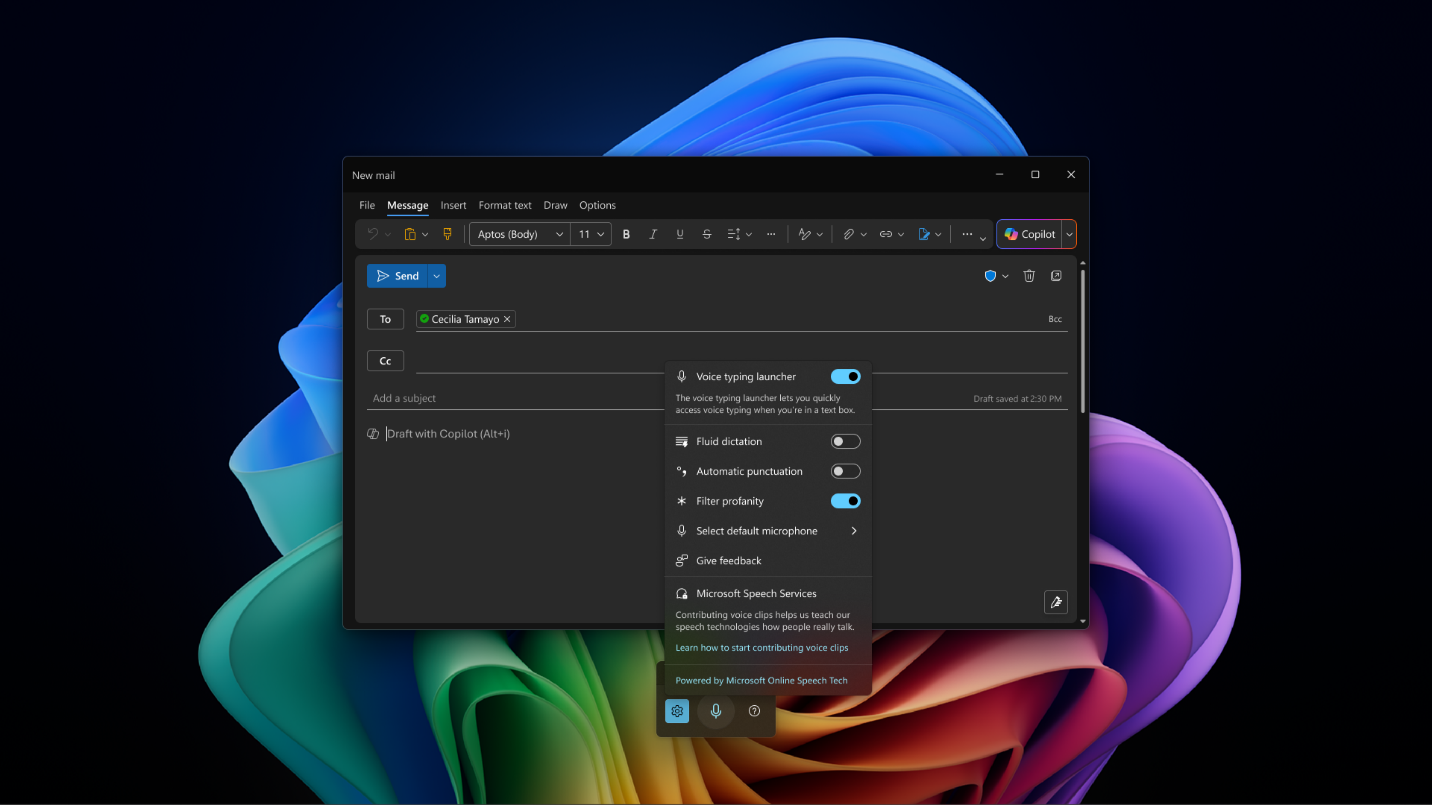
Longer dictation can still require editing when punctuation, grammar, spelling, or filler words need cleanup. Fluid Dictation helps address that barrier within Voice Access on Copilot+ PCs by correcting grammar, punctuation, spelling, and filler words as the user speaks. It's powered by on-device small language models for fast and private processing. It's available on Copilot+ PCs in English locales and is disabled in secure fields such as passwords or PINs. Availability may vary by Windows version, device configuration, and rollout status.
When to use: Use Fluid Dictation when a user needs a more polished dictation experience on a Copilot+ PC, especially for longer writing tasks where grammar, punctuation, spelling, and filler-word cleanup can help with the editing process. It's useful when users want fast, private, on-device support for drafting content without relying on an internet connection.
Why this matters: Fluid Dictation can assist during longer dictation tasks by helping clean up grammar, punctuation, spelling, and filler words as the user speaks.
Use case scenario: A business user drafts a longer status update with Voice Access and uses Fluid Dictation to optimize time by automatically applying punctuation and correcting filler words as they speak.
Eye control
When a user can't reliably use a keyboard, mouse, touchpad, or touch screen, standard input can become a major barrier. Eye control helps address this barrier by enabling gaze-based interaction in Windows with a compatible eye-tracking device. With Eye control, users can move the cursor, click, scroll, type with an on-screen keyboard, and use text-to-speech. The workplace outcome is another path to access for users who need an alternative way to navigate Windows and complete tasks. Eye control requires a compatible eye-tracking device, sold separately. It doesn't work with a standard camera alone.
When to use: Use Eye control when a user can't reliably use a keyboard, mouse, touchpad, or touch screen and needs another way to navigate Windows. With a compatible eye-tracking device, it can support pointer movement, clicking, scrolling, typing, and text-to-speech through gaze-based interaction.
Use case scenario: A user who can't reliably use traditional input devices uses Eye control with a compatible eye-tracking device to move the pointer, select items, and type short responses during daily work tasks.