Ingest data with Auto Loader
When new data files arrive continuously in cloud storage, you need an efficient way to process them without manually tracking which files have been ingested. Auto Loader solves this challenge by automatically detecting and ingesting new files as they appear, providing exactly-once guarantees without requiring you to manage state or checkpoints manually.
Understand how Auto Loader works
Auto Loader is a Structured Streaming source that monitors a cloud storage location and incrementally processes new files. Rather than scanning entire directories repeatedly, Auto Loader maintains state about which files it has already processed, ensuring each file is ingested exactly once.
When you start an Auto Loader stream, it can process existing files in the directory and then continuously watch for new arrivals. The stream stores progress information in a checkpoint location, which allows it to resume from exactly where it stopped if interrupted.
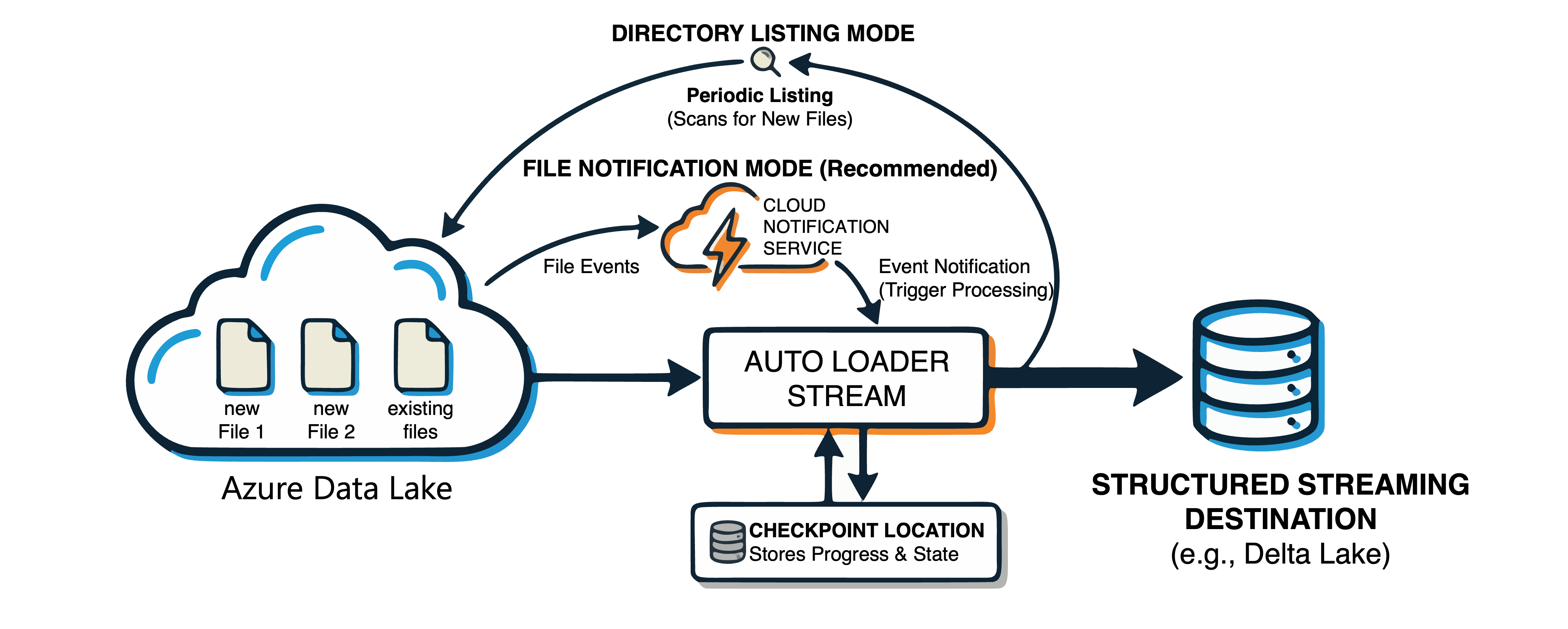
Auto Loader detects new files using one of two modes:
- Directory listing mode: Auto Loader periodically lists the input directory to discover new files. This approach requires no additional configuration beyond storage access.
- File notification mode: Auto Loader uses cloud notification services to receive events when new files arrive. This mode is more efficient for large-scale workloads because it avoids repeated directory listings.
For most production workloads, Databricks recommends file notification mode with file events enabled on your external location in Unity Catalog. With file events, Auto Loader receives notifications directly when files arrive, which reduces latency and cloud API costs.
Configure Auto Loader for file ingestion
To ingest data with Auto Loader, you use the cloudFiles format with spark.readStream. The following example reads JSON files from Azure Data Lake Storage and writes them to a Unity Catalog table:
base_path = "abfss://container@storage.dfs.core.windows.net/autoloader/orders"
schema_path = f"{base_path}/schema"
checkpoint_path = f"{base_path}/checkpoint"

(spark.readStream
  .format("cloudFiles")
  .option("cloudFiles.format", "json")
  .option("cloudFiles.schemaLocation", schema_path)
  .load("abfss://container@storage.dfs.core.windows.net/incoming/orders/")
  .writeStream
  .option("checkpointLocation", checkpoint_path)
  .trigger(availableNow=True)
  .toTable("sales.bronze.orders"))
The cloudFiles.format option specifies the source file format. Auto Loader supports JSON, CSV, Parquet, Avro, ORC, XML, text, and binary files. The cloudFiles.schemaLocation stores the inferred schema, which enables Auto Loader to track schema changes over time. While the schema location and checkpoint location can be the same, keeping them separate allows you to reset a stream without losing the inferred schema.
The trigger(availableNow=True) setting processes all currently available files and then stops. This pattern works well for scheduled batch jobs. For continuous processing, you can omit the trigger or use trigger(processingTime="1 minute") to process files in intervals.
Use SQL syntax with read_files
Auto Loader also supports SQL syntax through the read_files table-valued function. This approach is useful when you prefer SQL or when working in SQL notebooks:
SELECT * FROM read_files(
  'abfss://container@storage.dfs.core.windows.net/incoming/orders/',
  format => 'json',
  schemaHints => 'order_id INT, amount DECIMAL(10,2)'
)
When using read_files with streaming tables in Lakeflow Spark Declarative Pipelines, Auto Loader capabilities are automatically enabled. Use the STREAM keyword to enable incremental processing:
CREATE OR REFRESH STREAMING TABLE bronze_orders
AS SELECT * FROM STREAM read_files(
  'abfss://container@storage.dfs.core.windows.net/incoming/orders/',
  format => 'json'
)
In this context, the pipeline manages checkpointing and schema evolution automatically.
Tip
When working with Unity Catalog, store your checkpoint and schema locations in a managed storage location. This ensures consistent governance and avoids permission issues with nested paths.
Handle schema inference and evolution
Auto Loader can automatically detect the schema of your source files, eliminating the need to define schemas manually. When schema inference is enabled, Auto Loader samples files to determine column names and data types.
For JSON and CSV files, Auto Loader infers all columns as strings by default. This conservative approach prevents type mismatches that could cause data loss. To enable automatic type detection, set the cloudFiles.inferColumnTypes option:
(spark.readStream
  .format("cloudFiles")
  .option("cloudFiles.format", "json")
  .option("cloudFiles.inferColumnTypes", "true")
  .option("cloudFiles.schemaLocation", checkpoint_path)
  .load(source_path))
When your source data introduces new columns, Auto Loader detects the change and can evolve the target schema automatically. The cloudFiles.schemaEvolutionMode option controls this behavior:
| Mode | Behavior |
|---|---|
addNewColumns |
Stream fails. New columns are added to the schema. On restart, stream continues with the updated schema. This is the default when no schema is provided. |
addNewColumnsWithTypeWidening |
Stream fails. New columns are added to the schema and supported data type changes (such as INT to LONG) are widened automatically. Unsupported type changes are captured in _rescued_data. Requires Databricks Runtime 16.4+. |
rescue |
Schema is never evolved and stream does not fail. All new columns are captured in the _rescued_data column. |
failOnNewColumns |
Stream fails. Stream does not restart unless the provided schema is updated or the offending data file is removed. |
none |
Schema is not evolved, new columns are ignored, and data is not rescued unless the rescuedDataColumn option is set. This is the default when a schema is provided. |
The rescued data column (_rescued_data) captures any data that doesn't match the expected schema, including type mismatches and unexpected columns. This feature prevents data loss when source data doesn't conform to expectations. Auto Loader automatically adds this column when inferring the schema.
(spark.readStream
  .format("cloudFiles")
  .option("cloudFiles.format", "csv")
  .option("cloudFiles.schemaEvolutionMode", "rescue")
  .schema(expected_schema)
  .load(source_path))
To rename the rescued data column, use the rescuedDataColumn option:
.option("rescuedDataColumn", "my_rescued_data")
If you know certain columns should have specific types, use schema hints to override the inferred types:
.option("cloudFiles.schemaHints", "order_date DATE, amount DECIMAL(10,2)")
Monitor and optimize Auto Loader streams
For production workloads, monitoring helps you track ingestion progress and identify issues. Auto Loader provides a SQL function to query the state of discovered files:
SELECT * FROM cloud_files_state('/path/to/checkpoint');
This query returns metadata about files that Auto Loader has discovered, including their processing status. You can use this information to verify that files are being ingested as expected.
Auto Loader reports metrics through the Structured Streaming progress dashboard, including:
numFilesOutstanding: Files discovered but not yet processednumBytesOutstanding: Total bytes waiting to be processed
For high-volume workloads, control the processing rate using cloudFiles.maxFilesPerTrigger or cloudFiles.maxBytesPerTrigger. These settings prevent any single micro-batch from becoming too large:
.option("cloudFiles.maxFilesPerTrigger", "1000")
.option("cloudFiles.maxBytesPerTrigger", "1g")
Important
The checkpoint location stores critical state information. Avoid applying cloud storage lifecycle policies that might delete checkpoint files, as this corrupts the stream state and requires restarting from scratch.
To access file-level metadata in your ingested data, select the _metadata column. This hidden column contains information about each source file, including file_path, file_name, file_size, and file_modification_time:
(spark.readStream
  .format("cloudFiles")
  .option("cloudFiles.format", "parquet")
  .load(source_path)
  .select("*", "_metadata.file_path", "_metadata.file_modification_time"))
Auto Loader integrates seamlessly with Lakeflow Spark Declarative Pipelines, where it handles checkpointing and schema management automatically. In the next unit, you learn how to use Auto Loader within declarative pipeline definitions for end-to-end data ingestion workflows.