Ingest data with Lakeflow Spark Declarative Pipelines
When you need to ingest data from multiple sources with automated orchestration, schema management, and exactly-once processing guarantees, Lakeflow Spark Declarative Pipelines provides a declarative framework for the entire process. Rather than writing complex imperative code to manage streaming state and dependencies, you define what you want, and the pipeline handles how to execute it.
Understand Lakeflow Spark Declarative Pipelines for ingestion
Lakeflow Spark Declarative Pipelines is a framework for building batch and streaming data pipelines using SQL or Python. You declare the structure of your data transformations, and the pipeline automatically handles orchestration, retries, and incremental processing.
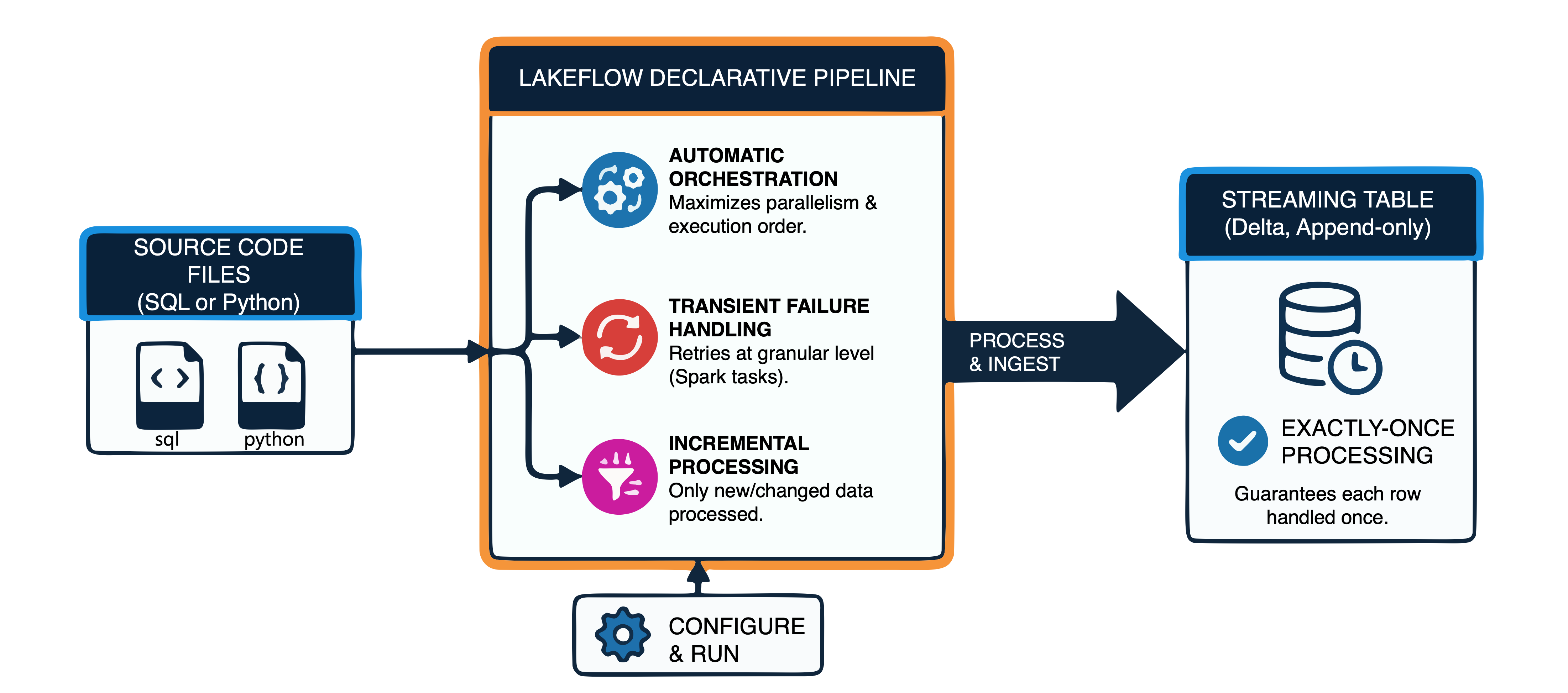
For data ingestion, you typically create streaming tables as targets. A streaming table is a Delta table with built-in support for streaming data. Each row from the source is processed exactly once, making streaming tables ideal for append-only ingestion workloads where data continuously arrives.
The pipeline framework provides several benefits for ingestion:
- Automatic orchestration: The pipeline determines the correct execution order and maximizes parallelism.
- Transient failure handling: If a task fails, the pipeline retries at the most granular level possible, starting with individual Spark tasks.
- Exactly-once processing: Streaming tables guarantee that each input row is handled only once.
- Incremental processing: Only new or changed data is processed during each update.
To use pipelines, you define streaming tables and flows in source code files (SQL or Python), then configure and run a pipeline that processes these definitions.
Create streaming tables for ingestion
A streaming table acts as the target for your ingestion flow. You define what data to read and how to transform it, and the pipeline manages the execution.
The following SQL example creates a streaming table that reads JSON files from cloud storage:
CREATE OR REFRESH STREAMING TABLE orders_bronze
AS SELECT *
FROM STREAM read_files(
  'abfss://container@storage.dfs.core.windows.net/incoming/orders/',
  format => 'json'
)
The STREAM keyword indicates that the source should be processed incrementally. The read_files function reads files from the specified path with automatic format detection. When used with STREAM, it enables Auto Loader capabilities for incremental file detection.
In Python, you use the @dp.table decorator to define a streaming table:
from pyspark import pipelines as dp

@dp.table
def orders_bronze():
    return (
        spark.readStream.format("cloudFiles")
            .option("cloudFiles.format", "json")
            .load("abfss://container@storage.dfs.core.windows.net/incoming/orders/")
    )
Both examples create a streaming table named orders_bronze. When the pipeline runs, it processes any new files that arrive in the source location. The pipeline manages checkpoints internally, so you don't need to configure checkpoint locations manually.
Tip
Store your pipeline source code in a Git folder for version control. The Lakeflow Pipelines Editor supports a default folder structure with transformations for source code and explorations for ad hoc analysis.
Configure flows for multiple sources
A flow defines how data moves from a source to a target. When you create a streaming table with a query, a default flow is created automatically. However, you can also define flows explicitly to handle more complex scenarios, such as ingesting from multiple sources into a single table.
Consider a scenario where you receive order data from different regional systems. You want to combine them into a single orders_us table without using a UNION clause. Explicit flows enable this pattern:
-- Create the target streaming table
CREATE OR REFRESH STREAMING TABLE orders_us;

-- Add a flow from the west region
CREATE FLOW orders_west_flow
AS INSERT INTO orders_us BY NAME
SELECT * FROM STREAM(orders_west);

-- Add a flow from the east region
CREATE FLOW orders_east_flow
AS INSERT INTO orders_us BY NAME
SELECT * FROM STREAM(orders_east);
Each flow appends data to the same target table independently. This approach is more flexible than UNION because you can add new source flows without modifying existing ones or triggering a full refresh.
In Python, you use the @dp.append_flow decorator:
from pyspark import pipelines as dp

# Create the target streaming table
dp.create_streaming_table("orders_us")

# Add flow from west region
@dp.append_flow(target="orders_us")
def orders_west_flow():
    return spark.readStream.table("orders_west")

# Add flow from east region
@dp.append_flow(target="orders_us")
def orders_east_flow():
    return spark.readStream.table("orders_east")
Important
Flow names are used to identify streaming checkpoints. If you rename a flow, the checkpoint doesn't carry over, and the renamed flow starts processing from the beginning as a new flow.
Ingest from message buses
Lakeflow Spark Declarative Pipelines supports ingestion from message buses like Apache Kafka, Azure Event Hubs, Amazon Kinesis, and Google Pub/Sub. For Azure environments, Event Hubs is commonly used and provides a Kafka-compatible endpoint.
The following example reads from a Kafka topic:
CREATE OR REFRESH STREAMING TABLE events_raw
AS SELECT *
FROM STREAM read_kafka(
  bootstrapServers => 'kafka_server:9092',
  subscribe => 'events_topic'
)
For Azure Event Hubs, you use the Kafka-compatible interface. Event Hubs requires authentication using a connection string stored securely in Azure Databricks secrets:
from pyspark import pipelines as dp

EH_NAMESPACE = spark.conf.get("eh.namespace")
EH_NAME = spark.conf.get("eh.name")
EH_CONN_STR = dbutils.secrets.get(scope="eh-secrets", key="connection-string")

KAFKA_OPTIONS = {
    "kafka.bootstrap.servers": f"{EH_NAMESPACE}.servicebus.windows.net:9093",
    "subscribe": EH_NAME,
    "kafka.sasl.mechanism": "PLAIN",
    "kafka.security.protocol": "SASL_SSL",
    "kafka.sasl.jaas.config": f'kafkashaded.org.apache.kafka.common.security.plain.PlainLoginModule required username="$ConnectionString" password="{EH_CONN_STR}";'
}

@dp.table
def events_bronze():
    return (
        spark.readStream
            .format("kafka")
            .options(**KAFKA_OPTIONS)
            .load()
    )
Store sensitive connection information in Azure Databricks secrets rather than hardcoding values in your pipeline code. Use pipeline parameters (configured in settings) to pass non-sensitive configuration values like namespace names.
Handle schema inference and evolution
When ingesting semi-structured data like JSON, you often don't know the exact schema in advance. Lakeflow Spark Declarative Pipelines provides automatic schema inference and evolution through the from_json function.
CREATE STREAMING TABLE events_parsed AS
SELECT
    from_json(value, NULL,
        map('schemaLocationKey', 'events_schema',
            'schemaEvolutionMode', 'addNewColumns')) AS parsed
FROM STREAM read_kafka(
    bootstrapServers => 'kafka_server:9092',
    subscribe => 'events_topic'
)
Setting the schema to NULL enables automatic inference. The schemaLocationKey uniquely identifies where the schema is stored. When new fields appear in the source data, the pipeline detects them and can automatically add them to the schema.
The schemaEvolutionMode controls how the pipeline responds to schema changes:
| Mode | Behavior |
|---|---|
addNewColumns |
New columns are added to the schema automatically. This is the default. |
rescue |
New columns are captured in a _rescued_data column instead of being added. |
failOnNewColumns |
The pipeline fails when new columns are detected. |
none |
New columns are ignored and not rescued. |
For columns that don't match the inferred schema (type mismatches or unexpected fields), a _rescued_data column captures the data to prevent loss.
Note
If you need strict control over the schema, provide explicit schema hints instead of relying on automatic inference:
map('schemaHints', 'order_id INT, amount DECIMAL(10,2)')
When your ingestion pipeline is running, you can monitor progress through the pipeline event log and the Lakeflow Pipelines Editor. The editor provides execution insights, data previews, and a directed acyclic graph (DAG) showing table dependencies. For production workloads, configure notifications in the pipeline settings to receive alerts when issues occur.