Connect an agent to an existing MCP server
The account opening agent at Woodgrove Bank is ready to be connected to WoodgroveCore. Before the agent can use the server's tools, the maker needs to register the connection in Copilot Studio by providing the server's identity and endpoint through the MCP onboarding wizard.
Opening the MCP onboarding wizard
To connect a custom MCP server to your agent, go to the agent's Tools page and select Add a tool. On the Add a tool panel, select New tool, then select Model Context Protocol. This opens the MCP onboarding wizard.
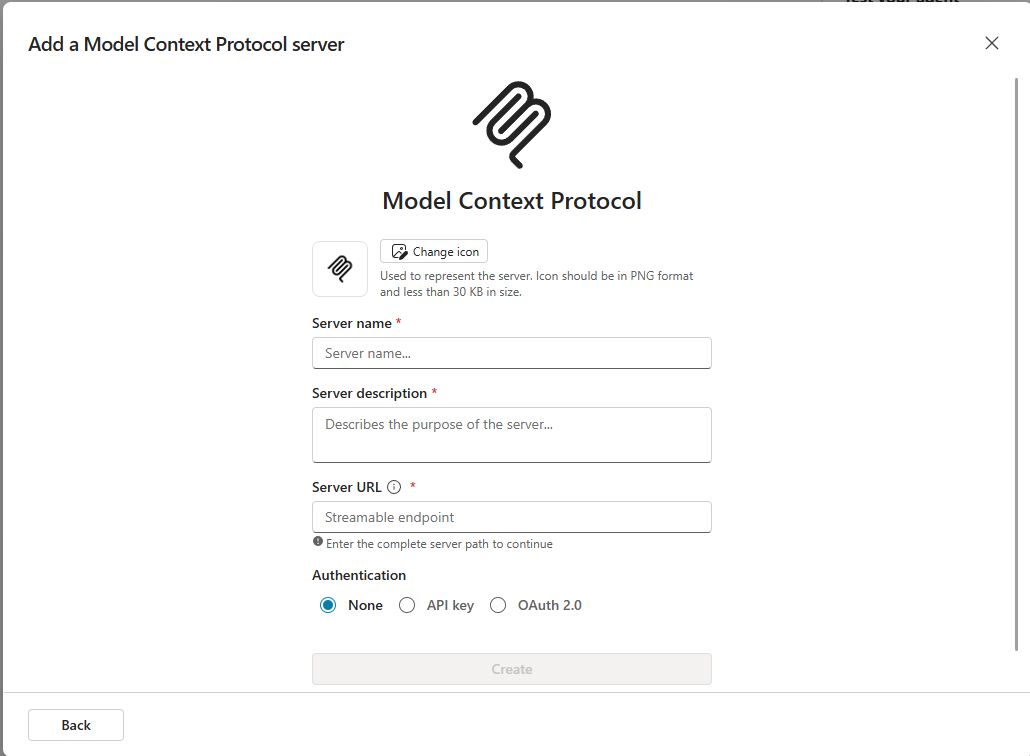
The wizard guides you through three required fields before proceeding to authentication: Server name, Server description, and Server URL. Each field serves a specific purpose, and getting them right — especially the description — directly affects how reliably your agent uses the server. After completing the server details, you need to configure authentication, which is covered in the next unit.
Server configuration
Server name is a short, human-readable label for the MCP server connection. The maker at Woodgrove Bank, for example, enters "WoodgroveCore MCP Server." This name appears in the agent's Tools list and helps makers identify the connection at a glance. It's for your reference. It isn't surfaced to users.
Server URL is the HTTPS endpoint address for the MCP server's Streamable HTTP transport, which Copilot Studio uses to send requests to the server. The server owner provides this address. For WoodgroveCore, the enterprise architecture team publishes the endpoint to all teams connecting agents to the server.
Server description is the field that carries the most weight. The description isn't a label for makers. It's read by the agent's orchestrator at runtime to determine when this server is relevant to a user's request.
A vague description like "An enterprise MCP server for banking systems" gives the orchestrator little to work with. A precise description like "Provides tools from Woodgrove Bank's core banking systems, including account lookup, loan origination queries, and customer record retrieval. Call this server when users ask about account status, loan applications, or customer details" gives the orchestrator the context it needs to route requests accurately and consistently.
The maker at Woodgrove Bank writes a description scoped to what WoodgroveCore actually exposes: the core banking ledger, loan origination system, and customer records. The description answers the question the orchestrator must evaluate at runtime: is this server relevant to what the user just requested?
Because tool descriptions are set on the server and can't be changed in Copilot Studio, the server description you write here becomes the orchestrator's primary signal for this server. Write it as a routing rule, not a label.
Supported transport types
Copilot Studio supports only the Streamable HTTP transport type for MCP connections. Streamable HTTP is the current MCP transport standard and the recommended transport for any MCP server deployed today.
Important
SSE (Server-Sent Events) is no longer supported in Copilot Studio after August 2025. If you're connecting to a server deployed before this change, confirm the transport type with the server owner before entering a URL. If the server still uses SSE transport, the connection won't succeed — the server must migrate to Streamable HTTP first.
At Woodgrove Bank, WoodgroveCore was deployed on Streamable HTTP, so the account opening agent can connect without any migration work. If your organization has older servers configured for SSE transport, coordinate with the server owner to migrate as a first step.
Adding prebuilt Microsoft MCP connectors from the catalog
For many Microsoft services, you don't need to configure a custom server connection at all. Copilot Studio provides a catalog of prebuilt Microsoft MCP connectors that you can add to an agent directly, with no server URL or server description required.
To access the catalog, go to the agent's Tools page, select Add a tool, and select Model Context Protocol. The catalog lists available prebuilt connectors.
Select the connector you want. For example, use Microsoft-provided Work IQ MCP servers to access real-time context across Microsoft 365 apps.
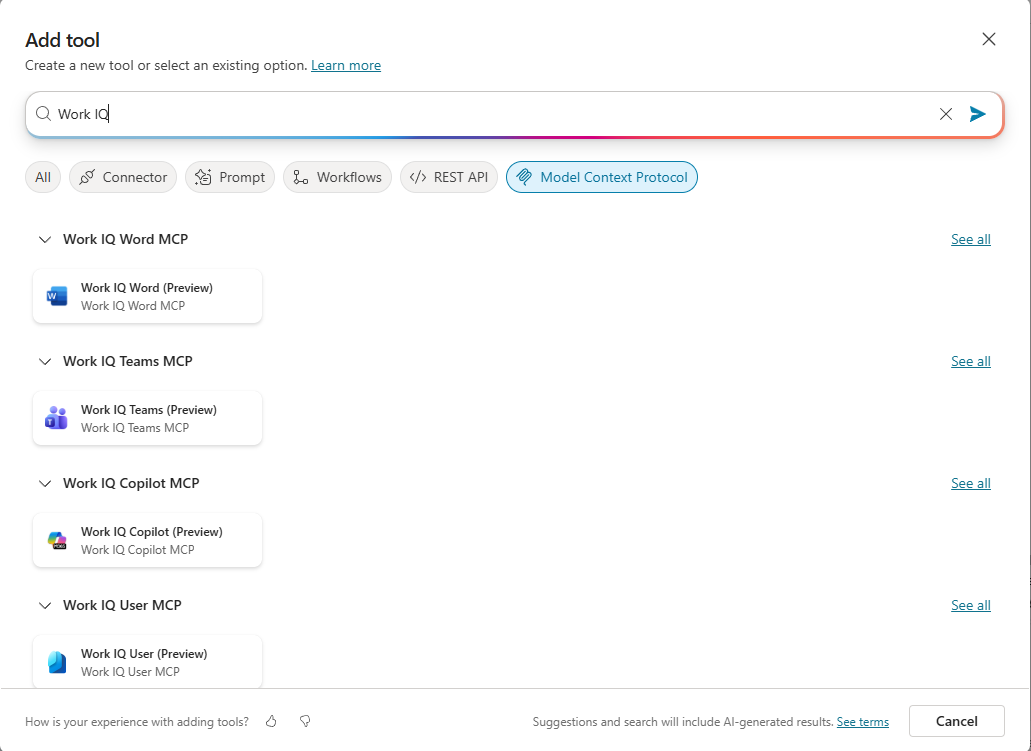
Authorize the connection when prompted, and select Add and configure. The prebuilt connector handles endpoint configuration automatically. You provide authorization credentials. The connection details are already managed by Microsoft.
This catalog path differs from the custom onboarding wizard workflow. Prebuilt Microsoft connectors require minimal setup and no endpoint knowledge. Custom MCP servers connected through the onboarding wizard require more configuration but work with any MCP-compliant server your organization operates or a partner service exposes.