Customize PWA settings and appearance
As you develop your Progressive Web App (PWA), you might want to make it more engaging and personalized. This is where customizing your PWA becomes essential. You can modify your PWA's icons, theme colors, and display options to align them more closely with your brand, thereby enhancing your users' experience. In this unit, we'll explore the various options to achieve customization available through PWABuilder.
Edit manifest in PWABuilder
You can edit your manifest (modify PWA icons, theme colors, and display options, etc.) prior to downloading it.
To edit your manifest on the PWABuilder site:
From the report card page, select the Edit Your Manifest button.
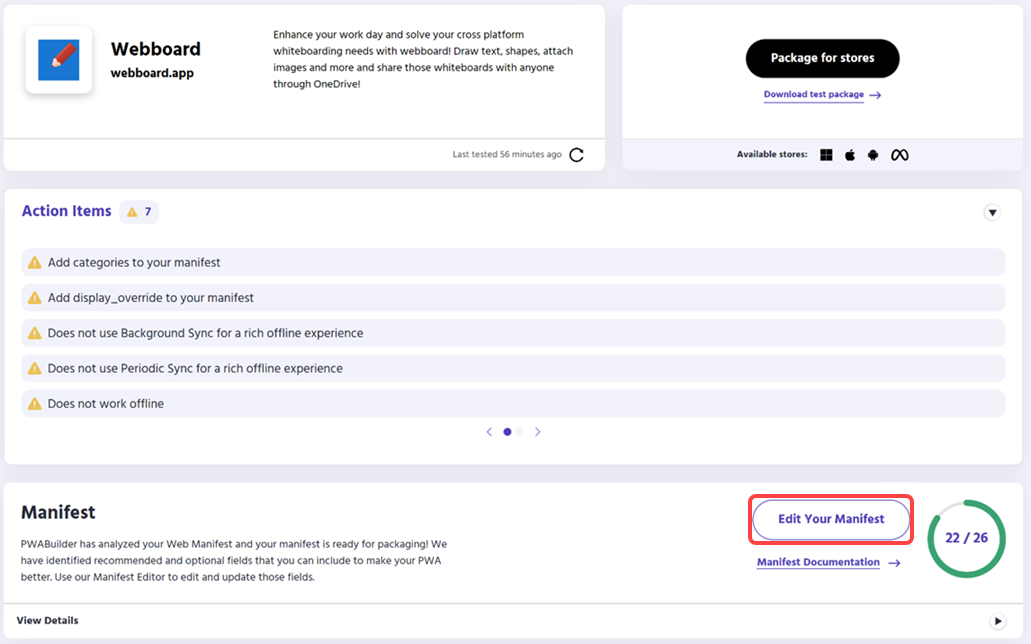
The manifest editor modal appears, allowing you to edit the fields of your manifest using a form.
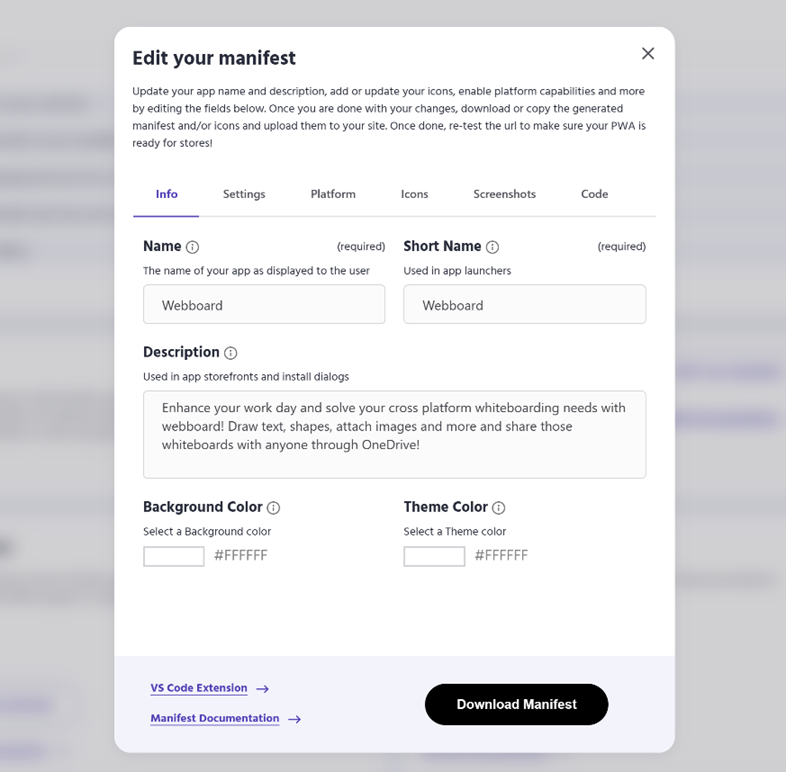
The manifest editor has six tabs, each for editing or displaying a different part of your manifest:
- Info tab: Contains manifest members that contain display information for your application.
- Settings tab: Contains manifest members that manage how your application runs and displays at the most basic level. This includes how your application is oriented, its start URL, and other important options.
- Platform tab: Contains manifest members that relate to how your application interacts with native operating systems and app stores.
- Icons tab: Allows you to generate proper icons for your progressive web app.
- Screenshots tab: Allows you to generate screenshots to be displayed with your progressive web app in stores.
- Code tab: Contains a preview of the manifest code generated if you download your edited manifest.
After you edit and review your manifest, select the Download Manifest button to download a copy to add to your PWA.
Generate icon from PWABuilder
You can use the PWABuilder website to generate appropriate-sized icons for your Progressive Web App (PWA). Currently, PWABuilder supports generating the proper icons for Android, Windows, and iOS.
To get icons from PWABuilder:
From your app's dashboard on PWABuilder, select Edit Your Manifest.
Navigate to the Icons tab using the top-level menu.
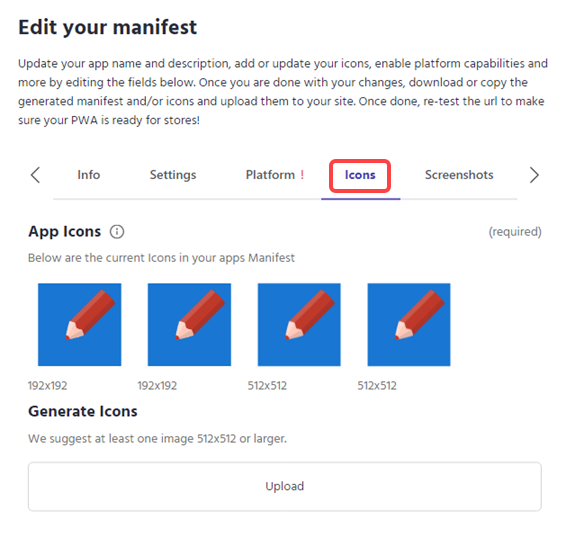
Select Upload and select an image you want to generate platform icons from. We recommend that it's a square icon, sized around 512x512.
Check/uncheck which platforms you would like to generate icons for and select Generate Zip.
A zip containing your icons is downloaded to your Downloads folder.
Next, you need to add references to the downloaded icons in your manifest.json. To add the references, refer to the following steps:
- Decompress the zip archive you downloaded from PWABuilder.
- Create an icon folder within the assets folder.
- Add all of the icon images into the newly created icon folder.
- Finally, copy and paste the icons field in the icons.json field into your manifest.json.
- Once the folders are included and the icons member is added to your manifest, your new icons are properly associated with your PWA.
Modify the app manifest file properties
The app manifest provides metadata about the web application. By updating your app manifest file, you can modify your PWA's icons, theme colors, and display options to align with your desired settings and provide a consistent brand experience to your users. To update the manifest file properties:
Locate your app manifest file (manifest.json) in your project directory.
Open the file in a code editor or text editor of your choice.
If you would like to update your PWA's theme colors, locate the properties "theme_color" and "background_color" in the JSON file. Replace the default color values with the hexadecimal color values that you prefer. For example:
{
     "theme_color": "#fff",
     "background_color": "#fff"
   }
Similarly, you can update other members of the manifest file to suit your app needs.
Save the changes to your app manifest file.
Additional PWA features
When using PWABuilder to create a PWA, you can incorporate more features like push notifications, background sync, and offline capabilities by extending the generated service worker file and customizing your app's code.
To learn more about the web app manifest, refer to PWABuilder - Customizing Your Web App Manifest.
To learn more about service workers, refer to PWABuilder - Introduction to Service Workers.