Introduction
GitHub Copilot Spaces provides a new way to work with AI by anchoring its responses in a carefully curated context. Unlike general Copilot Chat, which surfaces broad suggestions, a Space allows you to focus the model on specific files, issues, pull requests, and tailored instructions. This unit introduces what a Space is, how it works, and why narrowing the context leads to more consistent, reproducible answers. You'll also learn how to set effective context using attachments and free-text instructions, and when it's best to use Spaces over general chat.
In this unit, you’ll learn:
- What GitHub Copilot Spaces are and how they differ from general Copilot Chat
- Why tightly scoped context improves answer quality and consistency
- How to attach files, issues, and instructions to guide the model
- When to create a Space for repeatable, domain-specific tasks
What is a GitHub Copilot Space?

It’s a dedicated Copilot chat grounded in a curated set of context you choose. The Space is itself like a LLM and you can feed it GitHub files, issues, pull requests, and your own free‑text instructions to provide context to your specific topic.
Setting Context for Copilot Spaces

The effectiveness of a Copilot Space depends on the context you provide. You can attach specific files (such as scripts, configuration, or documentation), relevant issues or pull requests, and tailored instructions. By curating this input, you help Copilot focus on the information that matters most for your scenario. The context order matters: leading with the most critical files or instructions helps drive more accurate and relevant responses.
Setup: Attaching Files (Uploads) and Instructions in Copilot Spaces
Attaching Files (Uploads):
- In the Space setup, use the "Attach files" or "Add context" button to select one or more files from your GitHub repository.
- You can attach source code files, markdown docs, configuration files, or other assets as context. These files are referenced from the default branch, so your Space stays up to date as your repo evolves.
- If allowed by your workspace settings, you may also upload files directly (such as images or datasets) from your local machine for non-repo context.
Adding Instructions:
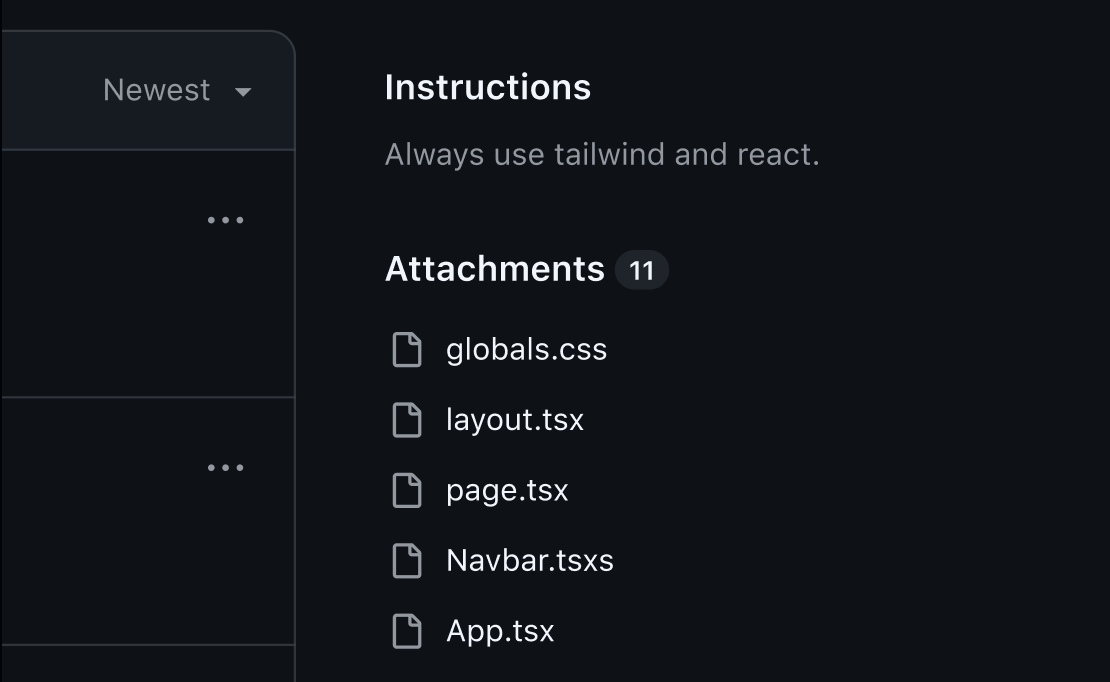
- Use the "Instructions" section to provide specific guidance to Copilot. This can include goals ("Summarize the onboarding process"), style preferences ("Write in a formal tone"), or canonical examples ("Sample output should look like…").
- Keep instructions brief, focused, and actionable. If your Space serves a workflow or troubleshooting guide, include step-by-step tasks or sample prompts.
- You can update instructions at any time to refine the focus of your Space.
The ideal time you want to use and create a GitHub Copilot Spaces
Use a Space when you want consistent, reproducible answers on a tightly scoped topic, like a particular service, a runbook or playbook, or a known dataset. Compared to general or repo‑wide chat, Spaces trade breadth for depth: by narrowing the context to what matters most, they tend to produce more predictable, grounded responses, while broad chat can surface wider discovery but may be less precise.
A few practical guidelines improve quality. Model context limits apply, so keep Spaces small and focused. Linked GitHub files reflect the repository's default branch, helping content stay current as code evolves. Be clear and concise with your instructions, and include a few canonical examples to anchor style and expected outputs. Finally, remember that the selection and ordering of context can influence responses, so lead with your most important sources.