Perform no-copy, no-ETL data integration with Microsoft Fabric
The Link to Microsoft Fabric feature in Power Apps makes all your Dataverse data directly and more securely linked to OneLake in Microsoft Fabric. As a result, you experience the following benefits with this feature:
You don't need to build data pipelines, write code to copy data, or set up data integration tools. All your data stays in Dataverse, and the feature doesn’t copy data to Microsoft Fabric. Whenever data changes in Dataverse, the change reflects in Microsoft Fabric.
All your Dynamics 365 and Power Apps data is refreshed and ready to use for analytics and insights. Different personas, such as data analysts, data engineers, and data scientists, can now use this data in different ways.
You can drive actions by linking data back into Power Apps, or you can use Power Automate to drive automation based on the insights that you gain through Microsoft Fabric. Also, you can use the insights to drive action by using Data Activator in Microsoft Fabric.
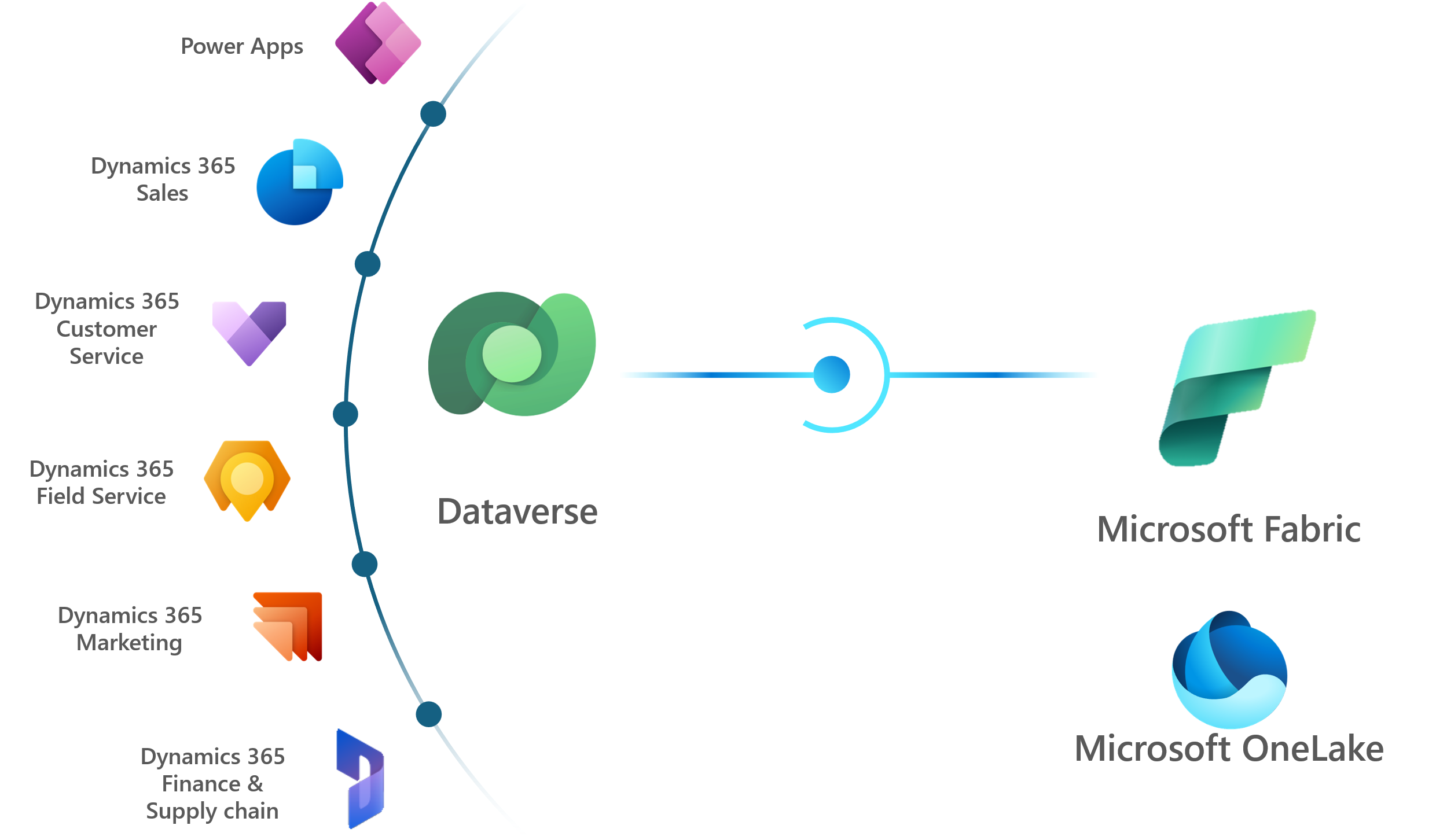
Consider a scenario where you have website traffic data in Microsoft OneLake. You can combine this data with sales data from Dynamics 365 Business Central to understand your sales conversions from website visits so that you can stock your products accordingly.
Prerequisites
To set up Dataverse to link to Fabric, you must fulfill specific prerequisites on either side.
Dataverse requirements
You must have the System Administrator security role in the Dataverse environment.
Microsoft Fabric requirements
Microsoft Fabric is offered through two purchasing options: Microsoft Power BI Premium capacities or Fabric capacities. Hence, you need to make sure that your capacity is set up correctly for the option that you purchased before you can link your Dataverse with Fabric.
| Requirement | Power BI Premium capacity | Fabric capacity |
|---|---|---|
| Supported capacity SKUs | P1, P2, P3, P4, P5 | F2, F4, F8, F16, F32, F64, F128, F256, F512, F1024, F2048, DCT1, FT1 |
| Power BI/Fabric workspace access (if you're creating a workspace) | Administrator | Administrator |
| If you want Dataverse to create a workspace for you | Power BI Capacity Administrator | Contributor (Microsoft Azure built-in role on the Fabric capacity) |
Establish the link
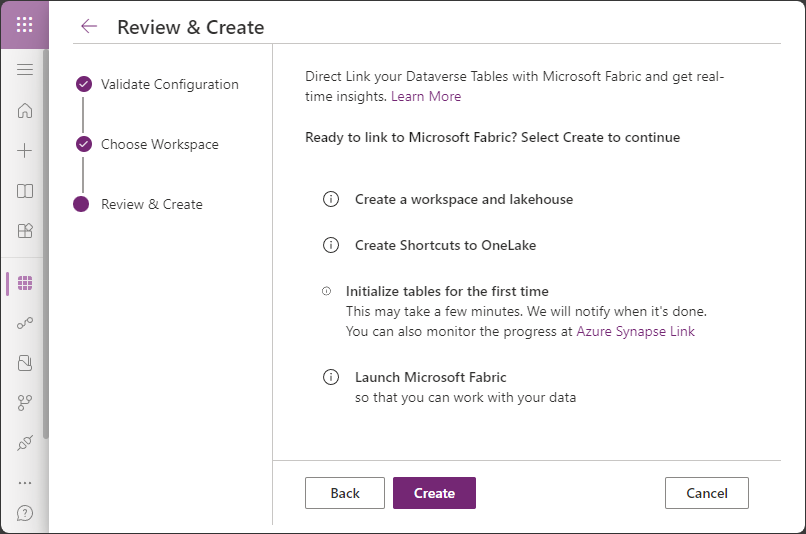
Linking your Dataverse data with Fabric is a straightforward process. Your first task is to ensure that you have the correct Dataverse environment selected in Power Apps. Then, from the Tables navigation pane in Power Apps, select Analyze > Link to Microsoft Fabric to launch the wizard. The wizard-driven experience guides you through the process to:
Connect to and validate your Dataverse and Fabric configurations.
Choose (or create) a Fabric workspace for your data.
Review your steps and create the link.
Note
This feature is enabled by default on all environments. Admins can disable this feature in the Power Platform admin center in the environment feature settings. This option has moved from the Export menu since public preview. You can no longer select this option from the context menu for specific tables because this option applies to all tables.
Verify the link
When the system establishes the link, it redirects you to the Fabric workspace, which includes a lakehouse. A SQL Analytics endpoint and a default semantic model that generated off the lakehouse are also available. It can take up to an hour for the initial sync to complete. Until then, not all tables appear on the lakehouse, and queries against the lakehouse might run a long time.
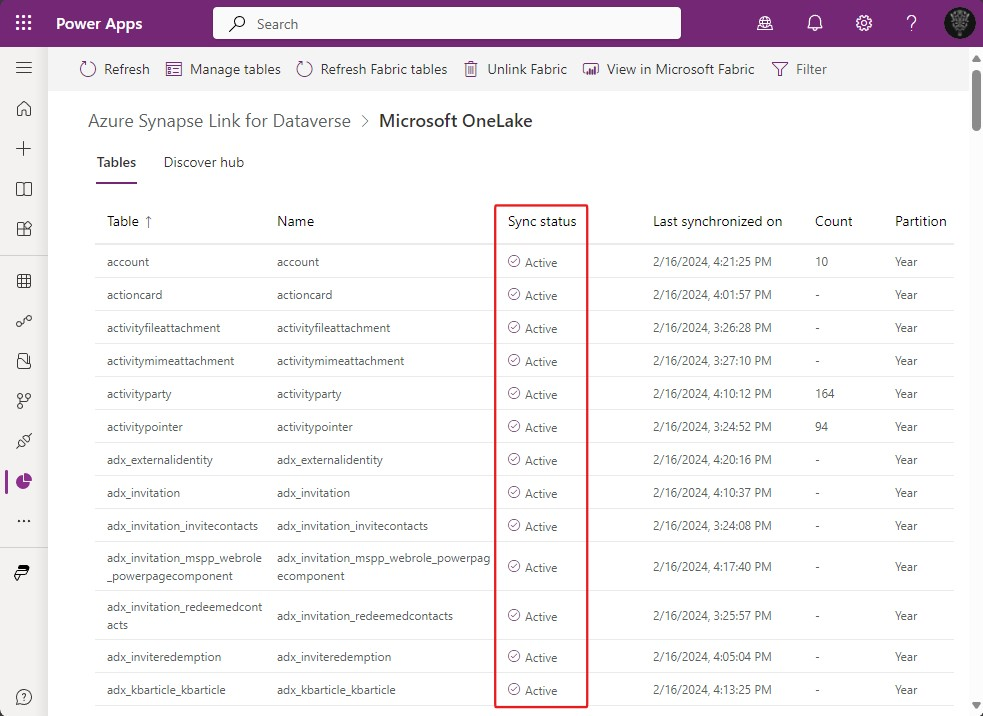
The best way to verify the sync status is to return to the Tables navigation pane in Power Apps. On this tab, select Analyze > Link to Azure Synapse, and then select Details from the context menu next to Microsoft OneLake. In the list of tables, when a table is synced correctly, the Sync status indicates Active.
Next steps
The next step after linking your Dataverse data to Microsoft Fabric is to access the data for use.