Introduction
Often, work involves consuming audio across meetings, videos, and conversations. When audio is unclear, unavailable, or difficult to follow, it can slow understanding, make participation more difficult, and interrupt productivity. This is especially true in noisy environments, during virtual meetings, or when engaging with content in unfamiliar languages.
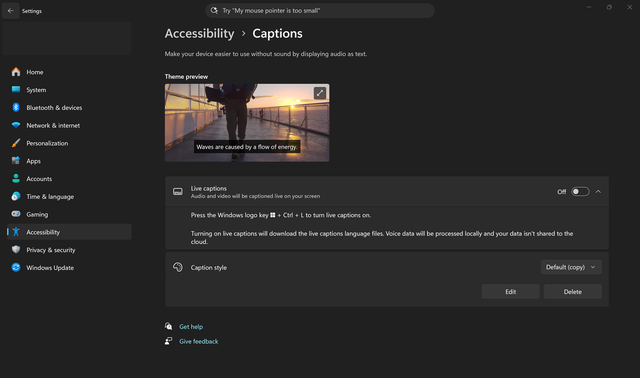
Live Captions in Windows helps address this challenge by providing a more accessible way to follow spoken content through everyday tasks. Whether you’re joining a meeting, watching a video, or multitasking in a busy environment, Live Captions can help you stay engaged and informed.
In this module, you’ll learn how to use Live Captions in Windows—a system-level feature that works across apps—to follow audio more effectively, apply it in real-world scenarios, and customize the experience to fit your needs.
Note
- Live Captions has language support for English, Chinese (simplified), French, German, Italian, Japanese, Korean, Portuguese, Spanish, and Danish.
- Live Captions with translation for Copilot+ PCs translates video and audio subtitles into English from 40+ languages and into Chinese (simplified) from 25+ languages.
- Copilot+ PC experiences vary by device and market and might require updates that are still rolling out. Timing for these rollouts varies.
- Caption accuracy might vary depending on audio clarity, language, and environment.