How Live Captions work
Live Captions uses on-device speech recognition to detect spoken audio and generate captions in real time. When enabled, captions update continuously, allowing users to follow conversations and content as they play.
The feature listens to audio from the system or microphone and presents captions in a dedicated window, so users can read along without interrupting their workflow. Because this experience is built into Windows, Live Captions operates consistently across different applications and tasks. It requires no additional setup once enabled, and users don’t need to change how they interact with their device.
Note
Live Captions uses the default audio output device configured in Settings > System > Sound. If audio isn’t being captured, check whether the correct device is set as the default—otherwise, Live Captions won’t work. For example, if you’re using a headset during meetings, make sure it’s selected as the default output device.
On standard Windows devices, Live Captions provides real-time captioning for supported languages.
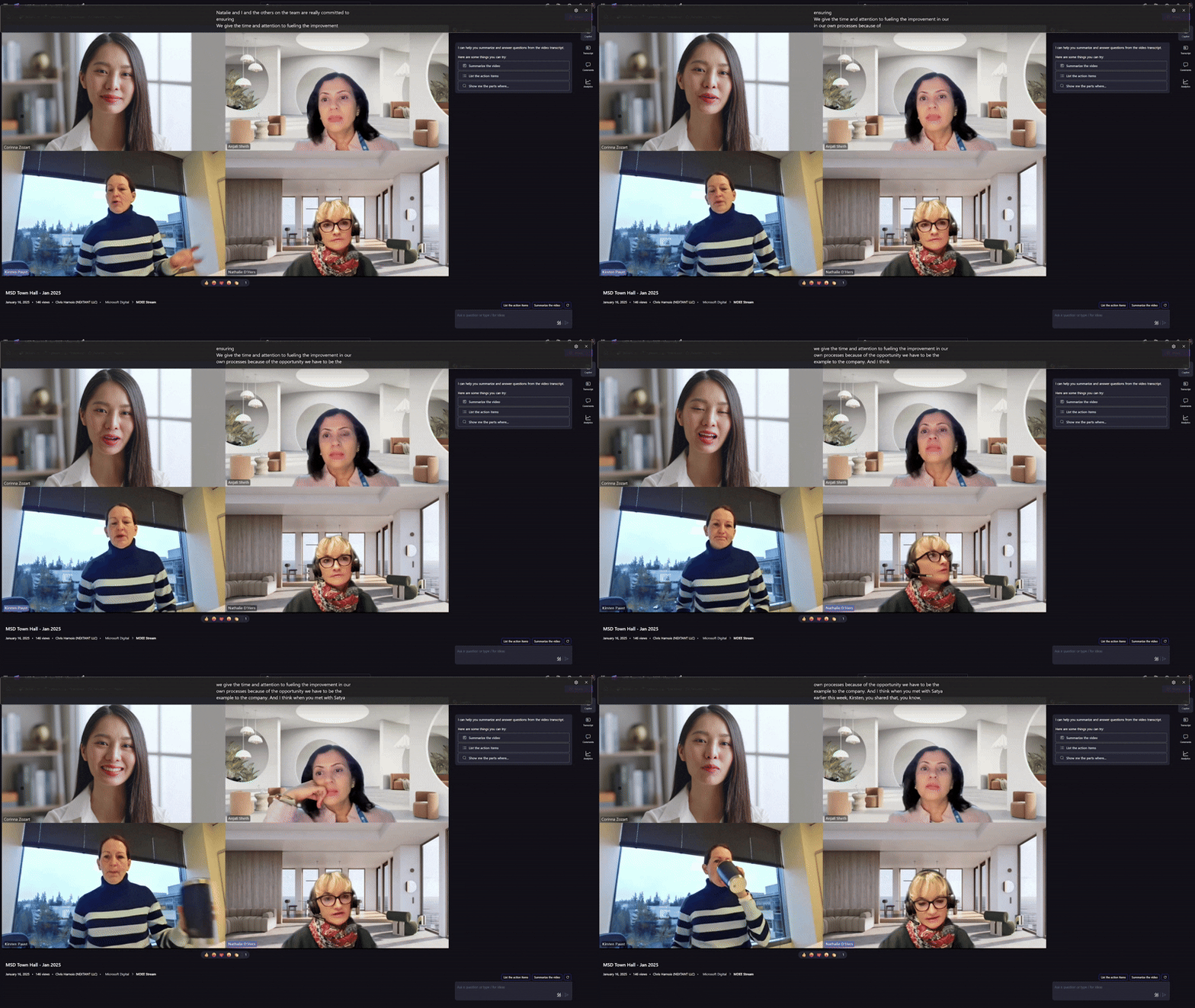
An example of Live Captions capturing spoken English to generate English language captions in real time.
On Copilot+ PCs, it also includes real-time translation, allowing users to follow audio spoken in other languages as translated captions. This expanded capability helps users communicate and collaborate across languages.
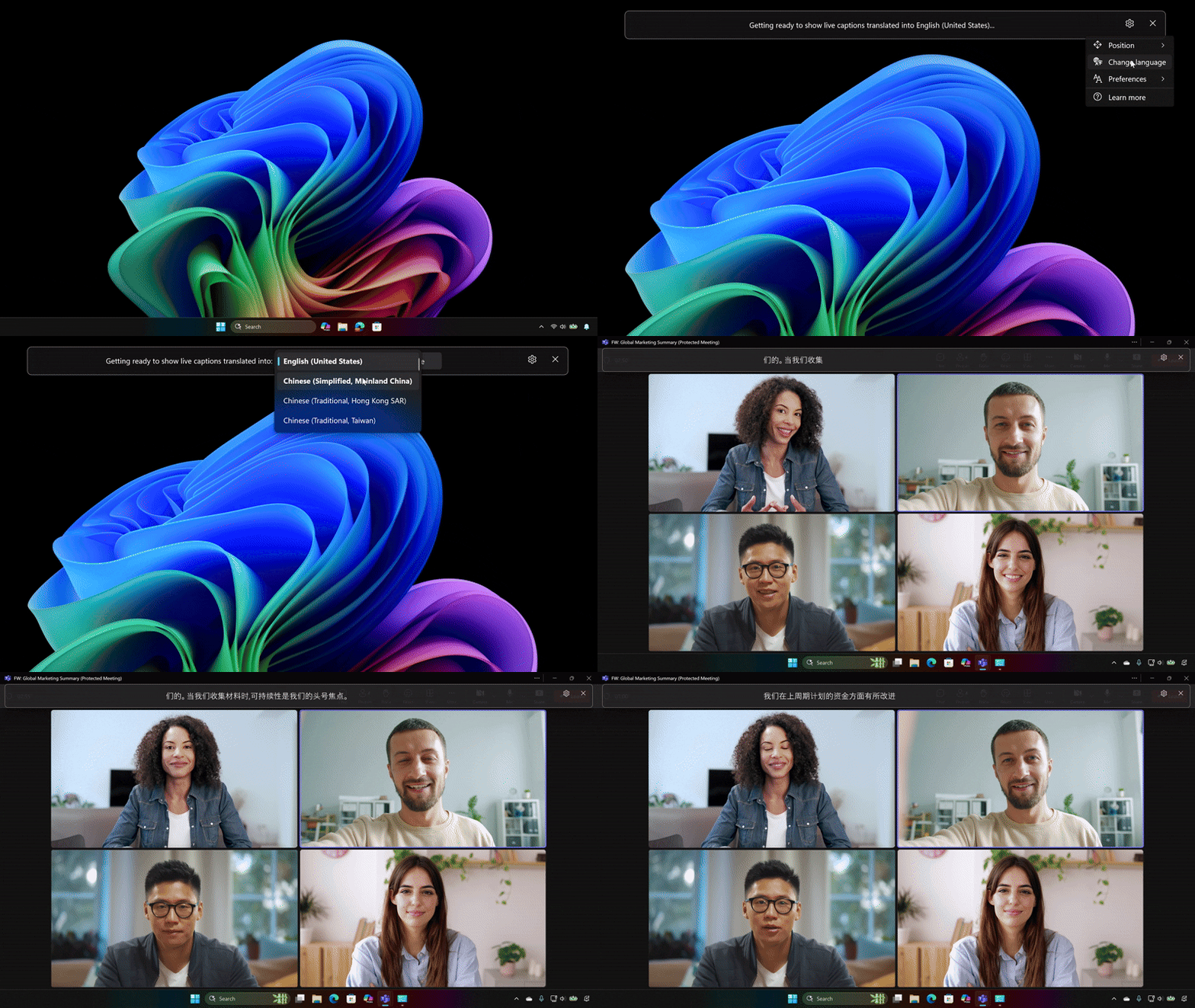
An example of Live Captions with translation (a Copilot+ PC-only feature) capturing spoken English to generate Chinese (simplified) captions in real time.
The captions window overlays the screen and can be positioned to avoid blocking important content, helping users stay focused while working across tasks.
All processing happens locally on the device, allowing captions to work even without an internet connection while helping ensure that audio and caption data remain private.
Quick takeaway: Live Captions works across your device without requiring setup in individual apps, and on Copilot+ PCs, it can also translate spoken audio in real time.
In the next unit, you’ll learn how to turn on Live Captions and begin using it.