How to turn on and use Live Captions
Live Captions can be enabled quickly using several entry points within Windows.
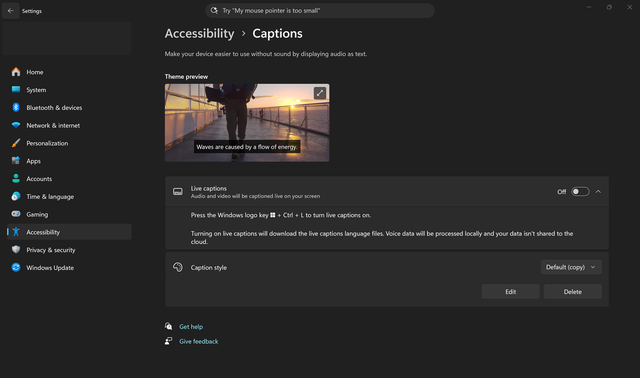
The fastest way to turn on Live Captions is by pressing Windows key + Ctrl + L. You can also enable the feature through Settings > Accessibility > Captions.
Note
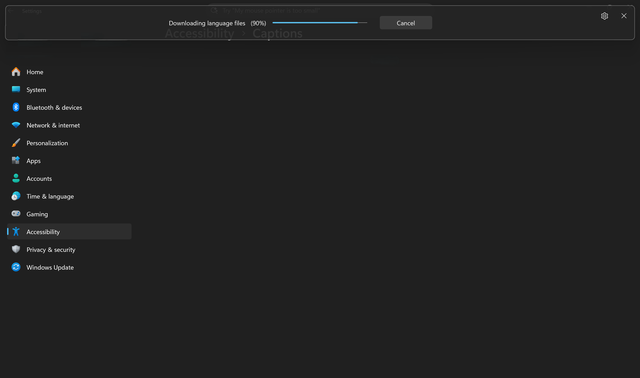
The first time you enable Live Captions, Windows prompts you to download required language files. This is a one-time setup per language that enables on-device speech recognition, so captions can be generated locally.
Once enabled, Live Captions automatically begin displaying text whenever audio is detected. You can leave them running in the background as you switch between apps, attend meetings, or consume media.
Note
The microphone is turned off by default when Live Captions starts. Only system audio is captioned unless microphone input is enabled in settings.
Use Live Captions across different experiences
Live Captions works across a variety of apps and scenarios without requiring extra setup.
During Microsoft Teams meetings
Use Live Captions in Microsoft Teams or other meeting tools to follow conversations in real time, especially when audio quality is inconsistent or participants speak quickly.
- Start your Teams meeting. Join or start your meeting as you normally would.
- Follow along with Live Captions. Use Windows key + Ctrl + L, and Live Captions will display the spoken content on your screen in real time.
- Turn on translation if needed. If participants are speaking different languages, enable translation in the Teams settings so captions appear in your preferred language.
With recorded meetings or videos
Play recorded meetings or training content in your preferred app and use Live Captions to follow along without replaying sections.
- Open the video. Navigate to the recorded meeting or training video you want to watch.
- Play it in your preferred app. Open the video in Media Player, Teams, or any other video app you use.
- Turn on Live Captions (on Copilot+ PCs only). Select the Copilot icon on the taskbar and choose Live Captions or use the Windows key + Ctrl + L shortcut.
- Press play. Start the video and watch as captions appear in real time.
- Translate if needed (on Copilot+ PCs only). If the audio is in another language, select Translate in the Live Captions settings and choose your preferred language.
Try it yourself
Turn on Live Captions and test it with different types of audio.
- Use the keyboard shortcut (Windows key + Ctrl + L) to enable Live Captions.
- Play a video or audio file and observe how captions appear.
- Try switching between apps while captions remain active.
As you complete these steps, you should see captions update in real time as audio plays, even as you switch between apps.
Quick takeaway: Live Captions can be turned on quickly and continue working across apps without extra setup.