Customize your caption experience
Live Captions can be customized to improve readability and fit different workflows. The captions window can be positioned above the screen, below the screen, or as a floating overlay that can be moved and resized.
When docked to the top or bottom of the screen, captions remain visible without overlapping application content. When set to a floating window, they can be repositioned to avoid blocking important information.
Users can also adjust the appearance of captions by modifying font size, color, background, and other style settings. This personalization helps ensure captions remain accessible and easy to read across different scenarios.
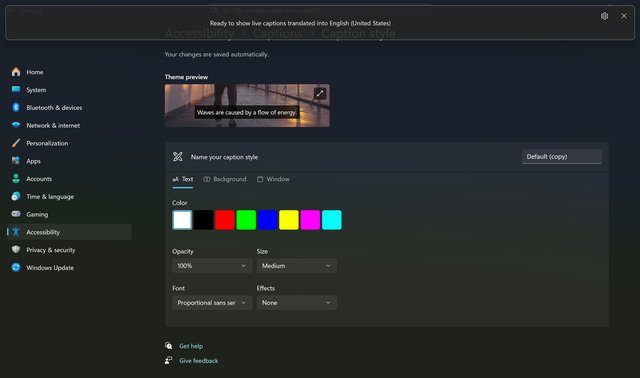
More options include filtering profanity and enabling microphone audio to capture spoken content from the surrounding environment.
These customization options let users tailor Live Captions to their specific needs—whether they’re working, learning, or collaborating. By adapting to different workflows, environments, and accessibility needs, Live Captions helps make spoken content easier to follow in the moments that matter most.
Customize Live Captions with translation (on Copilot+ PCs)
On Copilot+ PCs, Live Captions also includes real-time translation, allowing you to understand spoken content in other languages. You can adjust how these captions appear, so they’re easy to see and read.
- Open Live Captions. Go to the Windows search bar and type Live Captions, then select it from the top of the results. Alternatively, use the Windows Key + Ctrl + L keyboard shortcut.
- Set up translations. When prompted, choose “Yes, continue”. Select the language you want captions translated into.
- Adjust how Live Captions appear. In the Live Captions bar, select the Settings icon and choose where captions show up on your screen, tweak your caption style, or filter out profanity.
- Enable microphone audio. In the same Settings, under “Preferences,” you can select “include microphone audio” to capture live speech during meetings.
- You’re all set! Live Captions will now appear in real time—helping you follow along more easily.
Quick takeaway: Live Captions can be customized to fit different preferences, improving readability and usability across workflows.