Monitor app lifecycle and usage analytics
Application lifecycle monitoring helps you understand whether the software your organization deploys is installed, updated, and used as intended. In Microsoft Intune, these signals show the health of app deployments and the adoption of the apps that support business work.
When you monitor app lifecycle and usage analytics, you move from reacting to issues to detecting them early. That means fewer failed installs, fewer support tickets, and more reliable access to the apps employees need. It helps answer practical questions. Did the app install successfully? Is it present on the expected devices? Is the app protected by the required policy? Is a desktop app stable enough for daily work? These answers help improve service quality, reduce risk, and support better app governance across the organization.
Monitor app deployment
Intune lets administrators monitor app deployment directly from the app record. In the Microsoft Intune admin center, go to Apps > All apps, select an app, and review the overview pane. This pane includes both device status and user status, which show whether the app is Installed, Not Installed, Failed, Install Pending, or Not Applicable for the targeted environment.
Note
Microsoft Store and Android Store apps that are deployed as Available don't report their installation status.
Use Discovered apps as software inventory
Not every monitoring task is about a single deployment. Sometimes you need to know what apps already exist across the environment. Intune supports this through Discovered apps, which acts as a software inventory report for enrolled devices in the tenant. This report is separate from app installation reports.
In the Microsoft Intune admin center, go to Apps > Monitor > Discovered apps to view an aggregated list of detected apps. The report includes the application name, platform, version, device count, and publisher, and it can be exported to CSV. You can also open a single device and review its Discovered Apps under the device’s Monitor section.
Discovered apps also helps explain the difference between corporate and personal visibility. On personal devices, Intune does not collect information about unmanaged apps. On corporate devices, Intune can collect any app, whether it is managed or unmanaged. The refresh cycle is usually every seven days per device, although Win32 app discovery collected through the Intune Management Extension refreshes every 24 hours.
Monitor app protection policy status
For apps protected through Mobile Application Management, Intune provides a separate monitoring experience. In the Microsoft Intune admin center, go to Apps > Monitor > App protection status to review the status of the app protection policies applied to users. This report shows which users and app instances are affected, their management type, platform, policy name, compliance state, and last sync time.
This view is important because app deployment and app protection are not the same thing. An app can be installed successfully, but still fail to meet the required protection state for access to corporate data. Intune retains app protection data for a minimum of 90 days, which gives administrators a useful time window for investigating user issues and policy behavior.
Use endpoint analytics for usage and reliability
Monitoring app lifecycle also means looking beyond installation status to actual user impact. Endpoint analytics includes the Application reliability report, which helps identify potential issues with desktop applications on managed devices. Within that report, the App performance tab provides reliability insights for each desktop application over the last 14 days, including aggregate usage duration and app failure information. This makes Endpoint analytics useful for both usage analytics and troubleshooting.
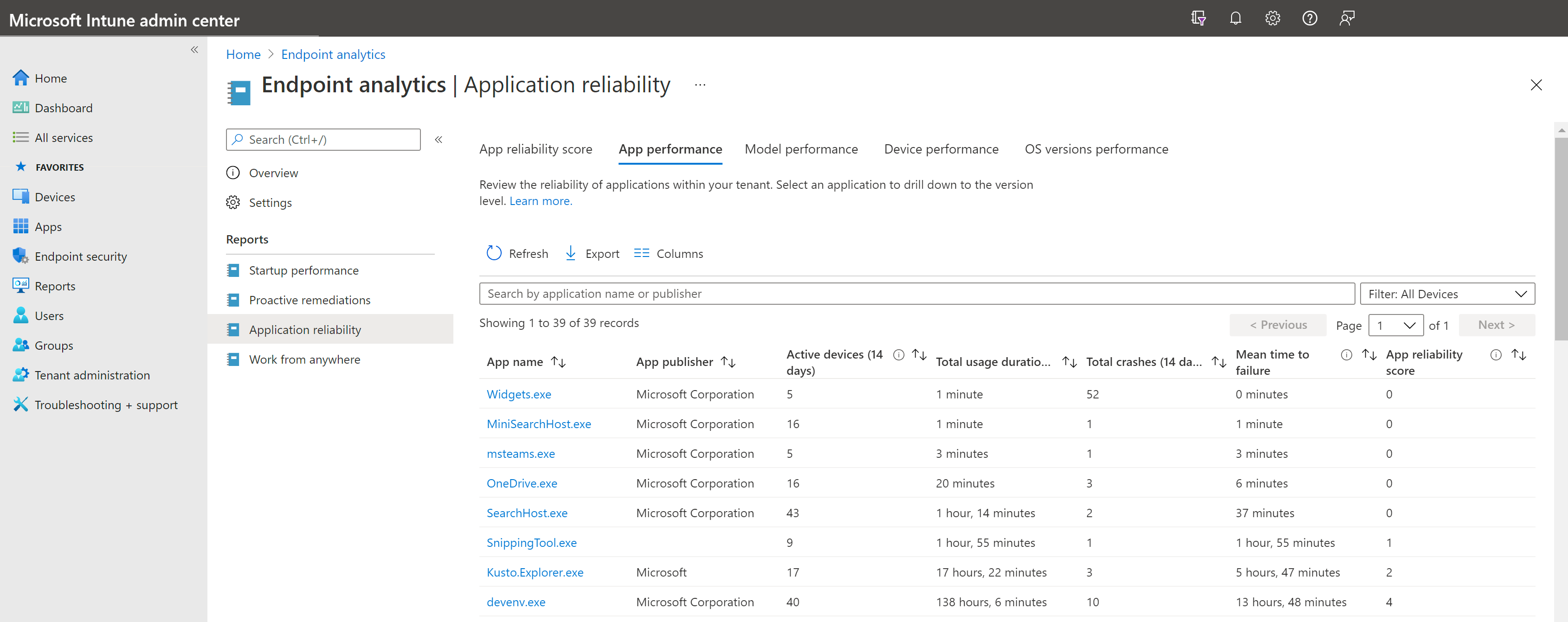
To view the Application reliability report go to Reports > Endpoint analytics > Application reliability.