Understand how Microsoft 365 billing is structured
When Relecloud's finance team sits down to reconcile the first Microsoft Copilot invoice, the natural assumption is that Microsoft 365 billing works like a single, predictable ledger. It doesn't. Before you can trace any charge back to a purchasing agreement, you need to know which billing objects your organization actually uses—because Microsoft 365 and Azure billing aren't one universal account, profile, and invoice hierarchy.
Trace the Microsoft 365 billing relationship
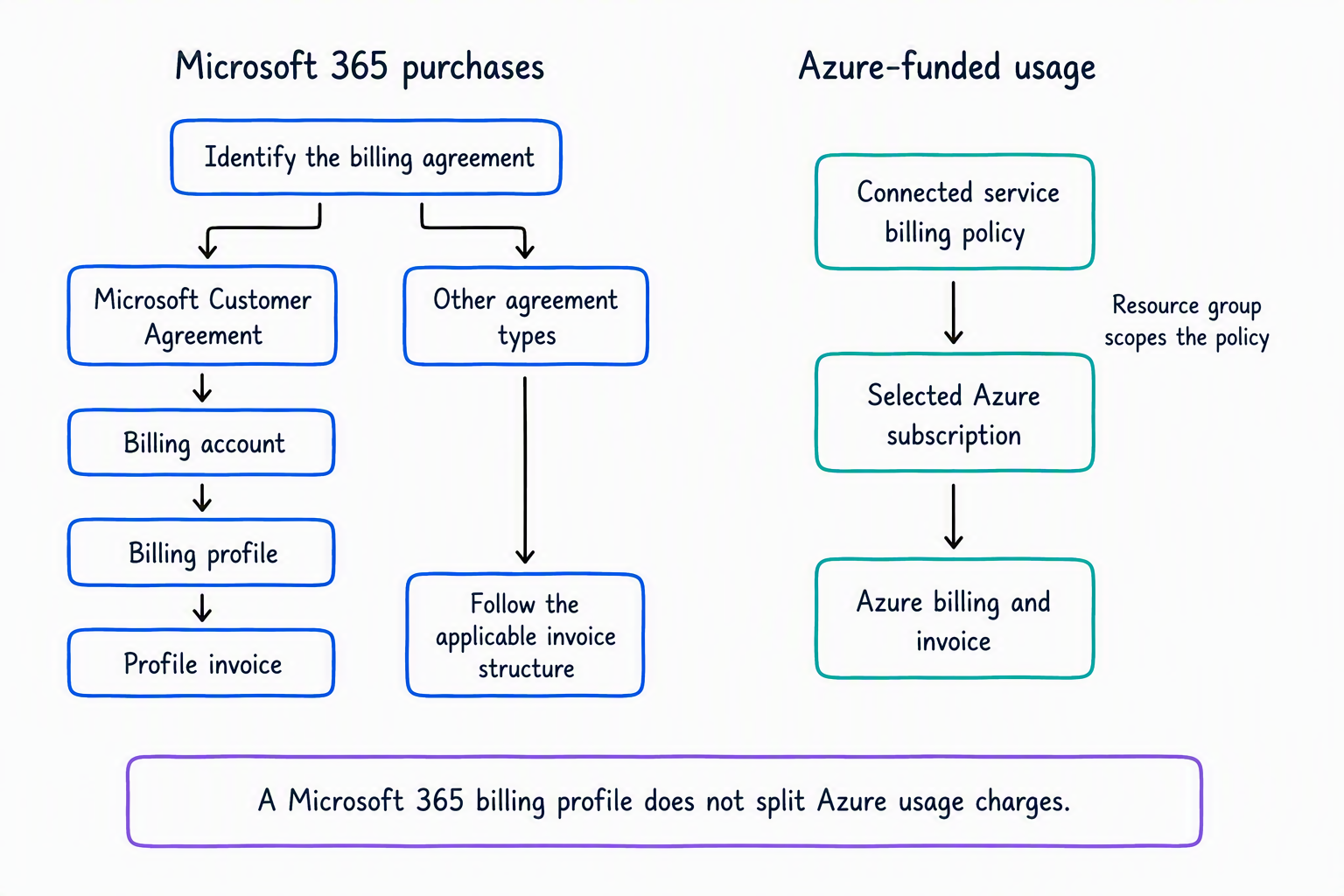
A billing account represents the organization's purchasing relationship with Microsoft. Its account type identifies the agreement and determines which billing objects and management options are available. An organization can have more than one billing account, so always identify the account before tracing a charge.
For a Microsoft Customer Agreement, a billing profile sits within the billing account. It contains payment method and invoice information. Purchases assigned to a billing profile appear on that profile's invoice, which lets an organization separate invoice responsibility. Other agreement types don't necessarily use billing profiles, so when an account type doesn't expose that object, there's no profile to trace.
An invoice records charges, credits, taxes, totals, and transactions for its billing context. In Billing > Bills & payments, first select the billing account. When billing profiles apply, use the profile shown in the invoice details to trace ownership and payment responsibility.
| Object | Question it answers |
|---|---|
| Billing account | Which purchasing agreement and top-level billing relationship apply? |
| Billing profile | Under a Microsoft Customer Agreement, which payment method and invoice responsibility contain the purchase? |
| Invoice | Which charges and transactions were billed for that account and profile? |
| Subscription or purchase | Which product or service generated the charge? |
Learn more about billing accounts, billing profiles, and invoices.
Account for self-service purchases
A self-service purchase is a subscription that a person in the organization obtains directly instead of through the central purchasing process. It doesn't automatically become a purchase under the billing profile that finance uses for centrally acquired products.
An administrator can inventory self-service purchases and trials, view purchaser and subscription details, manage the organization's data and access policies, and use the self-service purchase policy to control whether eligible products are available for future self-service purchase. These governance actions don't make the administrator the purchaser or move the subscription into a selected central billing profile.
Before reconciling licenses with invoices, distinguish centrally purchased subscriptions from self-service subscriptions and identify the purchaser, billing account, applicable profile, and invoice path. Learn more about managing self-service purchases and trials.
Route Microsoft Copilot Chat consumption to the right Azure scope
Before you connect a pay-as-you-go billing policy, know which agreement, invoice destination, Azure subscription, resource group, and supported meter apply. Getting this scoping right up front avoids a policy that funds the wrong subscription or a bill nobody expects.
A Microsoft 365 billing profile doesn't separate Azure pay-as-you-go charges from the rest of an Azure bill—those charges follow Azure's own subscription and resource group scoping, not the Microsoft 365 profile. In Relecloud's pilot, supported Microsoft Copilot Chat declarative-agent consumption goes to a specific Azure subscription and resource group through a connected billing policy.
Separate assignment from consumption funding
Product licenses are user entitlements. Copilot Credits are consumption currency or funding for supported services, not licenses. A pay-as-you-go billing policy defines funding and scope, but it stays inactive until you connect it to Microsoft Copilot Chat.
| Object | Purpose | Relecloud's pilot |
|---|---|---|
| Product license assignment | Grants a user entitlement | Not the funding control |
| Pay-as-you-go billing policy | Connects covered users and a supported service to an Azure scope | Required, and connected to Chat |
| Copilot credit policy | Applies prepaid credits to Chat | Awareness only |
| Spending policy | Sets service-specific limits and alerts for supported services | Doesn't apply to Chat |
For Chat only, prepaid credits are used first when a credit policy and a pay-as-you-go policy are both configured. Pay-as-you-go covers overage. If prepaid credits are exhausted without a paired pay-as-you-go policy, Chat becomes unavailable until credits replenish.
Recognize what determines a task's credit cost
Credits aren't charged per request at a flat rate, which is why a consumption forecast built from request counts alone tends to miss. The cost of a single task is calculated from four inputs:
| Input | What it accounts for |
|---|---|
| Model | The AI model the task runs on. Models differ in capability, speed, and cost, so the model behind a task moves its credit cost directly. |
| Context | The organizational information retrieved to ground the response, such as people, roles, files, meetings, and prior interactions. |
| Tools | The actions the task invokes, such as sending mail, scheduling a meeting, searching, or updating a document. |
| Runtime | The managed cloud orchestration that keeps the work running, including long-running, multistep tasks. |
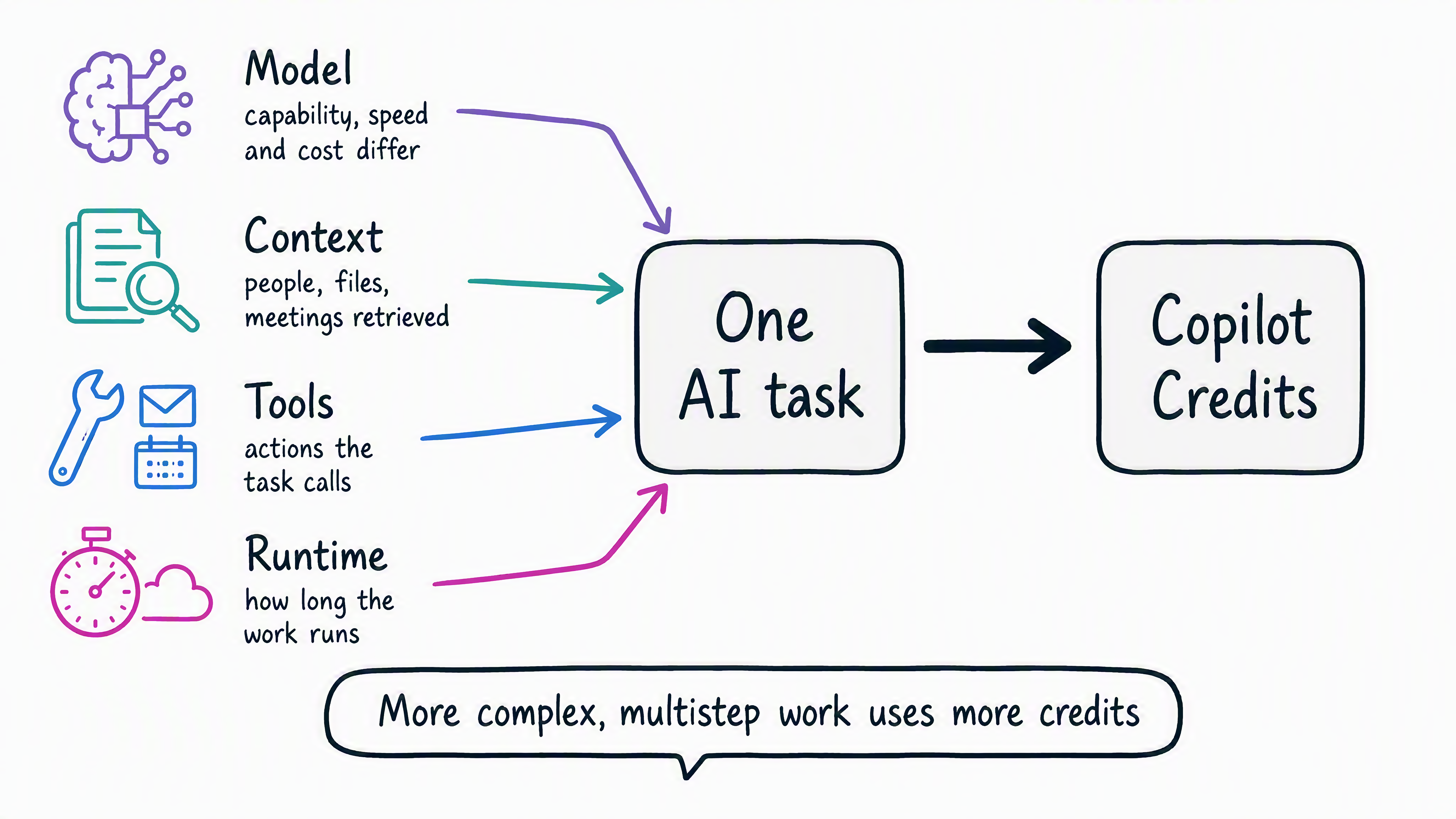
Because all four vary by task, usage isn't a fixed amount per request. More complex, multistep work generally consumes more credits than a short, single-step request. That's worth knowing before you size a capacity pack against a request count, and it's why two teams with similar activity levels can produce different credit totals.
Confirm usage and cost after a pilot interaction
After a covered user asks a declarative agent a question and gets a response, check the Microsoft Copilot Agents usage report first—it typically shows activity within about an hour. Then review Microsoft 365 Billing > Cost Management or Azure Cost Management with the m365copilotchat tag. Billed amounts can take up to 24 hours to appear.
If you don't see a charge yet, that's not necessarily a problem to diagnose. First check that the policy is connected, that enough time has passed for the usage report and cost data to catch up, and that you're looking at the right service, Azure scope, and tag—then troubleshoot further only if the gap remains.