Configure default install and detection settings
When you select an app from the Enterprise App Catalog, Intune imports a prebuilt package that includes default install, uninstall, requirement, and detection settings. These defaults help you deploy catalog apps quickly, but you should still review them so installations complete reliably and Intune can report status accurately.
How catalog defaults work
The Enterprise App Catalog provides standard install and detection settings based on the app publisher’s package. For most apps, Intune preconfigures:
- Installation and uninstall commands
- Restart behavior
- Detection rules
- Requirements such as OS version and architecture
These defaults reduce packaging effort and support consistent deployment across devices. They also let you focus on verifying the app behavior instead of building the package from scratch.
Review default install behavior
Open the app’s Program pane to review the default installation settings. This pane shows the install command, uninstall command, restart behavior, and whether the app runs in system or user context.
- Confirm the install command uses the correct package file and silent install options.
- Confirm the uninstall command removes the correct app version.
- Check restart behavior. For most catalog apps, No specific action or Suppress is appropriate so devices do not restart unexpectedly.
- Review any requirements, such as minimum OS build or architecture.
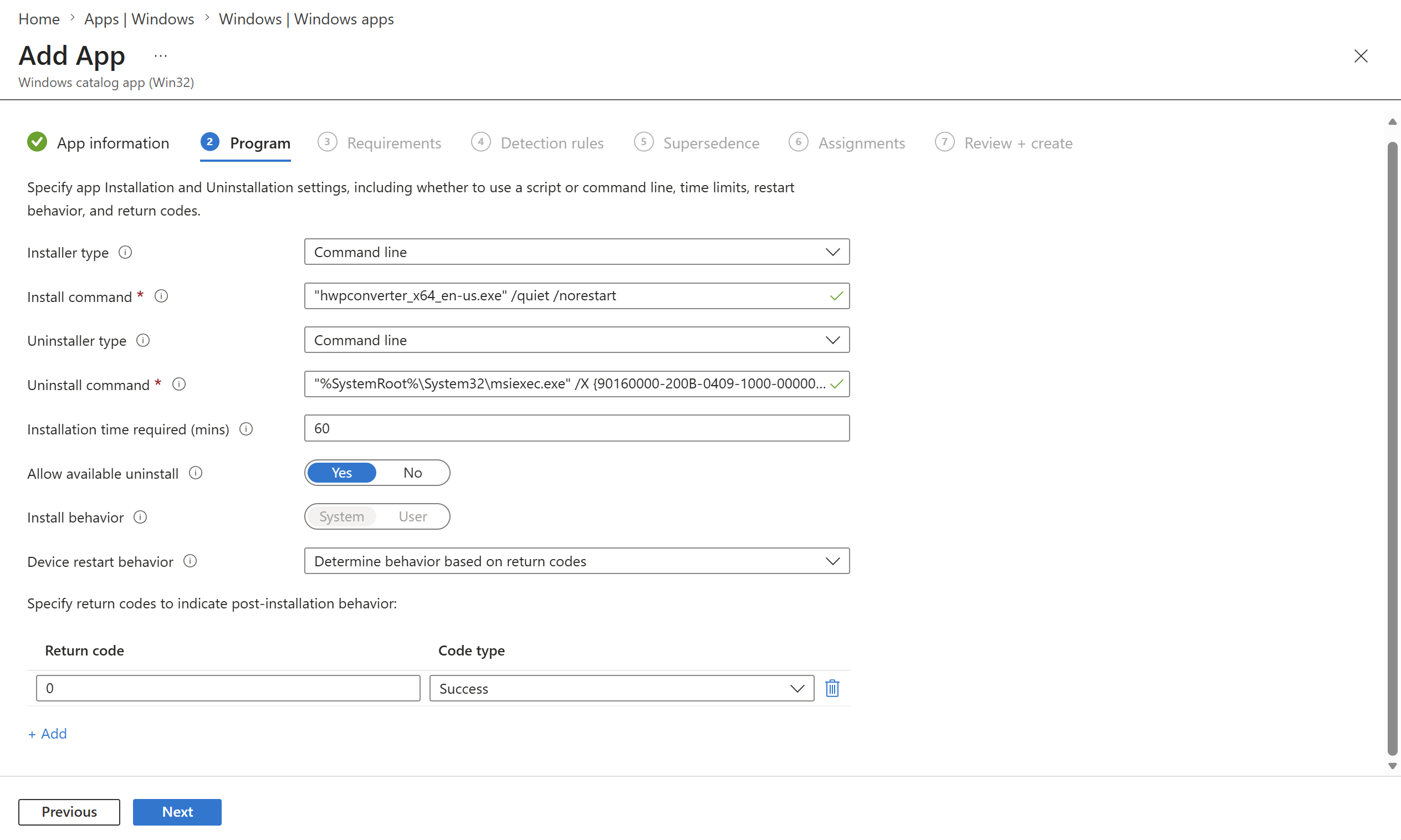
If your environment requires a different install context, make the change here. For example, some enterprise applications require system-level installs so they are available to all signed-in users.
Tip
Keep overrides minimal. Use default catalog settings unless the app package or device environment requires a change.
Validate default detection rules
Detection rules tell Intune how to verify that the app installed successfully. The catalog typically sets one or more rules based on a file, registry setting, or MSI product code.
In the Detection rules pane:
- Review the default rule type.
- Confirm the file path, registry path, or product code matches the app version.
- If multiple rules exist, make sure they all refer to the same product.
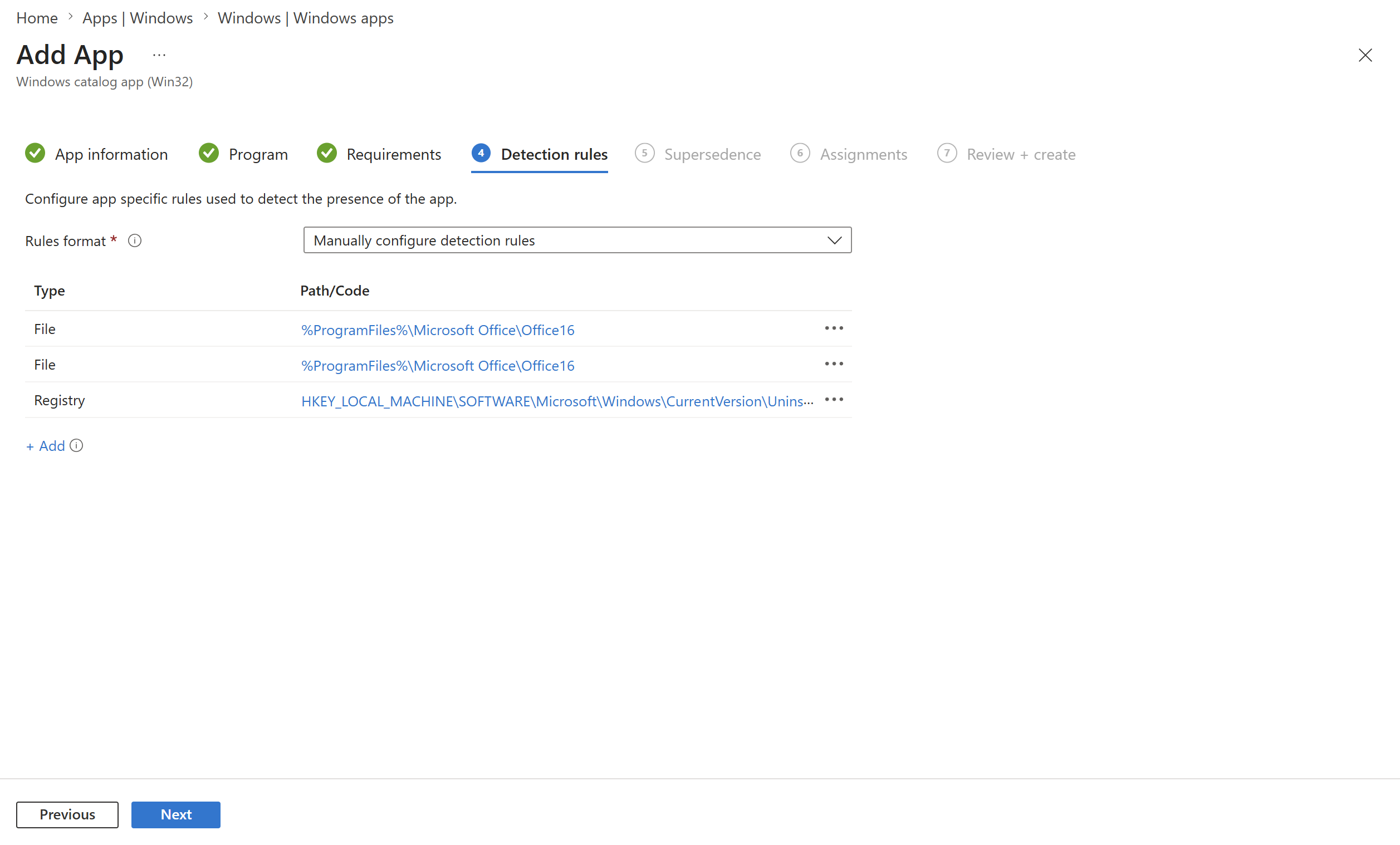
Reliable detection is essential because Intune uses it to decide whether the app is installed, whether remediation should run, and whether deployment status is healthy.
Adjust defaults only when needed
Most catalog apps work with the default settings, but some situations require updates:
- The app installs to a custom folder
- The catalog package version differs from your target version
- The environment uses nonstandard device architecture
- A restart is required after installation
When you override a default setting, test the app on a pilot group before broad deployment. That helps confirm the change works without impacting all managed devices.
Learn more about managing Win32 app detection rules in the Microsoft Intune documentation.