Explore Microsoft Entra ID authentication methods
Imagine you're a security engineer at Contoso, a mid-sized healthcare technology company. Over the past year, your team responded to three separate incidents involving compromised user credentials — each traced back to phishing attacks or credential-stuffing campaigns. Your manager asks you to evaluate Contoso's current authentication strategy and recommend a path toward eliminating password-related breaches. To do that effectively, you need to understand the full spectrum of authentication methods available in Microsoft Entra ID and how they compare in terms of security and user experience.
The authentication methods landscape
Microsoft Entra ID supports a broad range of authentication methods, from legacy password-based approaches to modern passwordless alternatives. These methods fall into categories based on what the user presents to prove their identity:
- Something you know: Passwords and PINs
- Something you have: A registered device, a security key, or an authenticator app
- Something you are: Biometrics, such as a fingerprint or facial recognition
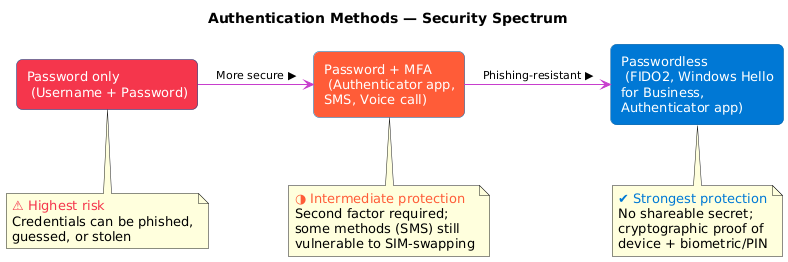
Password-based authentication — where a user provides a username and password — remains the most widely deployed method, but also the most vulnerable. Passwords can be phished, guessed, or stolen through data breaches. For organizations like Contoso, passwords alone represent an unacceptable risk.
Modern passwordless methods eliminate the password entirely. Instead of typing a password, users authenticate using a combination of device possession and a biometric or PIN. Methods like FIDO2 security keys, Windows Hello for Business, and passkeys are natively phishing-resistant because no shareable secret is transmitted during sign-in. Microsoft Authenticator passwordless sign-in is a strong improvement over passwords, but requires Conditional Access policies enforcing managed devices to achieve the same level of phishing resistance.
Multifactor authentication as the bridge
For organizations that can't immediately move to passwordless, multifactor authentication (MFA) provides a critical intermediate security layer. MFA requires users to verify their identity using two or more factors from different categories — for example, something they know (a password) combined with something they have (a registered phone).
Microsoft Entra ID supports several MFA methods:
| Method | Type | Security level |
|---|---|---|
| Microsoft Authenticator push notification | App-based | High |
| Microsoft Authenticator TOTP code | App-based | High |
| OATH TOTP hardware token | Hardware | High |
| SMS one-time passcode | Phone | Low-medium |
| Voice call verification | Phone | Low-medium |
Note
FIDO2 security keys and passkeys in Microsoft Authenticator are passwordless, phishing-resistant methods — they replace the password entirely rather than acting as a second factor behind one. They appear in the security hierarchy in the next section.
Important
SMS and voice call verification are considered legacy MFA methods. They're vulnerable to SIM-swapping attacks. Microsoft recommends migrating users away from these methods toward app-based or hardware-based alternatives.
The next unit on multifactor authentication explores how to configure and enforce these methods across your user population.
Authentication strength and security hierarchy
Not all MFA methods offer the same level of protection. Microsoft Entra ID introduces the concept of authentication strength, which lets you specify the minimum acceptable MFA method required to access a given resource through Conditional Access policies.
The security hierarchy, from least to most secure, is:
- Password only (no MFA)
- Password + SMS or voice call
- Password + Microsoft Authenticator app
- Passwordless sign-in (Windows Hello for Business, FIDO2 security keys, passkeys in Microsoft Authenticator, certificate-based authentication)
For sensitive resources — such as administrative portals or financial systems — authentication strength policies let you require phishing-resistant MFA. Microsoft Entra ID's built-in phishing-resistant strength covers four method families: Windows Hello for Business, FIDO2 security keys, passkeys in Microsoft Authenticator, and certificate-based authentication (CBA). This distinction is critical when designing access policies for Contoso's privileged accounts.
Tip
Authentication strength policies are applied per application. You can require phishing-resistant MFA for your most sensitive systems while allowing standard MFA for lower-risk applications — balancing security with user experience. This per-resource granularity is the technical expression of Zero Trust's "verify explicitly" principle: every access request is evaluated against the authentication strength required for that specific resource, not a blanket organization-wide setting.
Microsoft Entra ID authentication architecture
When a user signs in, the request flows through the Microsoft identity platform, the cloud-native authentication engine behind Microsoft Entra ID. The platform evaluates the user's credentials, applies Conditional Access policies, and issues tokens upon successful authentication.
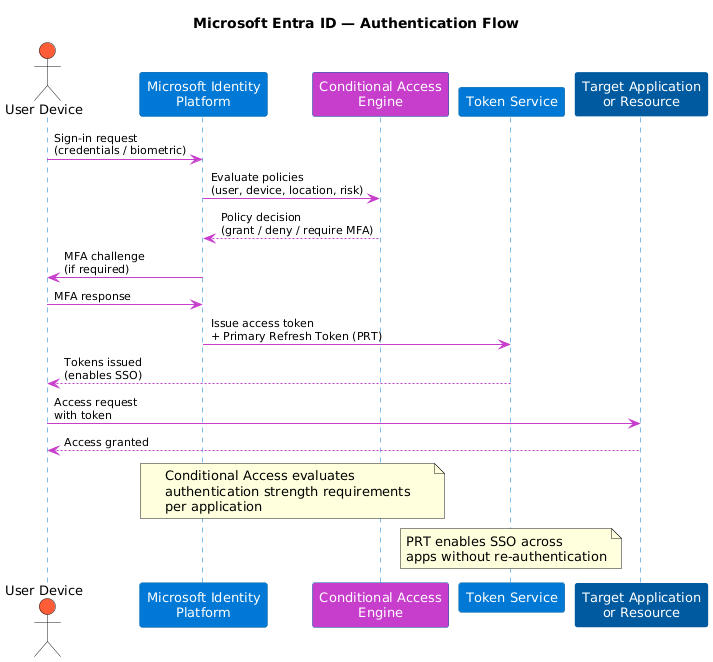
For devices joined to Microsoft Entra ID, a Primary Refresh Token (PRT) is issued after the first successful sign-in. The PRT enables single sign-on (SSO) across apps and services without requiring re-authentication — a meaningful gain in user experience that complements the security improvements from stronger authentication methods.
Understanding this architecture helps you anticipate how changes to authentication policies affect users and applications across the organization. Importantly, the same authentication policies that govern access to Microsoft 365 and Azure management also apply to AI-powered services like Azure AI Foundry and Microsoft Copilot for Microsoft 365 — making strong authentication the first line of defense for Contoso's AI investments as well. With this foundation in place, you're ready to dive into configuring multifactor authentication in the next unit.