Remote administration
IIS Manager (inetmgr.exe) is the primary graphical administration tool for IIS on Windows Server 2025. It lets you start and stop sites, manage application pools, and edit advanced configuration settings through a single console. When you need to manage IIS on a remote server, especially a Server Core installation that has no local GUI, the Web Management Service (WMSVC) extends IIS Manager across the network over HTTPS on port 8172. Combined with IIS Manager Users and IIS Manager Permissions, WMSVC also lets you delegate site-level administration to developers or application owners without granting them Windows administrator rights.
You can open IIS Manager from the Tools menu of Server Manager, or by running the inetmgr command from the Run dialog or a PowerShell session.
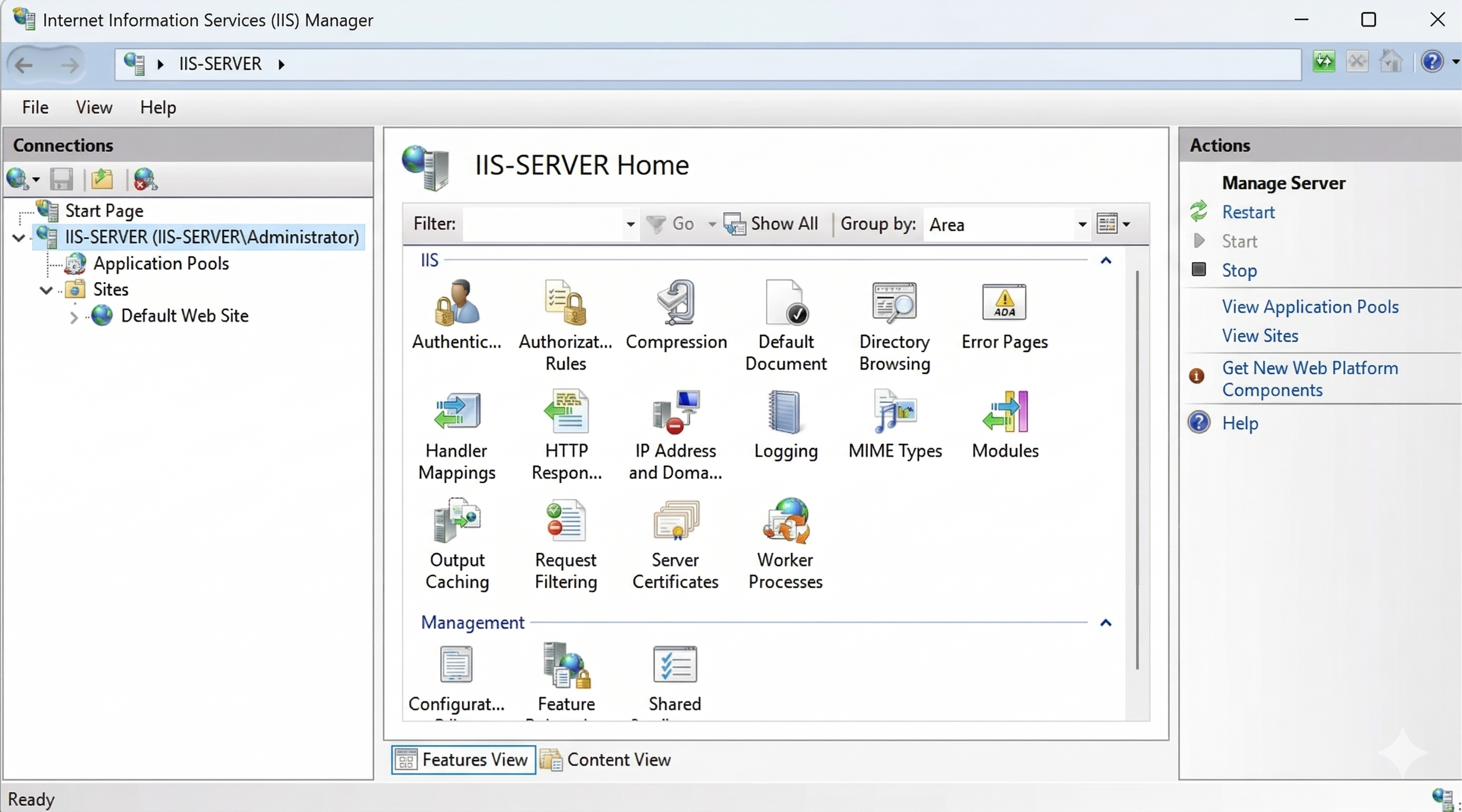
IIS Manager is divided into three panes:
| Pane | Purpose |
|---|---|
| Connections (left) | Hierarchical tree of the server, sites, applications, and virtual directories. Selecting a node changes what appears in the other panes. |
| Features View (center) | Grouped configuration tiles for the selected node. Double-click a tile to open its configuration page. |
| Actions (right) | Context-sensitive actions for the selected node, such as Start, Stop, Browse, Edit Bindings, and more. |
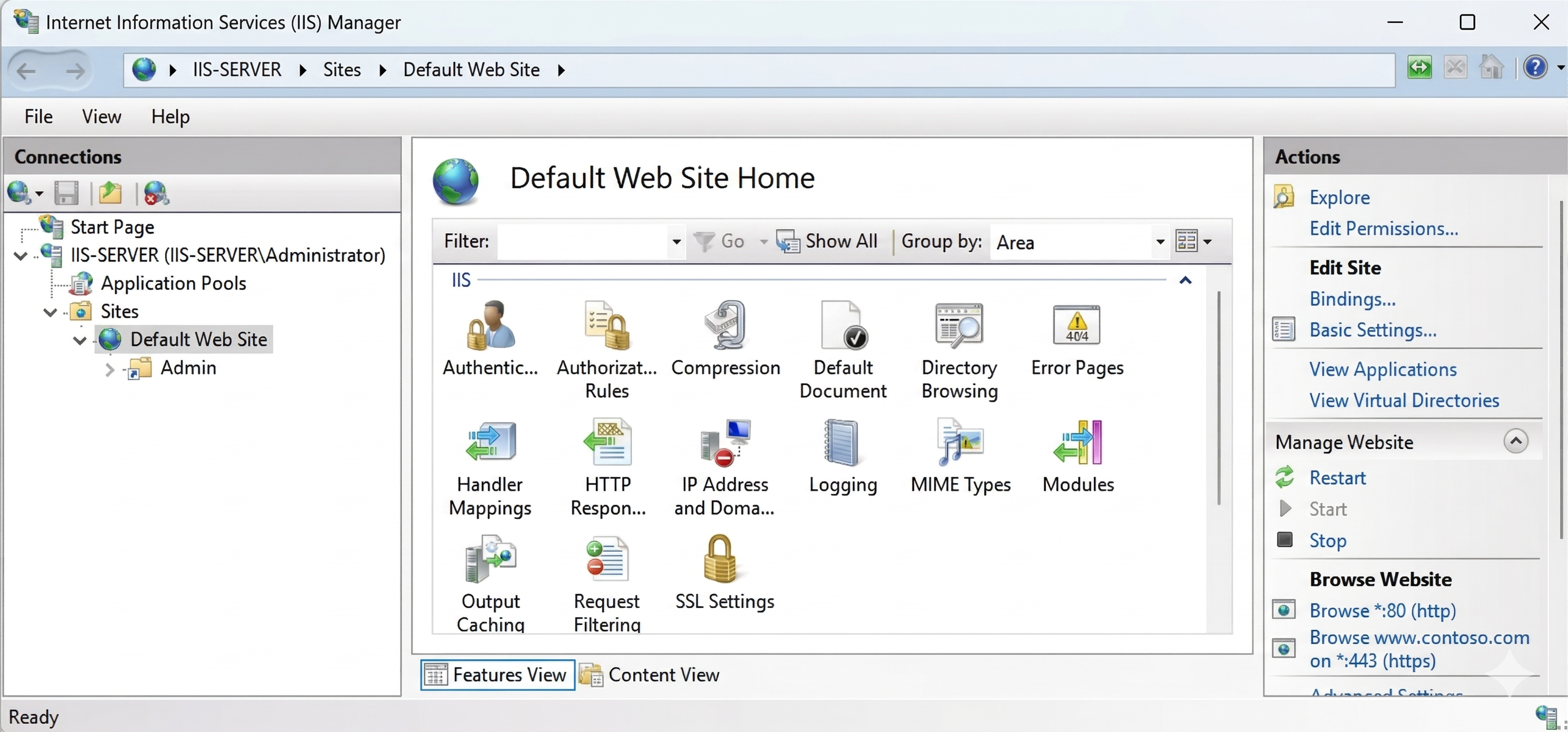
To starting, stop, and browsing sites:
- In the Connections pane, expand Sites and select the target site.
- In the Actions pane:
- Select Start to bring a stopped site online.
- Select Stop to take a running site offline.
- Select Browse *:80 (http) to open the site in a browser directly from IIS Manager.
The site's status icon changes from a green play arrow (running) to a red square (stopped).
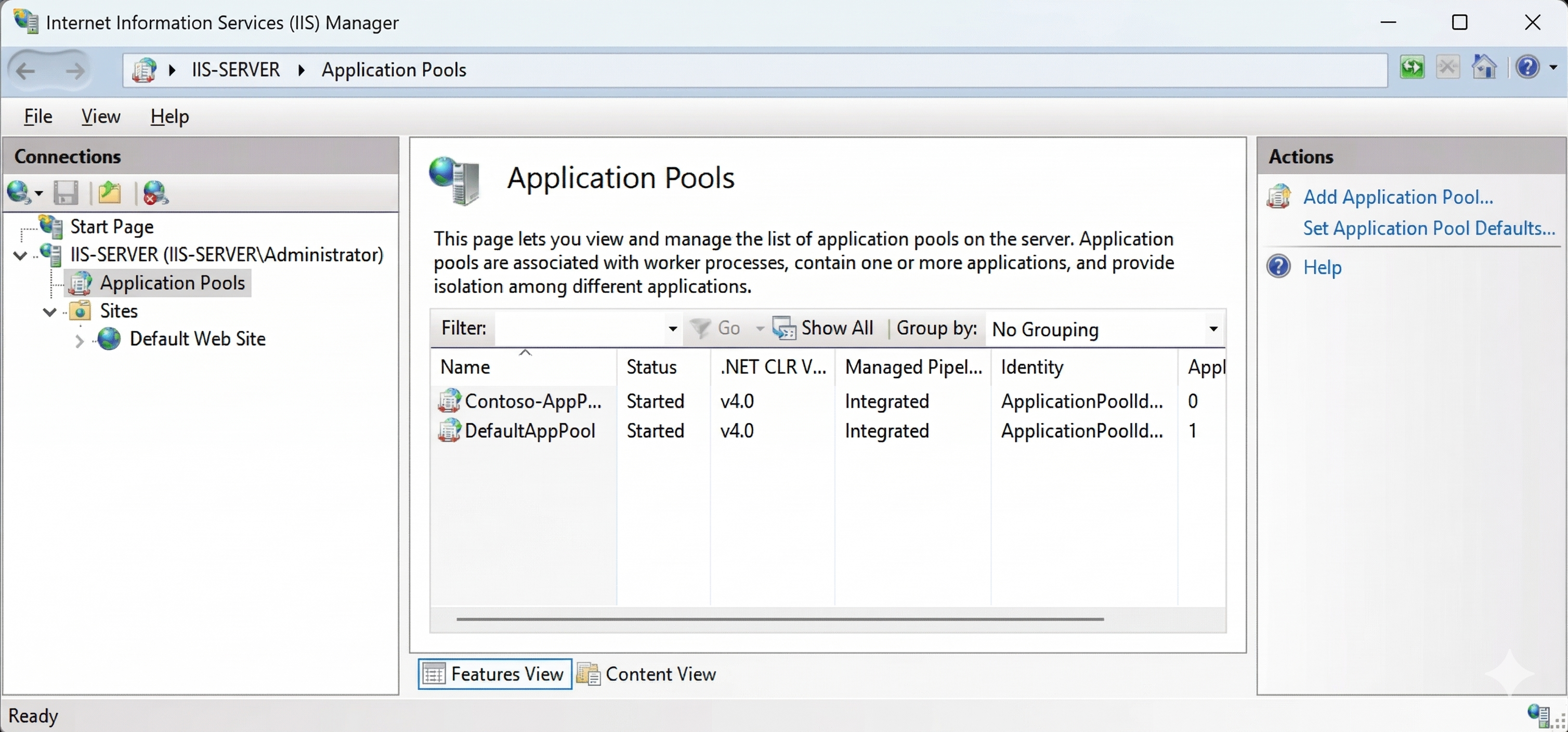
To manage application pools from IIS Manager:
- In the Connections pane, select Application Pools.
- The center panel lists every pool on the server with its name, .NET CLR version, pipeline mode, identity, and current state.
- To act on a pool, either:
- Right-select the pool name and choose the action, or
- Select the pool and use the Actions pane. Available Actions pane actions for an application pool:
| Action | Result |
|---|---|
| Start | Starts a stopped pool and creates a worker process |
| Stop | Stops the pool and serves 503 responses to clients |
| Recycle | Gracefully creates a new worker process and terminates the old one after draining active requests |
| Advanced Settings | Opens the full property sheet including recycling triggers, CPU limits, process model, and failure responses |
You can manage application pools using the WebAppPool PowerShell cmdlets. For example, use the following code to restart, stop, start, and view the properties of application pools:
Import-Module WebAdministration
# Recycle an application pool
Restart-WebAppPool -Name "DefaultAppPool"
# Stop an application pool
Stop-WebAppPool -Name "DefaultAppPool"
# Start an application pool
Start-WebAppPool -Name "DefaultAppPool"
# View the current state of all application pools
Get-ChildItem IIS:\AppPools | Select-Object Name, State
Internet Information Services Configuration Editor
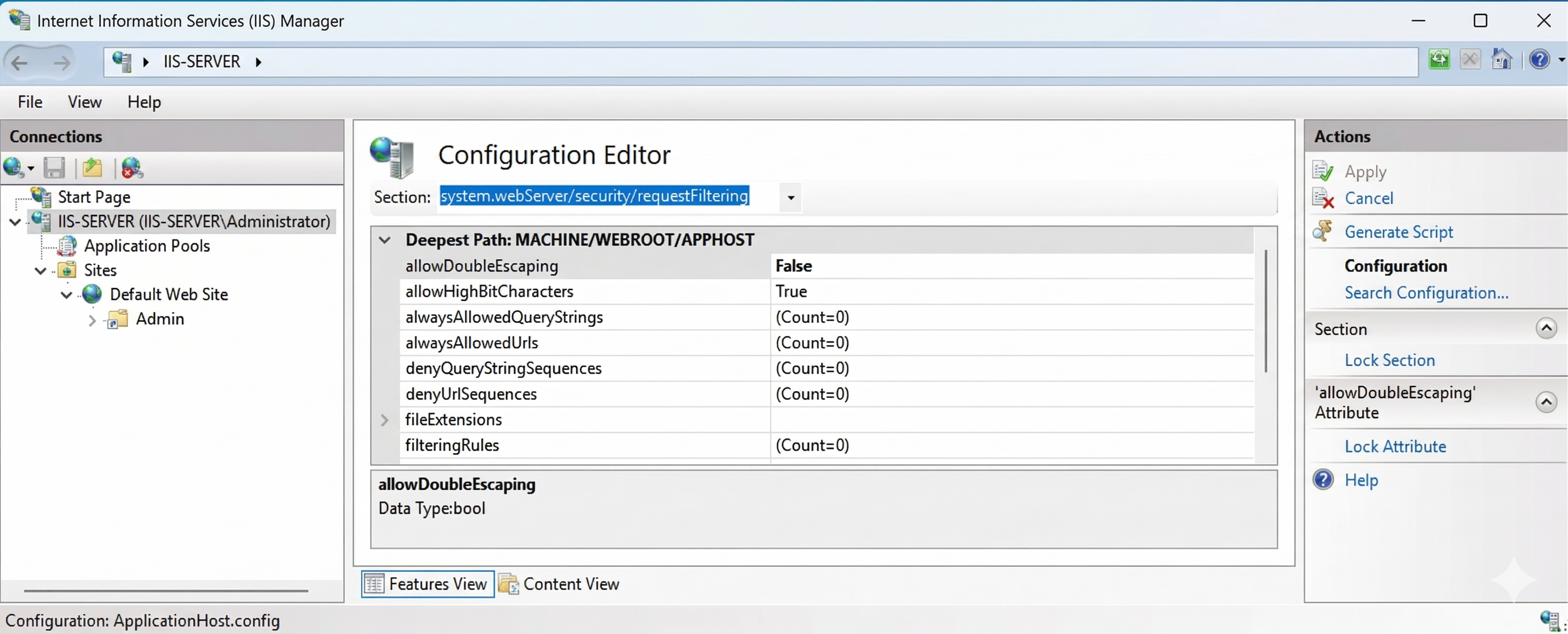
The Configuration Editor exposes every setting in applicationHost.config through IIS Manager, including advanced properties that have no dedicated UI page. It's the recommended way to make configuration changes you can't locate in the standard feature tiles.
- Select the server node (or a specific site) in the Connections pane.
- In the Features View, scroll to the Management section and double-click Configuration Editor.
- Use the Section drop-down to navigate to any configuration section.
- Expand the property tree, modify values, and select Apply in the Actions pane.
Useful sections to know:
| Section | Use |
|---|---|
system.webServer/security/requestFiltering |
Adjust request size limits, blocked file extensions, and hidden segments |
system.webServer/serverRuntime |
Set uploadReadAheadSize for large upload support |
system.applicationHost/applicationPools/add |
Access per-pool advanced settings such as CPU throttling |
system.webServer/asp |
Configure classic ASP behavior |
Web Management Service
The Web Management Service (WMSVC) is a Windows service that allows IIS Manager to connect to and manage IIS on a remote server. It's the standard mechanism for managing IIS on Server Core installations, which have no local GUI.
Key characteristics:
- Listens on TCP port 8172 over HTTPS by default
- Accepts Windows credentials or IIS Manager user credentials
- Must be installed as the IIS Management Service role service
To install the Management Service role service, perform the following steps:
- Open Server Manager and select Manage > Add Roles and Features.
- Proceed to the Role Services page under the Web Server (IIS) role.
- Expand Management Tools and check IIS Management Service.
- Complete the wizard and install.
You can also install the Web Management Service role service using the following PowerShell command:
Install-WindowsFeature -Name Web-Mgmt-Service
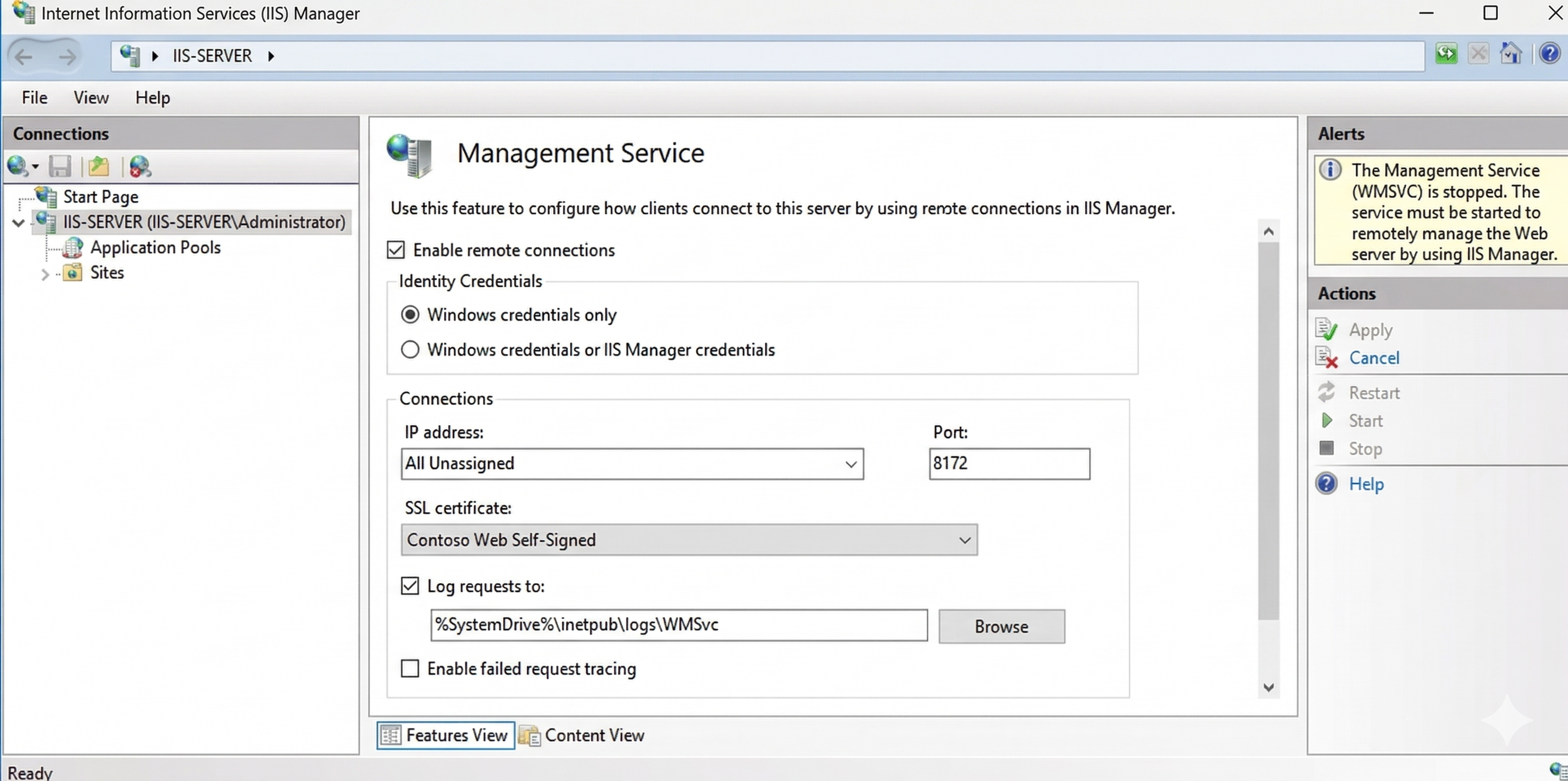
Once the Web Management Service is installed, you need to enable remote connections. You can do this by performing the following steps:
In IIS Manager, select the server node.
In the Features View, double-click Management Service (Management section).
In the Management Service page:
- Check Enable remote connections.
- Set IP Address (All Unassigned or a specific IP).
- Confirm Port is 8172.
- Under SSL certificate, select the certificate to secure the management channel. A self-signed certificate is acceptable for internal use, but a CA-issued certificate avoids trust warnings.
Select Apply in the Actions pane.
Select Start to start the WMSVC service.
Note
WMSVC must be stopped before the settings on this page can be edited. If the service is already running, select Stop in the Actions pane first, make your changes, select Apply, then Start.
To configure and enable the Web Management Service on a Windows Server computer in the Server Core configuration, run the following PowerShell code:
# Install the role service
Install-WindowsFeature -Name Web-Mgmt-Service
# Enable remote connections via registry
Set-ItemProperty `
-Path 'HKLM:\SOFTWARE\Microsoft\WebManagement\Server' `
-Name 'EnableRemoteManagement' `
-Value 1
# Configure WMSVC to start automatically and start it
Set-Service -Name WMSVC -StartupType Automatic
Start-Service WMSVC
As many web servers are located on networks that allow access from the internet, careful configuration of firewall rules is necessary to allow remote management. To create a firewall rule allowing access, run the following code, specifying the IP address of your management subnet (in this example 192.168.15.0/24):
New-NetFirewallRule `
-DisplayName "IIS Remote Management (WMSVC)" `
-Direction Inbound `
-Protocol TCP `
-LocalPort 8172 `
-RemoteAddress 192.168.15.0/24 `
-Action Allow
The IIS Manager for Remote Administration tool is available as a free download from Microsoft and runs on Windows client operating systems. You can install this tool using the WinGet package manager with the command:
winget install Microsoft.IISManagerRemoteAdministration
Once WMSVC is running on the server:
- Open IIS Manager on the client machine.
- In the Connections pane, right-select Start Page and select Connect to a Server (or select File > Connect to a Server).
- Enter the server name or IP address.
- Enter your credentials (a Windows administrator account or an IIS Manager user).
- If prompted about an untrusted certificate (self-signed), select Connect to accept and optionally save the connection.
- The remote server appears as a new node in the Connections pane. Expand it to manage sites, application pools, and server features as if working locally.
Delegating access with IIS Manager users
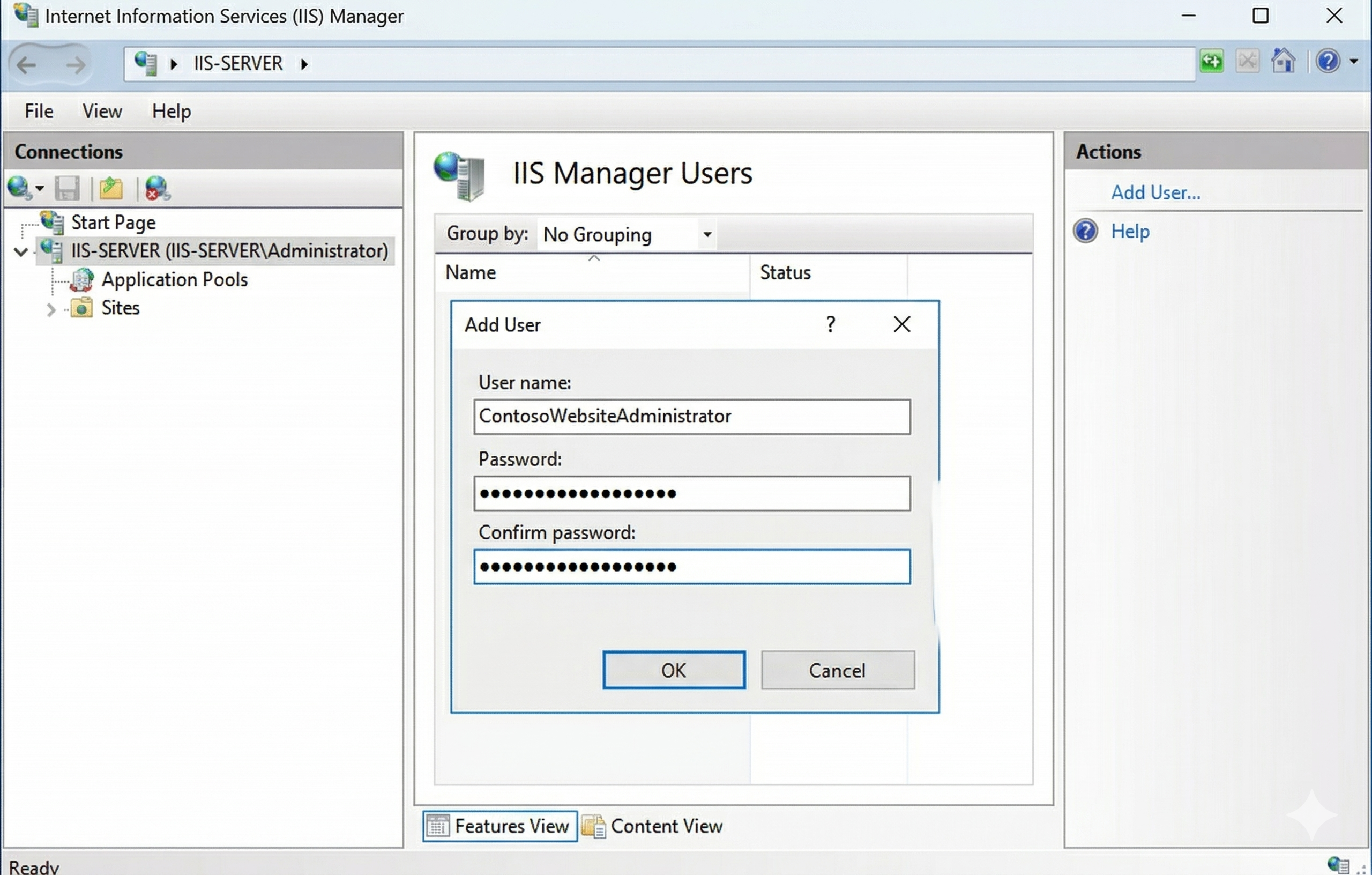
IIS Manager users are IIS-only credentials (not Windows accounts) that allow developers or application owners to connect via WMSVC and manage only the sites explicitly assigned to them. IIS Manager users allow you to granting access to a site without elevating Windows privileges.
To create an IIS Manager user:
- Select the server node in the Connections pane.
- In the Features View (Management section), double-click IIS Manager Users.
- In the Actions pane, select Add User.
- Enter a User name and Password.
- Select OK.
To assign an IIS Manager user permissions to a site, perform the following steps:
- In the Connections pane, select the target site.
- In the Features View, double-click IIS Manager Permissions.
- In the Actions pane, select Allow User.
- Select IIS Manager, enter the IIS Manager user name, and select OK.
The user can now connect remotely via WMSVC and will only have access to that site in their Connections pane.