Monitor and analyze AI Agent usage and performance
Microsoft Foundry's built-in AgentOps tools enable organizations to efficiently manage and optimize their AI agent investments by offering robust observability, governance, and performance tuning capabilities. These tools provide real-time monitoring, detailed tracing, and evaluation metrics that help developers assess and improve agent behavior, accuracy, and responsiveness. With secure data access features and support for multi-agent orchestration, the platform ensures agents operate reliably within enterprise compliance frameworks, making it easier to scale intelligent, goal-driven agents across diverse business scenarios.
Monitor agents with Azure Monitor Application Insights
Monitoring AI agents with Azure Monitor Application Insights is essential for improving return on investment (ROI) because it provides deep visibility into agent behavior, performance, and user interactions. By capturing telemetry data such as response times, failure rates, and usage patterns, organizations can identify inefficiencies, optimize resource allocation, and proactively resolve issues before they impact users. This level of observability enables data-driven decisions that reduce operational costs and enhance agent effectiveness. Additionally, Application Insights supports custom metrics and distributed tracing, allowing teams to fine-tune agent workflows and ensure alignment with business goals. Ultimately, this leads to more reliable, scalable, and cost-effective AI solutions that deliver measurable value.
Azure Monitor Application Insights provides deep observability into your AI agents' behavior and performance. You can:
- Track run rates, run duration, and task failures.
- Diagnose issues using distributed tracing and exception logging.
- Visualize telemetry data in real-time dashboards.
- Use filters to exclude unnecessary telemetry, such as personal or sensitive information.
Steps
- Enable Application Insights when deploying your AI agent.
- Use the Application Map to understand dependencies and performance bottlenecks.
- Set up alerts for anomalies in latency or error rates.
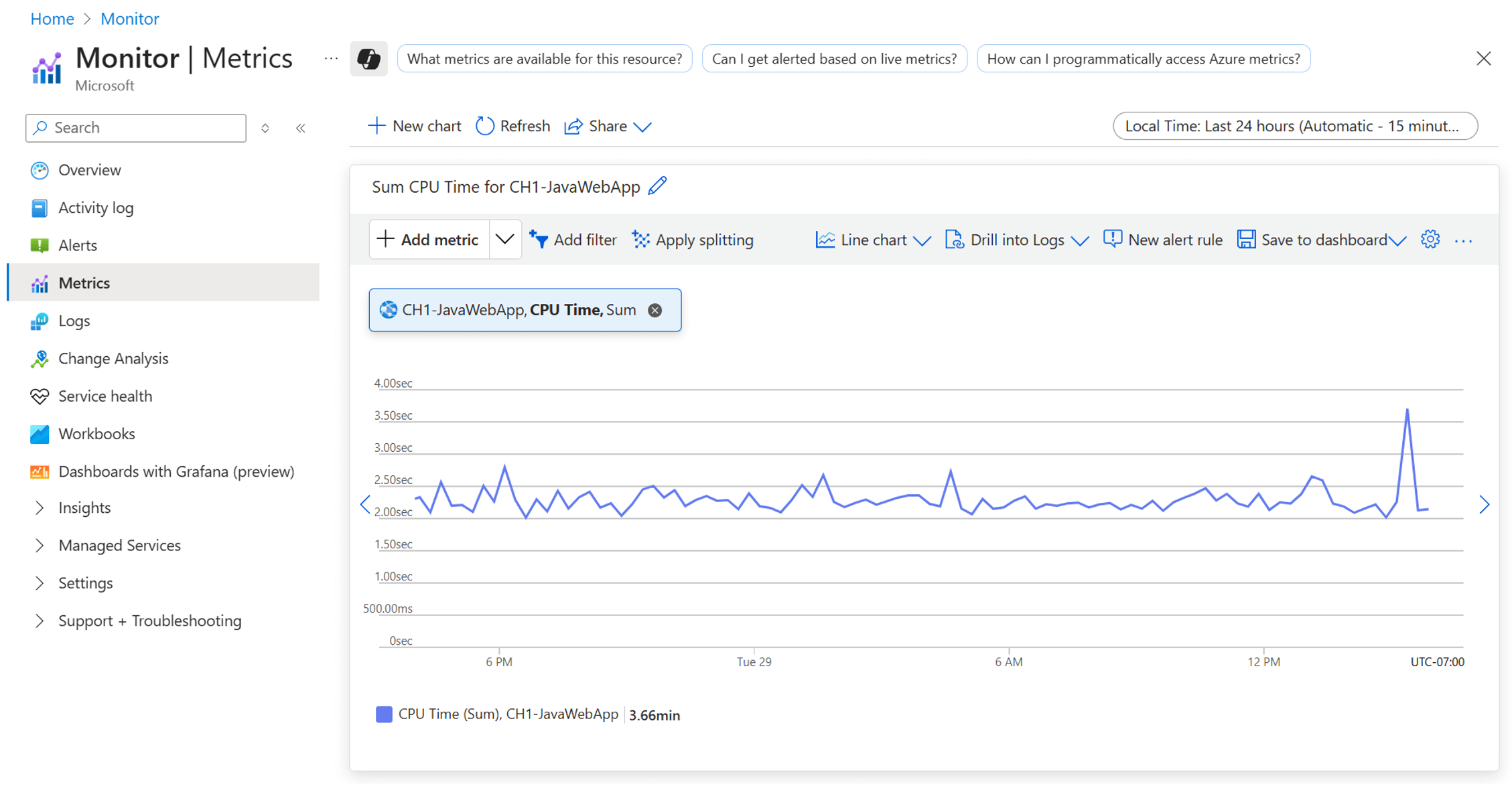
Analyze metrics with Azure Monitor Metrics Explorer
Analyzing metrics with Azure Monitor Metrics Explorer is a strategic way to improve ROI on AI agent investments by enabling data-driven performance optimization. This tool provides real-time visibility into key operational metrics such as latency, throughput, error rates, and resource utilization, allowing teams to identify inefficiencies and performance bottlenecks quickly. By visualizing trends and setting up alerts, organizations can proactively address issues before they escalate, ensuring consistent service quality and minimizing downtime. Moreover, correlating agent behavior with infrastructure metrics helps fine-tune resource allocation, reducing overprovisioning and cutting unnecessary costs. Ultimately, this level of observability empowers teams to make informed decisions that enhance agent reliability, user satisfaction, and financial efficiency.
Use Azure Monitor Metrics Explorer to:
- Monitor CPU, memory, and network usage of services supporting your AI agents.
- Correlate infrastructure metrics with agent performance.
- Create custom dashboards to track key performance indicators (KPIs) such as inference times, AI quota usage, and token usage.
Steps
- Navigate to Azure Monitor and select Metrics.
- Select the relevant resource (for example, App Service, Azure Functions).
- Choose metrics like "CPU Percentage" or "Requests".
- Apply filters and aggregation to refine insights.
Monitor Microsoft models with Cost Analysis in Microsoft Cost Management
Microsoft Cost Management helps you understand and control spending on AI services, including Microsoft-hosted models. Monitoring t models with Cost Analysis in Microsoft Cost Management is essential for maximizing ROI by ensuring that AI workloads are both effective and financially sustainable. This tool provides granular insights into spending patterns across different models, usage scenarios, and resource groups, helping teams identify high-cost operations and optimize them. By tracking cost trends and setting budgets or alerts, organizations can prevent overspending and align model usage with business priorities. Additionally, Cost Analysis enables comparisons between model performance and associated costs, allowing decision-makers to choose the most cost-efficient models for specific tasks. This transparency empowers teams to make smarter investments, reduce waste, and ensure that AI initiatives deliver measurable value.
Use Cost Analysis in Microsoft Cost Management to:
- View cost breakdowns and token usage by resource, service, or tag.
- Filter by subscription, resource group, time range, or billing meter.
- Set up cost alerts and anomaly detection.
Steps
- From the Azure portal, go to Cost Management + Billing, select Cost management, and select Cost Analysis.
- Select the scope (for example, subscription or resource group).
- Use filters to isolate AI-related services like Azure AI Search and Azure AI Speech.
- Save views for recurring analysis.
Export usage data to Power BI or Fabric from Microsoft Cost Management
Exporting usage data from Microsoft Cost Management to Power BI or Microsoft Fabric is a powerful way to improve ROI by enabling advanced, customizable financial analytics. These platforms allow organizations to go beyond the default dashboards and build tailored visualizations that align with specific business goals, departments, or projects. By integrating cost data with other operational metrics, teams can uncover deeper insights into spending trends, forecast future costs, and identify areas for optimization. This holistic view supports strategic decision-making, helping stakeholders allocate resources more effectively and justify AI investments with clear, data-backed evidence. Ultimately, it transforms raw usage data into actionable intelligence that drives financial efficiency and long-term value.
You have the following export options:
- Daily or monthly exports to Azure Storage.
- Use Power BI to connect to exported data for visualization.
- Leverage Microsoft Fabric for large-scale data modeling.
Steps
- From the Azure portal, go to Cost Management + Billing, select **Settings, and select Exports.
- Create a new export and configure:
- Destination storage account.
- Export frequency (daily/monthly).
- Dataset type (actual, amortized, etc.).
- In Power BI, connect to exported cost data from storage.
Continuously evaluate your AI agents in Microsoft Foundry
Continuous evaluation in Microsoft Foundry provides near real-time observability into the performance, safety, and quality of AI agents. Once enabled, it automatically samples and evaluates agent interactions using built-in metrics and surfaces insights in the Foundry Observability dashboard.
Foundry Observability dashboard capabilities include:
- Quality metrics. Intent resolution, tool call accuracy, task adherence.
- Safety monitoring. Detects unsafe or off-task responses.
- Performance insights. Tracks latency, error rates, and throughput.
- Trace integration. Links evaluations to execution traces for root cause analysis.
- Evaluator customization. Choose which metrics to monitor continuously.
You should use continuous evaluation when:
- Your AI agents are in production or pre-production environments.
- You need ongoing quality assurance without manual testing.
- You want to detect regressions or performance drops quickly.
- You're managing multiple agents and need centralized observability.
- You're integrating with Application Insights for unified monitoring.
Foundry Observability has the following prerequisites:
- A Foundry project (not hub-based).
- An Azure Monitor Application Insights resource.
- The Azure AI Projects client library installed.
- A deployed agent with active threads and runs.
- Permissions to access monitoring and analytics resources.
Steps to Set Up continuous evaluation
Connect Application Insights.
- Navigate to your project in Microsoft Foundry.
- Select Monitoring > Application Analytics.
- Connect your Application Insights resource.
Install the required SDKs. For example, in Python run the following command:
pip install azure-ai-projects azure-identityCreate and run an agent. For example, you could use Python to create an agent and process a user message:
from azure.ai.projects import AIProjectClient
from azure.identity import DefaultAzureCredential
import os

project_client = AIProjectClient(
    credential=DefaultAzureCredential(),
    endpoint=os.environ["PROJECT_ENDPOINT"]
)

agent = project_client.agents.create_agent(
    model=os.environ["MODEL_DEPLOYMENT_NAME"],
    name="my-assistant",
    instructions="You are a helpful assistant",
    tools=file_search_tool.definitions,
    tool_resources=file_search_tool.resources,
)

thread = project_client.agents.threads.create()
project_client.agents.messages.create(
    thread_id=thread.id,
    role="user",
    content="Hello, what Contoso products do you know?"
)

run = project_client.agents.runs.create_and_process(
    thread_id=thread.id,
    agent_id=agent.id
)