Configure plugin settings in Security Copilot
Contoso has three Security Copilot workspaces supporting different security functions. The Security Architect's next task is to govern how custom plugins are added across the organization. The Plugin Settings page provides owner-level controls that determine who can introduce new plugins and how broadly those plugins can be shared—decisions that have direct security implications for every workspace.
Understand plugin governance scope
Plugin governance operates at two distinct levels: user scope and organization scope.
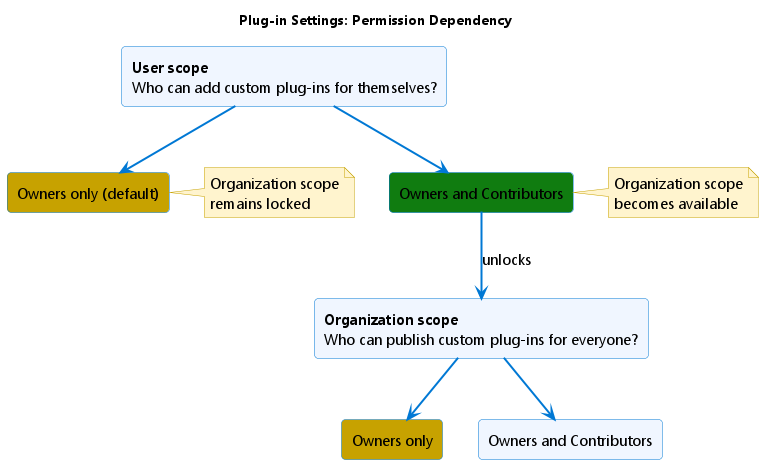
User scope controls who can add and manage custom plugins for their own sessions—a personal catalog of tools accessible only to the person who added them. Organization scope controls who can publish custom plugins that become available to all Security Copilot users in the organization.
By default, only owners can manage custom plugins at either scope. To change the default behavior, navigate to Owner > Plugin settings in the left navigation.
Configure user-scope permissions
The first permission you configure is who can add custom plugins for themselves:
- Owners only: only owners can add and manage their own custom plugins
- Owners and Contributors: owners and contributors can both add and manage custom plugins for their own sessions
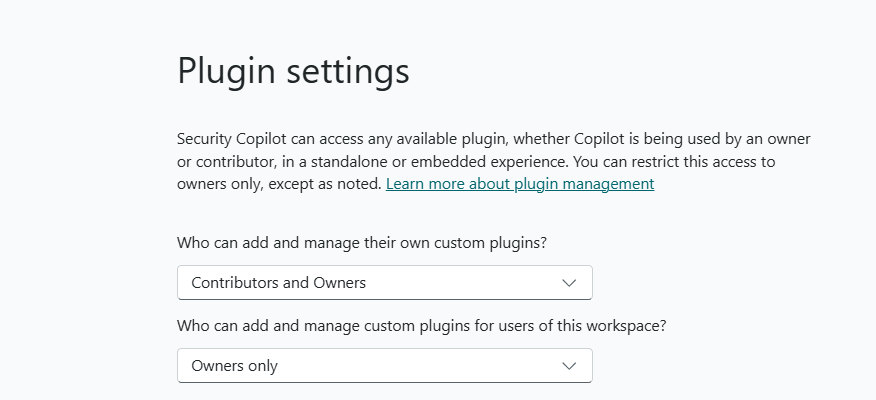
For the Contoso sandbox workspace, the Security Architect sets who can add plugins to Owners and Contributors—giving the security architecture team the ability to test custom plugins during sessions without waiting for owner involvement. For the SOC and compliance workspaces, plugin setting remains set to Owners only to keep tighter control over production environments.
Changing the user-scope setting to Owners and Contributors also unlocks the second permission.
Configure organization-scope permissions
Setting user-scope permissions to Owners and Contributors unlocks a second control. Now you can configure who can publish custom plugins for everyone in the organization:
- Owners only: only owners can make custom plugins available organization-wide
- Owners and Contributors: contributors can also publish plugins to the organization
For the sandbox workspace, the Security Architect sets organization scope to Owners only as well—even though contributors can add plugins for their own sessions, only the Security Architect decides which plugins graduate to organization-wide availability after successful testing.
Restrict preinstalled plugin availability
Beyond custom plugins, owners can also restrict which preinstalled plugins users can access. By default, all owners and contributors have access to preinstalled Microsoft and non-Microsoft plugins. Owners can change individual plugins to Owners only access. After you restrict any plugin, Microsoft restricts newly added preinstalled plugins to Owners only by default.
Warning
Restricting access is an immediate change that affects all current users of Security Copilot and its embedded experiences. Notify users before restricting plugins.
Restricted plugins affect embedded experiences. If the Microsoft Defender XDR or Natural Language to Kusto Query Language (KQL) plugins are restricted, analysts working in the Defender portal see a degraded or unavailable Copilot experience within that portal. Plan restrictions carefully and communicate changes to affected teams before applying them.
When you set up a Security Copilot agent, the required plugins for that agent are automatically enabled—solely for the agent's use. This automatic enablement doesn't change the availability status of those plugins for your users. You can disable the agent at any time to stop those automatic enablements.
See plugin governance in action
With permissions configured, contributors can now add custom plugins within the boundaries you set. Here's what the process looks like from the contributor's perspective—and what the owner controls at each step.
- Select the Security Copilot sources icon from the prompt bar.
- In Manage plugins, scroll to the Custom section and select Upload plugin.
- From the dropdown, choose the scope: available only to yourself (private) or available to everyone in the organization.
- Select the plugin type:
- Security Copilot plugin: upload a
.yamlor.jsonmanifest file, or provide a link to the manifest - OpenAI plugin: provide a link to the OpenAI plugin manifest
- Security Copilot plugin: upload a
- Complete any required setup fields, then select Setup.
After setup, the plugin appears in the Custom section with a toggle to turn it on or off. Private plugins display a Private tag. Only the owner who added an organization-scope plugin can modify or delete it—contributors can toggle it on or off but can't change its definition.