Acquire and configure partner agents from Security Store
Beyond Microsoft built agents, the Security Store provides access to a growing ecosystem of partner-built agents. For Contoso, the Security Architect needs to deploy an external threat triage agent that integrates with Defender data—a process that involves procurement, Global Administrator approval, and post-setup plugin configuration.
Access the Security Store
The Security Store is integrated directly into Security Copilot. To access it from within the portal:
- Go to Home menu > Security Store, or
- In the agent library, select Browse more agents
The Security Store lets you search for agents and filter results by publisher, product, or pricing. You can view agents in grid or list format. Selecting an agent shows its description, publisher, pricing model, and the permissions it requires.
Understand the billing model
Security Store subscriptions and Security Compute Unit (SCU) consumption are separate billing streams:
- Security Store subscription: the licensing fee paid to the partner for using the agent. Managed and billed through Security Store.
- SCU consumption: the Security Copilot compute cost incurred each time the agent runs. Billed through your Security Copilot capacity.
Important
Removing an agent from Security Copilot doesn't cancel a Security Store subscription. Manage subscription billing in Security Store separately from agent operations in Security Copilot.
These two costs are independent. An agent that runs frequently incurs both subscription fees (fixed, per your agreement) and SCU costs (variable, based on usage). Factor both into your capacity planning.
Get and set up a partner agent
In the Security Store, find the agent you want and select Get agent.
- For Microsoft agents: you're routed directly to the Active agents page to begin setup.
- For non-Microsoft agents: you're routed to the Security Store to purchase or subscribe first, then return to Security Copilot to complete setup.
After acquiring the agent, proceed with setup in Security Copilot.
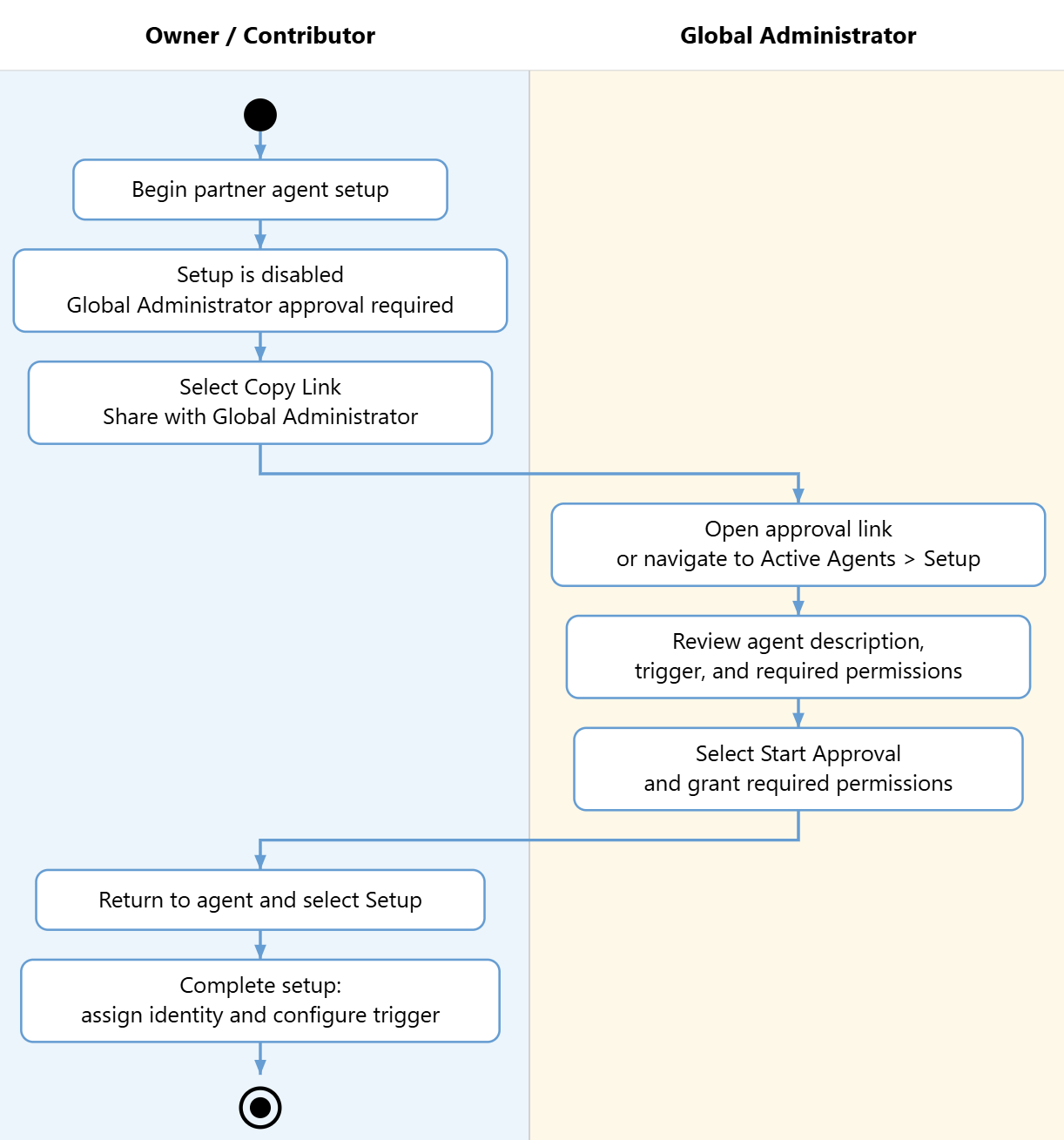
Global Administrator approval workflow
When a partner agent requires access to Microsoft product data—such as Defender, Microsoft Sentinel, Intune, or Microsoft Entra—the Set up button is disabled until a Global Administrator approves the required permissions. This step exists to ensure that tenant-wide data access by an external agent is explicitly authorized.
Tip
Global Administrator is required for this approval, but you don't need to maintain a standing assignment. Use Privileged Identity Management (PIM) to grant just-in-time Global Administrator access for this task, then let the activation expire—keeping your environment aligned with least-privilege principles.
For Security Copilot owners and contributors:
- Begin agent setup. A banner indicates that Global Administrator approval is required.
- Select Copy link and share it with your Global Administrator.
- After the administrator completes approval, return to the agent and select Set up to finish configuration.
For Global Administrators:
- Open the link provided by the owner or contributor. Alternatively, navigate to Active agents and select Set up on the agent directly.
- Review the agent's description, trigger, required permissions, and other details.
- Select Start approval and follow the prompts to grant the necessary permissions.
- Once approval is complete, the owner or contributor can finish setup—including assigning an identity and configuring the trigger.
Configure dependent plugins
Some partner agents require a plugin to be configured before the agent can complete its work. After setup, if the agent has a dependent plugin:
- Select Manage sources from the prompt bar.
- Locate the dependent plugin. The status is "enabled" for the agent but not yet fully configured.
- Select the plugin and provide the required configuration—for example, an API key or workspace connection URL.
- Select Save.