Create and manage environments
With your environment strategy defined, you're ready to create environments and configure their lifecycle settings. This unit covers the practical steps for provisioning environments, assigning security roles, and performing lifecycle operations.
Create an environment
To create a new environment in the Power Platform admin center:
- Sign in to the Power Platform admin center.
- In the navigation pane, select Manage, select Environments.
- Select + New in the command bar.
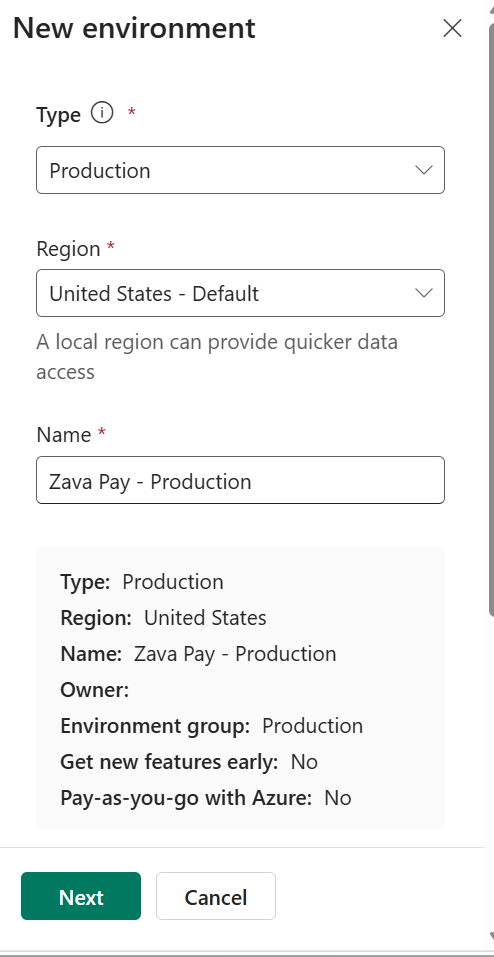
- Provide the following details:
- Type: Choose Production, Sandbox, Developer, or Trial.
- Name: A descriptive name that reflects the environment's purpose and follows established naming conventions in your organization (for example, "Zava Pay - Production").
- Region: Select the geographic region closest to your users. For data-residency requirements, select the region that meets compliance mandates.
- Select Change default settings to modify additional settings. Visibility of the different options can vary based on other settings enabled.
- Make this a Managed Environment: Select this option when you want more control and insights.
- Get new features early: Enable this option to get new features as soon as they're released.
- Add a Dataverse data store: Enable this option if your apps need relational data storage, business logic, or security roles.
- Pay-as-you-go with Azure: Enable this option to link this environment to an Azure subscription for billing.
- Select Save.
When the environment is ready, it appears with a Ready status in the list of environments in the Power Platform admin center.
Note
Creating a production or sandbox environment with Dataverse consumes at least 1 GB of database capacity from your tenant's available storage. Verify you have sufficient capacity before provisioning.
Configure environment security
Every environment with Dataverse includes predefined security roles that control what users can do:
- System Administrator: Full control over the environment, including customization, security, and data management.
- System Customizer: Can customize tables, fields, views, and workflows but can't manage users or security roles.
- Environment Admin: Can manage environment settings, add users, and assign roles. In environments without Dataverse, this role is the highest level of access.
- Environment Maker: Can create apps, flows, and connections within the environment.
- Basic User: Can run apps and perform actions allowed by their specific security role assignments.
Assign security roles based on your zoned model. In the Green zone, most users have the Environment Maker role. In the Red zone, restrict roles to specific teams with System Administrator access granted only to designated admins.
Manage environment lifecycle operations
Power Platform provides several lifecycle operations for managing environments over time:
Copy an environment
The copy operation creates a full or minimal clone of a production or sandbox environment. Use this operation to create environments that mirror production data and configuration. This process can help you reproduce and isolate production data related bugs. Use minimal copy to validate a solution upgrade without copying sensitive data. Environment copy operations can be time-consuming and resource-intensive. Factor this consideration into your planning.
- In the Power Platform admin center, select the source environment.
- Select Copy from the command bar.
- Select Full copy (data + customizations) or Minimal copy (customizations only).
- Select the target environment or create a new one.
Important
The Managed Environments property must match between source and destination for copy and restore operations. If the source is managed, the target must be managed as well.
Back up and restore
Power Platform automatically creates system backups of production and sandbox environments. System backups are automatically created for environments that have a database. By default, backups of all production and nonproduction environments are retained for seven days. You can also create manual backups before making significant changes.
- System backups: Taken continuously, retained for up to 28 days with extended backup in Managed Environments.
- Manual backups: Created on demand, retained for up to 28 days with extended backup in Managed Environments.
- Restore: Reverts an environment to a previous point in time. This operation overwrites the current environment state.
Delete an environment
Delete an environment when it's no longer needed. Deleted environments are recoverable for up to seven days. After that period, the environment and all its data are permanently removed.
- Select the environment in the admin center.
- Select Delete from the command bar.
- Confirm the deletion.
Tip
Before deleting environments, verify that no active apps or flows depend on them. Use the environment's resource list to review all assets.
Control environment creation
By default, any user with a Power Platform license can create trial and developer environments. To maintain governance:
- In the Power Platform admin center, select Manage > Tenant settings.
- Search for environment, select the type of environment you'd like to configure and set who can create production and sandbox environments to Only specific admins.
This approach ensures every new environment follows your established governance patterns from the moment it's created.
Apply environment settings
After creating an environment, configure its operational settings to match your governance requirements:
- Session and cookie security: In Managed Environments, enable IP cookie binding to prevent session token theft.
- Audit settings: Enable auditing for environments in the Yellow and Red zones to maintain a record of data changes and user activity.
- Collaboration settings: Configure whether users can use Teams chat and shared channels from within model-driven apps.
- Features: Control which preview and release features are available in each environment.
Access these settings by selecting your environment in the admin center, then selecting Settings in the command bar. Power Platform organizes settings into categories including Security, Audit and logs, Email, and Product.