Configure network features for an Azure NetApp Files volume
The Network Features functionality enables you to indicate whether you want to use VNet features for an Azure NetApp Files volume. With this functionality, you can set the option to Standard or Basic.
Options for network features
Two settings are available for network features:
Standard - This setting enables VNet features for the volume.
If you need higher IP limits or VNet features such as network security groups, user-defined routes, or extra connectivity patterns, you should set Network Features to Standard.
Basic - This setting provides reduced IP limits (<1000) and no extra VNet features for the volumes.
You should set Network Features to Basic if you don't require VNet features.
Set network features option during volume creation
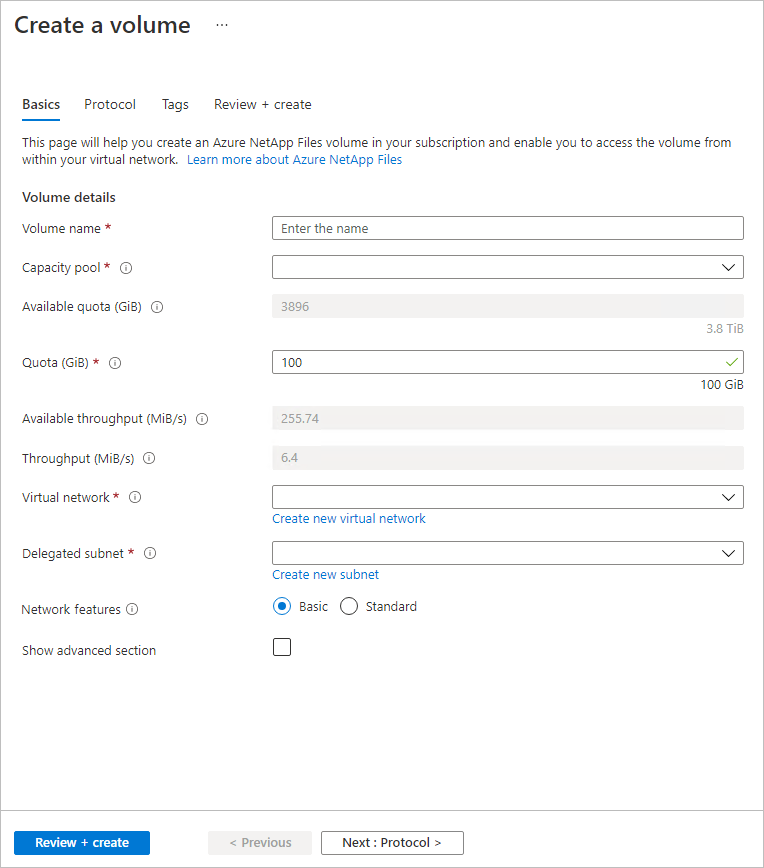
During the process of creating a new NFS, SMB, or dual-protocol volume, you can set the Network Features option to Basic or Standard under the Basic tab of the Create a Volume screen.
Edit network features option for existing volumes
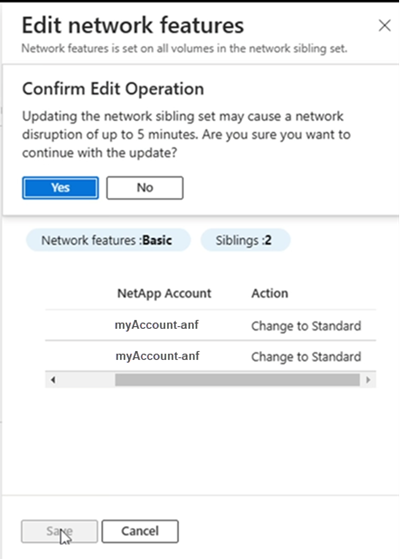
You can edit the network features option of existing volumes from Basic to Standard network features. The change you make applies to all volumes in the same network sibling set (or siblings).
Navigate to the volume and select Change network features. The Edit network features window displays the volumes that are in the same network sibling set. Confirm whether you want to modify the network features option.
You must follow separate instructions if you use Terraform-managed volumes. For more information, see, Update Terraform-managed Azure NetApp Files volume from Basic to Standard.