Automate certificate issuance and renewal
One of the biggest advantages of Cloud PKI is that the entire certificate lifecycle from initial issuance to renewal runs automatically without administrative intervention. Once you configure your SCEP profiles and assign them to groups, Intune handles the rest. Devices enroll, receive certificates, and renew them before expiry, all in the background.
This unit explains how SCEP-based certificate enrollment works end to end, how to configure renewal behavior, and what controls you have over the certificate lifecycle.
Understand SCEP-based certificate enrollment
Simple Certificate Enrollment Protocol (SCEP) is the industry-standard protocol that Cloud PKI uses to automate certificate enrollment. It was designed for scenarios where large numbers of devices need certificates without manual interaction.
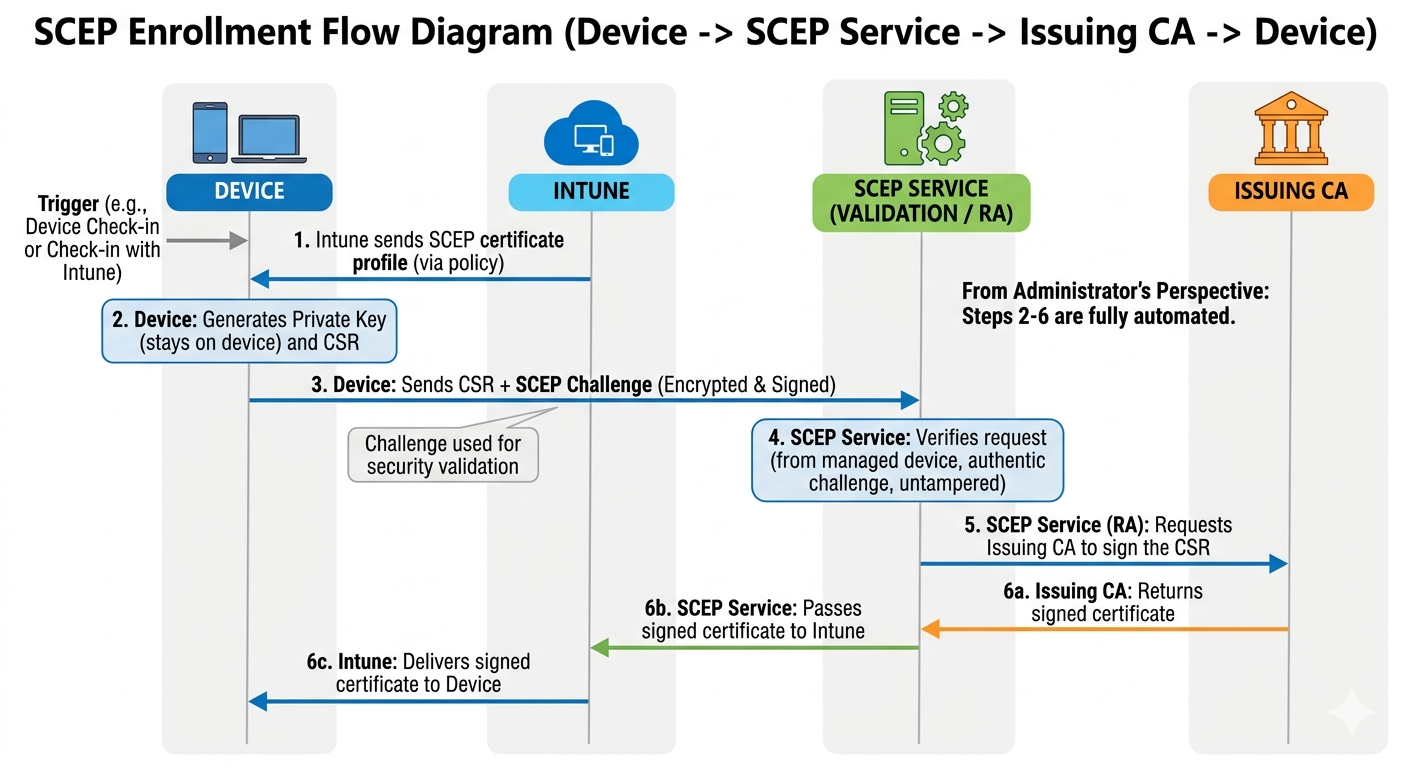
The enrollment flow works like this:
- A device checks in with Intune and receives the SCEP certificate profile.
- The device generates a certificate signing request (CSR). The private key is created on the device and never leaves the device - this is a fundamental security property of SCEP enrollment.
- The device sends the CSR along with a SCEP challenge to the Cloud PKI SCEP service. The challenge is encrypted and signed using Intune's SCEP registration authority keys.
- The SCEP validation service verifies that the request came from an enrolled, managed device and that the challenge is authentic and untampered.
- After validation, the SCEP validation service (the registration authority) requests that the issuing CA sign the CSR.
- The issuing CA signs the certificate and Intune delivers it back to the device.
From the administrator's perspective, steps 2 through 6 are fully automated. You configure the SCEP profile once, assign it to a group, and devices self-enroll whenever they check in.
Note
Each Cloud PKI issuing CA includes its own built-in SCEP service. This replaces the need for an on-premises Network Device Enrollment Service (NDES) server and Intune certificate connector. No additional infrastructure is required.
Configure certificate subject and SAN settings
The subject name and subject alternative name (SAN) fields in the SCEP profile determine who or what the certificate identifies. Intune supports dynamic variables that populate these fields automatically based on the enrolling user or device.
Common subject name formats:
| Use case | Format |
|---|---|
| Device certificate (Windows) | CN={{DeviceId}} |
| User certificate | CN={{UserName}} |
| User certificate with domain | CN={{UserPrincipalName}} |
| Device certificate with serial | CN={{SerialNumber}} |
For subject alternative names, you can combine multiple SANs of different types:
| SAN type | Example value |
|---|---|
| User principal name | {{UserPrincipalName}} |
| Email address | {{EmailAddress}} |
| DNS name | {{FullyQualifiedDomainName}} |
Tip
For Wi-Fi and VPN authentication scenarios, include the UPN as a SAN so that network access servers can identify the user from the certificate without querying Active Directory.
Set certificate validity and renewal thresholds
Two settings control how long a certificate stays valid and when Intune starts the renewal process:
- Certificate validity period: How long the issued certificate is trusted. You set this in the SCEP profile. One year is a common default, though shorter periods (90 days) improve security by limiting exposure if a certificate is compromised.
- Renewal threshold: The percentage of the certificate's lifetime remaining when Intune triggers automatic renewal. The default is 20%. For a one-year certificate, renewal starts approximately 73 days before expiry.
To adjust the renewal threshold:
- Open the SCEP certificate profile in the Intune admin center.
- Under Certificate validity period, set the desired validity (1 year, 2 years, and so on).
- Under Renewal threshold (%), enter the percentage at which renewal should begin.
- Save the profile.
When a managed device detects that a certificate is approaching the renewal threshold, it automatically generates a new CSR and goes through the same SCEP enrollment flow as initial issuance. The renewed certificate replaces the expiring one, and the old certificate is automatically revoked.
Important
Renewal only works automatically for devices that are enrolled in Intune and actively checking in. Devices that are offline for extended periods may not renew in time. Consider a lower renewal threshold (30-40%) for mobile or remote devices that check in less frequently.
Understand key usage and extended key usage
The key usage and extended key usage (EKU) settings define what the certificate can be used for. Configure these in the SCEP profile to match the intended purpose.
Common key usage combinations:
| Scenario | Key usage | EKU |
|---|---|---|
| Device authentication | Digital signature, Key encipherment | Client authentication (1.3.6.1.5.5.7.3.2) |
| Wi-Fi authentication | Digital signature | Client authentication |
| Email signing | Digital signature | Secure email (1.3.6.1.5.5.7.3.4) |
| Code signing | Digital signature | Code signing (1.3.6.1.5.5.7.3.3) |
Mismatched EKUs cause authentication failures. For example, if you use a certificate with only the email EKU to authenticate to a Wi-Fi network, the authentication server will reject it. Always verify that your EKU values match the requirements of the service the certificate is protecting.
Configure platform-specific SCEP profiles
SCEP certificate profiles are platform-specific in Intune. You need a separate profile for each platform your organization supports, but the core configuration is the same across all of them.
Platforms supported by Cloud PKI:
- Windows 10 and later — Supports TPM key storage for enhanced hardware protection
- iOS/iPadOS — Certificates stored in the device keychain
- Android (Device Administrator and Android Enterprise) — Separate profiles for different Android enrollment modes
- macOS — Certificates stored in the system keychain
For Windows devices, you can configure the Key storage provider (KSP) to store the private key in the Trusted Platform Module (TPM):
- In the SCEP profile configuration, find the Key storage provider setting.
- Select Enroll to Trusted Platform Module (TPM) KSP if present, otherwise Software KSP to use TPM when available.
- Alternatively, select Enroll to Trusted Platform Module (TPM) KSP, otherwise fail to enforce hardware-backed key storage and fail enrollment on devices without a TPM.
TPM-protected keys are significantly more resistant to extraction attacks than software-backed keys.
Manage certificate revocation
Revocation removes trust in a certificate before it expires. This is important when a device is lost, stolen, decommissioned, or a user leaves the organization.
Cloud PKI maintains a Certificate Revocation List (CRL) for each issuing CA:
- The CRL has a validity period of seven days.
- Intune publishes and refreshes the CRL every 3.5 days.
- Every manual revocation immediately updates the CRL.
To manually revoke a certificate:
- In the Intune admin center, go to Tenant administration > Cloud PKI.
- Select the issuing CA, then select View all certificates.
- Find the certificate you want to revoke, select it, and choose Revoke.
Note
You need the Revoke issued leaf certificates RBAC permission to perform manual revocation. This permission also requires the Read CAs permission.
When you retire or wipe a device in Intune, Intune automatically revokes the certificates issued to that device. This ensures that a wiped device's certificates can't be misused.
Verify certificate delivery
After assigning SCEP profiles to a group, verify that devices are receiving their certificates:
- In the Intune admin center, go to Devices > Monitor > Certificates.
- Filter by the issuing CA or by device to see which certificates have been issued.
- Check the State column for Active, Expired, or Revoked status.
You can also check directly on a Windows device by opening a command prompt and running:
certutil -store My
This lists all certificates in the user or device certificate store. Look for your certificate by subject name or issuer.
For deeper diagnostics on Windows, the Event Viewer logs under Applications and Services Logs > Microsoft > Windows > CertificateServicesClient the SCEP enrollment events and any errors encountered during the process.