User feedback
Feedback from your users allows you to monitor and evaluate work or school search in your organization to ensure it provides optimal and authoritative answers and results.
How users submit feedback
As people in your organization use Microsoft Search, they'll have feedback on the experience. When they select a feedback link on a results page, they can categorize their feedback and include comments.
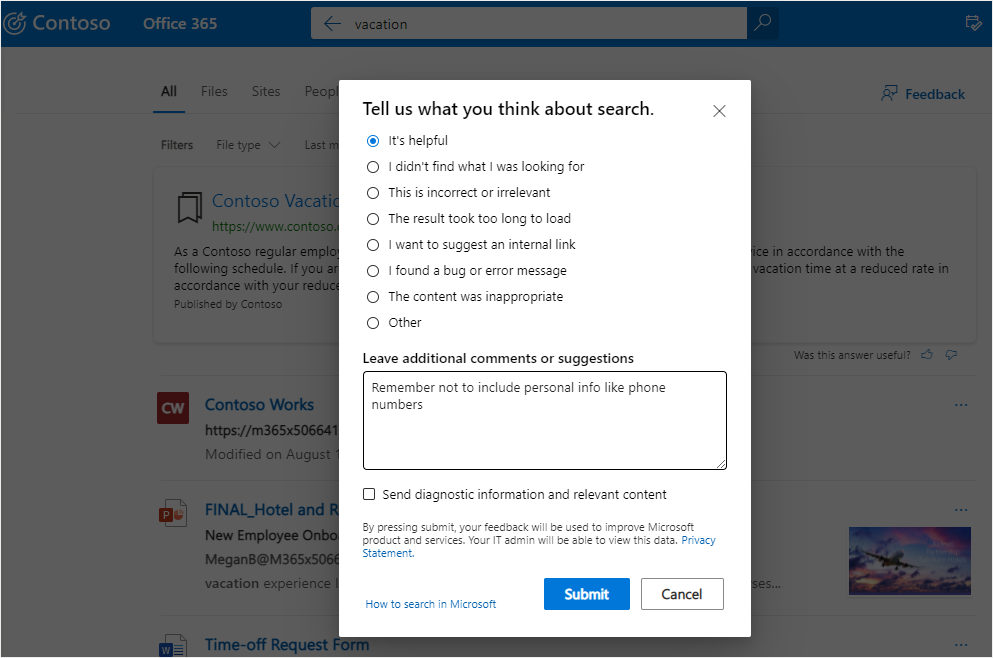
Users can also send their query and other diagnostic info, along with the category and comments, to Microsoft. Learn more about privacy and how we protect this data. The diagnostic data is critical when trying to make product improvements based on feedback.
Encourage people in your organization to send feedback and suggestions using the links found on every search results page. Most feedback appears in the Feedback page in the Search & intelligence settings. Feedback categorized as I want to suggest an internal link appears as a suggested bookmark in the Bookmarks section and can be reviewed by filtering on Suggested status.
Review user feedback
On the Feedback page in the Microsoft 365 admin center, you can review and export feedback sent during the past 30 days. Once a user submits feedback it will appear in this list within 20 minutes. Use the refresh button to ensure you're looking at the most current data.
To see specific feedback, filter by answer type, source, or date range. You can also search to find feedback on a specific query.
In the feedback list, the Verbatim column indicates the feedback includes a comment. To read it, select the query to open the Detail panel.
Note
During the initial rollout across the admin and end-user search experiences, it may take up to two weeks for feedback items to appear in the admin portal.
Send user feedback to Microsoft
By default, all user feedback is also sent to Microsoft. To stop sending feedback to Microsoft, choose Manage settings, and clear the Automatically send user feedback to Microsoft check box. It can take up to 24 hours for this change to take effect. You can still send individual pieces of feedback to Microsoft.
- Select the feedback you want to share.
- In the action bar, select More (three dots), and select Send feedback to Microsoft.
- The status in the Sent to Microsoft column will change to Pending. When the feedback is sent, it changes to Yes.
If you share feedback automatically or manually, it never includes queries and other diagnostic info for users that opted to not include this information.