Deploy models to endpoints
Tip
See the Text and images tab for more details!
After selecting a model from the catalog, you deploy it to make it accessible through endpoints that your applications can use. The Microsoft Foundry portal guides you through the deployment process and provides tools to test your deployed model immediately.
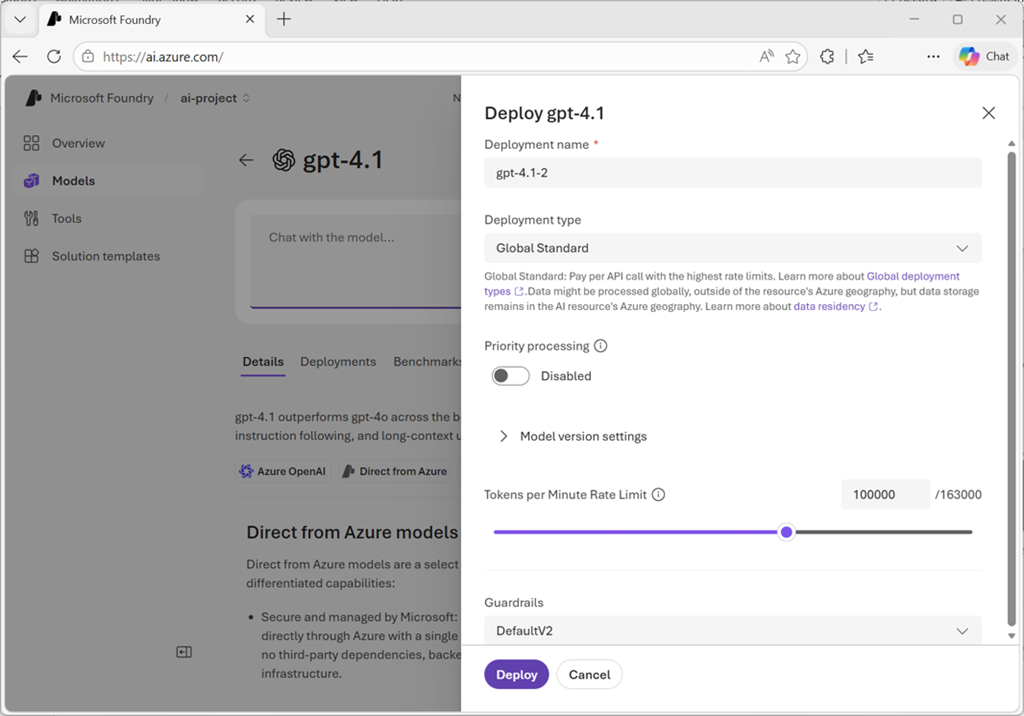
Understand deployment types
Microsoft Foundry supports several deployment types, each offering different characteristics for data residency, scaling, and billing:
- Global Standard model deployments can use any Azure region on a pay-per-token basis. They're best for general workloads, and provide the highest quota.
- Global Provisioned deployments can use any Azure region, and their use is based on a reserved provision throughput units(PTU) basis to provide predictable high-throughput.
- Global Batch deployments can use any Azure region at a 50% discount for large asynchronous jobs within 24-hours.
- Data Zone Standard deployments ensure data stays within a specific data zone on a pay-per-token basis. They're best for scenarios where EU/US data zone compliance is required.
- Data Zone Provisioned deployments provide predictable throughput based on reserved PTUs within a data zone.
- Data Zone Batch deployments are designed for large asynchronous batch jobs within a data zone/
- Standard deployments are deployed within a single region on a pay-per-token basis. They're great when you need regional data residency compliance or for low-volume scenarios.
- Regional Provisioned deployments provide reserved PTUs within a single region.
- Developer Developer deployments use any Azure region on a pay-per-token basis and are for fine-tuned model evaluation only.
Each model in the catalog indicates which deployment types it supports. The portal automatically selects the best deployment option based on your environment and model requirements. Global Standard deployments in Foundry resources should be used whenever possible for maximum capabilities.
Deploy a model
To deploy a model from the Microsoft Foundry portal:
First, navigate to the model you selected in the Model catalog. From the Foundry portal homepage, select Discover in the navigation, then Models in the left pane. Open the model card to review its specifications and supported deployment types.
Select Deploy to begin the deployment process. You can choose:
- Default settings to deploy quickly with recommended configurations
- Custom settings to customize your deployment options
If the model requires an Azure Marketplace subscription (common for models from partners and the community), you see terms of use. Review these terms and select Agree and Proceed to accept them. Models sold directly by Azure, such as Azure OpenAI models like GPT-4o-mini, don't require marketplace subscriptions.
Configure your deployment settings:
- Deployment name: By default, the system uses the model name. You can modify this to create meaningful names for multiple deployments of the same model. During inference, your code uses this deployment name in the
modelparameter to route requests. - Deployment type: The portal automatically selects the appropriate deployment type based on the model and your environment. Each model supports different deployment types providing different data residency or throughput guarantees.
For managed compute deployments, you also configure:
- Virtual machine SKU: Choose from supported VM types. You need Azure Machine Learning compute quota for the selected SKU in your subscription.
- Instance count: Specify how many instances to deploy for load distribution and redundancy.
After configuring all settings, select Deploy. When deployment completes, you land on the Foundry Playground where you can interactively test the model. Verify that the deployment status shows Succeeded in your deployment list.
Manage deployed models
After deployment, you manage your models from the Build section in the Microsoft Foundry portal. Select Build in the navigation, then Models in the left pane to see the list of deployments in your resource.
From the deployment list, select a specific model to view its details:
- Deployment configuration and status
- Endpoint URL for API access
- Authentication keys or tokens
- Monitoring and usage metrics
- Option to adjust deployment settings or delete the deployment
The deployment details page provides the information your applications need to connect to and use the model.
Test in the playground
The Microsoft Foundry portal includes interactive playgrounds where you test deployed models immediately, without writing code. After deployment completes, you automatically land in the playground, or you can select a deployment from your models list to open the playground.
The playground pre-selects your deployment, so you can start testing immediately. In the chat interface:
Enter prompts in the message box and observe responses. The playground displays both your input and the model's generated output, helping you understand behavior and quality.
Experiment with different types of prompts to test various capabilities:
- Simple questions to verify basic understanding
- Complex multi-step reasoning problems
- Requests for specific formats or styles
- Edge-cases that might reveal limitations
Adjust system messages to guide model behavior. System messages set context, tone, and instructions that apply to all user inputs. For example, you might instruct the model to "respond as a customer service representative" or "provide concise, technical explanations."
Modify parameters like temperature (creativity vs. consistency), max tokens (response length limits), and top-p (nucleus sampling) to fine-tune generation behavior.
Select the Code tab to see examples of how to call your deployed model programmatically. The code samples show authentication, endpoint configuration, and request formatting in languages like Python, C#, and JavaScript. You can copy these samples directly into your application.
The playground serves as your development environment for prompt engineering and testing before integrating the model into your application.
Access models programmatically
When you're ready to integrate the model into your application, you need three key pieces of information from the deployment details:
Endpoint URL: The API endpoint where your application sends requests. Microsoft Foundry supports project endpoints for Foundry-specific functionality, and OpenAI v1 endpoints for broad compatibility with OpenAI model APIs.
Authentication key: The secret key or token your application presents to authenticate requests. Alternatively, you can use Microsoft Entra ID authentication and have your application present an authentication token based on is identity. Entra ID authentication is recommended for production scenarios.
Deployment name: The name you specified during deployment, used in the model parameter of API requests to route to your specific deployment.
Your application uses these details to construct API requests. The Microsoft Foundry portal provides SDKs and REST API documentation for various programming languages, along with code samples showing request formatting, authentication, and response handling.
With your model deployed and tested, you're ready to integrate it into applications or proceed to more comprehensive evaluation using automated metrics and test datasets.