Use Endpoint Analytics to monitor device health and performance
All Advanced Analytics capabilities require Microsoft Intune Suite licensing or the Advanced Analytics add-on.
Endpoint analytics helps you understand the impact settings (and device conditions) have on startup experience, app stability, and overall readiness for modern work. It turns device telemetry into actionable insights so you can spot performance regressions early, prioritize the devices or apps that need attention, and take corrective action before issues become widespread.
Enable Endpoint analytics
Endpoint analytics requires devices to send telemetry based on the Intune data collection policy created during setup. When you open Endpoint analytics for the first time, Intune walks you through a guided setup and creates the policy for you.
Enable Endpoint analytics:
- In the Microsoft Intune admin center, select Reports > Under Analytics > Endpoint analytics.
- Follow the guided setup and choose which devices should contribute data (for example, All cloud-managed devices or a selected groups).
- Confirm the Intune data collection policy is assigned to the correct device scope. You can adjust assignments later in Devices > Configuration.
Understand Endpoint analytics score
Endpoint analytics provides an overall score (0–100) that helps you quickly assess experience across your environment. The Endpoint analytics score is a weighted average of:
- Startup performance
- Application reliability
- Work from anywhere
To track improvement over time, you can compare against baselines (including your own custom baselines) and watch for regressions that indicate a new rollout, app change, or configuration update may be impacting user experience.
On the main Endpoint analytics page, use the Model scores tab to compare scores across device models and identify underperforming hardware that may be approaching a refresh cycle.
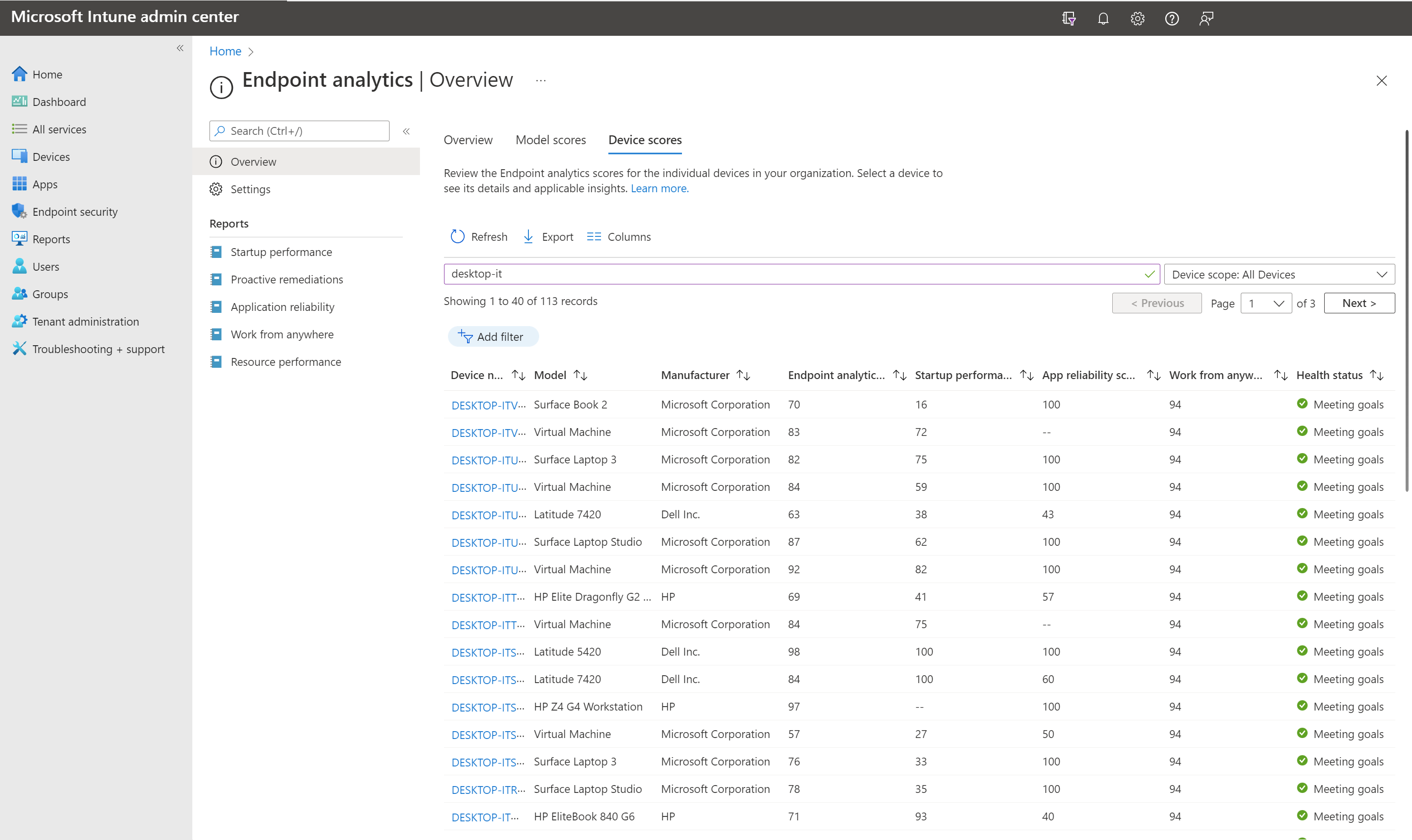
Use the Device scores tab to sort individual devices by score so you can find specific endpoints that need attention before users raise support tickets—without drilling into a specific sub-report.
Understand key Endpoint analytics reports
Startup performance
The Startup performance report in Endpoint analytics helps you spot Windows devices with slow boot or sign-in and prioritize fixes. It provides a Startup score (0–100) based on a weighted average of Boot score and Sign-in score, keeps boot/sign-in events for 29 days, and provides insights and recommendations, with the ability to drill down into the impacted devices.
Application reliability
The Application reliability report in Endpoint analytics helps you identify apps that are hurting productivity by tracking crash and unresponsive events across your environment. It ranks apps using an App reliability score (0–100) based on mean time to failure and total usage duration over the last 14 days, and lets you drill down into app versions and Windows OS versions to pinpoint which releases are causing the most issues. A device-level view also highlights devices with higher crash totals and shows a timeline of app crashes/unresponsive events (up to 14 days).
Work from anywhere
The Work from anywhere report shows how ready your organization is for productive remote work by providing a Work from anywhere score (0–100) and letting you compare it to a selected baseline. The score is a weighted view across four areas—Windows, Cloud management, Cloud identity, and Cloud provisioning—and includes insights and recommended actions, with drill-down to device-level views (devices appear as “active” when they’ve uploaded an Endpoint analytics event within the last 29 days).
Advanced Analytics
If your organization has Advanced Analytics (included in Microsoft Intune Suite or available as an add-on), additional reports and capabilities extend Endpoint analytics, such as:
- Resource performance: Identifies CPU and RAM performance issues by device, model, and manufacturer to help prioritize troubleshooting and guide hardware refresh decisions.
- Battery health: Monitors battery health to support long battery life and a better user experience; can help identify devices that may need battery service or warranty action.
- Anomalies: Detects regressions in device health after changes by monitoring application hangs, crashes, and Stop Error Restarts, and correlates deployment objects and configuration changes to suggest likely root causes.
- Device timeline: Provides a low-latency event timeline to troubleshoot device issues quickly and replaces the application reliability single-device view when Advanced Analytics is enabled.
- Device query: Runs near real-time, on-demand queries against a single device to retrieve current state and configuration for faster troubleshooting.
- Device query for multiple devices: Runs queries to retrieve inventory data across multiple devices and platforms.
- Device scopes: Uses scope tags to filter Endpoint analytics reports to a subset of devices (useful for role-based visibility and targeted insights).
All Advanced Analytics capabilities require Microsoft Intune Suite licensing or the Advanced Analytics add-on.