Use Remediations to fix common device issues
Even with well-designed policies, Windows devices can drift over time. Services stop, certificates expire, or configuration state becomes inconsistent. Remediations help you detect and fix these common support issues before users open a ticket. You deploy a script package that checks device state, remediates only when needed, and then reports results so you can measure impact and identify trends.
What are Remediations and how they work
A Remediations script package consists of:
- A detection script (checks for a problem)
- An optional remediation script (fixes the problem)
- Metadata (name, description, settings, assignments)
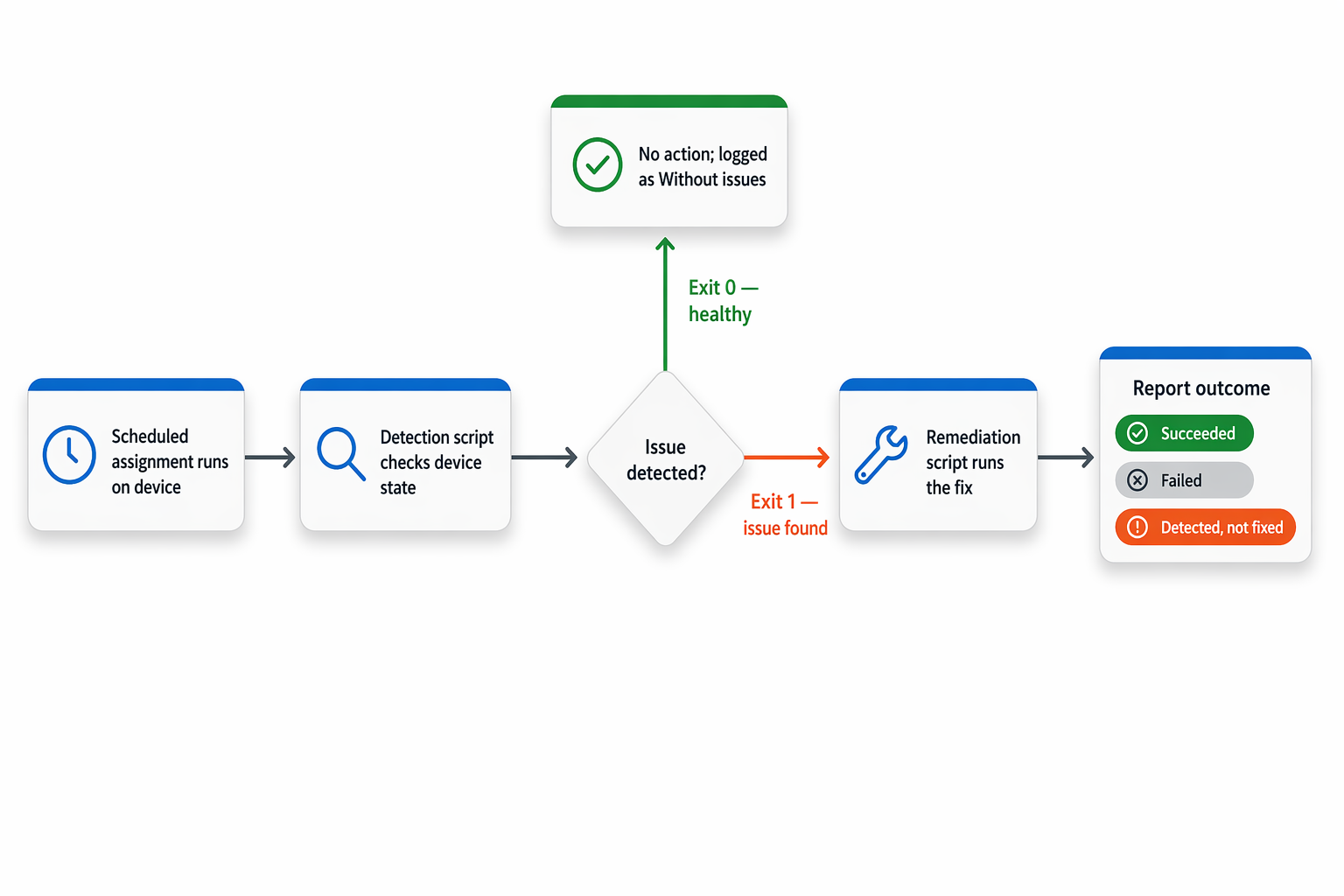
Remediation runs only when the detection script signals an issue using exit 1. Otherwise, the remediation script won’t run.
The following diagram shows how the detection script's exit code determines whether the remediation script runs.
Prerequisites and licensing
Device requirements
Devices must be Microsoft Entra joined or hybrid joined, and be either:
- MDM-enrolled in Intune and running Windows Enterprise, Professional, or Education, or
- Co-managed Windows devices
Licensing
Users of the devices must have an eligible Windows license (for example Windows Enterprise E3/E5, Windows Education A3/A5, or Windows VDA per user).
Script requirements
- You can create up to 200 remediation script packages.
- A package can include only a detection script, or a detection script plus a remediation script.
- The remediation script runs only when the detection script returns exit 1 (issue detected).
- Save scripts in UTF-8 encoding.
- If Enforce script signature check is enabled, scripts must be UTF-8 (no BOM)—not UTF-8 BOM.
- Script output is limited to 2,048 characters.
- When Enforce script signature check is enabled, scripts run under the device’s PowerShell execution policy (Windows client default: Restricted; Windows Server default: RemoteSigned).
- Microsoft-built Remediations scripts are signed, and their certificate is added to the device’s Trusted Publishers store.
- For third-party signed scripts, ensure the signing certificate is trusted on the device (certificate present in Trusted Publishers and the CA is trusted).
- If Enforce script signature check is not enabled, scripts run using the Bypass execution policy.
- Don’t include reboot commands in detection or remediation scripts.
- Don’t include sensitive data (for example, passwords).
- Don’t include or collect personal data from devices.
- Follow your organization’s privacy and security best practices at all times.
Deploy built-in script packages
Intune provides built-in Remediations packages you can assign to groups to get started quickly for example, Update stale Group Policies or Restart Office Click-to-run service:
- Go to Devices > Manage devices > Scripts and remediations.
- Select a built-in package, open Properties, and edit Assignments.
- Choose Included and Excluded groups, adjust schedule, then Review + save.
Create and deploy a custom script package
The Microsoft Intune Management Extension downloads the scripts from Intune and executes them on the device. Scripts rerun based on the assignment schedule (for example daily or hourly). You can use the built-in scripts as provided, copy and customize them or build your own script packages.
Follow these steps to deploy your own script packages:
- Go to Devices > Manage devices > Scripts and remediations and select Create.
- Provide a Name and (optionally) a Description.
- Upload your Detection and Remediation
.ps1scripts (ensure they’re UTF-8 encoded). - Configure script settings such as:
- Run using logged-on credentials (only when necessary)
- Enforce script signature check (optional)
- Run script in 64-bit PowerShell (based on your scenario)
- Assign to the appropriate device groups (don’t mix user and device groups across include/exclude).
Choose a schedule and understand execution behavior
When assigning a script package, you can schedule it to run:
- Once (one-time run at a specified time)
- Hourly (every n hours, less than 24)
- Daily (at a specified time)
Execution behavior:
- Remediations runs by device local time unless you choose Use UTC.
- If a scheduled run is missed, it runs as soon as possible when the device is online.
- Devices retrieve Remediations after restart/IME restart, after sign-in, and on a fixed every 8 hours cycle.
- For scripts that aren’t time-critical or that consume more resources, run them less often (for example, weekly) to minimize impact on device performance.
Monitor results and export output
Tenant-wide monitoring
Use the tenant-level view to understand overall impact and identify patterns across groups.
- In the Intune admin center, go to Devices > Manage devices > Scripts and remediations.
- Select a script package to review high-level results, such as how many devices are Detected, Remediated, Succeeded, or Failed.
- Open Device status to see device-by-device details and quickly isolate devices that repeatedly fail or remain in a detected state.
Export for analysis
To make the results easier to review, use Export to download the output as a .csv file. A CSV export lets you filter and analyze the data from devices where Remediations detected or fixed issues, and it also makes it simple to share the findings with others for additional review or reporting.
Per-device view
When you need to troubleshoot a specific endpoint, use the device-level results.
- Go to Devices > Windows and select a device.
- Under Monitor, select Remediations.
- Review which script packages are assigned to the device, the latest run status, and whether an on-demand run was triggered.
Run a remediation on demand (preview)
Use Run remediation (preview) to trigger an immediate remediation run on a single device. For example, to test a new script package or respond to a specific user complaint—without waiting for the next scheduled run.
To run a remediation on demand:
- In the Microsoft Intune admin center, go to Devices > By platform > Windows and select a supported device.
- On the device’s Overview page, select … for more options > Run remediation (preview).
- Select the script package you want to run, then select Run remediation.
Prerequisites:
- The device must be online and able to communicate with Intune and Windows Push Notification Service (WNS).
- The Intune Management Extension must be installed.
- The admin must have the Remote tasks / Run Remediation permission. During the public preview, the user must also have Organization: Read.