Track installation success and failure reports
Installation reports transform raw deployment data into actionable intelligence about application problems. While overview metrics show you how many installations failed, detailed failure reports explain why installations failed and which specific devices or users are affected. This level of detail separates reactive firefighting from proactive problem resolution.
The App Install Status report
The App Install Status report provides a comprehensive view of all applications in your tenant with their installation metrics. Access this report from the Intune admin center by selecting Apps > Monitor > App Install Status. Unlike individual app overview pages, this report aggregates data across your entire application portfolio.
The report displays application name, version, publisher, platform, total install counts, and total failure counts across both devices and users. You can sort by any column, making it easy to identify which applications have the highest failure rates or which apps affect the most users. Sorting by failure count immediately highlights problem applications requiring attention.
This aggregated view helps you prioritize remediation efforts. An application with 500 installations and 10 failures might have a lower priority than an application with 50 installations and 25 failures. The first app has a 2% failure rate, while the second shows a 50% failure rate indicating serious deployment problems.
Understand installation error codes
When installations fail, Intune captures error codes that describe what went wrong. Error codes follow standardized formats, typically appearing as hexadecimal values like 0x87D54FB0. These codes map to specific failure conditions, helping you diagnose root causes without guessing.
Different platforms and app types generate different error codes. Windows Win32 apps might fail with error codes indicating insufficient permissions, missing dependencies, or incompatible Windows versions. iOS and Android apps generate platform-specific codes related to operating system restrictions, storage limitations, or user permissions.
Common error patterns emerge across application types. Installation failures often result from insufficient storage space on the device, users declining permission requests, networking problems preventing download, package integrity issues, or conflicts with existing applications. Understanding these common patterns helps you quickly categorize problems and apply appropriate solutions.
Line-of-business app failures on AOSP devices
AOSP (Android Open Source Project) device management targets corporate-owned devices that lack Google Mobile Services, such as frontline worker hardware from vendors like Zebra. The error codes below apply specifically to this management type.
Line-of-business apps deployed to AOSP devices provide particularly detailed error information. These error codes indicate whether the problem is user-actionable (something the user can fix) or requires IT intervention.
Note
These error codes apply to AOSP device management only. If you manage Android Enterprise devices (work profile, fully managed, or dedicated), refer to the Intune app installation troubleshooting guide for applicable error information.
| Error code | Description | User-actionable |
|---|---|---|
0x87D54FB0 |
User didn't allow installation or declined permissions | Yes — educate users to accept installation prompts |
0x87D54FB1 |
Android OS rejected the installation | No — suggests a problem with the APK or device configuration |
0x87D54FB7 |
Device lacks sufficient storage space | Yes — user can free storage to resolve |
0x87D54FB4 |
APK file is corrupt or invalid | No — IT must upload a corrected package |
Investigate failure details
When you identify failed installations, drilling into specific failure details reveals additional context. From the Device Install Status view, failed installations show status details beyond the simple "Failed" indicator. These details often provide plain-language explanations like "insufficient storage space," "user cancelled installation," or "network disconnected during download."
Combining error codes with status details and device information creates a complete picture. For example, you might see that installation failures concentrate on older device models with limited storage, or that failures primarily affect users on a specific network segment. These patterns suggest different remediation strategies than failures randomly distributed across your device population.
The last check-in timestamp helps determine whether failure information is current. A device showing failure status but hasn't checked in for several days might have since resolved the issue. Conversely, devices checking in regularly but consistently reporting failure indicate persistent problems requiring investigation.
Download versus installation failures
Not all failures happen during installation. Many failures occur during the download phase before installation even attempts. Download failures have distinct error codes and usually indicate network or storage problems rather than application compatibility issues.
Network-related download failures include timeout errors, interrupted connections, or DNS resolution problems. These failures are often temporary—retrying the download succeeds once network conditions improve. However, consistent download failures from specific locations might indicate firewall rules blocking Intune endpoints or network bandwidth limitations.
Storage-related download failures occur when devices lack sufficient space to cache the application package before installation. Unlike installation storage requirements, download storage is temporary. However, users must have enough free space simultaneously to store both the downloaded package and the installed application. Some large Win32 applications might require several gigabytes of temporary storage during deployment.
Interpret failure rates and trends
Raw failure counts provide less insight than failure rates and trends. An application showing 100 failures sounds concerning until you learn it has been deployed to 10,000 devices—a 1% failure rate that might be acceptable. Conversely, 5 failures out of 25 attempted installations represents a 20% failure rate demanding immediate attention.
Monitoring failure trends over time reveals whether problems are improving, worsening, or remaining stable. A new application deployment might show high initial failure rates that decrease as you refine configurations and educate users. Conversely, an established application with suddenly increasing failures suggests an environmental change—like a Windows update, network infrastructure change, or conflicting application installation.
Export and analyze failure data
Intune allows you to export installation failure data for advanced analysis. Exported data includes all columns from the report plus additional fields not displayed in the console. You might export this data to Excel, Power BI, or other analytics tools for deeper investigation.
Exporting data proves valuable when you need to correlate installation failures with other variables not directly visible in Intune reports. For example, you might join exported Intune data with your asset management database to see whether failures correlate with specific hardware models, purchase dates, or organizational units. You might also merge failure data with helpdesk ticket information to quantify the relationship between application failures and support requests.
Proactive failure monitoring
Rather than manually checking failure reports daily, configure monitoring to alert you when failure counts exceed acceptable thresholds. While Intune doesn't include built-in alerting for application failures, you can export failure data to Azure Monitor or other monitoring systems that support automated alerting.
Proactive monitoring catches problems early before they generate helpdesk tickets. For example, if an application that normally shows 5-10 failures daily suddenly reports 50 failures, automated alerts notify you immediately. You can investigate and resolve the problem—perhaps a bad update or conflicting policy—before most users are affected.
Remediation strategies based on failure patterns
Use the following flowchart to diagnose an installation failure and route each cause to the right remediation.
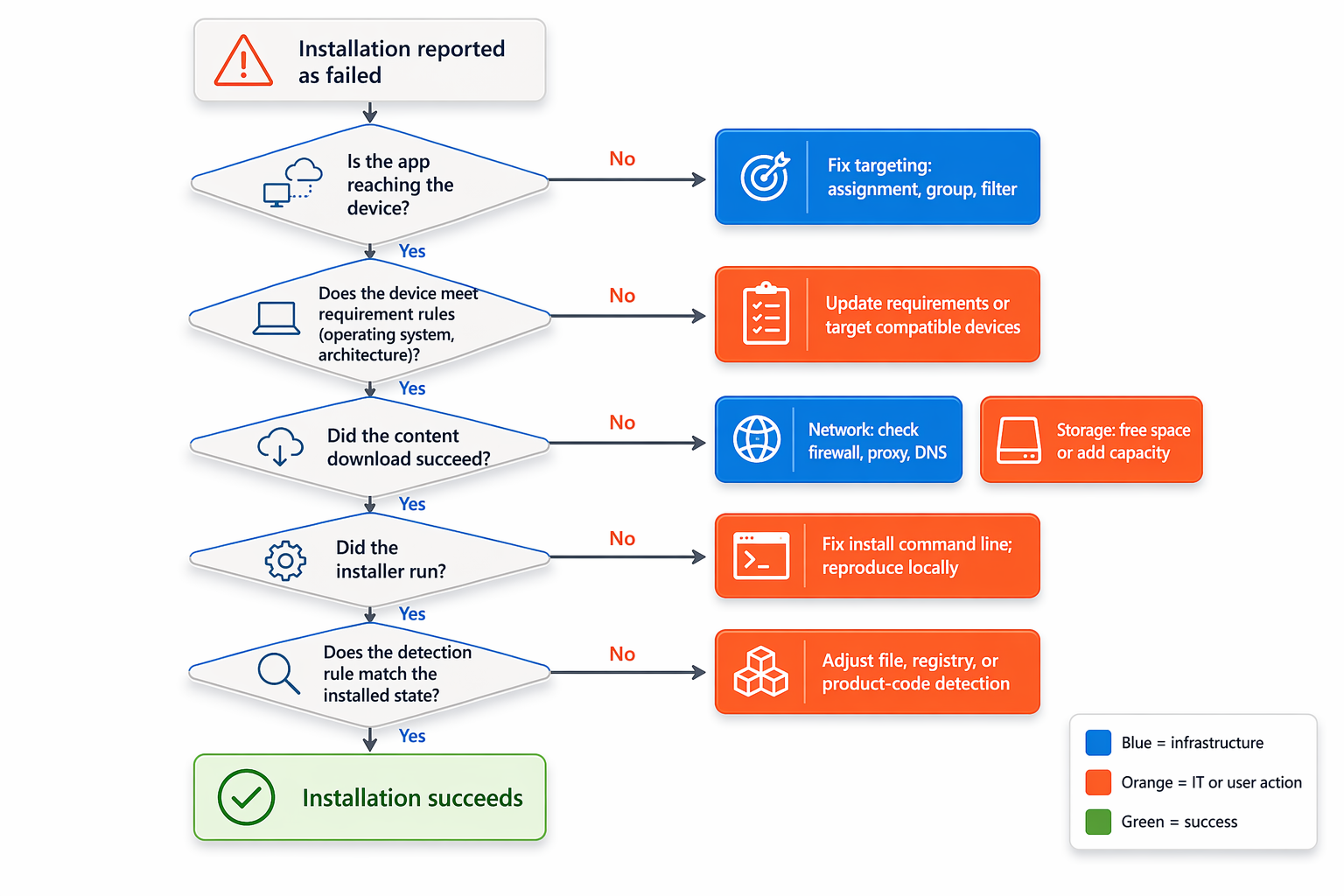
Different failure patterns suggest different remediation approaches. User-actionable errors like declined permissions or insufficient storage benefit from user education and self-service guidance. You might create Company Portal notifications or send emails explaining how users can resolve these issues themselves.
IT-actionable errors like corrupt packages, incompatible versions, or missing dependencies require IT intervention. You might need to upload corrected application packages, adjust deployment configurations, or resolve dependencies by deploying prerequisite applications first.
Environmental errors like network timeouts or download interruptions might require infrastructure changes. You could exempt Intune endpoints from firewall deep packet inspection, increase bandwidth to remote offices, or adjust proxy configurations to improve reliability.
Validate remediation success
After implementing fixes, monitor installation reports to confirm your remediation succeeded. If you uploaded a corrected application package to fix corruption errors, verify that subsequent installation attempts succeed. If you educated users about accepting permissions, watch for declining permission-related failures.
Effective remediation should reduce failure rates noticeably within one or two check-in cycles. If failures persist despite remediation, the root cause might differ from your original diagnosis, requiring further investigation.