Use Endpoint Analytics to optimize device performance
Endpoint Analytics provides performance and reliability insights for cloud-managed Windows devices. This unit shows how to use Endpoint Analytics dashboards and reports to identify issues, prioritize recommended actions, and improve device performance.
What Endpoint Analytics monitors
Endpoint Analytics collects signals from Windows devices and reports on startup performance, app reliability, and related health metrics.
Key metrics include:
- Startup performance: boot and sign-in duration, startup impact, and reliability trends.
- Recommended actions: machine-specific guidance for optimization and remediation.
- Application reliability: app crashes, hangs, and other stability events.
- Device health: indicators such as disk health, firmware, and update readiness.
Use the startup performance dashboard
In the Intune admin center, go to Devices > Monitor > Endpoint analytics to access the dashboards described in this unit. The Startup performance dashboard helps you identify devices with slow boot or sign-in times and see which apps or services are affecting startup.
Use this dashboard to:
- Compare boot times over time for your fleet
- Find high-impact startup apps and services
- Identify devices with long sign-in durations
- Review whether improvements are related to configuration changes or app behavior
Tip
Filter the startup dashboard by device group to focus on pilot populations before applying broader changes.
Review recommended actions
Endpoint Analytics recommends actions that address common performance and health issues. Recommended actions appear when the service detects devices that can benefit from targeted changes.
Typical recommendations include:
- Disabling high-impact startup applications
- Updating drivers or firmware
- Optimizing power settings for better battery and performance balance
- Removing or repairing problematic software
Choose actions that align with your environment and pilot them before broad deployment.
Use app reliability insights
App reliability data helps you detect and prioritize devices affected by frequent crashes, freezes, or performance issues.
When you review app reliability:
- Identify the apps with the most failure events
- Determine whether failures are isolated to a small group or widespread
- Decide whether to update, repair, or replace problematic apps
These review steps help you turn raw reliability metrics into specific remediation decisions that reduce app-related performance problems.
Turn insights into actions
Microsoft Intune Endpoint Analytics helps organizations proactively identify performance bottlenecks and improve the overall end-user experience across managed devices. To turn collected insights into measurable improvements, organizations should follow a structured remediation approach.
The following diagram shows this approach as an iterative cycle with a pilot-first validation step.
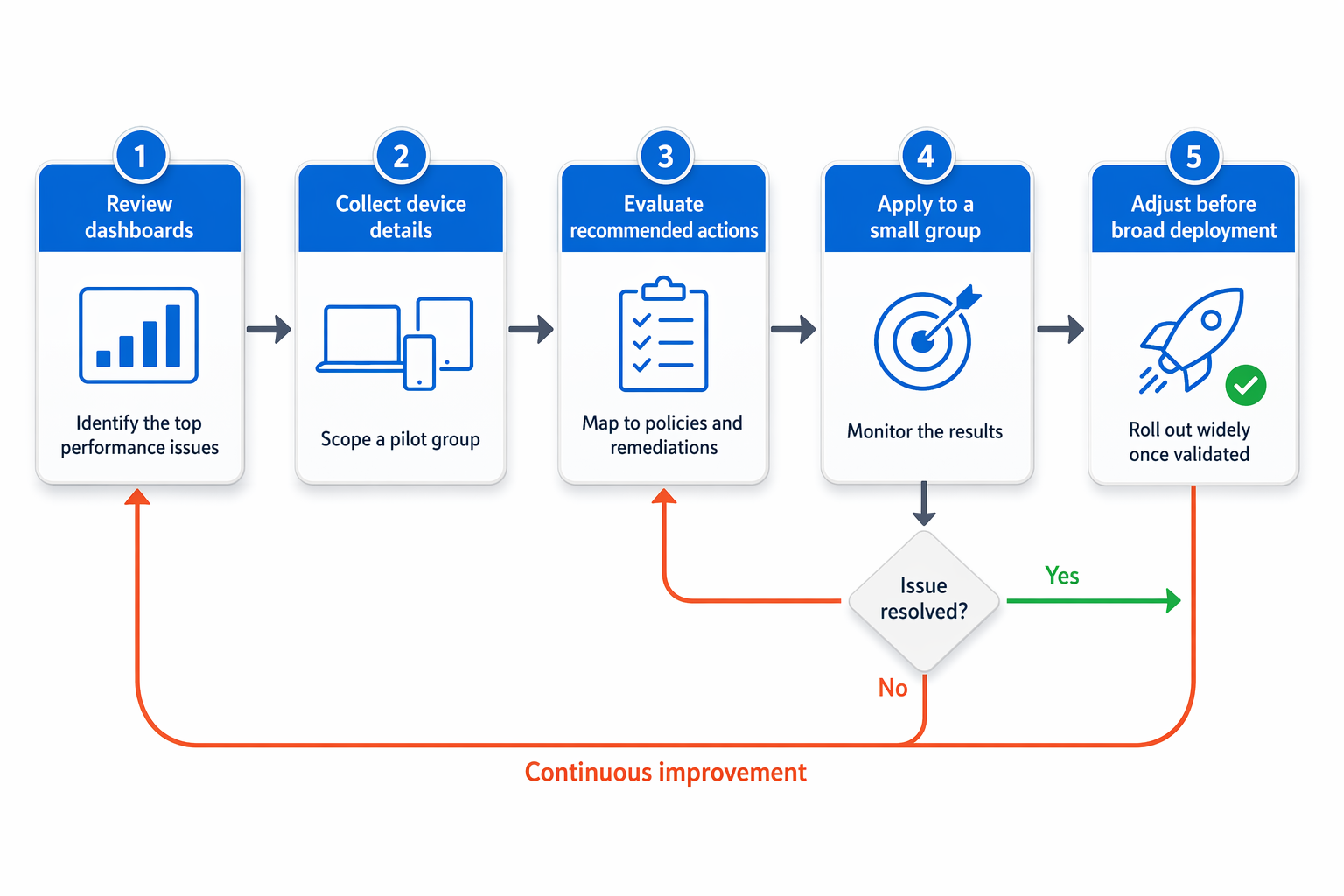
- Review the dashboards and identify the top performance issues.
- Collect example device details for a pilot group.
- Evaluate recommended actions and map them to policies or remediations.
- Apply the change to a small group first.
- Monitor results and adjust before broad deployment.
By following this iterative process, organizations can reduce operational risk, validate improvements effectively, and ensure a controlled rollout of Endpoint Analytics-driven optimizations.
Investigate individual devices with Device Query
Device Query is a Microsoft Intune capability that allows you to run real-time, KQL-based queries directly against an individual Windows device. It provides a deeper level of visibility into the current device state compared to aggregated reporting in Endpoint Analytics.
You typically use Device Query when dashboards or reports highlight an outlier device and you need fast, targeted troubleshooting data without waiting for scheduled reports or log collection.
When to use Device Query
Use Device Query after identifying issues in Endpoint Analytics, for example:
- A device with unusually slow startup times
- A device with repeated application crashes
- A device showing inconsistent compliance or configuration behavior
It helps validate hypotheses quickly by querying the live state of the endpoint.
Note
Device Query requires Microsoft Intune Suite or the Device Query add-on license. It is not available in all Intune licensing tiers by default.
Access path
You can access Device Query in the Intune admin center: Devices > [select device] > Device query
Best practices for using Endpoint Analytics
Microsoft Intune Endpoint Analytics provides valuable operational and performance insights, but the greatest benefit comes from using the data consistently and strategically. Establishing clear operational practices helps organizations improve user experience, reduce recurring issues, and maintain device performance over time. The following best practices support a structured and sustainable approach when working with Endpoint Analytics.
- Use pilot or validation groups for changes before impacting the whole tenant.
- Review metrics regularly to detect regression after updates.
- Combine startup, app reliability, and device health data for a complete picture.
- Document which recommended actions were applied and the results.
- Keep a close loop between analytics findings and remediation planning.
Following these best practices enables organizations to build a proactive device management strategy instead of reacting only to incidents after they occur. Regular monitoring, controlled testing, and continuous optimization help ensure long-term stability, improved user satisfaction, and more efficient endpoint operations across the environment.