Manage user accounts
A new employee requires access to mPower, while another employee changes responsibilities and needs updated permissions. You must ensure each user has the appropriate access needed to perform their work.
User management enables administrators to create accounts, maintain user information, and control access through group assignments.
Manage user accounts
User account management is available to administrators who have site administration privileges. Administrators create user records, assign groups, and maintain active user accounts.
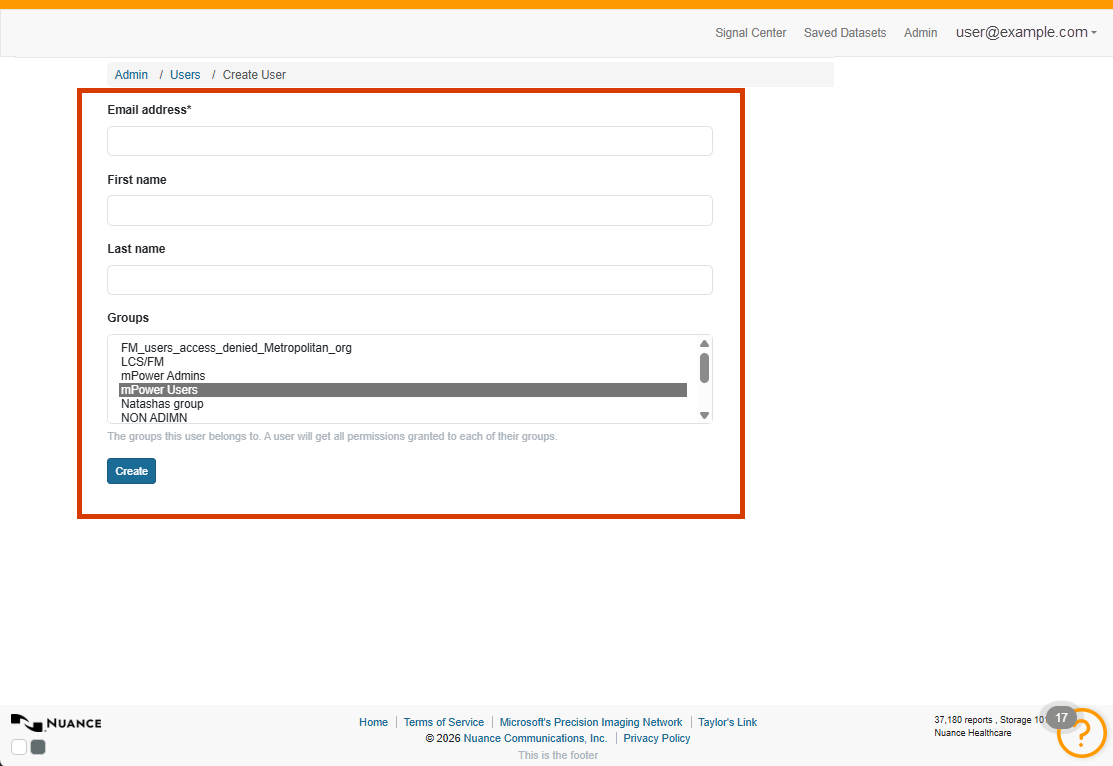
Create user accounts
When creating a user, administrators provide information such as the user's email address, first name, last name, and group assignments. Groups determine the permissions the user receives.
Create a Resident account
To create a group specific to Resident users, copy the same permissions assigned to Attending physicians, except “Can view own analytics.” Residents don't have the ability to view the My Dashboard report.
Assign permissions through groups
Users inherit permissions from the groups to which they belong. A user can belong to multiple groups and receives the permissions granted to each assigned group.
Manage account status
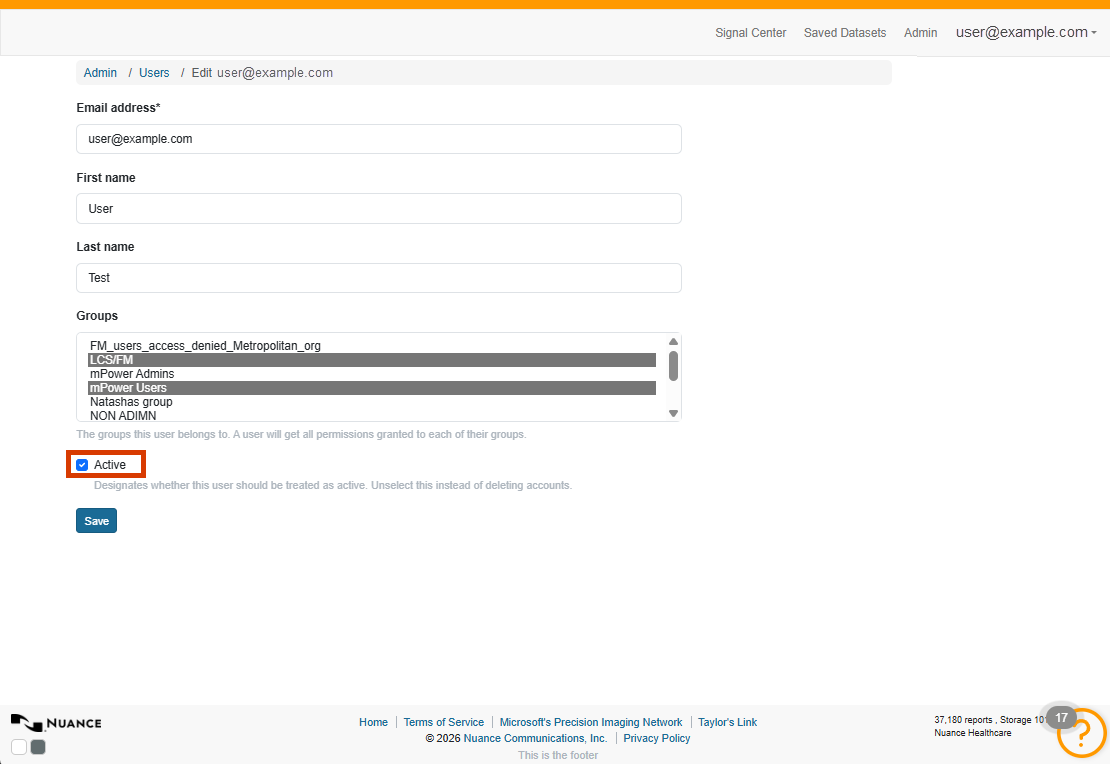
Administrators can activate or deactivate user accounts by using the Active setting. Deactivating an account preserves historical auditing information while preventing sign-in access.
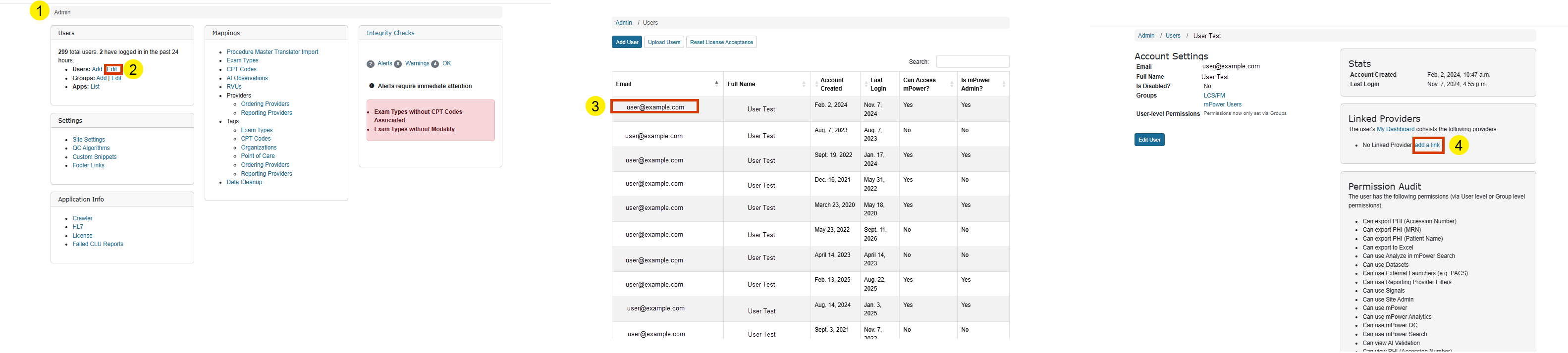
Link attending provider account to view ‘My Dashboard’
My Dashboard displays metrics for a reporting provider, including RVUs, volume, turnaround times, critical results, mismatches, modality statistics, exam types, and other productivity and quality measures. To know which reporting provider's data to display, mPower must map the user's sign-in account to a provider record.
Steps to link a provider
- Go to Admin.
- Navigate to Users > Edit.
- Select the user (attending) to update.
- In the Linked Providers section, select add a link to link a provider.
- Save changes.