Integrate Microsoft Security Copilot with Microsoft Intune
Microsoft Security Copilot is a cloud-based AI platform offering a natural language interface to support security professionals in scenarios like incident response, threat hunting, and intelligence gathering. By integrating with Microsoft Intune, Security Copilot provides detailed insights about your Intune-managed devices and policies.
Security Admin Focus
Security Copilot is designed with a Security Operations Center (SOC) or security admin focus. SOC analysts and security admins can use it to get the security posture of devices managed by Intune. For example, if a device shows signs of malicious intent or an unknown device enrolls in Intune, admins can use Security Copilot to gather more information, such as device properties, enrollment time, user details, device type, and compliance status. This information can be used with Microsoft Defender to determine appropriate actions based on device type.
Prerequisites
To access Microsoft Intune data in Security Copilot, you need:
- Active subscriptions for both Microsoft Security Copilot and Microsoft Intune
- Administrative access to both Microsoft 365 and Azure environments.
- Properly configured Intune policies and security settings.
- RBAC roles and Intune scope tag assigned to you.
Open Security Copilot and enable Intune
To use the Intune capabilities in Security Copilot, enable the Intune plugin.
Go to Microsoft Security Copilot and sign in with your credentials.
In the prompt bar, select Sources (right corner).

In Manage sources, turn on Microsoft Intune:

Note
Some roles can enable or disable plugins. For more information, go to Manage plugins in Microsoft Security Copilot.
Use the built-in features
In Security Copilot, there are built in system features that are helpful for Intune admins. For a walkthrough of Security Copilot, go to Navigating Microsoft Security Copilot.
This section describes some of the features that are helpful for Intune admins.
System capabilities
Capabilities are built-in features that can get data from the different plugins that you enable, including Microsoft Intune. When you use a prompt to ask something about your Intune data, like apps assigned to a user or device details, your prompts use these Intune capabilities.
To view the list of Intune built-in system capabilities for Intune, use the following steps:
In the Security Copilot portal prompt bar, select the Copilot prompts icon > See all system capabilities.
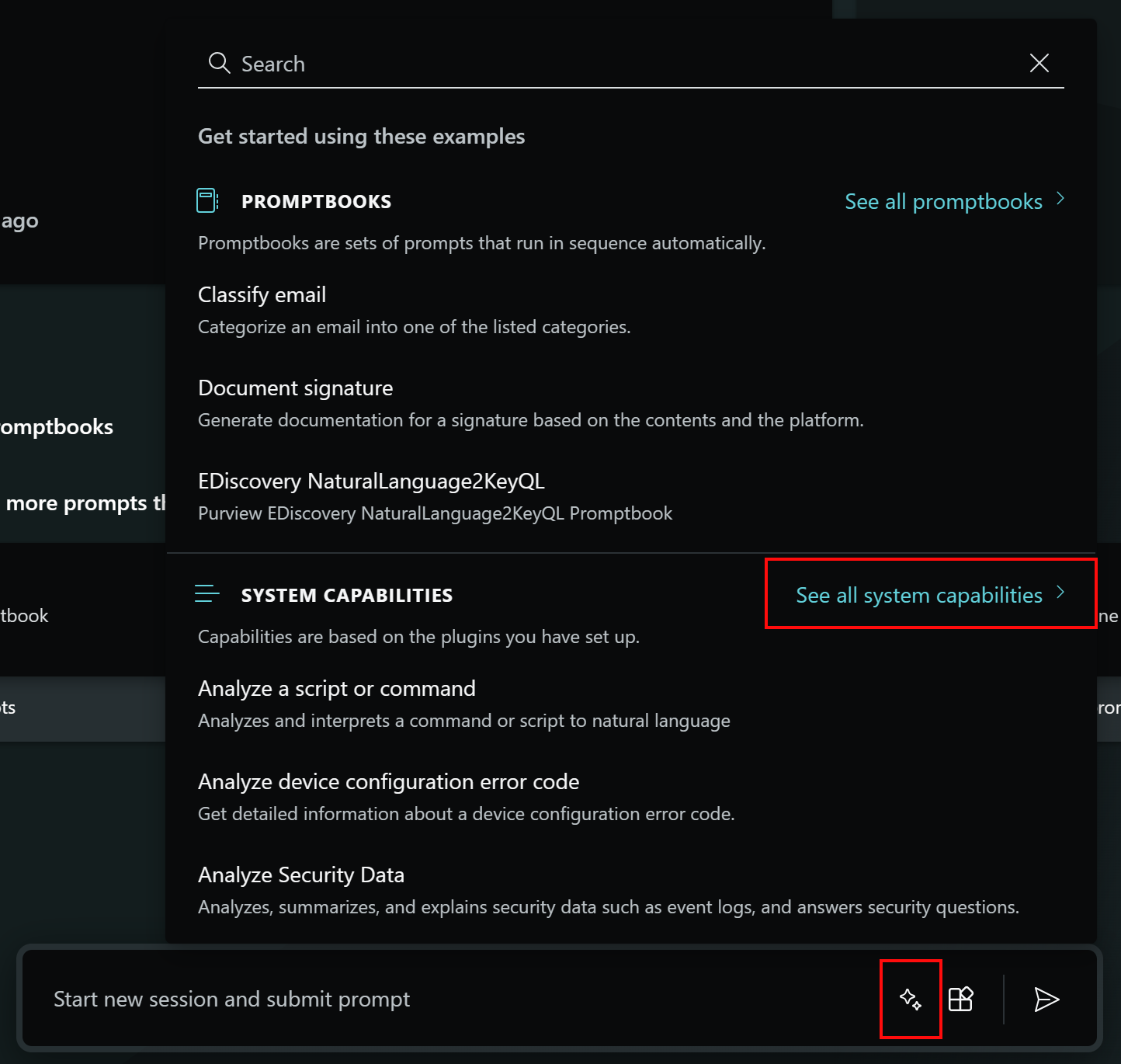
In the Microsoft Intune section, there's a list of all the built-in capabilities for Intune. You can select any of the capabilities and get more information about that capability.
Sessions
When you use prompts in the Microsoft Intune admin center or in the Security Copilot portal, the sessions are saved. To see the saved sessions, use the following steps:
In the Security Copilot portal, go to the menu > My sessions.
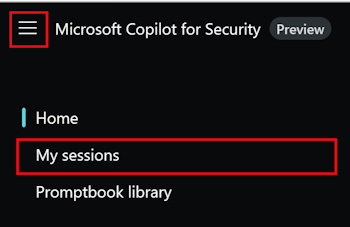
When you select a session, your previous prompts and results are shown. Every session also has a session ID in the URL. You can share this session ID with others to review the same prompt session.
Provide feedback
Your feedback on the Intune integration with Security Copilot helps with development. To provide feedback, in Security Copilot, use the feedback buttons at the bottom of each completed prompt.

Whenever possible, and when the result isn't what you expect, write a few words explaining what can be done to improve the outcome. If you entered Intune-specific prompts and the results aren't Intune related, then include that information.