Configure shift management and scheduling
After you forecast demand and determine staffing requirements, the next step is to build shift plans and schedule your service representatives. Dynamics 365 Contact Center provides tools for defining shift structures, assigning activities, scheduling representatives manually or automatically, and publishing schedules so representatives know when and where to work.
Configure shift activity types
Shift activity types define the categories of work that representatives perform during a shift. You use them to build the activity itinerary for each shift plan. Common examples include work time, breaks, training sessions, and lunch.
To create a shift activity type:
- In Copilot Service admin center, navigate to Operations > Workforce management.
- In Shift & Schedule Management, select Manage next to Activity types.
- Select New, and then enter the following details:
- Name: A descriptive name for the activity type (for example, "Break" or "Training").
- Description (optional): Additional context about the activity.
- Assignment status: Select the status from the dropdown menu.
- Duration: The time allotted for the activity. You must select a value for the activity to be available in shift plans.
- Color (optional): Choose a color for how the activity appears on the schedule board.
- Select Save and Close.
Tip
Create activity types before you build shift plans. The activity itinerary in a shift plan references these types, so having them defined first saves time during shift planning.
Enable schedule management
Before supervisors can create and publish shift plans, you need to enable schedule management.
- In Copilot Service admin center, navigate to Operations > Workforce management.
- In Shift & Schedule Management, select Manage next to Schedule Management.
- Set the Allow agents to accept schedule toggle to On.
- For Schedule acceptance deadline (days), set the number of days representatives have to accept their schedule. If a representative doesn't respond within the deadline, the system automatically sets the schedule to rejected status.
- Select Save and Close.
Create a shift plan
A shift plan defines the structure and staffing requirements for a shift. It includes the time window, required skills, assigned queues, and the sequence of activities representatives perform.
Supervisors create shift plans in the Copilot Service workspace under Workforce Management > Shift Planning.
- Select New, and then choose Schedule manually or Schedule with capacity plan.
- On the Plan Details card, enter:
- Shift Plan Name: A descriptive name.
- Start Date and End Date: The date range for the plan.
- Required Staff: The number of representatives needed.
- Start time and End time: The shift's daily time window. You can't change the start time after saving.
- Time zone: The time zone for the shift. You can't change this value after saving.
- On the Activity Itinerary card, select Add activity and choose activities from the dropdown menu. To adjust duration, hover over an activity and drag the handles. To reorder, drag activities up or down. To delete, select the activity and press Del.
- Select Save.
Shift plan components
Each shift plan combines several components to create a complete shift definition:
| Component | Purpose |
|---|---|
| Capacity plan | Sets the number of representatives needed based on your forecast. |
| Calendar | Defines operational parameters including time zone, weekly recurrence, and holiday calendars. |
| Skills and queues | Specifies the required skills and assigned queues for the shift. |
| Activity itinerary | Lists the sequence of activities for each day, such as work time, breaks, and training. |
Schedule service representatives
After you create a shift plan, you assign representatives to it. The system recommends representatives who match the shift's skill and queue requirements, but you can also view all available representatives.
- From the My Shift Plans page, select the shift plan and then select Schedule people.
- The scheduler opens with a Matched tab that shows recommended representatives. Select the All tab to see every representative.
- Select the plus icon (+) next to a representative's name.
- By default, the representative is scheduled for the entire shift plan duration. To schedule for specific dates only, turn off the Add to entire Shift plan toggle and select the date range.
- Select Save.
- Repeat for each representative you want to schedule.
You can also add extra bookings for a representative by right-clicking a time slot on the schedule board and selecting Add Shift Booking. To edit or delete existing bookings, right-click the booking and choose the appropriate option.
Note
You can only create bookings within the start and end time of the shift plan. Bookings outside the shift plan time window aren't supported.
Automatic scheduling
For larger teams, automatic scheduling assigns representatives to shift plans based on constraint optimization. The system considers each representative's skills, queue assignments, availability, and work hours to generate an optimal schedule. Automatic scheduling also distributes breaks across scheduled representatives.
Publish shift plans
Publishing a shift plan finalizes the schedule and notifies representatives. When you publish:
- The shift plan moves to Published status.
- Individual bookings move to Committed status.
- Representatives receive email and in-app notifications.
- Bookings appear on each representative's My Schedule calendar.
To publish a shift plan:
- On the schedule board, select Publish.
- Select the month you want to publish. You can only publish one month at a time.
- Select Continue.
Important
If you edit a committed booking, it moves back to Unpublished status. You need to publish the shift plan again for the updated booking to take effect.
Configure time management features
Time management features give representatives more flexibility and control over their schedules.
- Time-off requests: Representatives submit time-off requests through the workspace, and supervisors approve or deny them through a workflow.
- Shift bidding: When multiple shifts are available, representatives bid on their preferred shifts based on priority.
- Shift swapping: Representatives propose shift trades with peers, subject to supervisor approval.
View the schedule calendar
The schedule calendar is where representatives see their complete schedule. After a supervisor publishes a shift plan, the bookings appear in each representative's calendar automatically.
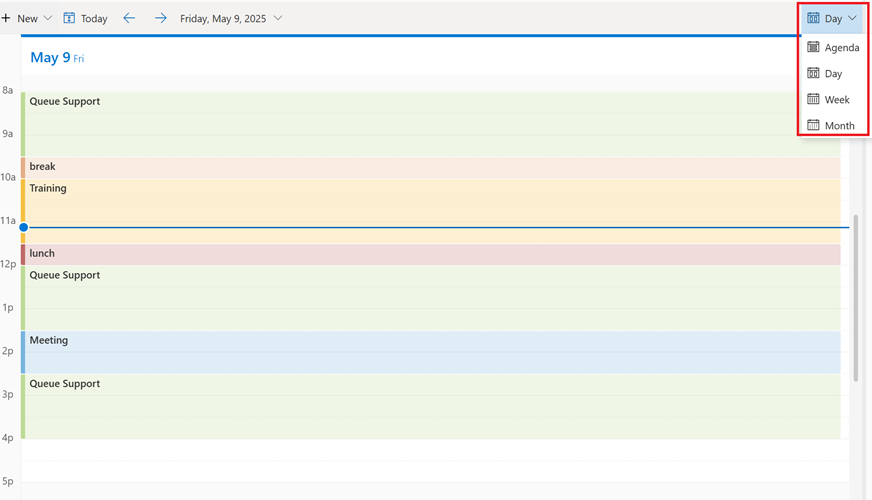
Representatives access the calendar in Copilot Service workspace under Workforce Management > My Schedule. The calendar supports four views:
- Day: Shows the full activity itinerary for a single day, including work time, breaks, and training blocks.
- Week: Shows the week's shifts at a glance, with each day's bookings displayed as blocks.
- Month: Provides a high-level overview of the entire month.
- Agenda: Lists upcoming scheduled activities in chronological order.
From the calendar, representatives can also see the status of time-off requests, pending shift swaps, and shift bids. Supervisors can view the schedule calendar for any representative from the Schedule Management page in the admin center.
Enable shift-based routing
Shift-based routing integrates workforce schedules with the unified routing engine. When you enable this feature, the system verifies a representative's shift status before assigning work. Representatives who are in non-support activities like breaks or training sessions aren't assigned new interactions.
- In Copilot Service admin center, navigate to Operations > Workforce management.
- In Shift & Schedule Management, select Manage next to Shift-based routing.
- Set the Enable routing based on shift bookings toggle to On.
- Select Save and Close.
Shift-based routing helps reduce delays from routing to off-duty representatives and supports a more balanced distribution of work across your team.