Loop actions
Use loops to repeat a block of actions multiple times. Automate repetitive tasks. The number of repetitions depends on the type of loop you use and the size of the dataset you need to process. The distinct types of loops are:
- Loop
- For Each loop
- Loop Condition
- Exit Loop
Each of these loop types allows the repetition of a block of actions. What sets them apart is the way you configure them and the scenarios in which you use them.
Loop
The Loop action creates simple loops. Simple loops use a loop index variable. You assign it an initial value, an end value, and an increment value. When the loop begins, the index gets its initial value. Every time a repetition ends, the increment value adds to the index. If the index reaches or surpasses its end value, the loop ends. Otherwise, it repeats.
Use the Loop action when you know the number of repetitions beforehand or when you need an index value within the block of actions that are repeated. For example, use it when iterating a list or table.
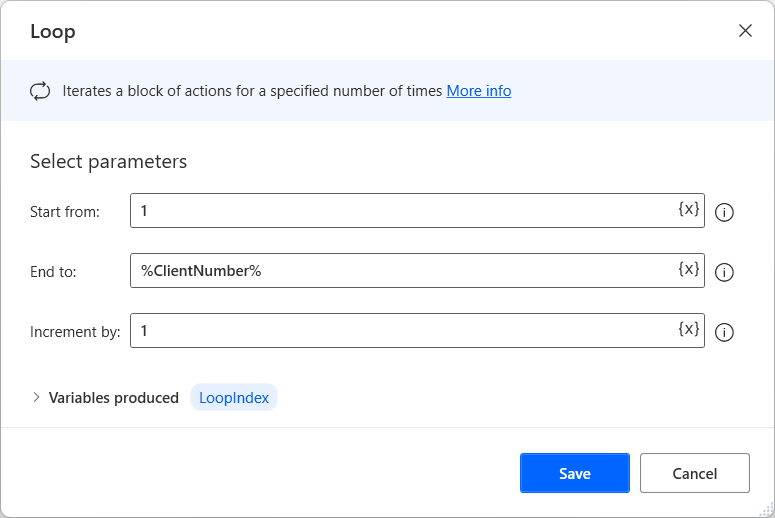
When you configure the loop as shown in the following image, the loop repeats %ClientNumber% times:
Loop condition actions
The Loop Condition action repeats as long as a specified condition is true. When a repetition ends, the condition is evaluated. If it’s true, the loop repeats. Otherwise, it ends.
Use the Loop Condition action when you don't know the number of required repetitions and when the number depends on a certain condition being met.
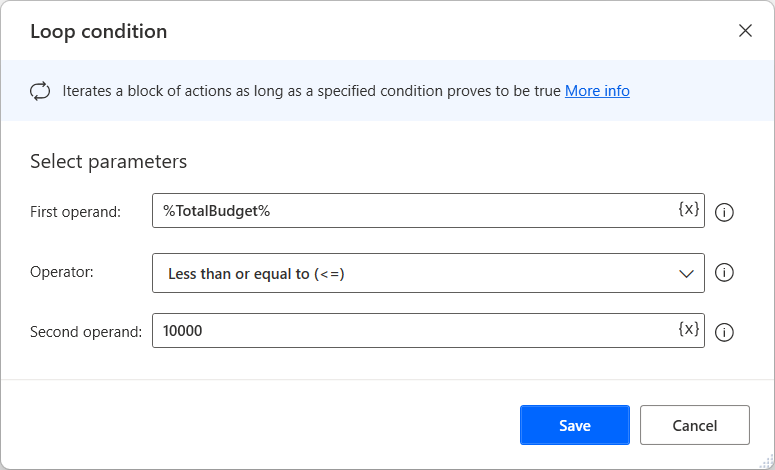
When you configure the loop as shown in the following image, the loop keeps repeating until the total budget is greater than 10,000:
For Each loop
The For Each action iterates through a list or table of items, and repeats once for each item. The loop ends when it iterates through all the items of the list or table it receives as input.
Use the For Each action when you need to repeat a task by using data in the form of lists or tables.
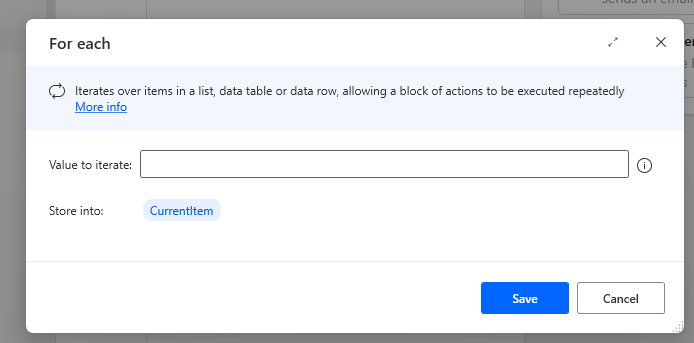
In the following example, the loop repeats once for each file in the given list:
End loop
When you use any of the preceding three loops, the system automatically adds the End Loop action. It marks the end of the block of actions that should be repeated:
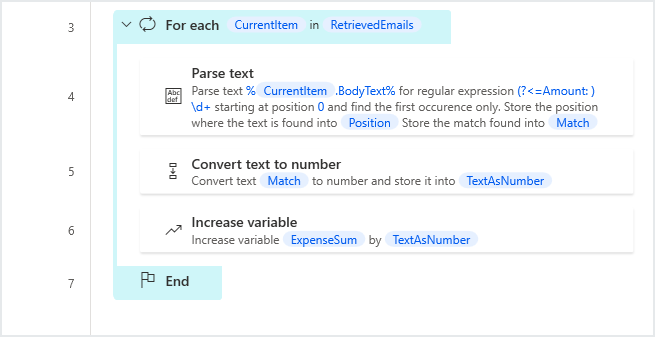
In the preceding example, actions 4-6 repeat for each email message stored in the %RetrievedEmails% list.
Exit loop
Use the Exit Loop action to immediately exit a loop, regardless of whether its end condition is met. This action permits users to immediately end a loop in certain cases where this requirement exists.
Place Exit Loop within a loop block, and always use it within a conditional:
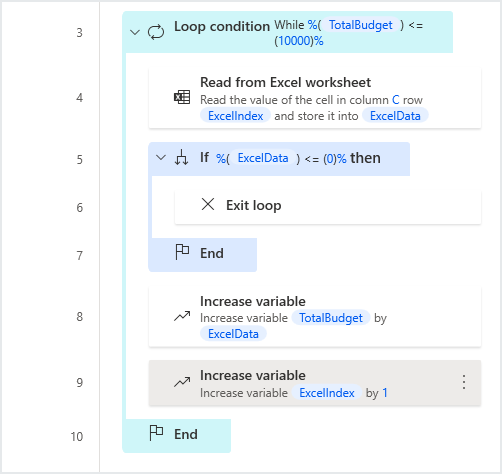
In the preceding scenario, the loop ends when the total budget is greater than 10,000. However, if the flow encounters a nonpositive number, which indicates that there's no more data to add, the loop ends immediately.