Exercise - Calculate modulo with VBScript
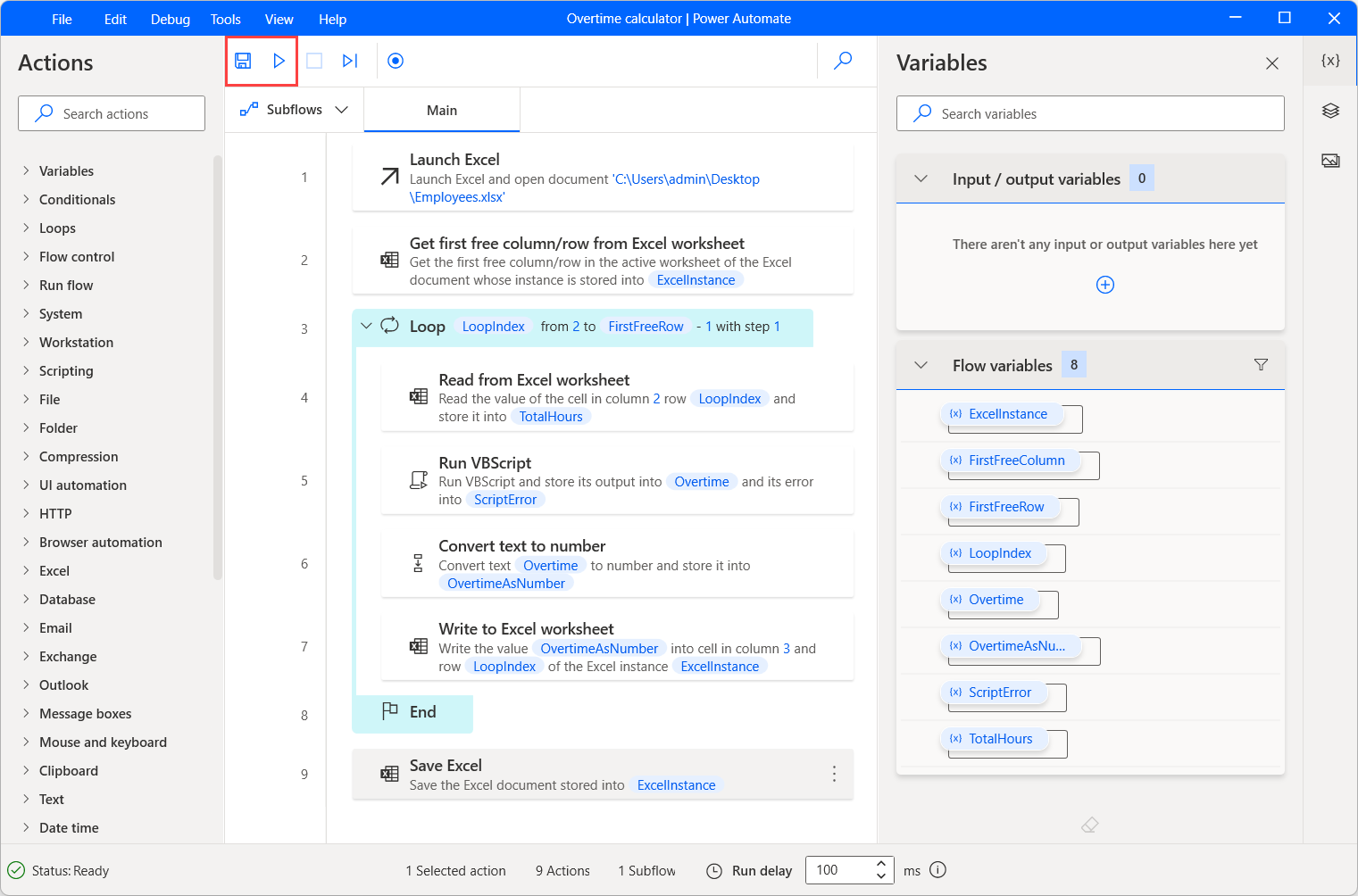
In this exercise, you create a flow that calculates how many overtime hours employees work. Consider that a typical working day is eight hours.
Note
Before creating the flow, download the Employees.xlsx file that is required for this exercise. Select Download on the right side of the page and extract the downloaded file to your local computer.
Launch the Power Automate desktop app console and select + New flow.
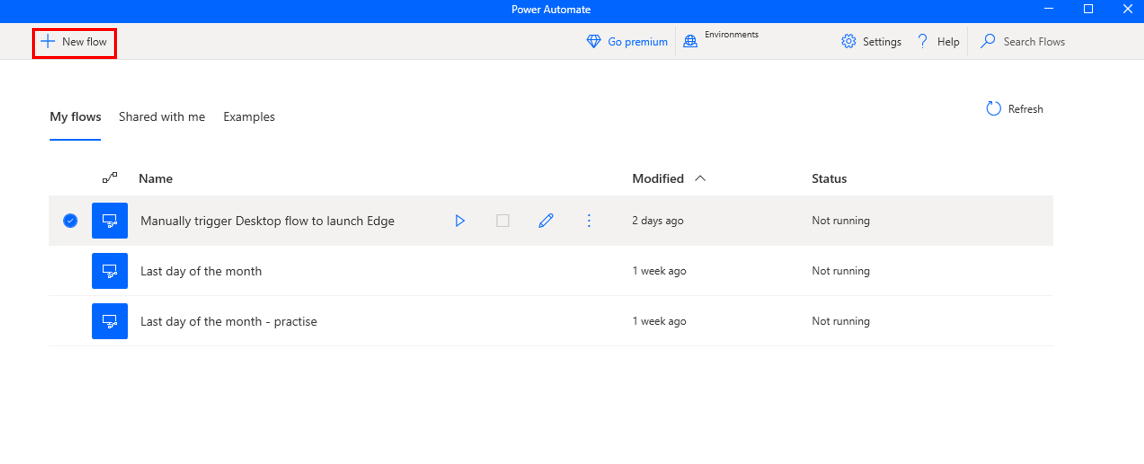
Name the new flow Overtime calculator and select Create.

Under Actions, search for launch.
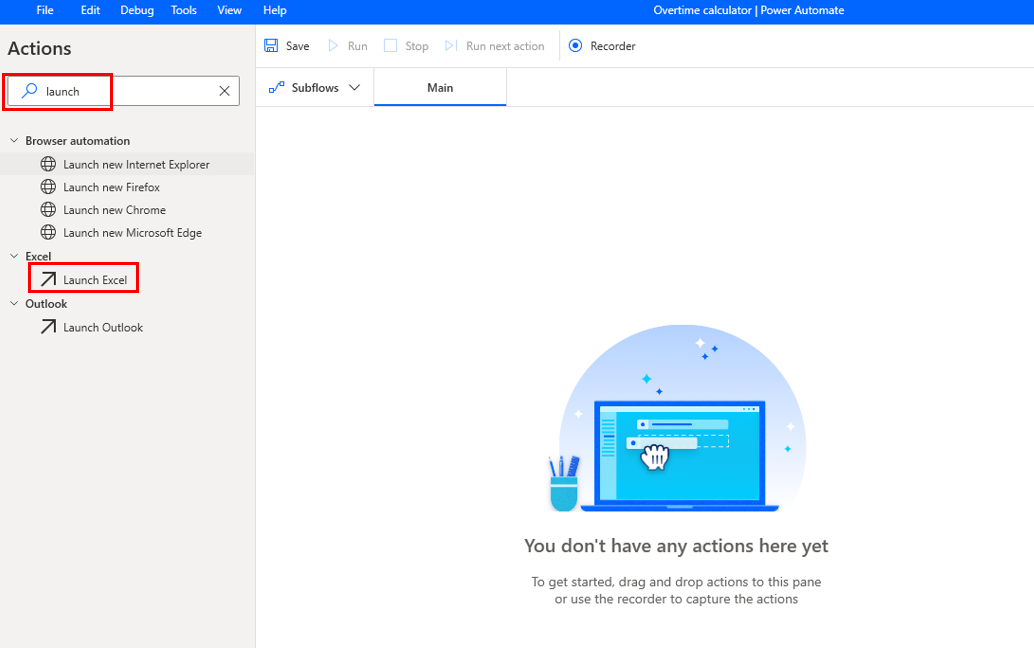
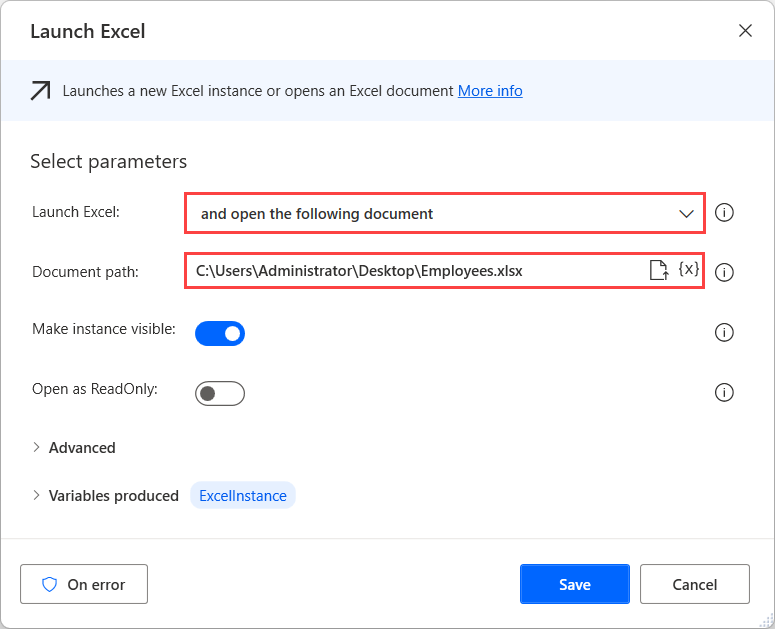
Add the Launch Excel action to the workspace and configure it to launch the Employees.xlsx file.
Under Actions, search for get first and double-click Get first free column/row from Excel worksheet.
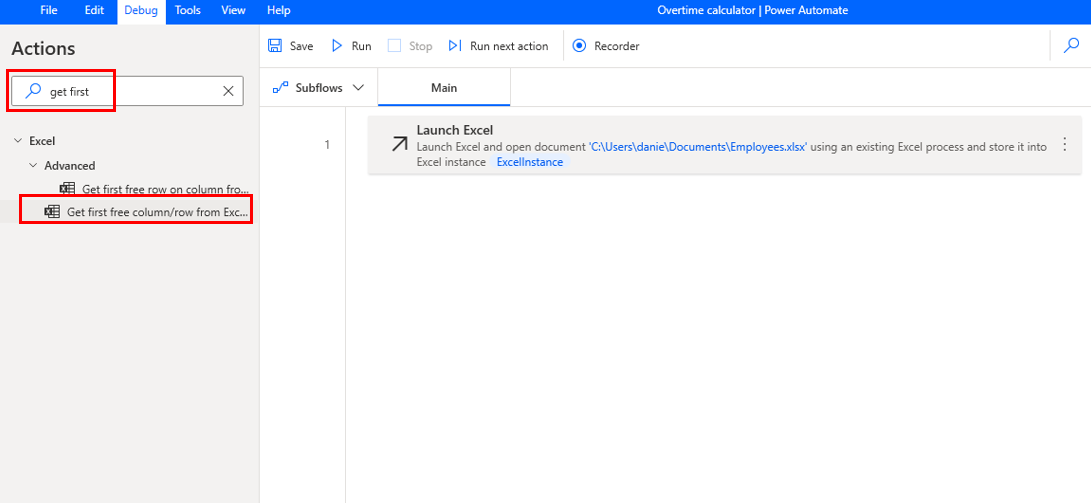
Use the Get first free column/row from Excel worksheet action to find the first free row in the file.
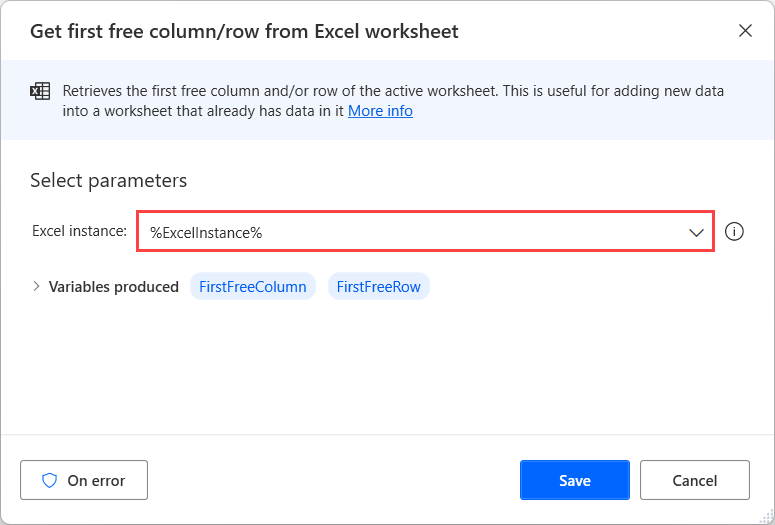
Under Actions, search for loop and double-click it.
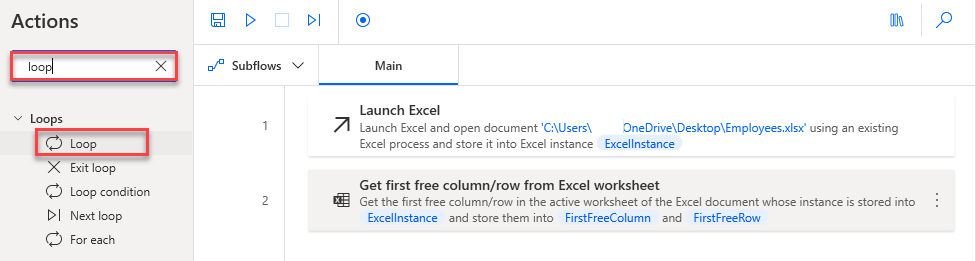
In Start from, type 1. In End to, select {X}, and then select FirstFreeRow.
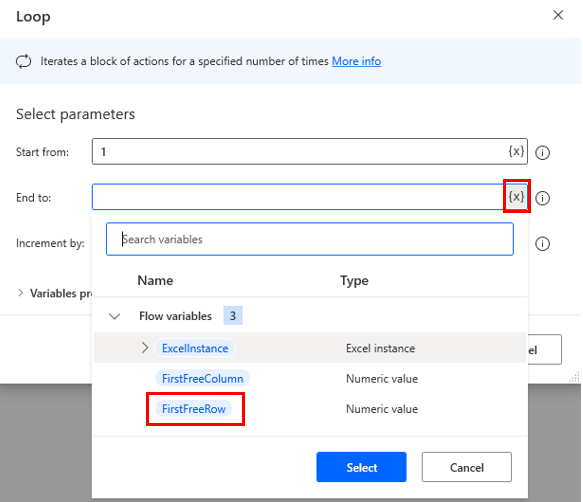
Update the End to formula as shown in the following image. In Increment by, add 1.
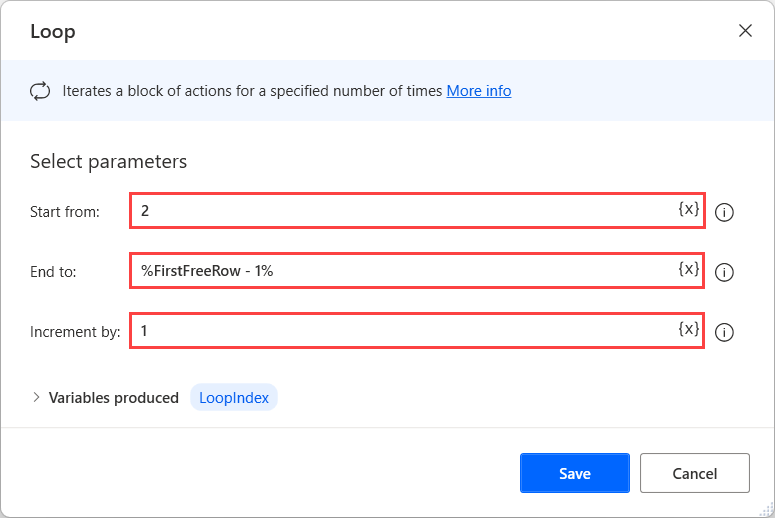
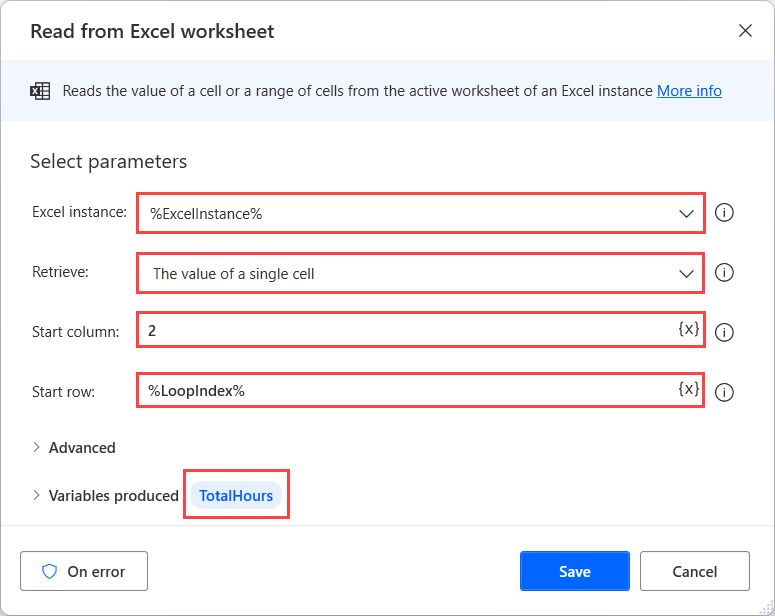
Under Actions, search for read from excel. You can either double-click Read from Excel worksheet or drag and drop it between Loop and End.
The action reads the cell that contains the current employee's total working hours.
Note
In Variables produced, double-click ExcelData and change the text to TotalHours.
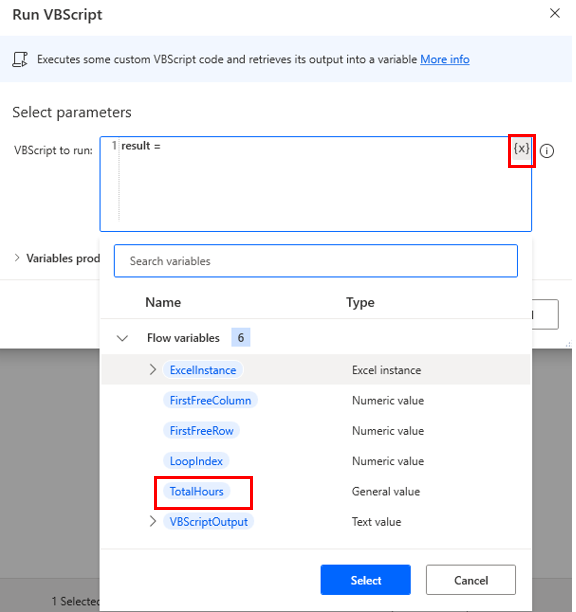
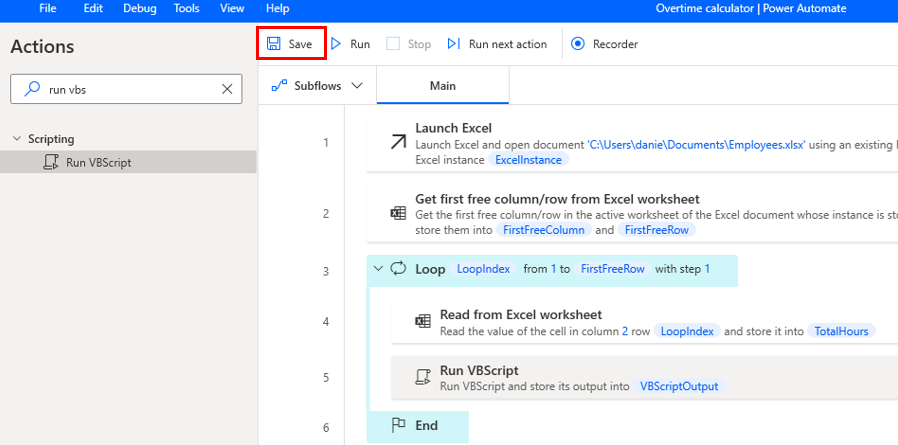
Under Actions, search for run vbs and drag and drop Run VBScript below Read from Excel worksheet.
In VBScript to run, type result=, select the {X}, and select TotalHours. Then select Save.
Complete the rest of the script as shown in the following image.
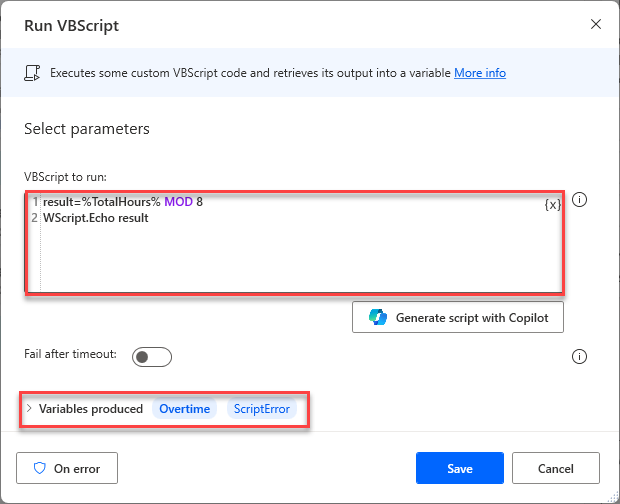
Save the flow you built so far.
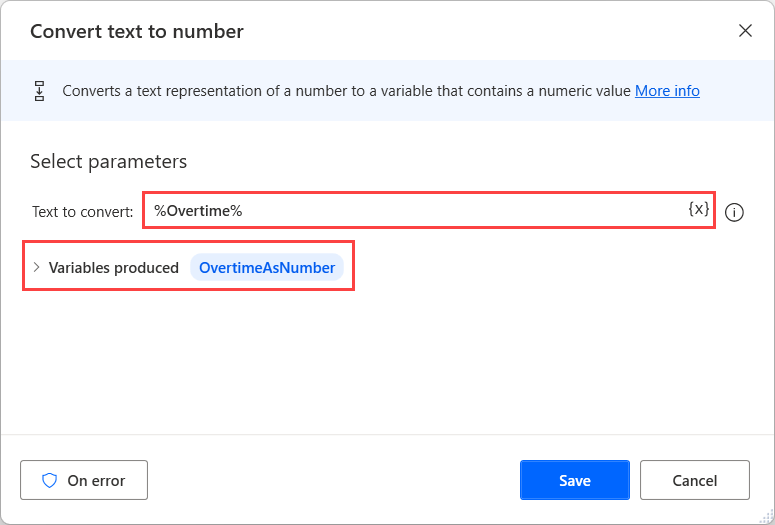
The return value of the Run VBScript action is a text value. Use a Convert text to number action to convert it to a number.
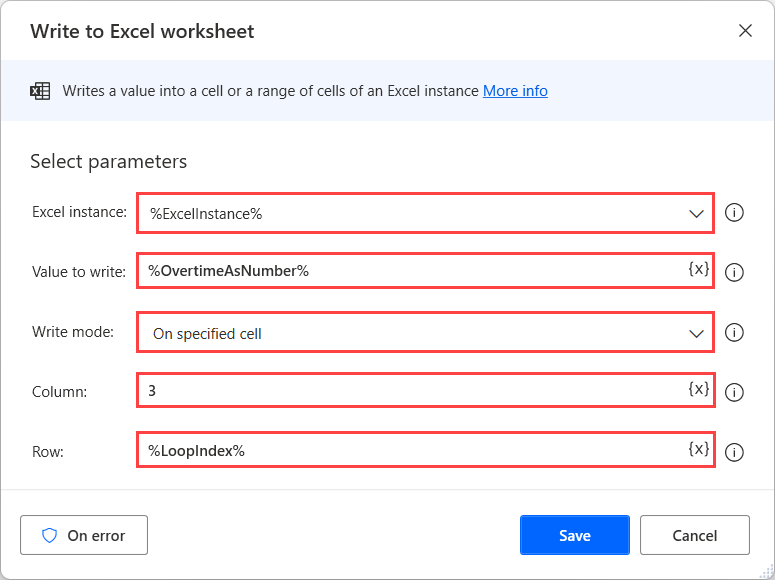
Use a Write to Excel worksheet action to write the numerical value in the current row's third cell.
Outside the loop, add a Close Excel action to save and close the file.
Save the flow and then run it to test that every action works as expected.