Apply AI-based upscaling and vintage effects
Objective:
Use Microsoft Clipchamp to enhance the visual style of an animation clip by applying manual adjustments and aesthetic effects.
Materials needed:
- Laptop or desktop computer with internet access
- Microsoft Clipchamp access
- An animation clip created in a previous module or session
Step-by-step instructions
1. Import your animation clip
Open Clipchamp and start a new video project.
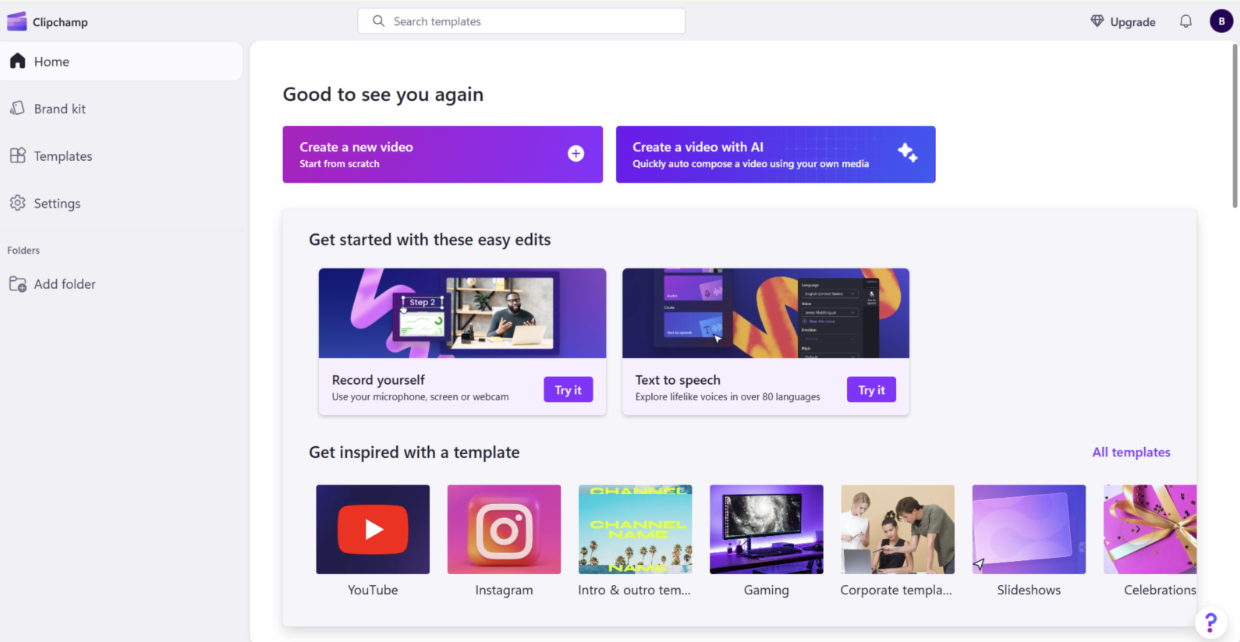
Upload the animation clip you created in a previous activity, such as a storyboarded or smoothed sequence.
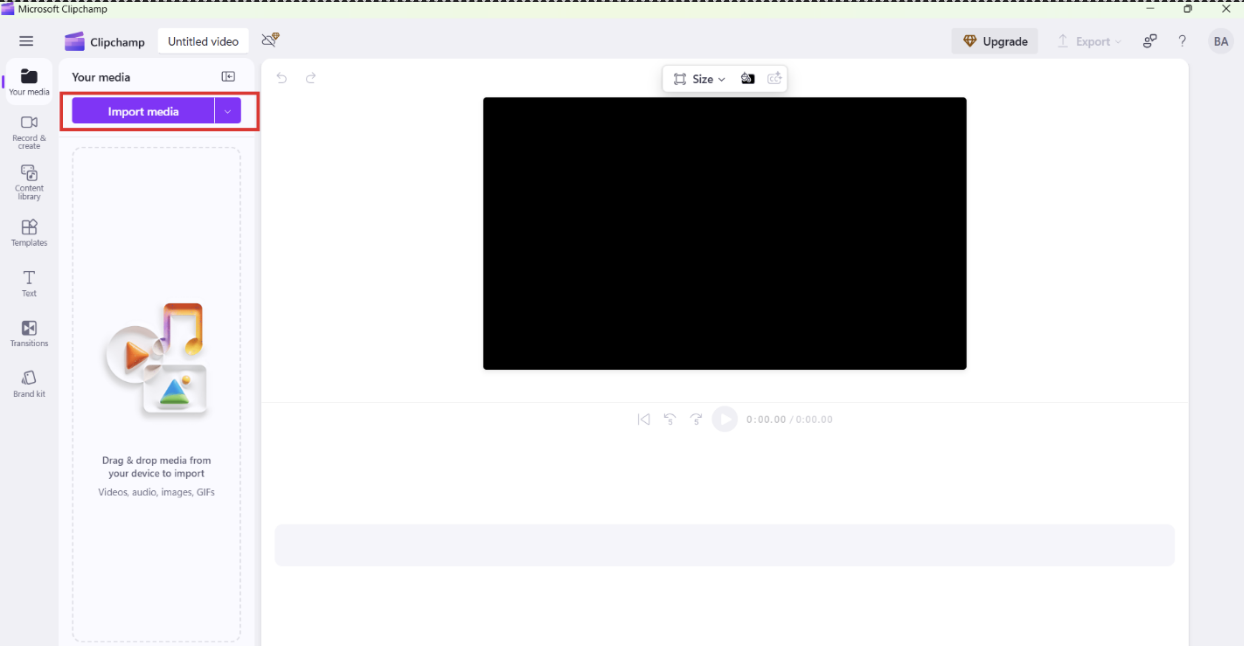
2. Apply vintage or stylistic effects
Explore Clipchamp's effects panel for retro, cinematic, or custom looks.
Apply filters such as grain, sepia, glitch, or VHS overlays to stylize your animation.
Adjust the intensity and layering of effects to match the tone and emotion of the scene.
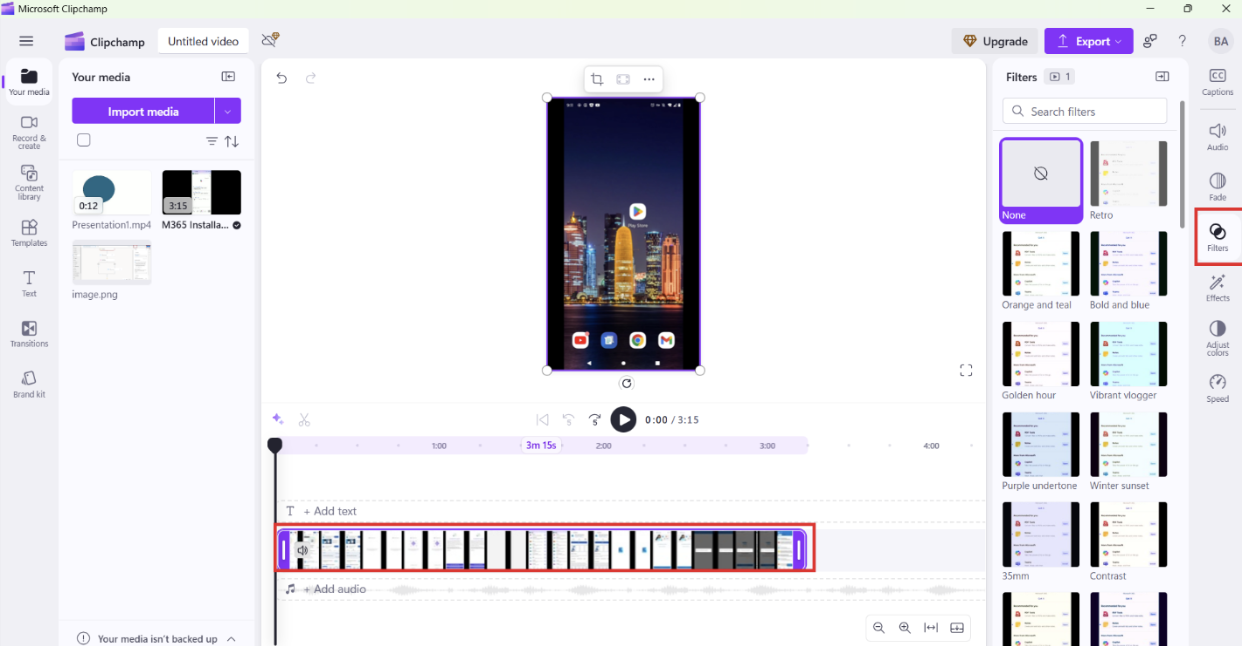
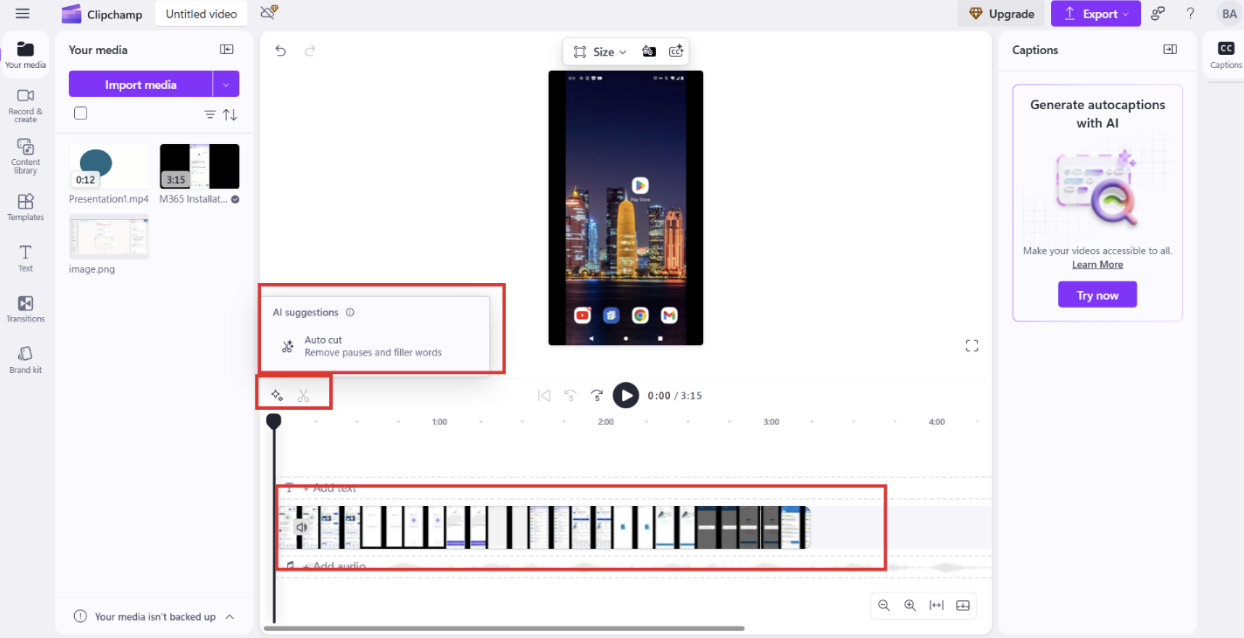
3. Fine-tune and sync elements
Make manual adjustments to brightness, contrast, and saturation for a consistent visual style.
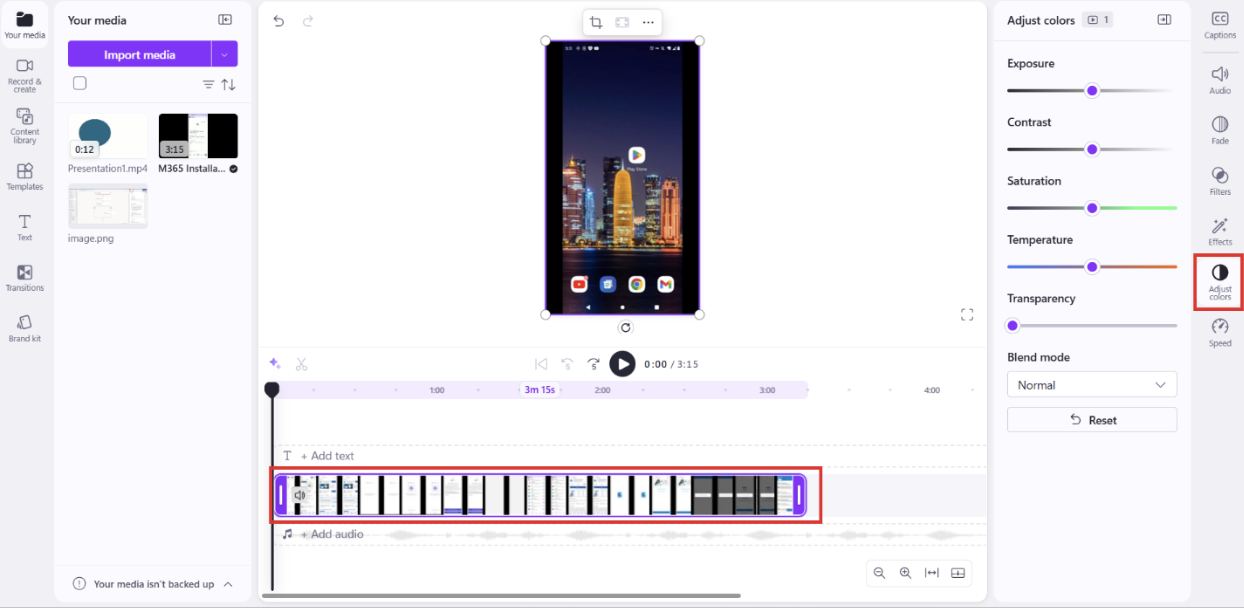
Align all text overlays and transitions on the timeline to ensure clean, intentional pacing.
Use snapping tools to sync visuals with key audio or scene changes.
4. Export in high resolution
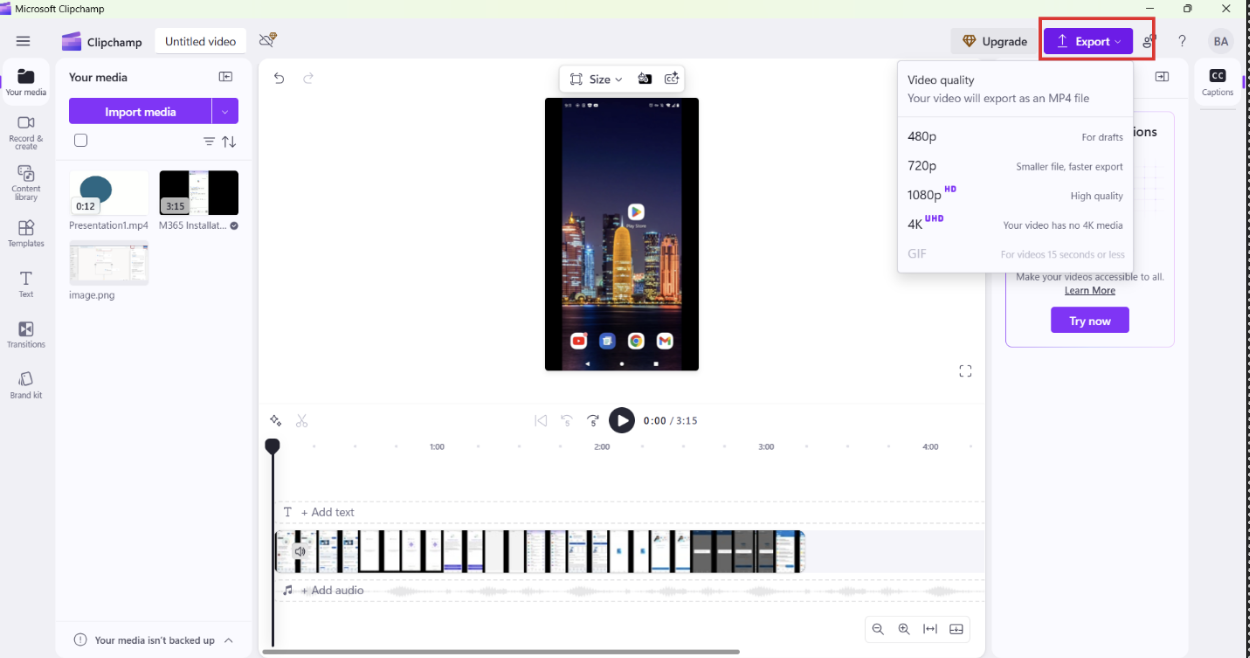
Choose an export resolution based on your intended audience or platform:
- 1080p for general sharing
- 4K for professional presentations
Export your video and preview the final output to check quality.
5. Review and reflect
- Watch the final video and compare it with the original animation.
- Share your clip with a peer or small group and ask for feedback.
- Reflect on how the enhancements affect tone, mood, and storytelling impact.
Expected outcome
Learners apply stylized enhancements to a previously created animation clip, showing how post-production effects add polish, character, and narrative depth to animated projects.