Exercise - Work with profiles
In this exercise, you use profiles to create, manage, and switch between VS Code configurations. You also learn how to use profiles to share your configurations with others. You create a custom profile specifically for working remotely with the Remote - SSH extension.
Create a new profile
Open VS Code.
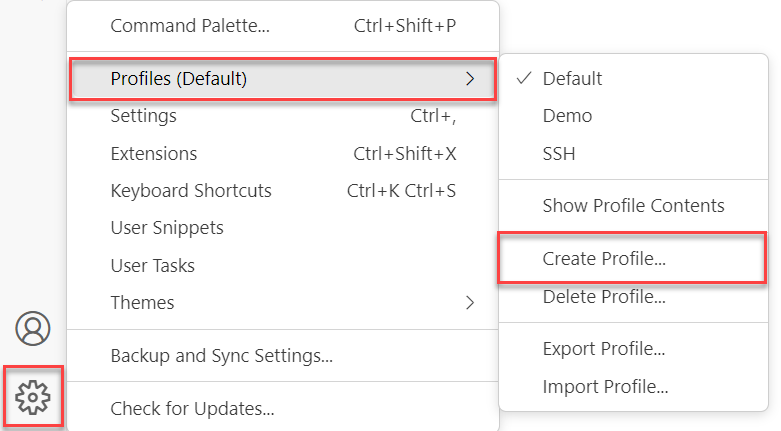
Select the gear icon in the lower-left corner of the window to open the Manage menu.
Hover over the Profiles (Default) menu command.
Select Create Profile.
Name the profile Remote SSH.
Leave Copy from set to None.
Select the gear icon to change the icon for the profile. You can choose any icon that you like.
Accept the defaults for all other options.
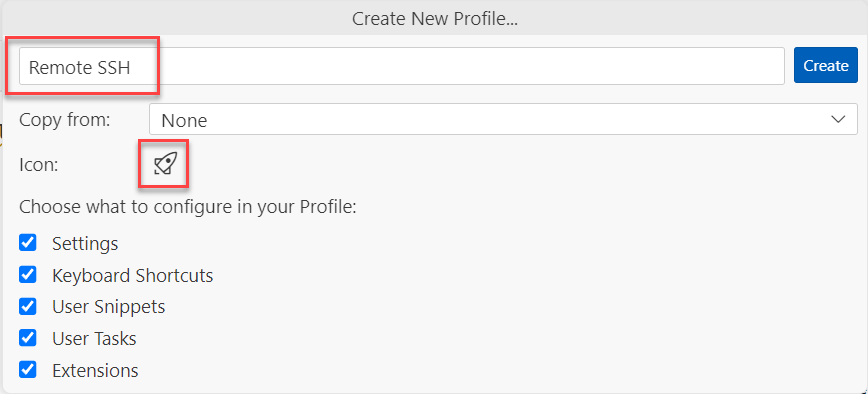
Select Create.
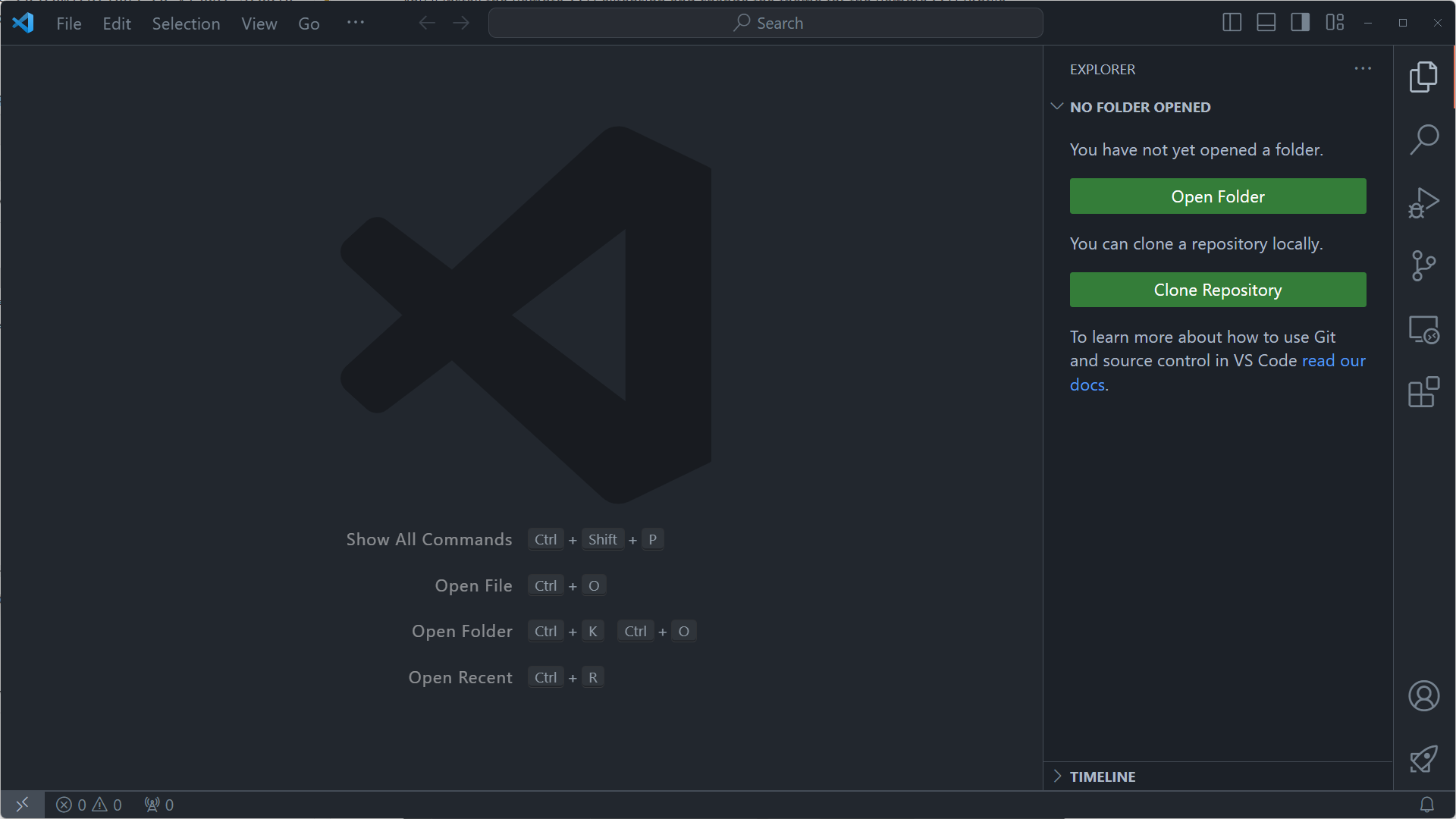
Observe how VS Code undergoes a reload. It gives the impression of a fresh installation because it's devoid of any extensions and displays the default dark theme. If you made customizations to VS Code, rest assured that they remain intact. You can revert to your default profile whenever you want.
Configure the profile
Install the Remote - SSH extension and change the theme for the Remote SSH profile.
Install the Remote - SSH extension
- On the left navigation bar (Activity Bar), select the Extensions icon.
- Search for Remote SSH.
- On the Remote - SSH extension, select Install.
Change the theme
- On the Activity Bar, select the Extensions icon.
- Search for GitHub.
- Select Install.
- Select the GitHub Dark Dimmed theme.
Increase the zoom
- Open the user settings by using Ctrl+Comma or Cmd+Comma.
- In the search box, enter zoom.
- Set Window: Zoom Level to 3.
- Close the Settings tab.
Move the sidebar to the right
Open the Command Palette and select Toggle Primary Sidebar Position.
The sidebar for your editor is now on the right side.
Export a profile
You can export profiles to share with others. You can also use this feature to back up your profiles.
Select the custom icon in the lower-right corner of the window to open the Manage menu.
Hover over the Profiles (Remote SSH) menu command.
Select Export Profile.
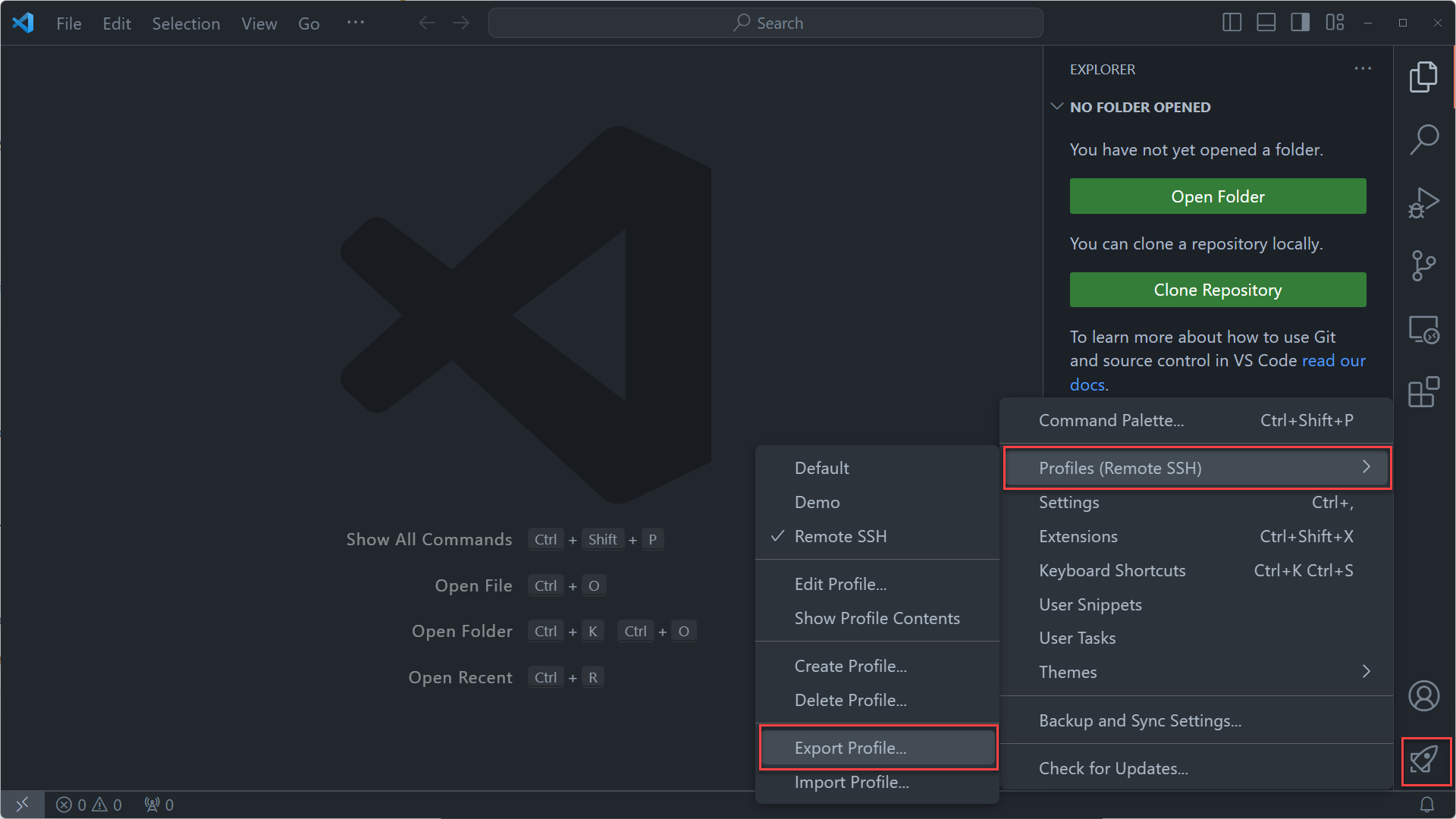
Accept all the default selections and select Export.
Select local.
Save the file as remote-ssh-profile in your Documents folder.
Delete a profile
- Select the gear icon (or the custom icon that you selected) in the lower-left corner of the window to open the Manage menu.
- Hover over the Profiles (Remote SSH) menu command.
- Select Delete Profile.
- Select Remote SSH.
- Select OK.
Your default profile is restored, and the Remote SSH profile is deleted.
Import a profile
You can share profiles with others by sending them the exported profile file. You can also use this feature to restore a profile from a backup.
Select the gear icon in the lower-left corner of the window to open the Manage menu.
Hover over the Profiles (Default) menu command.
Select Import Profile.
Choose Select file.
Select the remote-ssh-profile file that you exported earlier.
The profile is loaded into the VS Code sidebar, so you can select which items you want to import from the profile. In this case, you want to import everything.
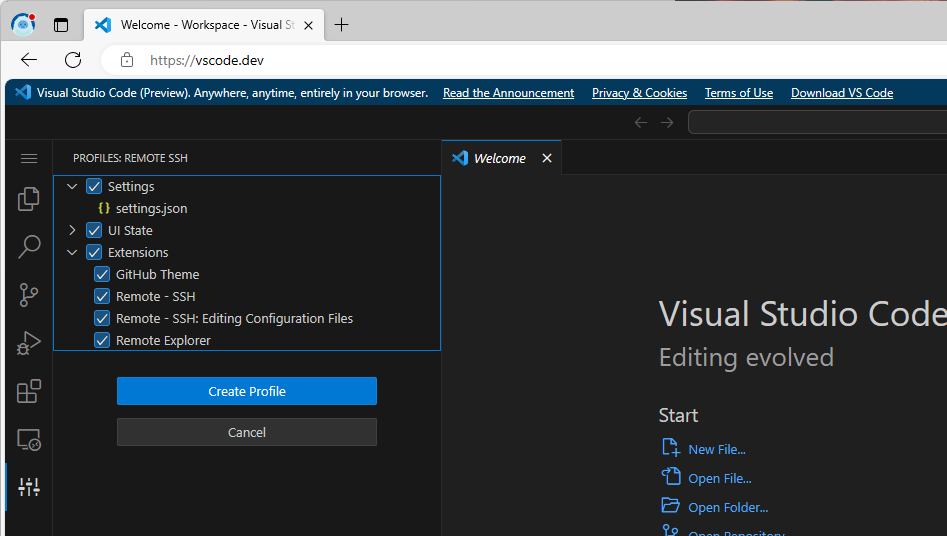
Select Create Profile.
Select Create.
VS Code imports the profile and applies it. The GitHub Dark Dimmed theme is now applied, and the sidebar is positioned on the right side of the editor (instead of the default left-side position). Under Extensions, the Remote - SSH extension is installed. The Remote - SSH: Editing Configuration Files and Remote Explorer extensions are installed along with the Remote - SSH extension.
In this exercise, you learned how to create, manage, and share profiles in VS Code. You also learned how to use profiles to share your configurations with others.
In the next section, you learn about Settings Sync, a feature that you can use to sync your settings across multiple machines.