AutoText categorization basics
AutoText categorization in PowerScribe One is the process of assigning procedure codes to AutoText so they appear in the appropriate clinical workflows. This categorization directly affects how templates are surfaced to users during report creation.
What categorization means
- Categorization is achieved by assigning procedure codes to an AutoText.
- These procedure codes define when and where the AutoText appears in your workflow.
Why categorization matters
- Improves template discovery by limiting results to relevant options.
- Supports automatic loading of default templates when a report starts.
- Aligns reporting workflows with standardized documentation practices.
Relationship to the Default Template dropdown
- The Default Template dropdown in the Report Editor displays AutoText entries that are assigned to the procedure associated with the report.
- Proper categorization ensures that:
- Relevant templates are available for selection.
- Default AutoText can be automatically applied for specific procedures.
- If an AutoText isn't categorized:
- It might not appear in the dropdown when expected.
- It might not be usable as a procedure-specific default.
Categorization compared to default AutoText
- Categorization by procedure codes determines availability when using relevant lists.
- Default AutoText settings determine automatic population.
Categorization methods
There are two primary ways to categorize an AutoText:
- AutoText Editor
- Use the Procedure Codes dialog to explicitly assign procedure codes.
- Report Editor with the Auto Categorize option
- Right-select an AutoText in the lower pane of the Report Editor.
- Select Auto Categorize to assign categorization based on the active report context.
Procedural guidance
Assign procedure codes by using the AutoText Editor
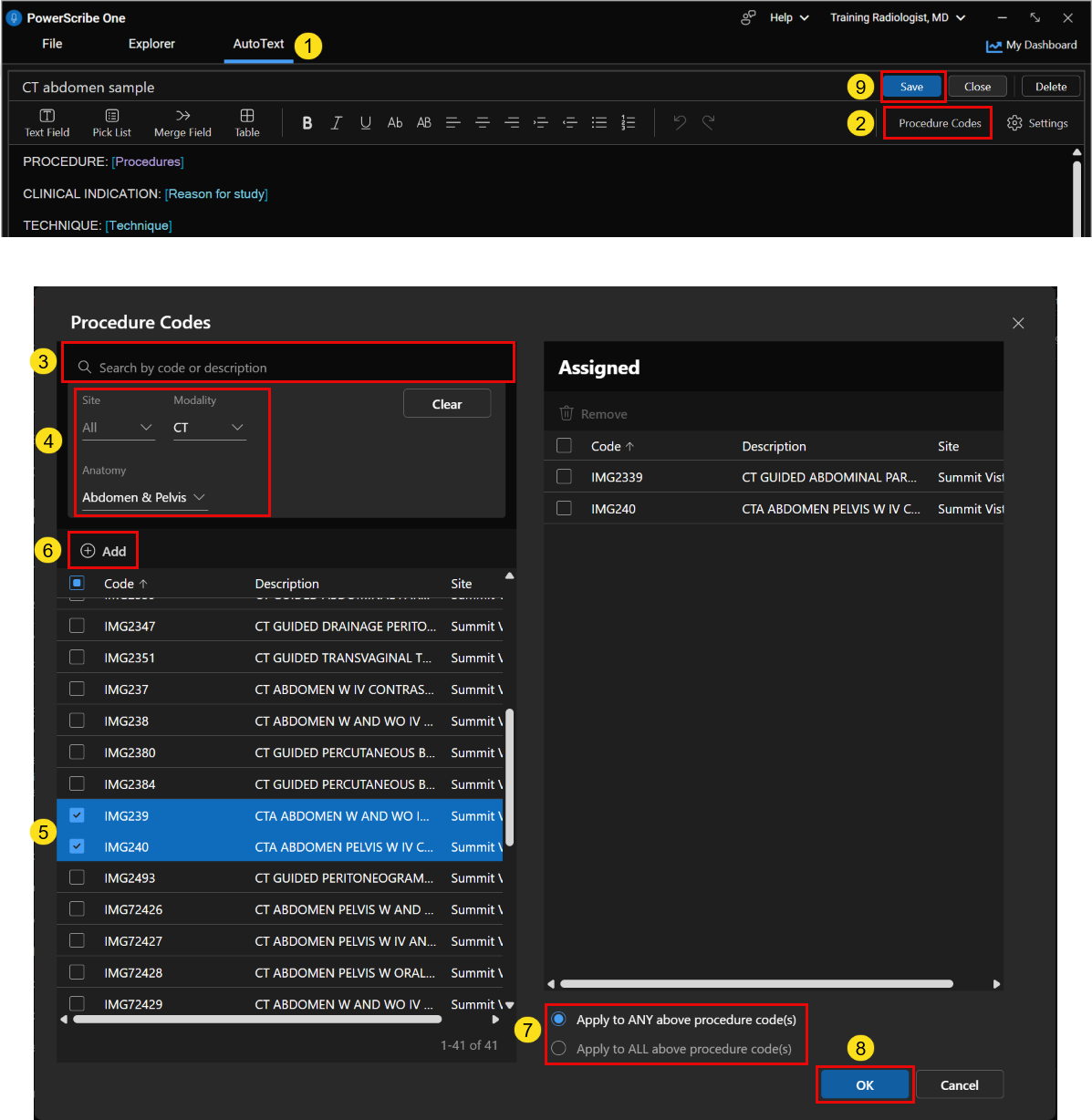
- Open the AutoText in the AutoText Editor.
- Select Procedure Codes.
- Search for a procedure code by code or description.
- Apply filters such as:
- Site
- Modality
- Anatomy
- Select one or more procedure codes from the results.
- Select Add to move them to the assigned list.
- Choose whether the AutoText applies to:
- ANY selected procedure codes: Applies when at least one associated procedure code is present.
- ALL selected procedure codes: Applies only when all associated procedure codes are present.
- Select OK.
- Select Save.
Best practice
- Always assign the appropriate procedure codes to ensure visibility within the correct workflows and to prevent irrelevant AutoText from appearing.
Auto Categorize from the Report Editor
- Open a report in the Report Editor.
- Locate the AutoText in the lower pane search results.
- Right-select the AutoText.
- Select Auto Categorize.
Result:
- The system assigns categorization based on the current report's procedure context.
Validate categorization behavior
- Start or open a report associated with the intended procedure.
- Open the Default Template dropdown.
- Confirm that the AutoText appears in the available list.
Decision point:
- If the AutoText doesn't appear, review or update the procedure code assignments and AutoText Type from the AutoText Editor.
Optimize categorization
- Use structured categorization for standardized workflows.
- Use Auto Categorize for quick alignment during report creation.
- Avoid over-categorizing templates to unrelated procedures.
- Review procedure assignments regularly to maintain accuracy.
Accessibility and usability notes
- Use precise procedure code filters to avoid incorrect categorization.
- Avoid assigning unrelated procedures, which might surface inaccurate AutoText in the search results during reporting.
- Validate templates in real workflows to confirm visibility.
- Use consistent naming conventions for easier identification in dropdowns.
- Use Auto Categorize carefully, and verify results before relying on it in production workflows.