Use nested AutoText
Nesting AutoText means placing one AutoText inside another AutoText. This approach lets you build templates by using reusable components instead of repeating the same content across multiple templates.
How nesting works
- A template AutoText can include references to other AutoText, often templates or modules.
- These nested elements are managed independently as a single source. Updates made to the source template are reflected wherever that template is nested, which streamlines content management.
- Nested AutoText help create structured, consistent reports by using shared building blocks.
Why nesting is important
- Supports standardization across reports
- Reduces duplication when you update shared content
- Improves template maintainability
- Enables modular design so you can edit one module and update many templates
System behavior
- When you insert or load a template, all nested AutoText are included as part of the template output.
- Nested AutoText are managed centrally, so changes to a nested component affect all templates that reference it.
- Nested content appears as a block element in the AutoText where it's referenced.
Procedural guidance
Use the following steps to create and use nested AutoText.
Create a nested AutoText structure
- Create or identify a reusable AutoText.
- For example, a standard findings section or measurement table.
- Save the AutoText with clear naming that reflects its purpose.
- Open the parent template in the AutoText Editor.
Insert a nested AutoText into a template
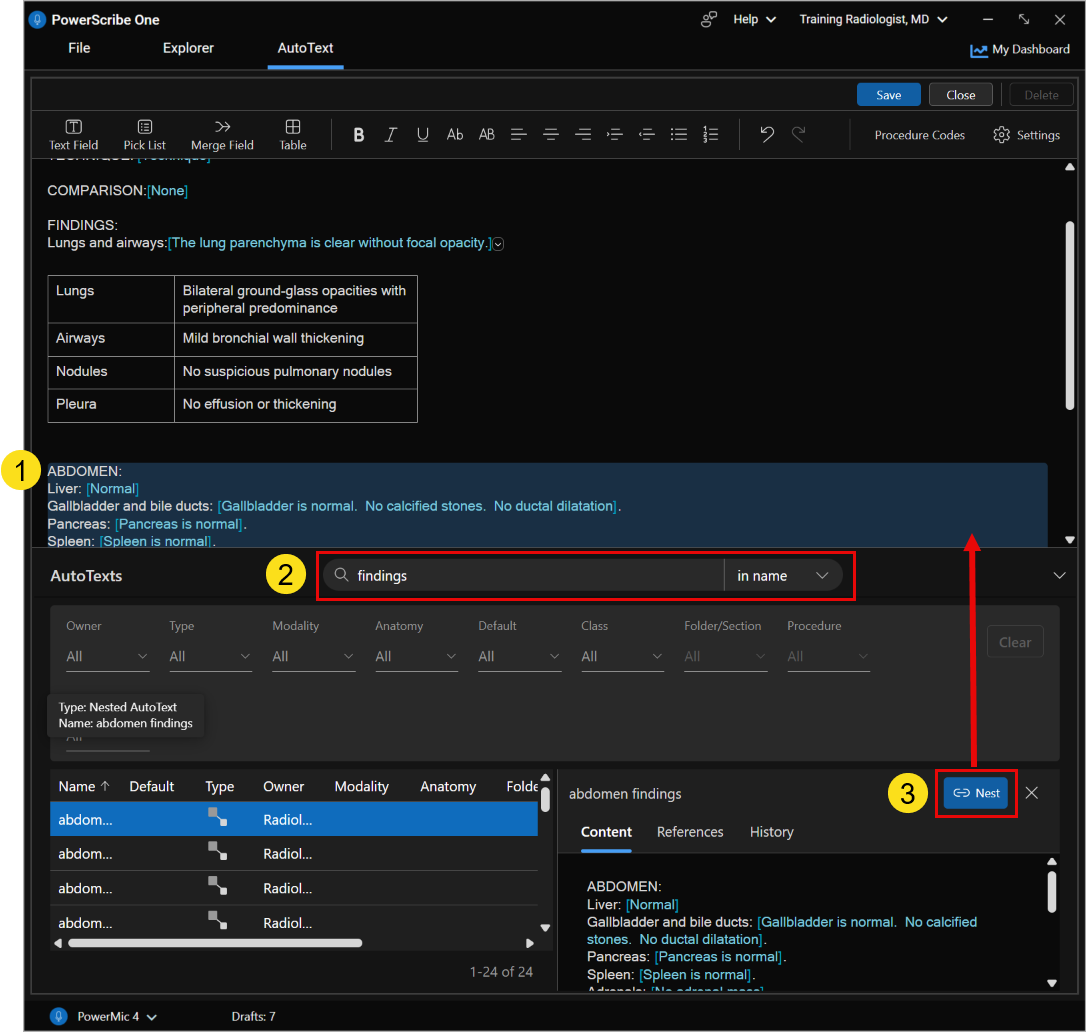
- Position the cursor where you want the nested content to appear.
- Locate the AutoText that you want to nest in the lower pane.
- Select Nest.
- Repeat as needed to build the desired structure.
Tip
You can nest modules in Pick List as well.
Decision points
Use nesting when:
- Multiple templates share the same content.
- You need consistent sections across reports.
- You want to manage content and formatting from a single source.
Avoid nesting when:
- The content is unique to a single template.
- The added complexity doesn't improve reuse.
Best practice
- Coordinate changes to shared modules to avoid unintended impacts across templates.
Applied scenario
You're building templates for CT body imaging studies.
Instead of creating separate full templates for each variation, you:
- Create reusable modules for:
- Technique
- Dose
- Body-part-specific sections
- Nest those modules within multiple parent templates.
- Update the nested modules if reporting standards or structure change.
All templates that use the nested content automatically reflect updates, which reduces manual changes and improves consistency.