Clone and edit existing AutoText
Clone and modify an existing AutoText in PowerScribe One to efficiently create personalized report templates without starting from scratch.
Why clone AutoText?
Cloning uses an existing AutoText as a starting point while preserving its structure, default content, fields, and formatting. This approach reduces build time and supports consistency across reporting workflows.
Cloning and editing
| Action | What it does | Use it when |
|---|---|---|
| Cloning | Creates a new AutoText based on an existing personal, site, or other user's AutoText. | You need a variation of a template. You want to preserve the original AutoText. You're adapting content from another user or site. |
| Editing | Modifies an existing AutoText. | You want to edit the content of an existing AutoText. The change should apply to all users of that AutoText. You're correcting or improving a shared standard. |
AutoText structure and dependencies
AutoTexts can include:
- Text fields, Pick Lists, and merge fields.
- Nested AutoTexts, where modules are referenced within templates.
- Procedure code associations and default behavior.
Because other templates can reference modules, changes to a shared AutoText can affect multiple workflows. Use the **AutoText Preview pane to review references and change history and assess downstream effects.
Procedural guidance
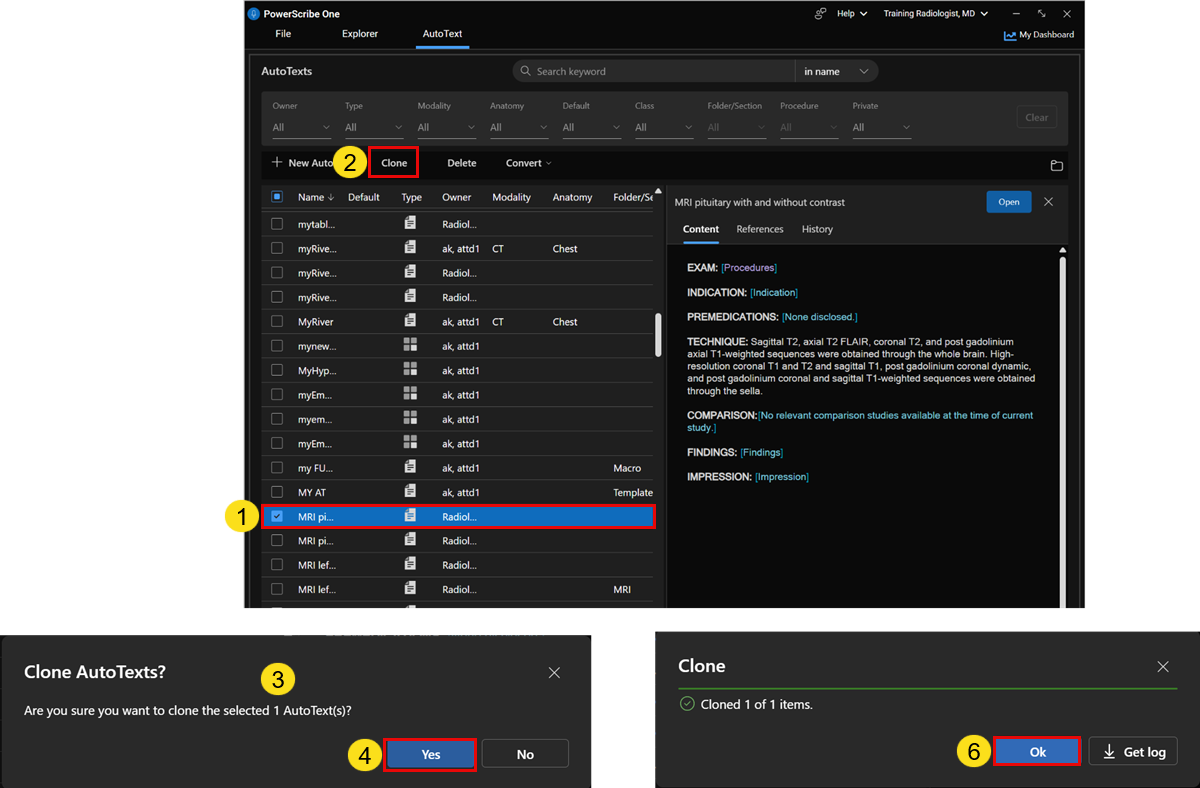
In the AutoText Manager, search for and select one or more AutoTexts.
To select an AutoText, select the checkbox to the left of its name.
Select Clone above the column header.
In the Clone AutoText dialog box, confirm the number of AutoText to clone.
Select Yes to proceed.
If prompted, choose whether to keep or remove the default attribute.
In the success dialog box, review the confirmation message and select Ok.
The cloned AutoText opens in the AutoText Editor.
Tip
If you clone an AutoText that shares a name with an existing AutoText, the cloned AutoText gets a numerical extension.
Best practices for cloning and editing
- Clone before making major changes to shared templates.
- Use clear naming to distinguish original and modified versions, such as CT abdomen normal update.
- Review and update default values as needed.
- Remove or update outdated fields when cloning older templates.
- Test AutoText in a report to validate insertion and field behavior.
- Use copy and paste when appropriate, noting that pasted content retains field settings.
Applied scenario
You frequently use a shared chest CT template, but a new protocol requires more structured findings.
Instead of modifying the shared template, you:
- Clone the existing CT chest standard AutoText.
- Rename it CT chest extended protocol.
- Add new structured fields for more findings.
- Update procedure code associations for the new protocol.
This approach preserves the original template while enabling a tailored workflow for specific clinical use cases.
Accessibility and usability notes
- Use descriptive names to distinguish cloned templates from originals.
- Keep field labels clear to support consistent data entry.
- Avoid unnecessary duplication and reuse structured elements where possible.
- Ensure formatting supports readability for long reports.
- Review nested AutoTexts to avoid confusion or unintended duplication.
- Validate templates after editing to reduce downstream reporting errors.