Clinical guidance
Clinical Guidance is a real-time, interactive feature that helps you insert evidence-based findings, impressions, and Follow-up Recommendations into your reports. It provides guidelines for specific clinical findings, such as pulmonary nodules, liver lesions, adnexal masses, and thyroid nodules.
Use Clinical Guidance when you want consistent guideline-based wording and recommendations aligned to established best practices for follow-up care.
Access Clinical Guidance
In the reporting workflow, you primarily access Clinical Guidance from the Report Editor by using these entry points:
- Voice commands (for example, Launch Clinical Guidance or Activate Guidance)
- The Tools menu in the Report Editor
- The Smart Assist pane (right pane) when alerts/considerations are enabled
Clinical Guidance can also start contextually. If you dictate findings that match a guideline, use Activate Guidance to open relevant guidance.
Access and visibility depend on configuration:
- A PowerScribe One administrator installs and configures the guidelines available to you in the Report Editor. If a guideline isn't installed, it doesn't appear in your list.
- Clinical Guidance alerts for Smart Assist must be enabled in Preferences to surface Clinical Guidance considerations in Smart Assist.
Clinical Guidance provides guideline-based text to support reporting, but you're responsible for reviewing and adjusting final report content for the clinical scenario.
Use Clinical Guidance in your workflow
- Open a report and dictate findings in the Report Editor.
- Review any alerts in the Navigator pane or right pane (Smart Assist considerations).
- Say Activate Guidance to automatically open relevant guidance based on your dictated findings. Alternatively, say Launch Clinical Guidance and then select the appropriate guideline from the list.
Note
You can filter the list by selecting Show relevant guidance only. This filter uses the current report's modality, patient age, and sex.
- Double-click a supporting resource icon to open the Clinical Guidance dialog box.
Note
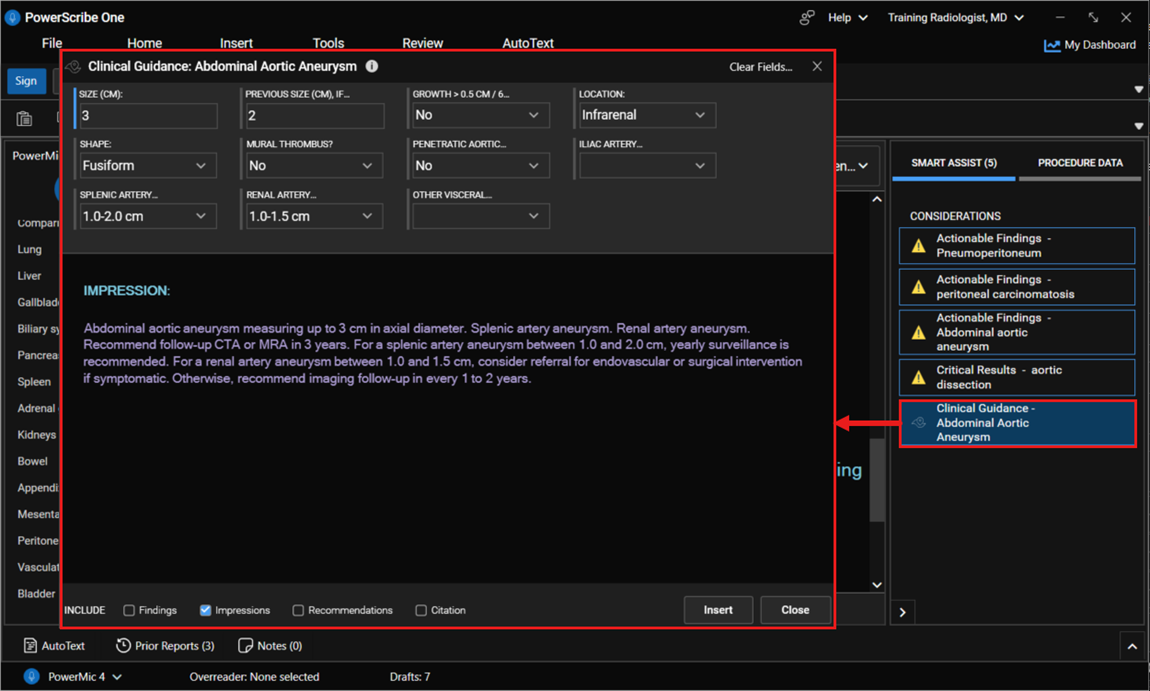
Complete fields marked with a blue bar to generate text.
- Enter values and make selections from the dropdown lists.
- If you dictated relevant findings, Clinical Guidance automatically populates applicable fields.
- Choose whether to include Findings, Impression, Recommendations, and Citations by selecting the appropriate checkboxes.
Note
Depending on your system configuration, Impression and Recommendation text may be combined.
- Select Insert and confirm that the generated text appears correctly in your report.
How Clinical Guidance inserts text
- Clinical Guidance inserts Findings text at the cursor location or replaces highlighted text.
- If an Impression heading exists, Clinical Guidance adds Impression text after the existing content in that section.
- If no Impression heading exists, Clinical Guidance adds Impression text near the end of the report, above the citation.
- Clinical Guidance inserts citation text at the bottom of the report.
Note
For best results, use Clinical Guidance with an AutoText template that contains section headings.
Edit Clinical Guidance text
After inserting guidance text, you can revise it by updating the guidance parameters.
- Right-click the guidance text in the report.
- Select Launch Guidance.
- Update values or selections in the Clinical Guidance window.
- Select Update to refresh the text in the report.
Tip
Edit parameters in the Clinical Guidance window rather than the report text directly.
Remove Clinical Guidance text
If you decide not to include Clinical Guidance text, right-click the guidance text in the report and then select Delete Guidance.
Tip
You can also select Delete from within the Clinical Guidance window.