Peer review
Peer Review is a built-in quality reporting feature that supports ongoing quality assurance and improvement in clinical interpretation. It can help radiology departments meet American College of Radiology (ACR) accreditation requirements.
You can use Peer Review as a standalone workflow, or your administrator can configure it to integrate with the ACR eRADPEER portal.
Types of Peer Review
Manual Peer Review
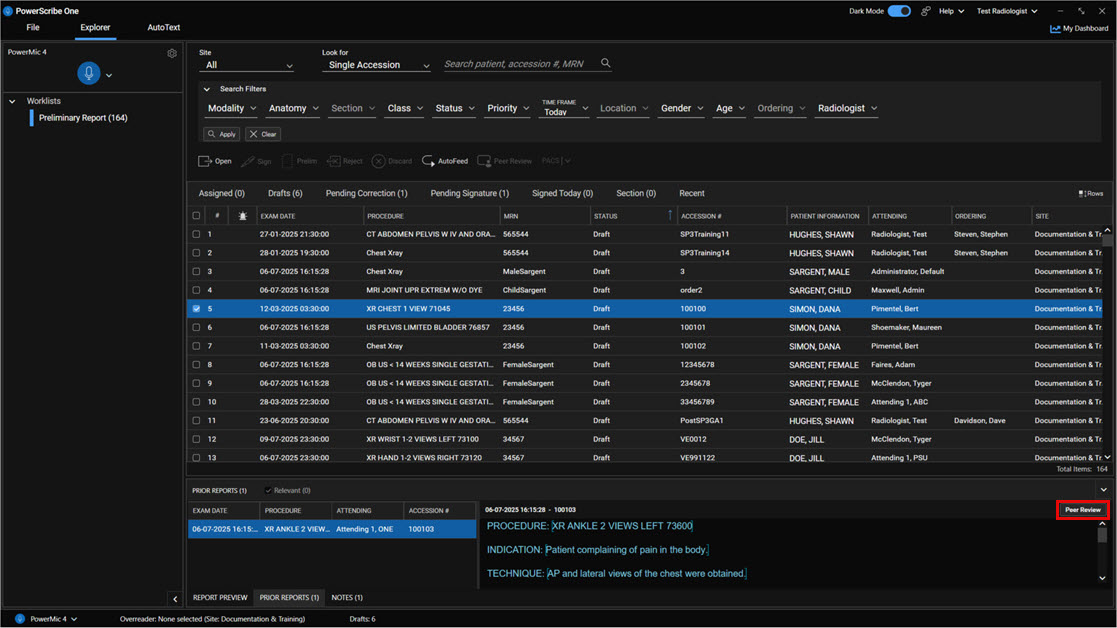
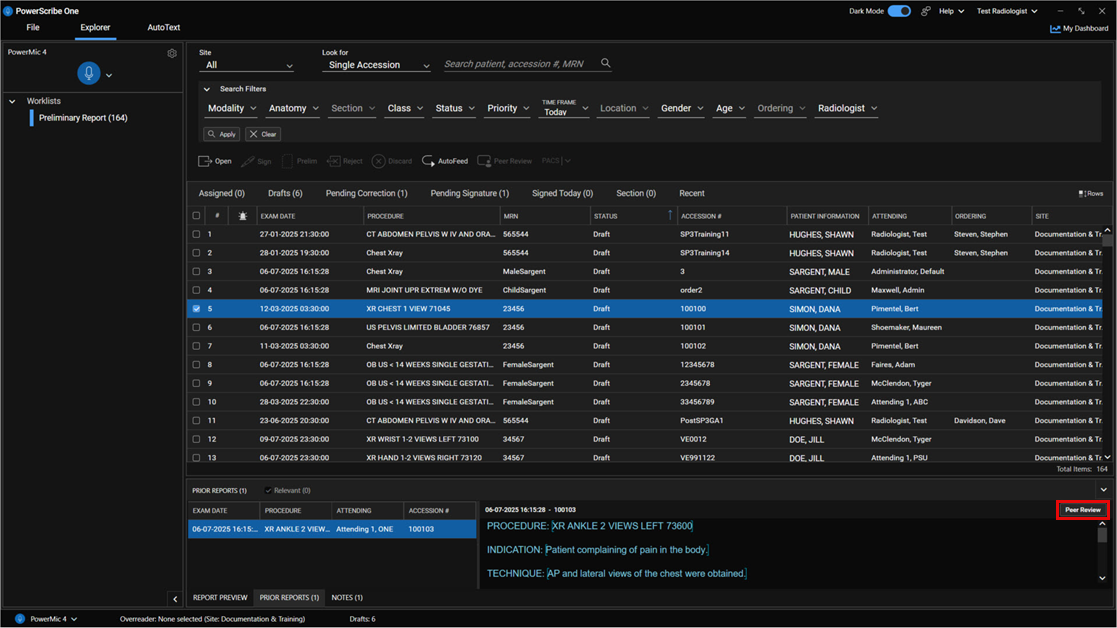
You can initiate a manual peer review of prior reports from either the Explorer screen or the Report Editor.
Start a Peer Review from the Explorer screen
- Check the box next to the exam you want to peer review in the results grid.
- Select Peer Review.
Start a Peer Review from the Report Editor
- With a report open, select the Prior Reports tab at the bottom of the screen.
- Review the prior report.
- Select Peer Review above the report preview.
Note
Peer Review is available only for reports that a different provider dictated. If your administrator configures the PACS integration, the PACS dropdown option lets you open images for the selected study in the integrated PACS system.
Automatic Peer Review
If your administrator configures it, PowerScribe One automatically prompts you to complete a peer review when all of the following conditions apply:
- A prior report exists for the same patient at the same site.
- The prior report has the same modality and anatomy, or a related modality or anatomy if an exact match isn't available.
- The site's Peer Review settings enable the modality.
- A different radiologist dictated and signed the prior report.
- The prior report isn't older than the site's maximum age setting for peer-reviewed reports (default is 12 years).
- No one has already peer reviewed the prior report.
Review, rate, and complete a Peer Review
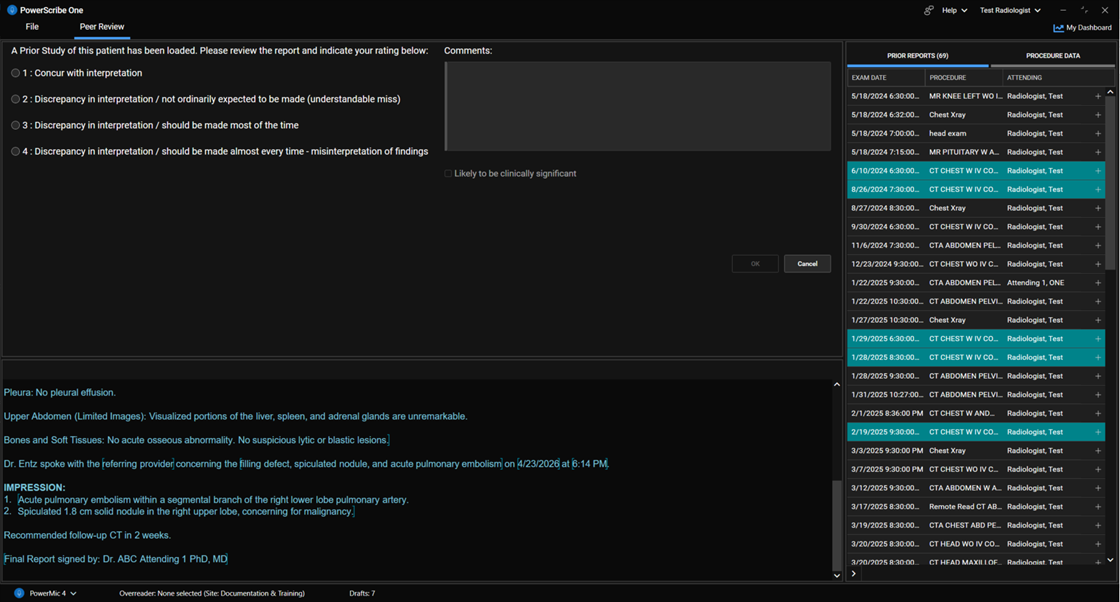
Review and rate the report
- Review the report content.
- Assign a rating from 1 to 3:
- 1 indicates you Concur with the interpretation.
- 3 indicates a Discrepancy in interpretation.
- Ratings 2 and 3 include an a or b designation:
- a indicates Unlikely to be clinically significant.
- b indicates Likely to be clinically significant. Select the Likely to be clinically significant checkbox when applicable.
Note
Administrators can customize the Peer Review rating scale and descriptions in the Admin Portal.
Complete the Peer Review
- Select the appropriate rating button.
- If your site configuration requires it, enter a brief explanation in the Comments field.
- Select OK to complete the Peer Review.
Applied scenario
You're finalizing a new report and PowerScribe One prompts you for an automatic peer review. You open the Peer Review panel, confirm the prior report is for the same patient and site and that a different radiologist signed it, and then review the interpretation.
You select a rating that matches your assessment. Because you believe the discrepancy is likely clinically significant, you select the Likely to be clinically significant checkbox and add a short comment (your site requires comments for some ratings). You select OK to complete the peer review.